Last updated: June 7, 2026
Quick Answer: Canva is a free, browser-based design tool that lets anyone create professional-quality graphics using drag-and-drop editing and thousands of pre-built templates. To get started, sign up at canva.com, pick a template for your project type (social media post, presentation, flyer, etc.), customize it with your own text, images, and colors, then download or share your finished design. No design experience is required.
Key Takeaways
- Canva offers a generous free plan with over 250,000 templates, and Canva Pro adds premium features starting at $12.99/month (as of 2026).
- You can create social media graphics, presentations, logos, videos, documents, and more from one platform.
- The drag-and-drop editor requires zero design skills to produce polished results.
- You can upload your own fonts, images, and brand assets for consistent branding.
- Canva’s Magic Resize feature lets you adapt one design to multiple platform sizes instantly (Pro feature).
- Exporting is straightforward: choose PNG for sharp images, JPG for smaller files, or PDF for print.
- Common beginner mistakes include overcrowding designs, using too many fonts, and ignoring alignment tools.
What Is Canva and How Do I Get Started?
Canva is an online graphic design platform founded in 2013 that now serves over 190 million monthly active users across 190 countries. It runs entirely in your browser (and as a mobile/desktop app), so there’s nothing to install.
Here’s how to get started in under five minutes:
- Go to canva.com and sign up with your Google account, email, or Facebook.
- Choose what you want to create. The homepage shows popular categories like Instagram Post, Presentation, Logo, and Video.
- Pick a template or start from a blank canvas. Templates are pre-designed layouts you can fully customize.
- Edit your design by clicking any element to change text, swap images, adjust colors, or move things around.
- Save and share. Canva auto-saves your work. When you’re done, hit the Share or Download button.
That’s the entire workflow. I remember the first time I opened Canva back in 2019 — I had a client presentation due in two hours and no budget for a designer. Within 30 minutes, I had a slide deck that looked like it came from a professional agency. That experience convinced me this tool was different.
For more Canva guides and tutorials, check out our Canva resource library.
Is Canva Free or Do I Need to Pay for a Subscription?
Canva’s free plan is genuinely useful, not a stripped-down trial. You get access to over 250,000 templates, 100+ design types, thousands of free photos and graphics, and 5 GB of cloud storage.
Canva Pro costs $12.99/month (or $119.99/year) and adds:
| Feature | Free Plan | Canva Pro |
|---|---|---|
| Templates | 250,000+ | 610,000+ |
| Cloud storage | 5 GB | 1 TB |
| Background remover | No | Yes |
| Magic Resize | No | Yes |
| Brand Kit (custom fonts, colors, logos) | Limited | Full |
| Premium stock photos/videos | No | Yes |
| Schedule social media posts | No | Yes |
Choose Free if you’re a casual user making occasional social posts or school projects. Choose Pro if you create designs regularly, need brand consistency, or want access to premium stock assets. There’s also Canva for Teams at $14.99/month per person for collaborative workflows.
Can I Use Canva If I Have No Design Experience?
Absolutely. Canva was built specifically for non-designers. The entire interface uses drag-and-drop editing, which means you click elements, move them where you want, and type your own text over pre-styled layouts.
You don’t need to understand color theory, typography rules, or composition. The templates handle that for you. Every template was created by professional designers, so the spacing, font pairings, and color palettes already work well together.
A common mistake beginners make is ignoring templates entirely and starting from scratch. Unless you have design training, start with a template and modify it. You’ll get better results in less time.
If you’re interested in how AI can further speed up your design process, see our guide on crafting visuals with Canva’s AI tools.
What Kind of Designs Can I Create in Canva?
Canva supports over 100 design types. Here are the most popular categories:
- Social media: Instagram posts, Stories, Facebook covers, LinkedIn banners, Pinterest pins, TikTok videos
- Marketing: Flyers, brochures, posters, business cards, email headers
- Presentations: Slide decks with animations and speaker notes
- Documents: Resumes, reports, letterheads, invoices
- Video: Short-form video editing with text overlays, transitions, and music
- Print products: Canva Print lets you order physical items like business cards and invitations directly
You can also create professional logos from scratch and design email templates within the platform.
How to Make Social Media Graphics in Canva Step by Step
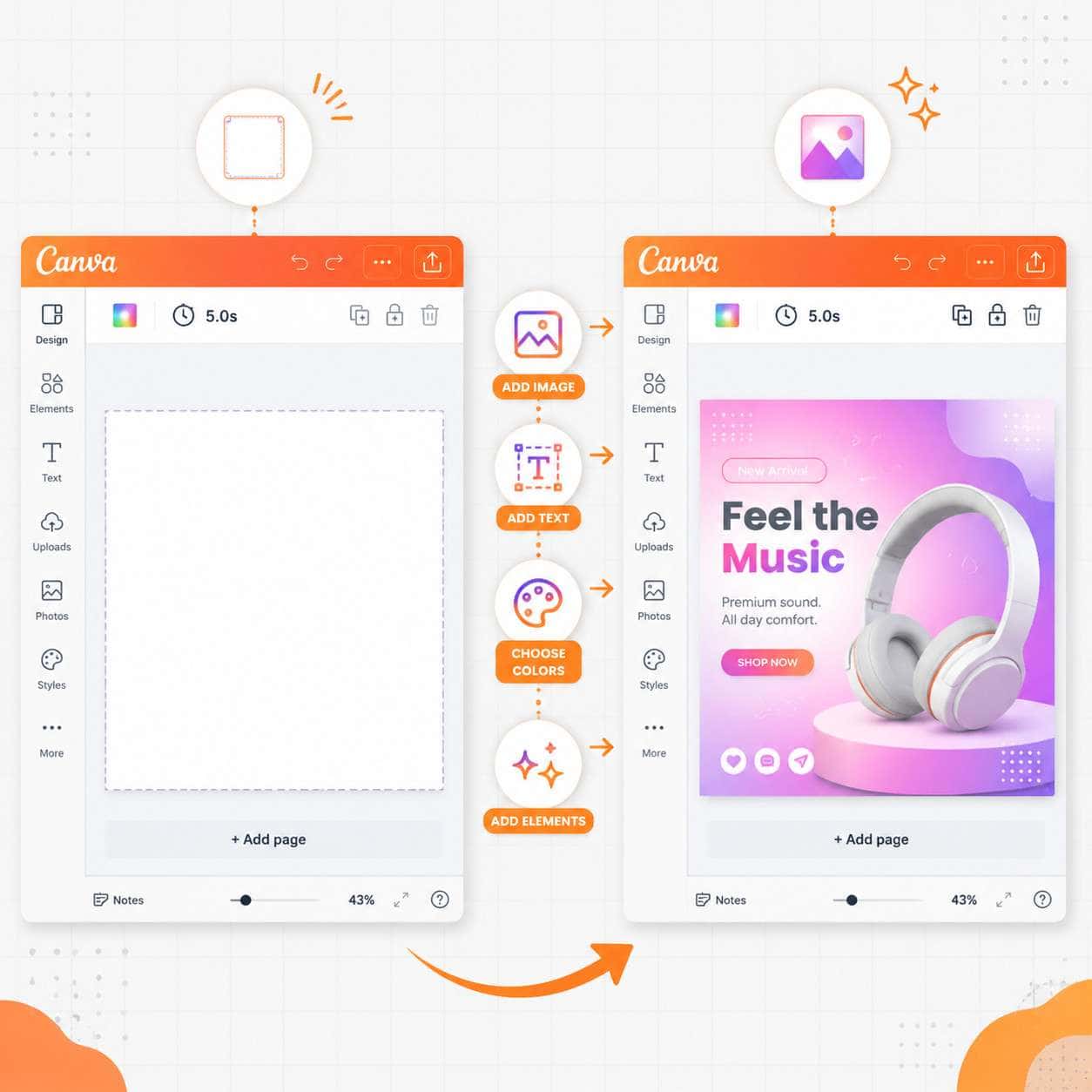
Creating a social media graphic takes about five to ten minutes once you know the process. Here’s exactly how to use Canva for social media content:
- Click “Create a design” and select your platform (e.g., Instagram Post, which auto-sets the canvas to 1080 x 1080 pixels).
- Browse templates in the left panel. Use the search bar to filter by style or topic (e.g., “sale,” “motivational,” “food”).
- Click a template to apply it to your canvas.
- Replace the text. Double-click any text block and type your own copy. Adjust font size if needed.
- Swap images. Click the existing image, then drag a new one from the Photos tab or upload your own.
- Adjust colors. Click any colored element and use the color picker to match your brand palette.
- Add elements. Use the Elements tab to add icons, shapes, lines, or stickers.
- Review alignment. Use Canva’s built-in guides (purple lines that appear when elements align) to keep things tidy.
- Download or schedule. Hit Share, then Download as PNG for the best quality.
For carousel-style posts, our guide on creating engaging Canva carousel designs walks through the multi-page workflow.
What Templates Work Best for Instagram Posts?
For Instagram specifically, minimalist templates with bold typography and a single focal image tend to perform best. Canva’s “Instagram Post” category includes thousands of options, but focus on these styles depending on your goal:
- Quote posts: Large text on a solid or gradient background. Great for engagement.
- Product showcases: Clean layouts with one product image and minimal text.
- Carousel educational posts: Multi-slide templates for tips, tutorials, or listicles.
- Story templates: Vertical 1080 x 1920 formats with interactive-style elements.
Pro tip: Stick to two fonts maximum per design and leave enough white space so the post doesn’t look cluttered on a small phone screen.
For Story-specific designs, see our detailed walkthrough on creating Instagram Story templates in Canva.
How to Resize Designs for Different Social Platforms
Canva Pro’s Magic Resize feature lets you take one design and instantly reformat it for different platforms. For example, you can turn an Instagram post (1080 x 1080) into a Facebook cover (820 x 312), Pinterest pin (1000 x 1500), and LinkedIn banner (1584 x 396) with one click.
Steps to resize:
- Open your finished design.
- Click Resize in the top menu bar.
- Check the boxes for your target formats.
- Click Copy & Resize. Canva creates separate copies for each size.
- Adjust any elements that shifted during the resize.
If you’re on the free plan, you’ll need to manually create new designs at each size. Write down the dimensions you need, create a custom-size canvas, and rebuild the layout. It takes longer but works fine for occasional use.
Can I Use My Own Fonts and Images in Canva?
Yes. You can upload custom fonts, images, videos, and audio files directly to Canva.
- Images and videos: Click the Uploads tab in the left panel and drag files from your computer. Supported formats include JPG, PNG, SVG, MP4, and GIF.
- Custom fonts: Available on Canva Pro and Canva for Teams. Go to Brand Kit, click “Upload a font,” and add your .TTF or .OTF files.
- Brand Kit: Pro users can save brand colors, logos, and fonts in one place so every team member stays consistent.
Edge case: If you’re on the free plan and need a specific font, check whether Canva’s library (which includes hundreds of Google Fonts) already has it before upgrading.
Common Mistakes Beginners Make When Using Canva
After years of using Canva and teaching others how to use Canva, I see the same errors repeatedly:
- Too many fonts. Stick to two, maybe three at most. One for headings, one for body text.
- Overcrowded layouts. White space is your friend. If a design feels busy, remove elements rather than adding more.
- Ignoring alignment. Canva shows purple guide lines when elements snap into alignment. Use them. Misaligned text and images look amateur instantly.
- Low-resolution uploads. If you upload a small image and stretch it, it’ll look blurry. Use images at least 1000 pixels wide.
- Using default template text. Always replace every piece of placeholder text. I once saw someone post a flyer that still said “Your Company Name Here.”
- Skipping the grid/frame tools. Frames let you crop images into shapes cleanly. Grids create structured multi-image layouts. Both are in the Elements tab.
How to Download and Export Designs From Canva
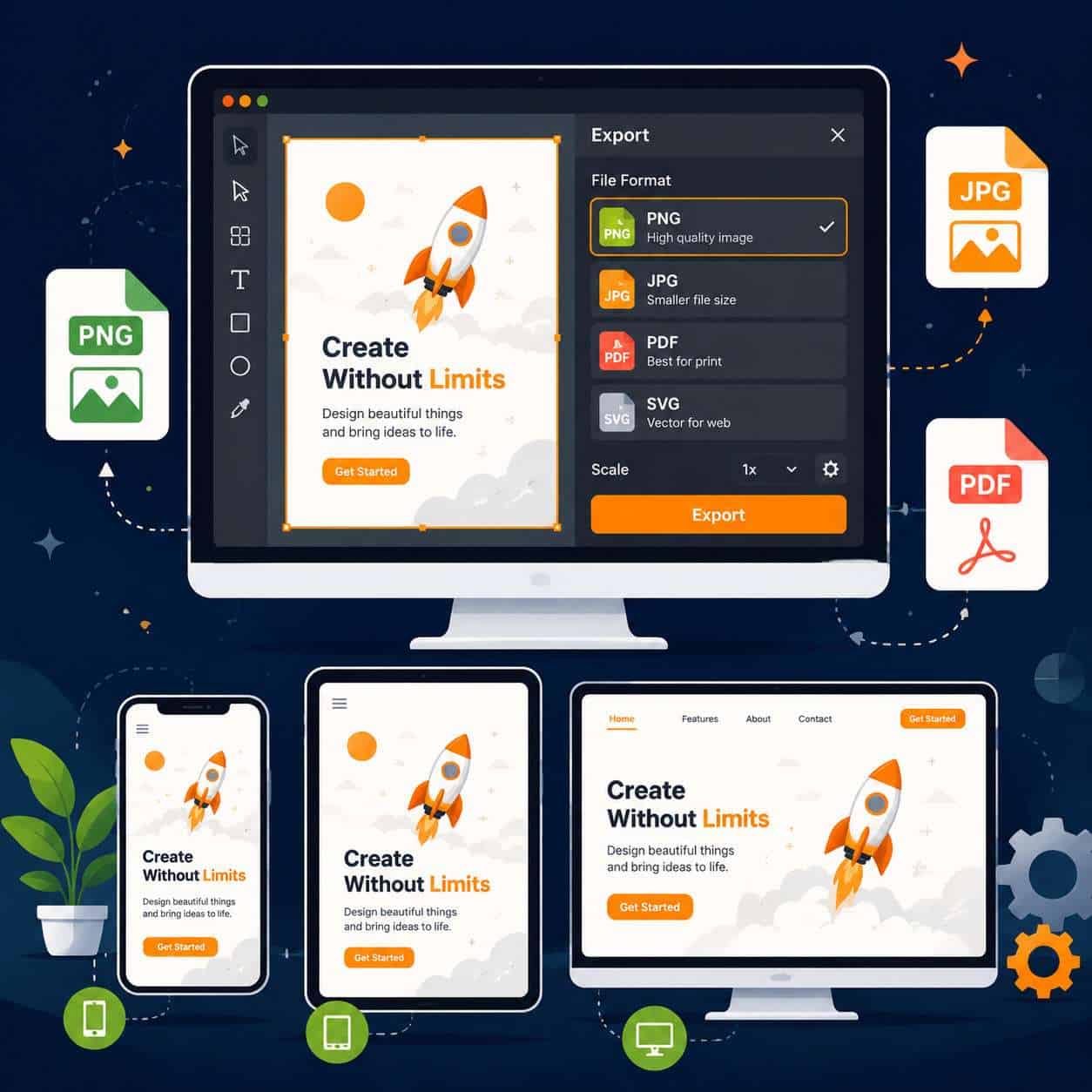
Click the Share button in the top-right corner, then select Download. You’ll see these format options:
- PNG: Best for social media and web graphics. Supports transparency (Pro only).
- JPG: Smaller file size, good for photos and email attachments. No transparency.
- PDF Standard: Good for digital documents and presentations.
- PDF Print: High-resolution output with crop marks for professional printing.
- MP4: For video and animated designs.
- SVG: Vector format for logos and icons (Pro only).
- GIF: For short animations.
Choose PNG if you want the sharpest image quality for screens. Choose PDF Print if you’re sending files to a professional printer. Choose JPG if file size matters more than perfect quality.
Canva vs Adobe Illustrator: Which One Is Better for Design?
They serve different purposes. Canva is a template-based tool for quick, accessible design. Adobe Illustrator is a professional vector graphics editor for complex, precision work.
| Criteria | Canva | Adobe Illustrator |
|---|---|---|
| Learning curve | Minimal (minutes) | Steep (weeks to months) |
| Price | Free or $12.99/mo | $22.99/mo (Creative Cloud) |
| Best for | Social media, presentations, marketing materials | Logos, illustrations, detailed vector art |
| Collaboration | Built-in, real-time | Limited, file-based |
| Output quality | Good for web and basic print | Professional print and scalable vectors |
Choose Canva if you need fast turnaround on marketing materials and don’t have design training. Choose Illustrator if you’re a professional designer creating complex vector artwork, detailed brand identity systems, or print-ready packaging.
Is Canva Good for Professional Graphic Design Work?
Canva is good enough for most business marketing needs, but it has limits. It works well for social media content, internal presentations, basic brand materials, and quick marketing assets. Many small businesses and solopreneurs use Canva as their primary design tool with excellent results.
However, professional graphic designers working on complex branding projects, detailed illustrations, or high-end print production will still need tools like Adobe Illustrator, Photoshop, or InDesign. Canva’s vector editing capabilities are basic, and its typography controls don’t match dedicated design software.
Bottom line: Canva is professional enough for 80% of typical business design needs. For the remaining 20% (complex vector work, advanced photo manipulation, multi-page publication layout), you’ll want specialized tools.
Canva Tips and Tricks for Faster Design Workflow
These shortcuts and features will cut your design time significantly:
- Keyboard shortcuts: Press “T” to add text, “R” for a rectangle, “L” for a line, and “/” to search templates.
- Duplicate pages: Click the duplicate icon to create variations of a design quickly.
- Lock elements: Right-click and lock background elements so you don’t accidentally move them while editing foreground content.
- Folders: Organize your designs into folders by client, project, or platform.
- Bulk Create (Pro): Connect a spreadsheet to auto-generate multiple versions of a design with different text or images — great for product catalogs or name badges.
- Consistent branding: Set up your Brand Kit once, and apply your colors and fonts to any template with one click.
- Copy style: Select a styled text element, press Ctrl+Alt+C (Cmd+Option+C on Mac) to copy its formatting, then paste it onto other text.
Frequently Asked Questions
Is Canva safe to use? Yes. Canva uses encryption for data in transit and at rest. Your designs are stored securely in the cloud and accessible only to you (or people you share them with).
Can I use Canva designs commercially? Yes. Designs you create in Canva, including those using free and Pro assets, can be used for commercial purposes. However, you cannot sell unmodified Canva templates or stock assets as standalone files.
Does Canva work offline? Canva primarily requires an internet connection. The desktop app offers limited offline functionality, but most features need you to be online.
Can I collaborate with others in Canva? Yes. Share a design link with team members and they can edit in real time, similar to Google Docs. This works on both free and paid plans.
What’s the best file format for printing from Canva? Use PDF Print. It exports at 300 DPI with CMYK color profiles, which is what most professional printers require.
Can I make videos in Canva? Yes. Canva’s video editor supports trimming clips, adding text overlays, transitions, background music, and animations. It’s basic compared to dedicated video editors but works well for social media clips.
How do I cancel Canva Pro? Go to Account Settings, then Billing & Plans, and select “Cancel subscription.” Your Pro features remain active until the end of your billing period.
Is there a Canva app for mobile? Yes. Canva has free apps for iOS and Android with most of the same features as the web version.
Can I remove image backgrounds in Canva? Yes, but only with Canva Pro. The Background Remover tool works with one click and handles most photos well.
Does Canva support layers? Canva uses a simplified layering system. You can move elements forward or backward using “Position” controls, but it doesn’t have a traditional layers panel like Photoshop.
Conclusion
Learning how to use Canva doesn’t require a design degree or weeks of tutorials. Start by signing up for the free plan, pick a template close to what you need, and customize it with your own content. That simple workflow covers most use cases.
For your next steps: create one social media graphic this week using a template. Focus on replacing the text and images while keeping the original layout intact. Once you’re comfortable, experiment with elements, try different export formats, and explore features like Brand Kit or Magic Resize if you upgrade to Pro.
Canva won’t replace professional design software for complex projects, but for the vast majority of everyday business and personal design tasks, it’s the fastest path from idea to finished graphic. The best way to learn is to open it and start making something.
Useful Resources: Canva design platform & Canva Design School free tutorials