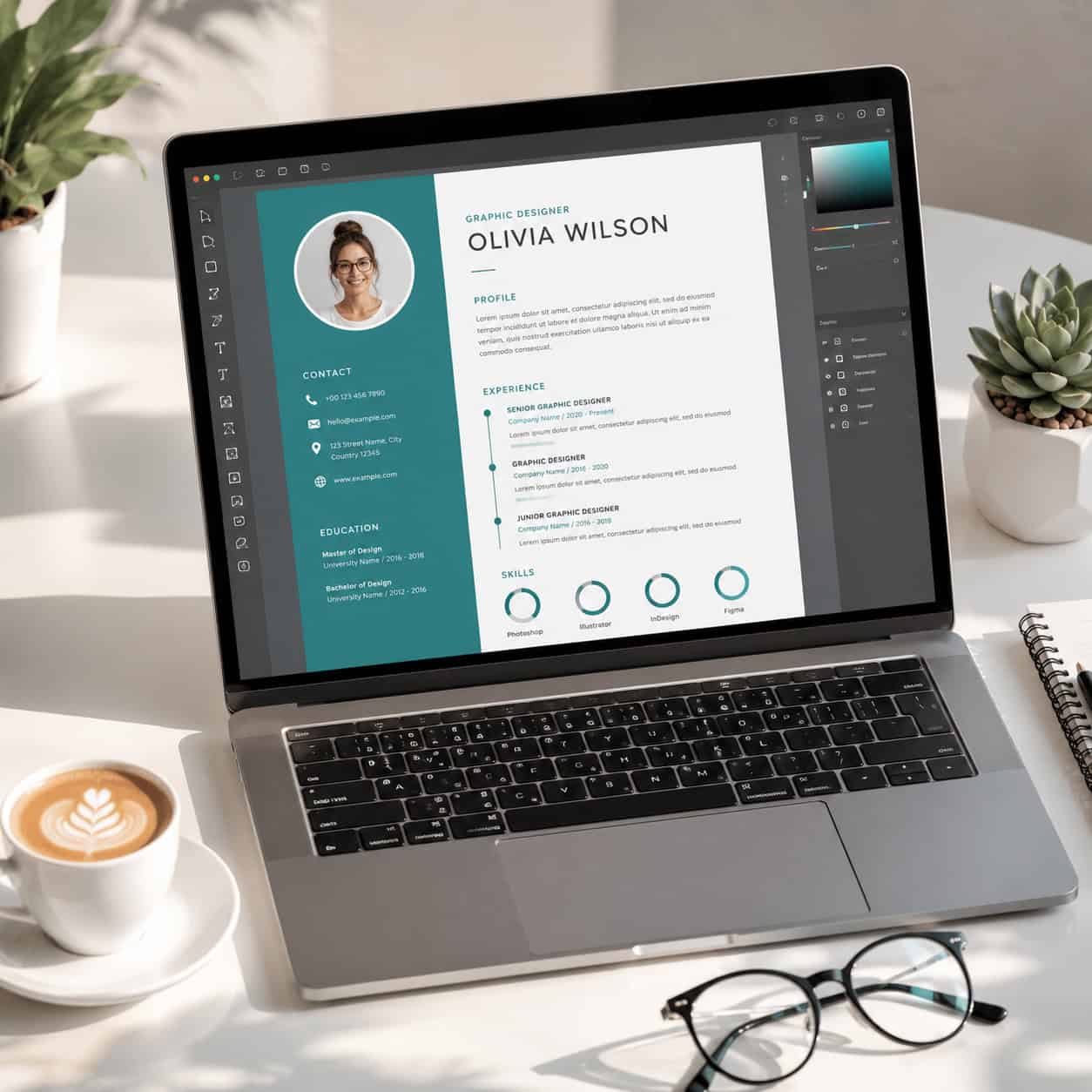
Last updated: June 7, 2026
Quick Answer: The Canva CV maker is a free online design tool that lets you build professional-looking resumes and CVs using hundreds of customizable templates, drag-and-drop editing, and an integrated AI content assistant. It works well for most job seekers, though candidates applying to large corporations should be aware of ATS compatibility limitations and export their files as standard PDFs [1][8].
Key Takeaways
- Canva offers a free tier with access to many CV templates; premium templates and features require a Canva Pro subscription starting around $15/month [8][9].
- You can fully customize colors, fonts, layout, icons, and images on any Canva CV template [2].
- Canva’s AI Resume Builder can generate tailored bullet points and summaries based on your job title and experience [1].
- Always export your Canva CV as a standard PDF for maximum compatibility with applicant tracking systems (ATS) [5].
- Simple, single-column Canva templates are the safest choice for ATS parsing; multi-column or heavily graphic designs may cause issues [5].
- Most users can create a polished CV in 30 to 60 minutes, even with no design experience [3].
- Canva CVs work especially well for creative industries, freelancing, and roles where visual presentation matters.
- For corporate or highly regulated industries, pair your Canva CV with a plain-text version as a backup.
Is Canva CV Maker Free or Paid?
Canva’s CV maker is free to use, and the free plan includes a solid selection of resume templates, basic design elements, and PDF export. You don’t need a credit card to start.
That said, some of the most polished templates carry a small crown icon, meaning they’re locked behind Canva Pro (roughly $15/month or $120/year). Pro also unlocks premium stock photos, the brand kit feature, and background remover tools [9][8].
Here’s a practical decision rule:
- Choose the free plan if you need a clean, professional CV quickly and don’t mind selecting from the free template library.
- Choose Canva Pro if you want access to every template, need to use brand fonts, or plan to use Canva for other design work like creating engaging carousel designs or social media content.
For most job seekers building a single CV, the free tier is more than enough.
How Does a Canva CV Template Compare to Professional Resume Builders?
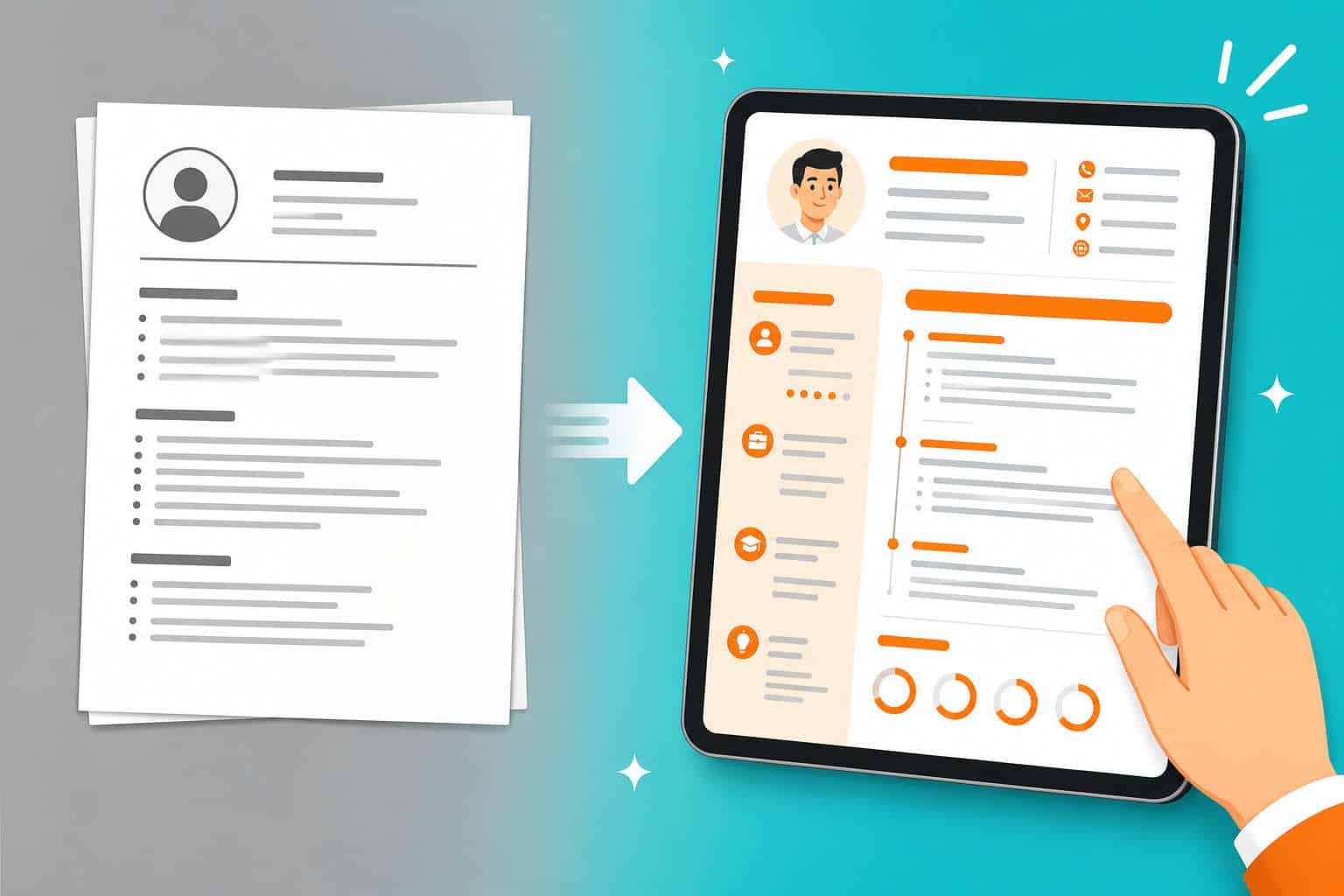
Canva gives you far more visual control than dedicated resume builders like Indeed Resume or Zety, but those platforms often have stronger ATS optimization and guided content prompts built in.
| Feature | Canva CV Maker | Dedicated Resume Builders |
|---|---|---|
| Design flexibility | Very high (full drag-and-drop) | Limited to preset layouts |
| ATS optimization | Varies by template | Usually built-in |
| AI content help | Yes (AI Resume Builder) [1] | Yes (most platforms) |
| Free templates | Many available | Often limited on free tier |
| Export formats | PDF, PNG, JPG, SVG | Usually PDF only |
| Cost | Free or $15/mo for Pro | $3-$25/mo typical |
If visual design matters for your role, Canva wins. If you just need a safe, ATS-friendly document and don’t care about aesthetics, a dedicated builder may save you time. Many job seekers in 2026 use both: Canva for networking, portfolios, and direct submissions, and a traditional builder for online application portals.
What Are the Best Canva CV Templates for Entry-Level Jobs?
For entry-level candidates, the best Canva CV templates are clean, single-column designs with clear section headers and plenty of white space. You want the focus on your skills and education, not on flashy graphics that distract from thin experience.
Look for templates labeled “minimalist,” “simple,” or “modern” in Canva’s template library [9]. Specifically:
- Simple Resume templates with a left-aligned layout and subtle color accents work well for internships and first jobs.
- Student Resume templates that emphasize education, coursework, and extracurricular activities.
- Templates with a skills bar or competency section, which help entry-level candidates fill space meaningfully.
Common mistake: Entry-level applicants sometimes pick the most elaborate template to compensate for limited experience. This backfires. Recruiters spend an average of six to seven seconds on an initial resume scan, and busy layouts slow that process down.
Can I Customize My Canva Resume Design Completely?
Yes. Every element on a Canva CV template is editable. You can change fonts, colors, spacing, section order, icons, and background. You can also start from a blank canvas and build your CV from scratch [2][3].
Specific things you can customize:
- Typography: Choose from hundreds of fonts, adjust size, weight, and line spacing.
- Color scheme: Change any color to match your personal brand or industry norms.
- Layout: Move, resize, add, or delete any section. Drag elements anywhere on the page.
- Graphics: Add icons, shapes, illustrations, or even your own uploaded images.
- Pages: Add multiple pages if you need a longer CV format (common outside the US).
If you’re interested in building a consistent personal brand across platforms, Canva’s design ecosystem also lets you create matching email templates and Instagram story templates with the same visual identity.
Which Industries Work Best With Canva CV Designs?
Canva CVs shine in industries where creativity, personal branding, and visual communication are valued. These include:
- Marketing and advertising
- Graphic design and UX/UI
- Media, journalism, and content creation
- Hospitality and events
- Startups and tech (especially smaller companies)
- Freelance and consulting
For fields like law, finance, government, or academia, a more conservative approach works better. You can still use Canva for these, but stick to minimal templates with standard fonts and no graphics beyond a subtle color accent.
Choose Canva if you’re applying directly to a hiring manager or submitting via email. Be cautious with Canva if you’re uploading through a large enterprise ATS portal.
Are Canva CV Templates ATS Friendly?
Not all of them. Many Canva CV templates use design elements like text boxes, columns, icons, and graphics that ATS software can’t parse correctly. This means your content might appear scrambled or missing when a recruiter views it through their system [5].
To improve ATS compatibility:
- Choose a single-column template with minimal graphics.
- Avoid using text inside images or icons to represent contact information.
- Use standard section headings: “Experience,” “Education,” “Skills.”
- Export as a standard PDF (not “PDF Print,” which can flatten text into images).
- Test your exported PDF by opening it in a plain text editor. If the text is readable and in order, it will likely parse well.
Canva has been improving ATS compatibility, and some templates are now explicitly designed with parsing in mind. But always verify before submitting [5].
What Common Mistakes Do People Make When Creating CVs in Canva?
The biggest mistake is prioritizing aesthetics over content and readability. Here are the most frequent errors I see:
- Overdesigning: Using too many colors, fonts, or decorative elements that make the CV look cluttered.
- Ignoring ATS: Submitting a graphic-heavy Canva CV through an online application portal without testing it.
- Wrong file format: Exporting as PNG or JPG instead of PDF, which makes the text unsearchable and unprofessional.
- Inconsistent spacing: Manually dragging elements instead of using Canva’s alignment and spacing tools, resulting in uneven layouts.
- Tiny fonts: Shrinking text below 10pt to fit more content. If it’s hard to read on screen, it’s worse when printed.
- Not proofreading: Canva’s spell check isn’t as robust as a word processor. Always paste your text into a separate tool for a final check.
If you’re new to Canva’s design tools, our guide on Canva AI design creation covers the fundamentals that apply to CV building too.
How Do I Download My Canva CV for Job Applications?
To download your finished CV from Canva, click the “Share” button in the top-right corner, then select “Download.” Choose your preferred file format and click the download button [8].
Step-by-step process:
- Open your completed CV in the Canva editor.
- Click Share (top right).
- Select Download.
- Choose PDF Standard for email submissions or PDF Print for physical copies.
- Click Download.
For job applications submitted through online portals, always use PDF Standard. This format preserves text as selectable characters, which ATS systems need to read your content [5].
What File Formats Can I Export My Canva CV In?
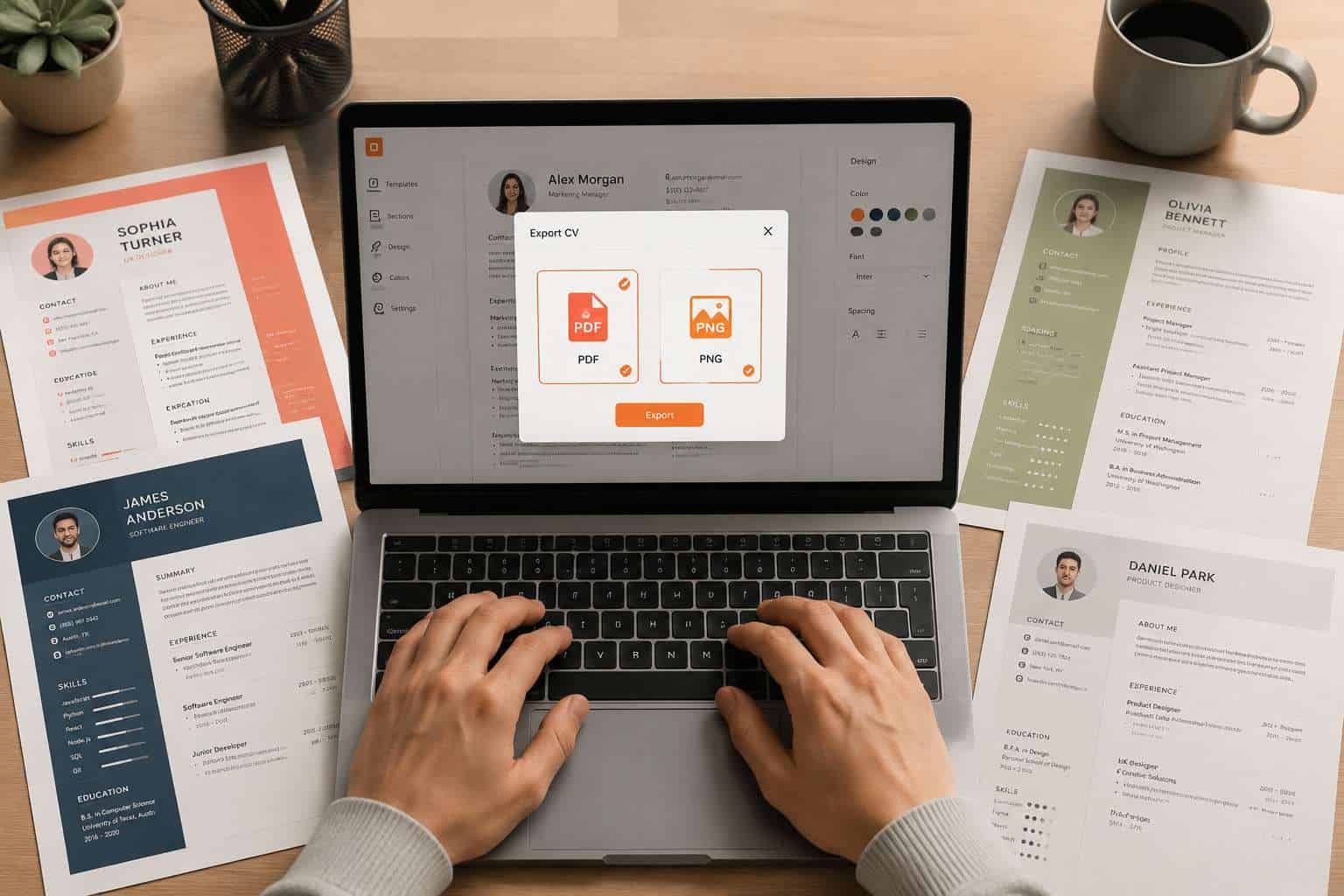
Canva supports several export formats for CVs: PDF Standard, PDF Print, PNG, JPG, and SVG (SVG is Pro only) [2][8].
- PDF Standard — Best for digital job applications. Small file size, selectable text.
- PDF Print — Best for physical printing. Higher resolution, larger file.
- PNG — Good for portfolio websites or social media. Not suitable for job applications.
- JPG — Compressed image format. Avoid for CVs.
- SVG — Vector format, useful if a designer needs to edit your CV further.
Bottom line: Use PDF Standard for 95% of job application scenarios.
What Skills Do I Need to Use Canva CV Maker Effectively?
You need zero design experience. Canva’s drag-and-drop interface is built for beginners, and the template system means you’re editing a pre-designed layout rather than creating from scratch [3].
That said, a few basic skills help:
- Basic computer literacy (navigating a web browser, uploading files)
- Text editing (typing, copying, pasting, formatting)
- Color awareness (knowing that neon green on a bright yellow background is a bad idea)
- Content writing (the hardest part of any CV is writing strong bullet points, not designing the layout)
Canva’s AI Resume Builder can help with the writing part. It generates role-specific bullet points and professional summaries based on your job title and industry [1]. For those looking to expand their Canva skills beyond CVs, the Canva logo design guide is a natural next step.
Is a Canva CV Professional Enough for Corporate Jobs?
A Canva CV can absolutely be professional enough for corporate roles, but template choice matters enormously. Stick to conservative designs with one or two accent colors, standard fonts like Inter, Lato, or Garamond, and a traditional layout [5].
The real risk isn’t that a Canva CV looks unprofessional — it’s that a heavily designed CV might not parse through corporate ATS systems. For Fortune 500 applications, I recommend creating two versions: a visually polished Canva PDF for networking and direct emails, and a plain Word document or simple PDF for online portals.
Are There Any Limitations With Canva CV Templates?
Yes. While Canva is powerful for design, it has specific limitations for CV creation:
- ATS parsing issues with many templates (as discussed above)
- No built-in ATS testing tool — you need third-party tools to verify compatibility
- Limited text formatting compared to Word (no automatic bullet indentation, limited tab stops)
- Premium templates require a paid plan [9]
- No direct integration with job boards — you can’t submit directly from Canva to LinkedIn or Indeed
- Collaboration features are basic — sharing for feedback works, but real-time co-editing on a CV is clunky
These limitations are manageable for most users, but they’re worth knowing before you invest time in a design.
How Long Does It Take to Create a CV in Canva?
Most users can produce a finished, professional CV in 30 to 60 minutes using a template. Starting from a blank canvas takes longer, typically 1 to 2 hours [3].
Here’s a realistic time breakdown:
| Step | Estimated Time |
|---|---|
| Browsing and selecting a template | 5-10 minutes |
| Entering your personal information | 5 minutes |
| Writing or pasting work experience | 15-20 minutes |
| Adding education and skills | 5-10 minutes |
| Customizing design (colors, fonts) | 5-10 minutes |
| Reviewing and proofreading | 5-10 minutes |
| Exporting | 1 minute |
The AI Resume Builder can cut the writing time significantly by generating draft content you then refine [1]. If you already have your content written in another document, the whole process can take under 20 minutes.
Frequently Asked Questions
Can I use Canva CV maker on my phone? Yes. Canva has iOS and Android apps with full CV editing capabilities. The experience is better on a tablet or desktop due to screen size, but mobile works for quick edits [8].
Does Canva save my CV automatically? Yes. Canva auto-saves your work to the cloud. You can access your CV from any device by logging into your account.
Can I create multiple CVs in Canva? Yes. You can create unlimited CV designs on both free and paid plans. This is useful for tailoring your CV to different roles.
Is the Canva AI Resume Builder free? The AI Resume Builder is available on the free plan with limited usage. Canva Pro users get more AI-generated content credits [1].
Can I share my Canva CV as a link? Yes. Canva lets you generate a shareable link to a view-only version of your CV. This is handy for portfolios or when a recruiter asks for a quick look.
Should I include a photo on my Canva CV? It depends on your location. Photos are standard on CVs in Europe and Asia but generally discouraged in the US and UK to avoid bias. Canva templates accommodate both approaches.
Can I import my LinkedIn profile into Canva? Not directly. You’ll need to manually copy your LinkedIn content into Canva. Some third-party tools can help bridge this gap.
How do I make my Canva CV stand out? Focus on strong content first, then use design to enhance readability. A consistent color scheme, clear hierarchy, and strategic use of white space make a bigger impact than flashy graphics.
Will my Canva CV look different when printed? Export using “PDF Print” for the best print quality. Colors may shift slightly depending on your printer, so avoid relying on subtle color differences to convey information.
Conclusion
The Canva CV maker is a genuinely useful tool for job seekers who want a professional-looking resume without hiring a designer or wrestling with Word formatting. It’s free to start, intuitive to use, and produces visually appealing results in under an hour.
Your next steps are straightforward:
- Go to Canva’s resume page and browse templates that match your industry [9].
- Pick a simple, single-column template if you’ll be applying through online portals.
- Use the AI Resume Builder to draft your bullet points, then edit them to sound like you [1].
- Export as PDF Standard and test it by opening in a text editor to verify ATS readability.
- Create a second, conservative version for corporate applications if needed.
For more ways to use Canva and other design tools in your professional life, explore our Canva resource hub for tutorials on everything from social media graphics to brand identity design.
References
[1] Ai Resume Builder – https://www.canva.com/ai-resume-builder/ [2] Resumes – https://www.canva.com/resumes/ [3] Resumes – https://www.canva.com/create/resumes/ [5] Canva Cv – https://www.myperfectcv.co.uk/blog/canva-cv [8] canva – https://www.canva.com/create/cv/ [9] Templates – https://www.canva.com/resumes/templates/