Last updated: May 22, 2026
Quick Answer
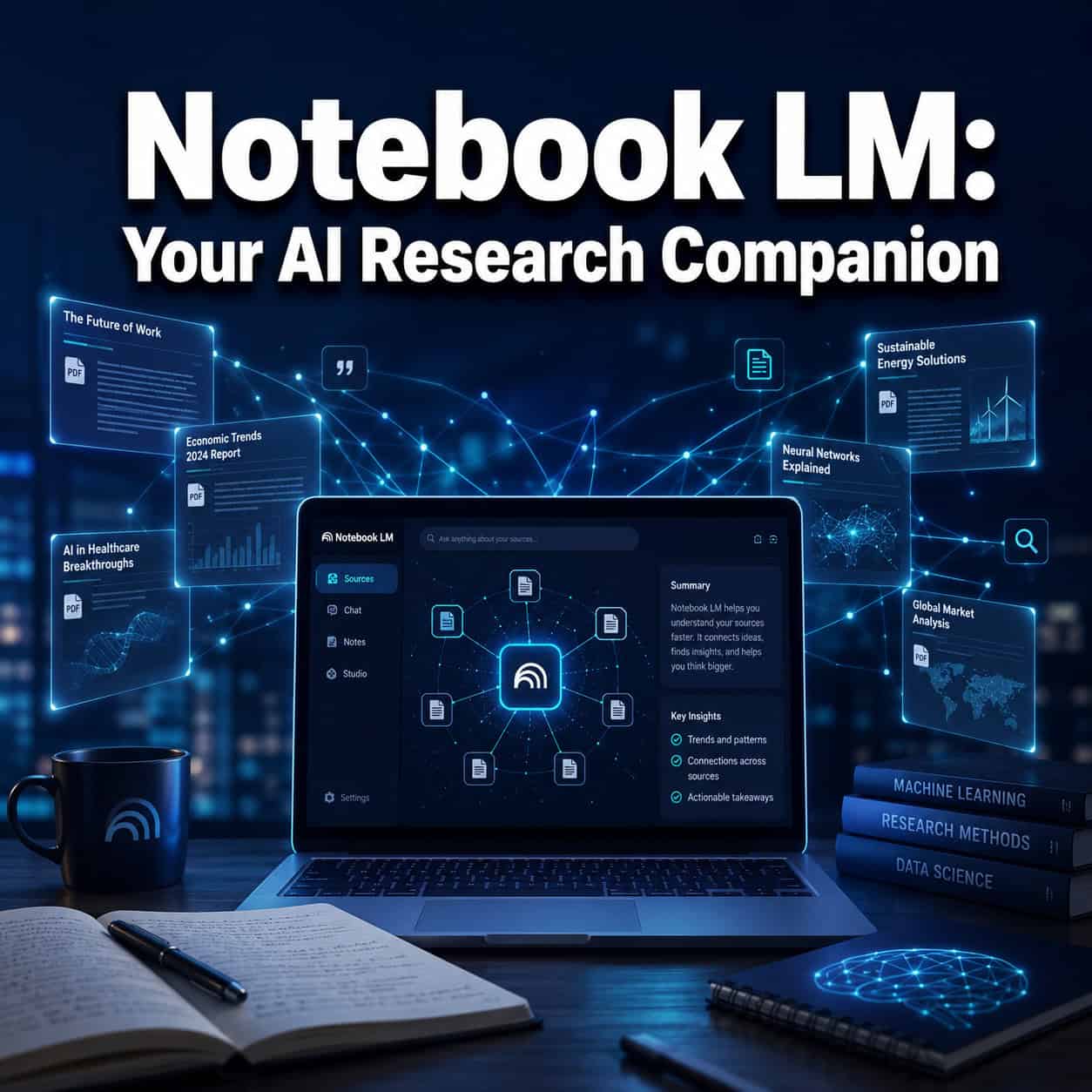
Notebook LM is Google’s free AI research tool that analyzes only the documents you upload, not the open web, to generate summaries, answer questions, create study guides, and even produce AI-generated podcasts. It’s grounded exclusively in your sources, which means every response comes with traceable citations. As of April 2026, it supports PDFs, Google Docs, Slides, web URLs, audio files, and more, making it one of the most versatile source-based AI tools available for students, researchers, and professionals.
Key Takeaways
- Source-grounded AI: Notebook LM only uses the documents you provide, reducing hallucination and making outputs verifiable [6].
- Free to use: The core product remains free through Google, with a Plus tier available for heavier usage.
- April 2026 updates added auto-categorization of sources, bulk sharing, and improved flashcard/quiz generation [2][8].
- Gemini integration: You can now select a notebook as a grounding source directly inside Google’s Gemini chat [5].
- Multimodal outputs: It generates text summaries, audio overviews (podcast-style), mind maps, flashcards, and even visual content [4].
- Best for literature reviews, course prep, and document-heavy research rather than open-ended web browsing.
- Not a replacement for reading: TechRadar’s 2025 review emphasizes it “doesn’t replace manual reading and fact-finding” [7].
- Available internationally through Google accounts, though some features may roll out regionally.
- Common mistake: Uploading too many unfocused sources dilutes the quality of AI responses.

What Exactly Is Notebook LM and How Does It Work?
Notebook LM is an AI-powered research tool built by Google that acts as a personal research assistant grounded in your own documents. Unlike general chatbots that pull from the entire internet, Notebook LM restricts its knowledge to the specific sources you upload, then uses Google’s Gemini large language model to analyze, summarize, and answer questions about that content [6].
Here’s the basic workflow:
- Create a notebook for your project or topic.
- Upload sources: PDFs, Google Docs, Google Slides, web URLs, YouTube videos, audio files, or plain text.
- Ask questions or generate outputs: The AI reads your sources and produces summaries, study guides, timelines, FAQs, briefing documents, or audio overviews.
- Every answer includes inline citations pointing back to the exact source passage, so you can verify claims quickly.
The key distinction is grounding. Researcher Quinn described this well in a 2024 analysis: Notebook LM’s “document-specific analysis and contextual Q&A” is what separates it from general-purpose chatbots [6]. When I first used it to organize 30+ research papers for a content strategy project, the difference was immediately obvious. Instead of getting generic AI answers, I got responses that directly quoted my own uploaded materials.
As of early 2026, productivity creator Jeff Su argues Notebook LM has evolved from a “one-off summarizer” into a “personal knowledge engine” that continuously connects ideas across your sources [1][3].
How Is Notebook LM Different From Other AI Research Tools?
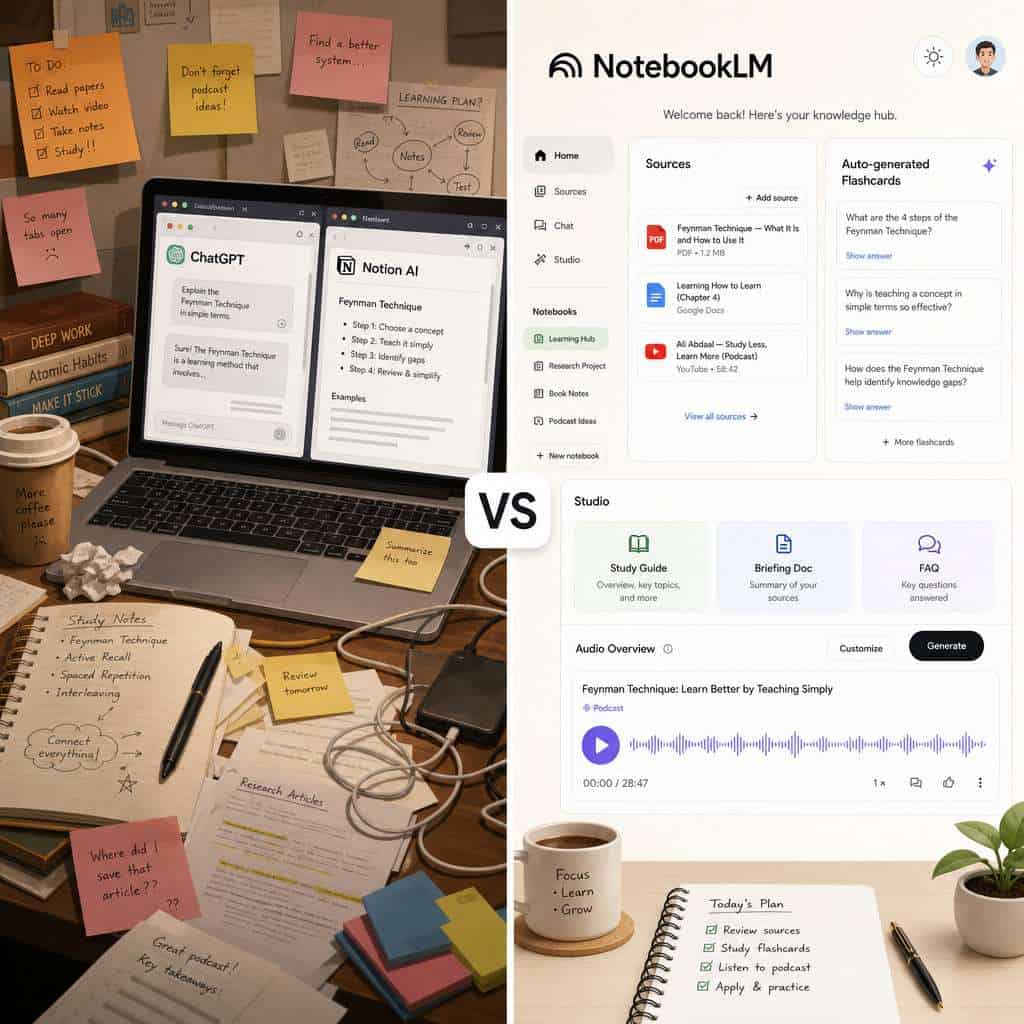
Notebook LM’s core differentiator is source grounding with citations. ChatGPT, Claude, and similar tools draw from their training data and (optionally) the open web. Notebook LM draws only from what you give it, and it tells you exactly where each answer came from.
| Feature | Notebook LM | ChatGPT | Notion AI |
|---|---|---|---|
| Source grounding | Only your uploads | Training data + web | Your Notion workspace |
| Inline citations | Yes, with source links | Limited | No |
| Audio overview | Yes (podcast-style) | No | No |
| Flashcard/quiz generation | Yes | Via prompting | No |
| Free tier | Generous | Limited | Requires Notion plan |
| Gemini integration | Direct [5] | N/A | N/A |
| Mind maps | Yes (2026 update) | No | No |
CNET’s 2025 feature described Notebook LM as an “information alchemist” that can digest complex sources and re-express them in multiple formats, from two-host podcasts to glossaries. The author found it particularly strong when “constrained to a curated set of sources rather than the open web.”
If you’re exploring other AI tools for content work, our comprehensive guide to AI-powered content generation tools covers the broader landscape.
What Makes Notebook LM Unique Compared to ChatGPT or Notion AI?
Three things set Notebook LM apart from ChatGPT and Notion AI specifically: audio overviews, Gemini grounding, and zero-cost source analysis.
Audio overviews are Notebook LM’s most distinctive feature. The tool generates a two-host podcast-style conversation about your sources. Reddit users in early 2026 frequently call this “the most slept-on free AI tool” feature [9]. I’ve used it to turn dense technical documentation into something I can listen to during a commute.
Gemini grounding (added in early 2026) lets you select any notebook as a source directly inside Google’s Gemini chat interface [5]. This means your curated research becomes a reusable knowledge base across Google’s AI ecosystem, not just inside Notebook LM itself.
Zero-cost source analysis matters because tools like Scholarcy, Elicit, or custom RAG setups often require subscriptions. Effortless Academic’s March 2026 review called Notebook LM “a serious alternative to paid research tools” for literature review workflows.
For those interested in how AI tools can improve broader workflows, see our guide on AI-powered content optimization.
How Much Does Notebook LM Cost Right Now?
Notebook LM’s core features are free for anyone with a Google account. Google also offers a Notebook LM Plus tier (bundled with Google One AI Premium) that provides higher usage limits, more sources per notebook, and priority access to new features.
- Free tier: Full access to source uploads, Q&A, summaries, audio overviews, flashcards, and sharing. Limits apply to the number of sources per notebook and daily queries.
- Plus tier: Higher caps on sources, longer audio overviews, and early access to features like the April 2026 auto-categorization tools [8].
For students and educators, Google for Education markets Notebook LM as a free generative AI tool specifically designed for classroom use [2].
Can Notebook LM Help Me Organize Research Papers?
Yes, and this is arguably where Notebook LM performs best. Academic reviewers describe it as “a novel tool to synthesise academic information from a variety of PDFs” and “ideal for academics and students.”
Here’s how it works for research paper organization:
- Upload your papers (PDF format works well) into a single notebook.
- Auto-categorization (added April 2026) kicks in once you exceed about five sources, automatically grouping and labeling them so large projects stay navigable without manual tagging [8].
- Ask cross-source questions like “What do these papers agree on regarding X?” or “Summarize the methodology differences across these studies.”
- Generate literature review outlines by prompting Notebook LM to compare findings across your uploaded papers.
Common mistake: Uploading 50 loosely related papers into one notebook. The AI works best when sources share a focused topic. Create separate notebooks for distinct research threads.
Is Notebook LM Good for Students or Just Professionals?
Notebook LM works well for both, but the use cases differ. Google’s education team has specifically expanded features for K-12 and higher-ed users in early 2026, including improved automatic question generation and audio-based study aids [2].
For students:
- Generate flashcards and quizzes from lecture notes or textbook chapters
- Create audio overviews to review material while walking or exercising
- Build study guides from uploaded course materials
- Get cited answers when reviewing for exams
For professionals:
- Synthesize meeting notes, reports, and strategy documents
- Prepare briefing documents from multiple source files
- Use Gemini grounding to query your knowledge base across projects [5]
- Share notebooks with teams via bulk sharing (April 2026 update) [8]
Choose Notebook LM if you have a defined set of documents you need to understand deeply. Choose a general chatbot if you need broad, open-ended research across the web.
What Kind of Documents Can I Upload to Notebook LM?
Notebook LM accepts a wide range of source types, and this list has expanded through 2026. Currently supported formats include:
- Google Docs
- Google Slides
- PDFs
- Web URLs (articles, blog posts)
- YouTube videos (with transcripts)
- Audio files
- Plain text / copied text
- Word documents
The March 2026 Workspace update added “more flexible source types” and the ability to generate and edit visuals directly within the tool. Creator-focused updates in April 2026 describe features like auto-generating mind maps and even “code-ready prototypes” from uploaded ideas [4].
Which Types of Research or Projects Is Notebook LM Best Suited For?
Notebook LM excels at document-heavy, source-specific projects where you need to interrogate a defined body of material. TechRadar’s 2025 review concluded it is “very useful for academic, technical, and general research” [7].
Best-fit projects:
- Literature reviews and academic research
- Legal document analysis
- Course preparation and curriculum design
- Content research and editorial planning
- Technical documentation review
- Competitive analysis (upload competitor reports)
Less ideal for:
- Real-time news monitoring (it doesn’t crawl the web)
- Creative brainstorming from scratch (it needs source material)
- Quick factual lookups (a search engine is faster)
If you’re working on content projects specifically, our guide to using AI SEO tools may also be useful.
How Do I Get Started Using Notebook LM?
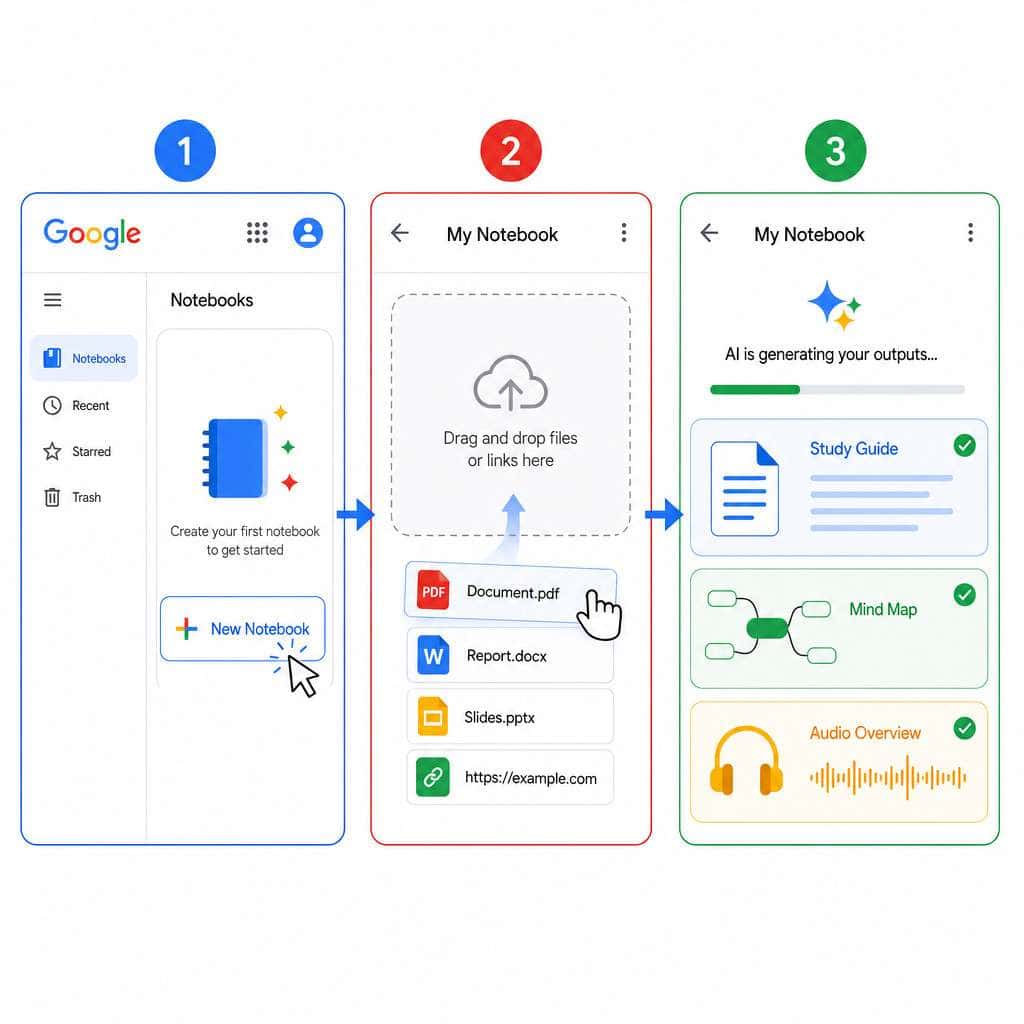
Getting started takes about two minutes. Here’s the process:
- Go to notebooklm.google.com and sign in with your Google account.
- Click “New Notebook” to create your first project.
- Add sources: Click the upload button and choose from Google Drive, PDF upload, web URL, YouTube link, or paste text.
- Wait for processing: Notebook LM reads and indexes your sources (usually under a minute for most documents).
- Start asking questions: Use the chat interface to query your sources, or click pre-built options like “Generate summary,” “Create study guide,” or “Audio overview.”
Pro tip: Start with 3-5 tightly focused sources. Once you’re comfortable with the interface, scale up. The April 2026 auto-labeling feature helps manage larger collections [8].
For teams, the bulk sharing feature now lets you copy-paste email lists to share a notebook with an entire class or department at once [8].
Can Notebook LM Integrate With My Existing Note-Taking System?
Notebook LM integrates natively with Google’s ecosystem (Docs, Slides, Drive) and, as of early 2026, with Gemini directly [5]. It doesn’t have native plugins for tools like Obsidian, Roam, or Evernote, but there are practical workarounds.
- Export notes from your system as PDFs or text files and upload them to Notebook LM.
- Use Google Docs as a bridge: Many note-taking apps export to Google Docs, which Notebook LM reads natively.
- Gemini grounding: If you use Google Workspace, you can query your notebooks from within Gemini’s chat interface without switching apps [5].
Jeff Su’s March 2026 review highlights that Notebook LM pairs particularly well with structured systems like “Building a Second Brain,” where you already have organized source material ready to upload [3].
For broader automation ideas, check out our automation strategies for power users.
What Are the Biggest Limitations of Notebook LM?
Notebook LM is powerful but has clear boundaries. TechRadar’s review puts it plainly: it “doesn’t replace manual reading and fact-finding” [7].
Key limitations:
- No web access: It only knows what you upload. If a critical source isn’t in your notebook, the AI can’t reference it.
- Source limits: Free-tier notebooks have caps on the number of sources and their combined size.
- Prompt sensitivity: Users on Reddit note that “careful prompt design” is still needed to get the best results [9].
- No real-time collaboration editing: You can share notebooks, but it’s not Google Docs-style simultaneous editing.
- Occasional misinterpretation: Complex tables, charts, or heavily formatted PDFs can sometimes confuse the AI.
- Regional feature rollout: Some newer features (like visual generation) may reach certain regions before others.
Edge case: If your sources contradict each other, Notebook LM may not always flag the contradiction clearly. Always cross-check critical claims yourself.
Are There Common Mistakes People Make When Using Notebook LM?
Yes, and most stem from treating it like a general chatbot rather than a source-specific tool.
- Uploading too many unfocused sources: Quality beats quantity. A notebook with 10 relevant papers outperforms one with 40 loosely related ones.
- Asking questions outside the source material: If your sources don’t cover a topic, the AI will either say so or stretch thin. Don’t expect web-search-quality breadth.
- Skipping citation verification: The citations are usually accurate, but always click through to verify, especially for high-stakes work [7].
- Ignoring audio overviews: Many users never try the podcast feature. It’s one of the best ways to absorb material passively.
- Not using the new auto-categorization: If you have more than five sources, let the April 2026 auto-labeling feature organize them for you [8].
Is Notebook LM Available Internationally or Just in Certain Countries?
Notebook LM is available internationally to anyone with a Google account. However, feature availability can vary by region. Core features like source uploads, Q&A, and summaries are broadly accessible. Newer features from the 2026 updates (like visual generation and some Gemini integrations) may roll out to certain regions first before becoming universally available.
Google for Education access depends on your institution’s Workspace configuration, so school administrators may need to enable it for student accounts.
For more on how AI tools are expanding globally, explore our AI category for the latest coverage.
Frequently Asked Questions
Is Notebook LM free? Yes. The core product is free with a Google account. A Plus tier with higher limits is available through Google One AI Premium.
Can Notebook LM read handwritten notes? Not directly. You’d need to scan handwritten notes into a PDF or type them into a Google Doc first, then upload that file.
Does Notebook LM store my data? Your uploaded sources are stored in your Google account. Google states that Notebook LM data is not used to train its AI models, though you should review the current privacy policy for specifics.
How many sources can I add to one notebook? The free tier supports a limited number of sources per notebook (typically around 50, though this can change). The Plus tier raises that cap.
Can I use Notebook LM for work documents? Yes. It’s available for Google Workspace accounts, and the bulk sharing feature makes team use practical [8].
Does Notebook LM work on mobile? It works through mobile web browsers. There isn’t a standalone mobile app as of May 2026, but the web interface is responsive.
Can Notebook LM generate citations in APA or MLA format? Not automatically in standard academic citation formats. It provides inline references to your sources, but you’ll need to format formal citations manually.
Is the audio overview feature customizable? You can guide the topic and focus of audio overviews through prompts, and the 2026 updates have added more customization options for how information is summarized for different audiences.
What’s the maximum file size for uploads? This varies by file type and tier, but most standard research PDFs (under 200 pages) upload without issues.
Can multiple people contribute sources to the same notebook? Currently, one person owns the notebook and adds sources. Shared users can view and interact with the AI but can’t add their own sources to someone else’s notebook.
Conclusion
Notebook LM has grown from a niche document summarizer into what Jeff Su calls “a personal knowledge engine” [1][3]. The April 2026 updates, with auto-categorization, bulk sharing, and Gemini integration, make it genuinely useful for anyone who works with multiple documents regularly [2][8].
Here’s what to do next:
- Create your first notebook at notebooklm.google.com with 3-5 focused sources on a current project.
- Test the audio overview feature on those sources. It’s the fastest way to see what Notebook LM does differently.
- Try Gemini grounding by selecting your notebook as a source inside Gemini’s chat interface [5].
- Set up separate notebooks for distinct projects rather than dumping everything into one.
- Verify critical outputs against your original sources. The citations make this fast, but human judgment still matters [7].
Notebook LM won’t replace your ability to think critically about research. But it will save you hours of manual synthesis work, and in 2026, the free tier alone offers more than many paid alternatives. If you’re managing any kind of information-heavy project, it’s worth 10 minutes of your time to try it.
For more ways AI tools can streamline your workflow, browse our latest articles on AI and automation.
Related NotebookLM guides: explore LM Notebooks for streamlining machine learning workflows, and learn how to log in to NotebookLM and access your AI research platform.
References
[1] Watch – https://www.youtube.com/watch?v=_uXnyhrqmsU [2] Google Notebook Lm Updates April 2026 – https://teachercast.net/edtech/google-notebook-lm-updates-april-2026/ [3] Notebooklm Changed Completely Heres What Matters In 2026 – https://www.jeffsu.org/notebooklm-changed-completely-heres-what-matters-in-2026/ [4] Watch – https://www.youtube.com/watch?v=FpsHlf7Ljjs [5] Watch – https://www.youtube.com/watch?v=45EfWnHzw94 [6] Notebook Lm Googles Ai Powered Research Learning Companion – https://www.linkedin.com/pulse/notebook-lm-googles-ai-powered-research-learning-companion-quinn-8qtde [7] Notebooklm Review – https://www.techradar.com/pro/notebooklm-review [8] Notebooklm April 2026 Update Auto Label Flashcards – https://pasqualepillitteri.it/en/news/1391/notebooklm-april-2026-update-auto-label-flashcards [9] This Notebook Lm Update Turns Google Into Your – https://www.reddit.com/r/AISEOInsider/comments/1oonci6/this_notebook_lm_update_turns_google_into_your/