Last updated: May 22, 2026
Quick Answer: To log into NotebookLM, go to notebooklm.google.com [3], sign in with any personal or Google Workspace account, and you’ll land directly on your notebook dashboard. There’s no separate registration process — if you have a Google account, you already have access to the free tier. The platform works entirely in your web browser on both desktop and mobile devices [10].
Key Takeaways
- NotebookLM requires a Google account. There is no way to sign up with a non-Google email address [3].
- The free tier gives you full access to core features, including AI-powered summaries, audio overviews, and source analysis [8].
- As of April 2026, NotebookLM includes deep research agents, flashcards, quizzes, and mind maps [9].
- You can access NotebookLM from Gemini directly by selecting a notebook as a source [6].
- Enterprise users need an admin-assigned license before they can log in.
- Mobile access works through your phone’s browser — there is no native app.
- Password resets go through Google’s standard account recovery, not a separate NotebookLM system.
Over 1.5 million educators used NotebookLM within its first year of general availability, according to Google’s own product announcements. That number alone tells you something: this isn’t a niche experiment anymore. When Google rolled out its April 2026 update with deep research agents and automated study tools [9], NotebookLM shifted from “AI note-taking app” to something closer to a personal research assistant. But none of those features matter if you can’t get past the login screen. This Notebook LM login guide walks you through every step, from first sign-in to troubleshooting errors, so you can start using the platform in minutes.
If you’re exploring other AI-powered tools for your workflow, our comprehensive guide to AI-powered content generation tools covers the broader landscape.
What Exactly Is NotebookLM and How Do I Sign Up?
NotebookLM is Google’s AI research platform that lets you upload sources — PDFs, Google Docs, websites, YouTube videos, audio files — and then ask questions, generate summaries, and create study materials based only on those sources [8]. It’s built on Google’s Gemini models and designed to ground AI responses in your actual documents rather than the open web.
Signing up is automatic. If you have a Google account, you already have a NotebookLM account. There’s no separate registration form, no waitlist in 2026, and no approval process for personal users. Just visit notebooklm.google.com and sign in [3][10].
Here’s what you get after your first login:
- A dashboard showing all your notebooks
- The ability to create new notebooks and upload sources immediately
- Access to AI chat, audio overviews, and the new study tools added in April 2026 [9]
- The “Discover Sources” feature for finding relevant web content directly within the app [7]
For institutional users (universities, companies), your IT admin may need to enable NotebookLM on your Google Workspace domain first. The University of Minnesota, for example, requires an opt-in form before activating access on school accounts.
Step-by-Step Login Process for Beginners
The login process takes under 60 seconds. Here’s exactly what to do:
- Open your browser (Chrome, Firefox, Safari, or Edge all work).
- Go to
notebooklm.google.com[3]. - Click “Sign in” if you’re not already logged into a Google account.
- Choose your Google account or enter your email and password.
- Complete two-factor authentication if you have it enabled.
- You’re in. You’ll see your notebook dashboard immediately.
Common mistake: If you have multiple Google accounts signed in, NotebookLM will use whichever account is currently active. Check the avatar in the top-right corner to confirm you’re using the right one [8].
For enterprise users, the process differs slightly: your admin provides a dedicated sign-in link, and your licensed email must match the identity you use to authenticate.
Can I Use NotebookLM Without a Google Account?
No. NotebookLM requires a Google account — there is no workaround for this [3]. Your notebooks, sources, and AI interactions are all tied to your Google identity. If you don’t have a Google account, you’ll need to create one (free) at accounts.google.com before accessing the platform.
Choose a Google account if: you want quick, free access and don’t mind Google’s ecosystem.
This won’t work if: your organization blocks Google accounts or you specifically need to avoid Google services for compliance reasons. In that case, you’d need to look at alternative research platforms.
For those already working within Google’s ecosystem, you might also find value in learning how to use AI SEO tools to complement your research workflow.
What Are the System Requirements to Log In?
NotebookLM runs entirely in the browser, so the requirements are minimal:
| Requirement | Details |
|---|---|
| Browser | Chrome (recommended), Firefox, Safari, Edge — latest versions |
| Operating system | Windows, macOS, Linux, ChromeOS |
| Internet connection | Required (no offline mode) |
| Google account | Personal or Workspace account |
| Age requirement | 18+ with age verification (some education features available to younger users) [9] |
| Native app | None — browser only [10] |
No special hardware is needed. If your computer can run a modern web browser, it can run NotebookLM.
Is NotebookLM Free or Do I Need to Pay?
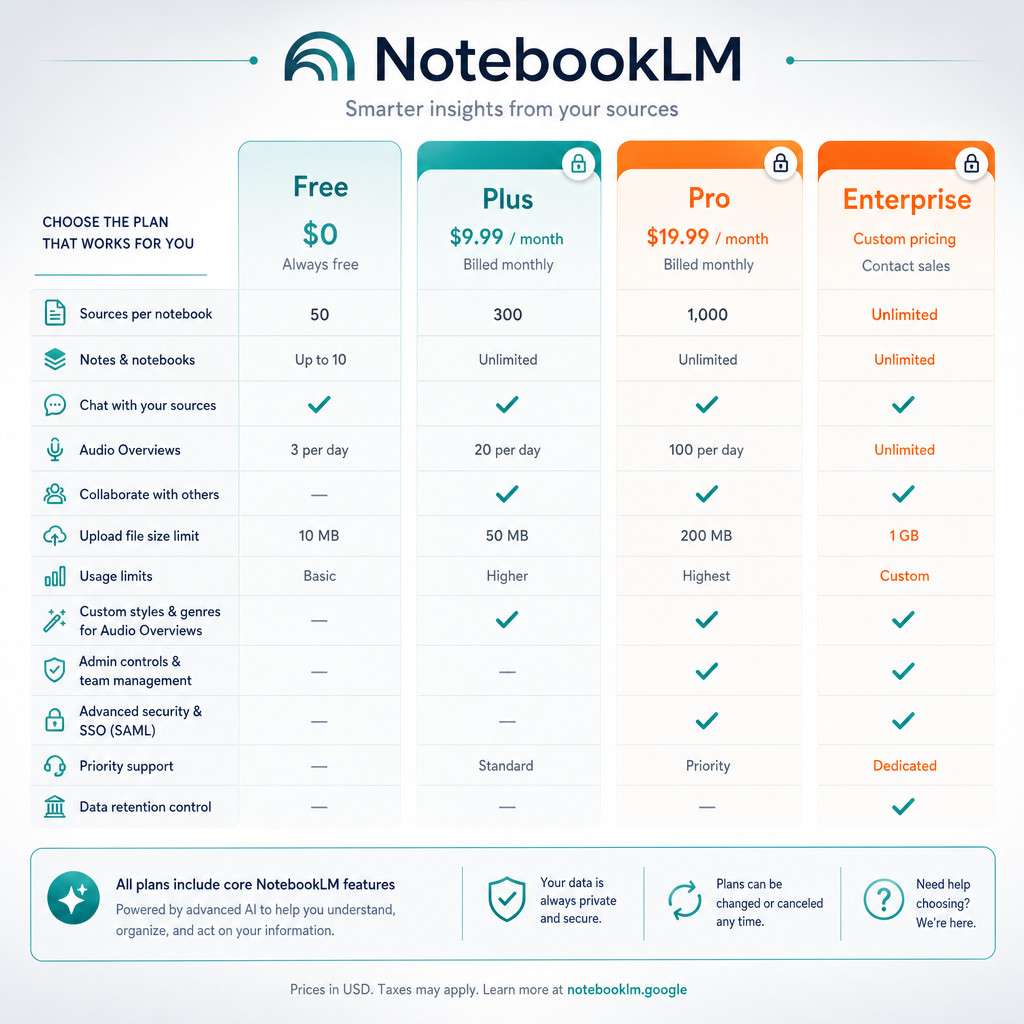
The core NotebookLM experience is free for anyone with a Google account [8]. You can create notebooks, upload sources, chat with the AI, and generate audio overviews at no cost.
However, Google now offers tiered pricing for users who need higher limits:
| Tier | Cost | Key Limits |
|---|---|---|
| Free | $0 | Standard notebook and source limits |
| Google AI Plus | Subscription required | Higher notebook counts, more sources per notebook |
| Google AI Pro | Subscription required | NotebookLM Pro features, elevated limits |
| Enterprise | Per-user licensing | Admin-managed, up to 5,000 licenses, 14-day trial available |
Choose free if: you’re a student, casual researcher, or just exploring the platform. The free tier covers most individual use cases.
Upgrade if: you’re managing large research projects with dozens of sources per notebook, or your organization needs admin controls and shared workspace features.
Does NotebookLM Work on Mobile or Just Desktop?
NotebookLM works on mobile devices through your phone’s web browser [10]. There is no native iOS or Android app as of May 2026. You can also use your browser’s “Add to Home Screen” or “Install as App” option to create a shortcut that behaves like a standalone app.
The mobile experience includes all core features: source management, AI chat, audio overviews, and the new study tools. However, uploading large PDFs or managing many sources at once is easier on a desktop screen.
Quick tip: Audio overviews work particularly well on mobile. You can listen to AI-generated podcast-style summaries of your research while commuting — I’ve found this to be one of the most practical mobile use cases.
How Do I Reset My Password for NotebookLM?
There is no separate NotebookLM password. Since NotebookLM uses your Google account credentials, you reset your password through Google’s standard account recovery:
- Go to
accounts.google.com - Click “Forgot password?”
- Follow the verification steps (phone, recovery email, or security questions)
- Set a new password
- Return to
notebooklm.google.comand sign in with your updated credentials
If you’re locked out of your Google account entirely, Google’s account recovery process is your only path back to your NotebookLM notebooks.
Common Login Errors and How to Fix Them
Most login issues fall into a few predictable categories:
- “NotebookLM is not available” — This usually means your Google account hasn’t completed age verification. Go to your Google account settings, verify your age (must be 18+), and try again.
- Wrong account signed in — If you see someone else’s notebooks (or none at all), check the account avatar in the top-right corner. Switch accounts if needed.
- Institutional access blocked — Your school or company’s Google Workspace admin may not have enabled NotebookLM. Contact your IT department.
- Browser compatibility issues — Clear your cache, update your browser, or try Chrome if you’re using a less common browser.
- Two-factor authentication loops — If 2FA keeps failing, check that your authenticator app’s time is synced correctly, or use a backup code.
Edge case: Some users with very old Google accounts created before age verification was standard have reported access issues. The fix is completing Google’s age verification process in account settings.
Are There Different User Levels or Permissions?
Yes. NotebookLM has two main permission dimensions: account tier and notebook-level sharing.
Account tiers (Free, Plus, Pro, Enterprise) determine your limits — how many notebooks you can create, how many sources per notebook, and access to advanced features.
Notebook sharing controls who can view or edit specific notebooks. The April 2026 update added bulk sharing via pasted email lists and streamlined collaborator management, making it easier to grant access to teams. When you share a notebook, collaborators need their own Google account and appropriate access level to log in and view it.
Enterprise admins have additional controls: they can assign licenses, manage who can access the NotebookLM Enterprise app, and configure identity provider settings.
What Kind of Research Can I Actually Do on This Platform?
NotebookLM is designed for source-grounded research, meaning the AI only answers based on documents you’ve uploaded [7][8]. This makes it fundamentally different from general chatbots.
After logging in, you can:
- Analyze documents — Upload PDFs, Docs, slides, websites, or YouTube videos and ask questions about them
- Generate summaries — Get concise overviews of long documents or across multiple sources
- Create audio overviews — AI-generated podcast-style discussions of your research
- Use deep research agents — As of April 2026, these agents automatically find, verify, and organize sources into structured reports from a simple project idea [6][9]
- Study with flashcards and quizzes — New study tools generate review materials from your sources [9]
- Build mind maps — Visual organization of concepts from your uploaded materials
For those working on content projects alongside research, our guide on AI-powered content optimization covers how to turn research into published content.
Is NotebookLM Good for Academic or Professional Research?
Both. NotebookLM works well for academic research because it cites specific passages from your uploaded sources, reducing the risk of AI hallucination [8]. For professional research, the deep research agents and structured report generation added in April 2026 make it practical for market analysis, competitive research, and policy review [6].
Academic strengths: Source citation, study tool generation, ability to cross-reference multiple papers, grounded answers that don’t fabricate information.
Professional strengths: Audio overviews for team briefings, collaborative notebooks with bulk sharing, integration with Gemini for broader workflows, automatic source labeling when you have more than five sources.
Limitation to know: NotebookLM isn’t a citation manager like Zotero or Mendeley. It won’t format references in APA or MLA style. It’s a research analysis tool, not a bibliography tool.
What Makes NotebookLM Different From Other Research Platforms?
Three things set NotebookLM apart:
- Source grounding — Unlike ChatGPT or Claude, NotebookLM only responds based on your uploaded documents. This dramatically reduces hallucination [8].
- Audio overviews — No other major research platform generates podcast-style audio summaries of your documents.
- Gemini integration — You can select a NotebookLM notebook as a source directly within Google Gemini, creating a connected research ecosystem without switching apps.
The April 2026 deep research agents push this further: you provide a project idea, and the agent finds, verifies, and organizes sources into a structured report automatically [6]. That’s a workflow that previously required multiple tools.
If you’re evaluating AI tools more broadly, our guide to AI graphic design tools and AI website creation platforms cover adjacent categories.
Privacy and Data Protection When Using NotebookLM
Google states that NotebookLM notebooks are private to your account by default. Your uploaded sources and AI conversations are not used to train Google’s AI models, according to Google’s product documentation [8].
Key privacy points:
- Notebooks are private unless you explicitly share them
- Enterprise users get additional data governance controls through Google Workspace admin settings
- Shared notebooks are accessible only to people you’ve invited
- Data residency follows your Google account’s settings and applicable Google Workspace policies
- Deletion — you can delete notebooks and their associated data at any time
For enterprise deployments, admins control data access through Gemini Enterprise licensing and can restrict which users have NotebookLM access.
Conclusion
Getting into NotebookLM is straightforward: go to notebooklm.google.com, sign in with your Google account, and start uploading sources [3]. The platform has grown significantly since its initial launch, and the April 2026 updates with deep research agents, study tools, and improved collaboration features make it a genuinely useful research environment [9].
Your next steps:
- Visit
notebooklm.google.comand log in with your Google account - Create your first notebook and upload 2-3 sources to test the AI chat
- Try generating an audio overview — it’s the feature most people find surprisingly useful
- If you hit the free tier’s limits, evaluate whether Google AI Plus or Pro makes sense for your workflow
- Explore the Discover Sources feature to let NotebookLM find relevant web content for you [7]
For more on building efficient AI-powered workflows, check out our AI archives and automation resources.
FAQ
Do I need to download anything to use NotebookLM? No. NotebookLM runs entirely in your web browser. There is no desktop or mobile app to install [10].
Can I use NotebookLM with a school Google account? Yes, if your institution’s IT admin has enabled it on your Google Workspace domain. Some schools require an opt-in form first.
Is my data safe in NotebookLM? Google states that your notebooks are private by default and your uploaded content is not used to train AI models [8].
Can I share notebooks with people who don’t have Google accounts? No. All collaborators need a Google account to access shared notebooks.
What file types can I upload as sources? PDFs, Google Docs, Google Slides, web URLs, YouTube video links, audio files, and copied text [8].
Does NotebookLM work offline? No. An internet connection is required for all features.
How many sources can I add to one notebook? The free tier has a standard limit. Google AI Plus and Pro tiers offer higher source counts per notebook.
Can I access NotebookLM through the Gemini app? Yes. As of early 2026, you can select a NotebookLM notebook as a source directly within Gemini.
Is NotebookLM available in all countries? Availability varies. NotebookLM is accessible in most countries where Google services are available, but some regions may have restrictions.
What happens if I delete a notebook? The notebook and all its associated sources and AI conversations are permanently removed from your account.
Can users under 18 access NotebookLM? Generally, NotebookLM requires age verification (18+), but some education-specific study features have been made available to younger users through school accounts [9].
References
[3] notebooklm.google – https://notebooklm.google [6] Watch – https://www.youtube.com/watch?v=FpsHlf7Ljjs [7] Notebooklm Discover Sources – https://blog.google/innovation-and-ai/models-and-research/google-labs/notebooklm-discover-sources/ [8] Notebooklm Beginner Tips – https://blog.google/innovation-and-ai/products/notebooklm-beginner-tips/ [9] Google Notebook Lm Updates April 2026 – https://teachercast.net/edtech/google-notebook-lm-updates-april-2026/ [10] Notebook Lm – https://sites.google.com/view/notebook-lm