Last updated: May 22, 2026
Quick Answer
NotebookLM is Google’s free AI research assistant that analyzes only the documents you upload, then generates summaries, study guides, audio overviews, slide decks, and more from those specific sources. Unlike general-purpose chatbots, it stays grounded in your materials and cites its sources inline. As of 2026, it has evolved from a simple Q&A tool into a full research-to-artifact pipeline with a redesigned three-panel layout and a Studio for content production [1].
Key Takeaways
- NotebookLM is free for personal Google accounts, with premium features (like cinematic video overviews) available through paid Workspace or Google AI plans [3].
- It supports PDFs, Google Docs, Google Slides, web URLs, YouTube videos, plain text, and (as of 2026) EPUB files [3].
- The tool is powered by Google’s Gemini family of models and only references your uploaded sources, not the open web [9].
- A March 2026 redesign introduced three panels: Sources, Chat, and Studio, turning NotebookLM into a content-production environment [1].
- Students with .edu emails can often access the premium tier free, while the paid plan costs $19.99/month for others [5].
- Standard accounts can upload up to 50 sources per notebook; paid plans offer higher limits.
- April 2026 updates added Google Classroom integration, automatic source labeling, bulk notebook sharing, and improved flashcard generation [3].
- NotebookLM excels at structured learning on known materials but is not designed for open-web research, where tools like Perplexity are stronger.
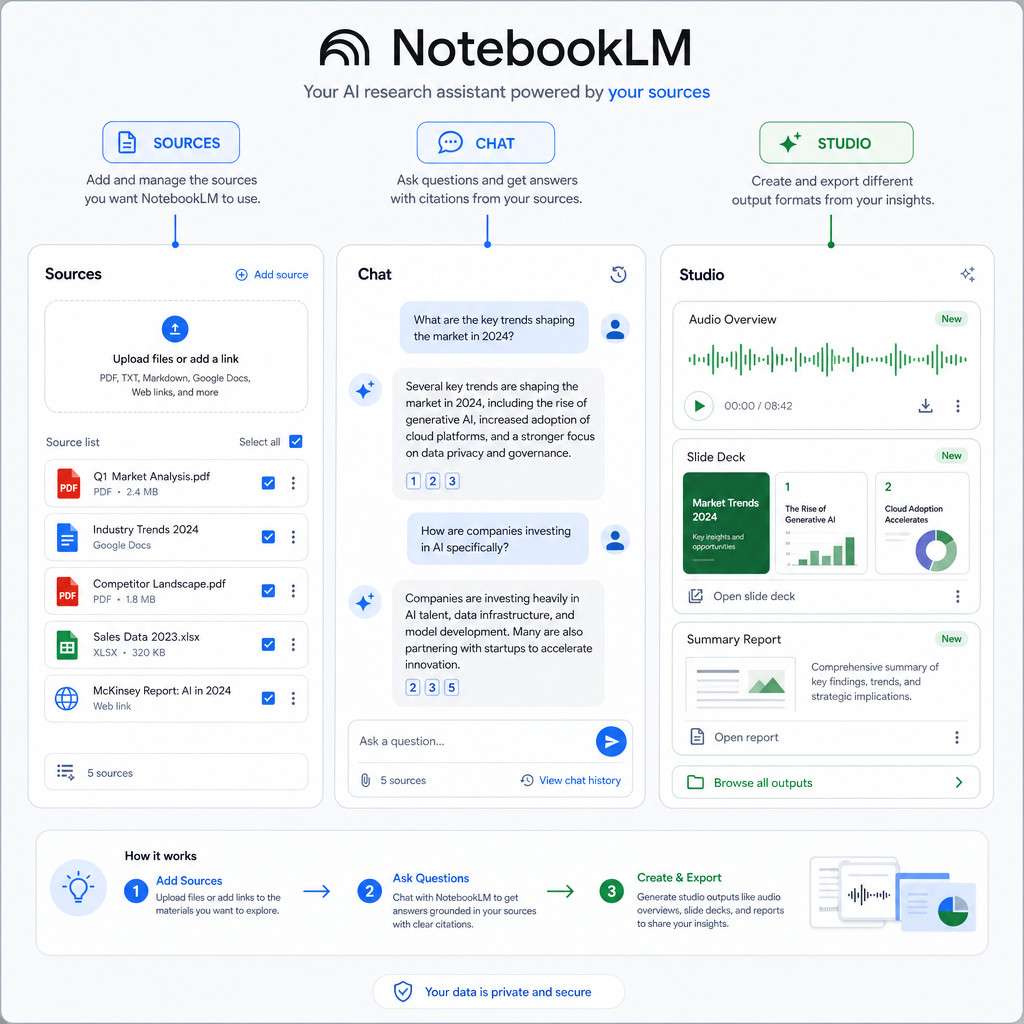
What Exactly Is NotebookLM and How Does It Work?
NotebookLM is Google’s AI-powered research assistant that analyzes your uploaded documents and turns them into summaries, study guides, and podcast-style explanations. It only uses the sources you provide, which means every answer it gives can be traced back to a specific passage in your materials.
Here’s how the workflow operates in 2026:
- Create a notebook in your Google account at notebooklm.google.com.
- Upload sources (PDFs, Google Docs, URLs, YouTube links, EPUBs, etc.).
- Ask questions in the Chat panel. NotebookLM responds with citations pointing to exact source passages.
- Use the Studio to generate artifacts: audio overviews, slide decks, reports, flashcards, quizzes, or infographics.
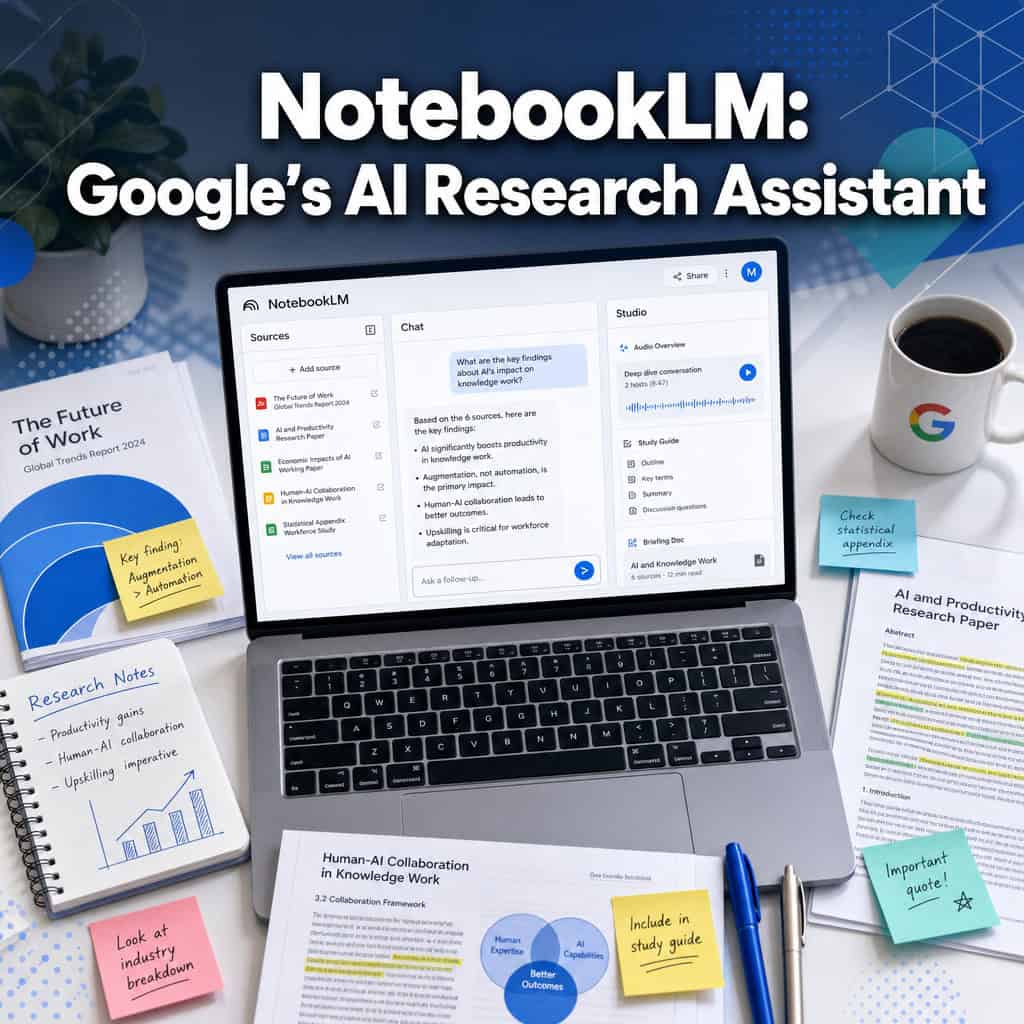
The March 2026 redesign introduced a three-panel layout: Sources on the left, Chat in the center, and Studio on the right [1]. Jeff Su described this shift as a move from “simple note-based Q&A to a full research-to-artifact pipeline” [1]. The Studio is where NotebookLM really differentiates itself. You’re not just asking questions; you’re producing finished outputs from your research corpus.
A common mistake here: people treat NotebookLM like a general chatbot and ask it questions about topics not covered in their uploaded sources. It won’t search the web for you. If the answer isn’t in your documents, it’ll say so.
What AI Models Power NotebookLM?
NotebookLM runs on Google’s Gemini family of large language models [9]. Google has upgraded the underlying engine multiple times, with the most recent updates in early 2026 adding custom persona capabilities and improved reasoning [9]. Because it uses Gemini, NotebookLM benefits from strong multi-modal understanding, which is why it can process text documents, slides, and even YouTube video transcripts.
What File Types and Sizes Can I Upload to NotebookLM?
NotebookLM accepts a wide range of source formats. As of 2026, supported types include:
| Format | Notes |
|---|---|
| Most common upload type; scanned PDFs with OCR work best | |
| Google Docs | Direct integration, no download needed |
| Google Slides | Pulls text and speaker notes |
| Web URLs | Extracts main article content |
| YouTube videos | Uses transcript/captions |
| Plain text / Copied text | Paste directly into a source |
| EPUB | Added in the April 2026 update [3] |
Standard accounts support up to 50 sources per notebook. Each individual source has a size limit (roughly 500,000 words per source for text-based files). Paid Gemini/AI plans raise these caps.
Choose EPUB uploads if you’re working with e-books or long-form publications. Choose Google Docs if you want live-syncing as you edit your source material.
Does NotebookLM Work with Google Docs and Other Google Workspace Tools?
Yes, and this integration has deepened significantly in 2026. NotebookLM connects directly with Google Docs, Google Slides, and now Google Classroom [3]. You can import a Google Doc as a source without downloading it first, and any updates to that Doc will be reflected when you refresh the source.
The April 2026 update added the ability to create notebooks directly from Google Classroom, which is a major workflow improvement for educators [3]. Teachers can push course materials into a shared notebook and have students interact with the AI assistant using only approved sources.
For teams, bulk sharing via pasted email lists was also added in April 2026, making it easier to distribute notebooks across departments or study groups [3]. If you’re already embedded in the Google ecosystem, NotebookLM fits naturally. If you primarily use Microsoft 365 or Notion, you’ll need to export files to PDF or paste content manually.
For more on how AI tools integrate into content workflows, see our comprehensive guide to AI-powered content generation tools.
How Is NotebookLM Different from Other AI Research Tools Like Notion AI?
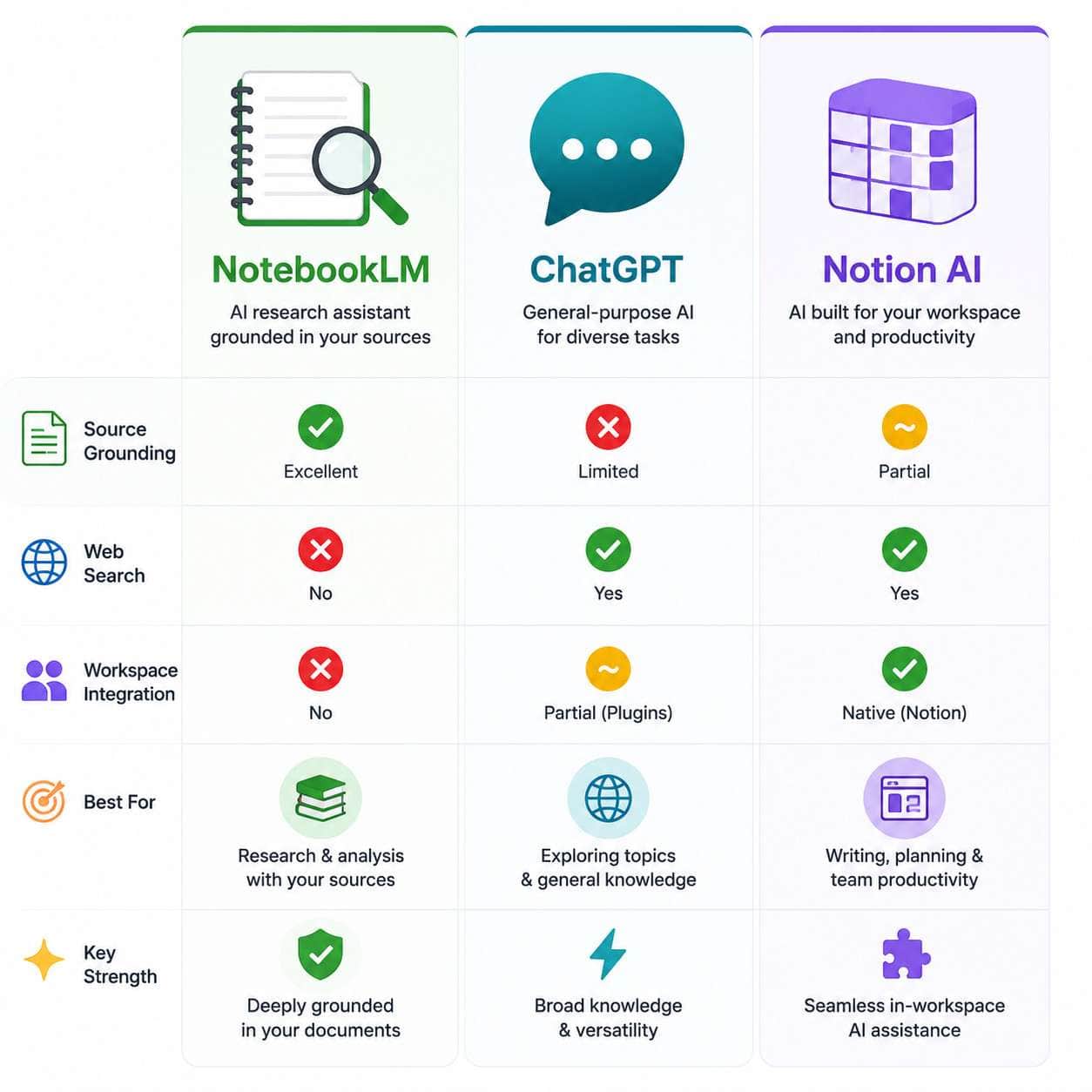
NotebookLM, Notion AI, and ChatGPT serve different purposes despite all being “AI tools.” The core difference is grounding: NotebookLM only answers from your uploaded sources, while ChatGPT draws from its training data and web browsing, and Notion AI works within your existing Notion workspace.
| Feature | NotebookLM | ChatGPT | Notion AI |
|---|---|---|---|
| Source grounding | Your uploads only | Training data + web | Your Notion pages |
| Audio/video overviews | Yes (podcast, video) | No | No |
| Artifact creation | Reports, slides, flashcards | Text, code, images | Summaries, drafts |
| Web search | No | Yes (with browsing) | No |
| Best for | Deep analysis of known materials | Broad Q&A, tutoring | Workspace productivity |
| Free tier | Yes (generous) | Yes (limited) | Yes (limited) |
A LinkedIn analysis by FreeAcademy (April 2026) suggested using all three together: NotebookLM for your course materials, ChatGPT for conversational tutoring, and Perplexity for sourced web research. There’s no single best AI study tool, but NotebookLM is the strongest option when you already have a defined corpus to work with.
Choose NotebookLM if you have specific documents you need to analyze deeply. Choose ChatGPT if you need broad knowledge or creative generation. Choose Notion AI if your workflow already lives in Notion.
If you’re exploring how AI can enhance your content strategy more broadly, our guide on AI-powered content optimization covers practical approaches.
How Does NotebookLM Compare to ChatGPT for Research Tasks?
For research grounded in specific documents, NotebookLM is stronger. Every response includes inline citations pointing to exact passages in your sources, which makes fact-checking fast. ChatGPT is better for exploratory research where you don’t yet have sources, or when you need the AI to synthesize information from across the web.
One concrete example: I uploaded a 180-page policy report to NotebookLM and asked it to identify every mention of budget allocations. It returned a structured list with page-level citations in under 30 seconds. ChatGPT couldn’t do this because it didn’t have access to the document’s full text (even with file upload, it sometimes paraphrases rather than citing precisely).
The Stackademic analysis from March 2026 positions NotebookLM as a way to “move beyond generic chatbots into structured research plus publishing [4]. That framing is accurate.
Can I Use NotebookLM for Free, or What Are the Pricing Tiers?
NotebookLM’s core features are free for anyone with a Google account. This includes uploading sources, asking questions, generating summaries, creating audio overviews, and basic Studio outputs.
Premium features are available through:
- Google AI Pro ($19.99/month): Higher source limits, cinematic video overviews, priority access
- Google AI Ultra: Even higher limits and advanced features
- Google Workspace Business Standard/Plus and Enterprise plans: Include premium NotebookLM features [3]
- Education plans: Students with .edu emails can often access premium features at no cost [5]
Cinematic Video Overviews, one of the most popular features, are now gated behind these paid tiers [3]. This is part of Google’s broader Gemini monetization strategy. For most individual users, the free tier is genuinely useful. You’ll only hit limits if you’re working with very large source collections or need video output.
Is NotebookLM Good for Students or More for Professional Researchers?
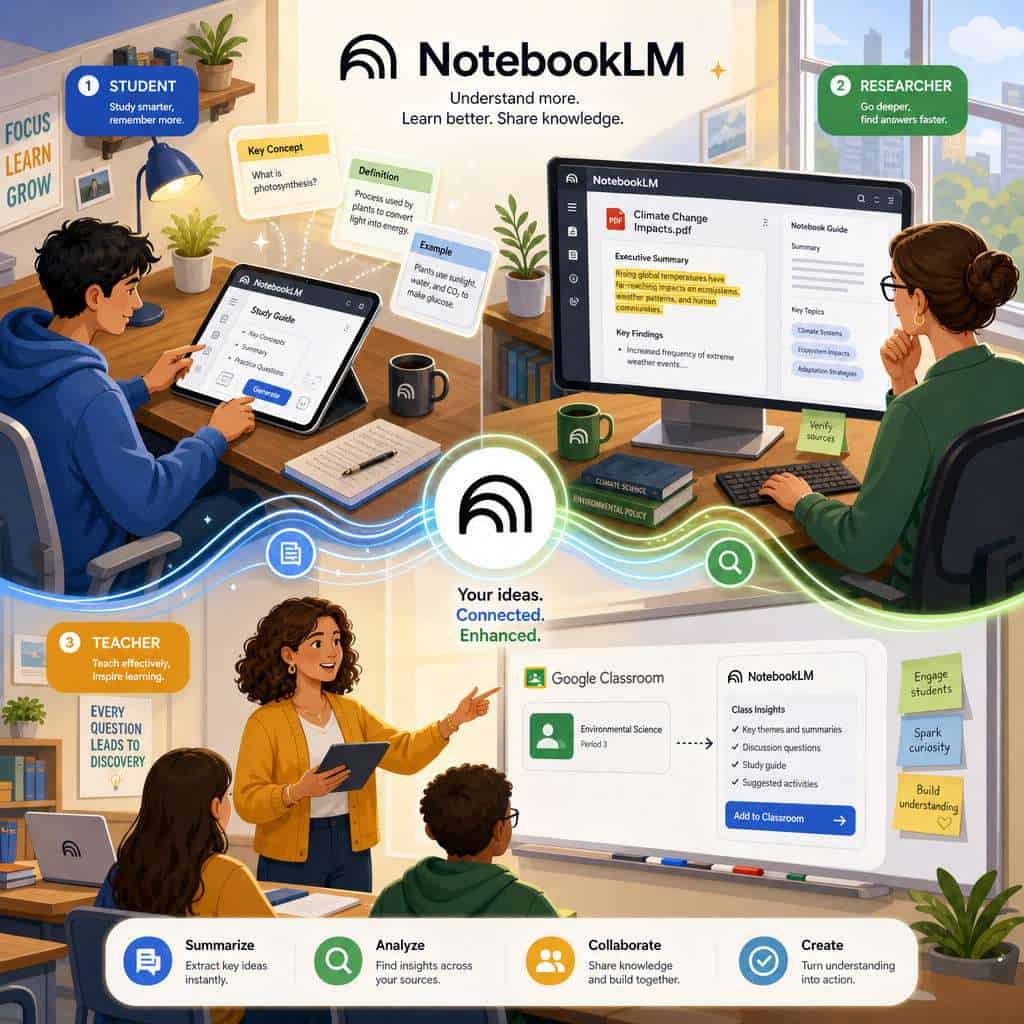
Both. NotebookLM works well for students studying specific course materials and for professionals analyzing reports, legal documents, or research papers. The use cases differ, but the core value is the same: grounded analysis of your own sources.
For students:
- Generate flashcards and quizzes from lecture notes or textbooks
- Create audio overviews that turn dense readings into conversational podcast-style explanations [5]
- Build study guides organized by topic
- Use Google Classroom integration for collaborative study [3]
For professionals:
- Analyze contracts, policy documents, or technical specifications
- Generate executive summaries and reports
- Share notebooks with team members for collaborative research
- Create slide decks directly from source analysis
A word of caution: a 2025 CHI paper titled “Thinking Smarter, not Harder?” critiqued NotebookLM from a pedagogical perspective, arguing that it may encourage superficial engagement and over-reliance on AI summaries rather than deep reading. This is a valid concern. Students should use NotebookLM to supplement their reading, not replace it.
For those building AI-enhanced workflows, our article on AI SEO tools for improving site rankings explores similar AI integration principles.
Can NotebookLM Help Me Write Essays or Research Papers?
Yes, but with an important distinction. NotebookLM can help you draft, outline, and structure essays based on your uploaded sources. It can pull relevant quotes, summarize arguments, and generate report-style outputs through the Studio. What it won’t do is write an essay from scratch using general knowledge.
The practical workflow looks like this:
- Upload your research sources (papers, articles, notes).
- Ask NotebookLM to identify key themes or arguments across sources.
- Use the Studio to generate a structured report or outline.
- Export the outline and refine it in your preferred writing tool.
- Use NotebookLM’s citations to verify claims as you write.
The March 2026 updates added PPTX export and improved report generation, making the output more directly usable [3]. Power users have found that configuring Studio with specific persona prompts (e.g., “write as a critical academic reviewer”) produces very different and more useful outputs from the same sources [1].
For related content creation strategies, check out our guide on AI-powered content generation tools.
What Are the Most Common Mistakes People Make When First Using NotebookLM?
Based on community discussions and my own experience, here are the top mistakes:
- Uploading too few sources. NotebookLM works best with a rich corpus. One or two documents won’t give you much to work with.
- Asking open-ended questions unrelated to sources. It’s not a general chatbot. Ask specific questions about your uploaded materials.
- Ignoring the Studio panel. Many new users stick to Chat and miss the most powerful features: audio overviews, reports, flashcards, and slide generation [1].
- Not labeling sources. With the April 2026 auto-labeling feature (for 5+ sources), organization improved, but manually naming your sources still helps [3].
- Uploading low-quality scans. PDFs from poor scans with no OCR will produce weak results. Use clean, text-based documents when possible.
- Expecting real-time web information. NotebookLM doesn’t browse the internet. It only knows what you’ve uploaded.
Why Is My Document Upload Not Working in NotebookLM?
The most common causes of failed uploads are: file size exceeding limits, unsupported formats, corrupted PDFs, or browser issues. Here’s a quick troubleshooting checklist:
- Check the file format. Stick to PDF, Google Docs, Google Slides, EPUB, plain text, URLs, or YouTube links.
- Check file size. Individual sources should be under roughly 500,000 words. Very large PDFs may need to be split.
- Try a different browser. Chrome works best since it’s a Google product.
- Clear cache and cookies if uploads hang or fail silently.
- Re-export the PDF. If a PDF was created from a scan, re-export it with OCR enabled.
- Check your account limits. Free accounts are capped at 50 sources per notebook.
If you’re working with complex web projects alongside your research, our guide to no-coding website design platforms may also be helpful.
Are There Privacy Concerns with Uploading Documents to NotebookLM?
This is a reasonable concern. Google states that NotebookLM data is not used to train its AI models. Your uploaded documents are processed to generate responses within your notebook, but they aren’t fed into the general Gemini training pipeline. For Workspace accounts, standard Google Workspace data processing terms apply.
That said, you should still exercise caution with:
- Highly confidential business documents
- Patient health records or other regulated data
- Proprietary research before publication
Organizations with strict data governance requirements should review Google’s Workspace data processing agreements and consider whether their IT policies permit cloud-based AI tools. For personal and educational use, the privacy posture is comparable to using Google Drive.
Conclusion
NotebookLM has matured rapidly. The 2026 updates, especially the three-panel redesign and Studio capabilities, have turned it from a clever experiment into a practical research and content production tool [1] [4]. It’s not trying to replace ChatGPT or Perplexity. Instead, it fills a specific gap: deep, source-grounded analysis of your own materials.
Your next steps:
- Go to notebooklm.google.com and create your first notebook.
- Upload 5-10 sources on a topic you’re actively researching.
- Try the Studio panel: generate an audio overview and a report from the same sources.
- If you’re a student, check whether your .edu email unlocks premium features.
- Explore how NotebookLM fits alongside other AI tools in your workflow, using it for source analysis and tools like ChatGPT for broader exploration.
The tool is free, it’s genuinely useful, and based on the pace of updates in early 2026, it’s only getting better. If you work with documents regularly and haven’t tried it yet, you’re leaving value on the table.
For more AI tool guides and workflow strategies, explore our AI content and tools archive.
FAQ
Q: Is NotebookLM completely free? A: Yes, the core features are free with any Google account. Premium features like cinematic video overviews require a paid Google AI or Workspace plan [3].
Q: Can NotebookLM access the internet? A: No. It only analyzes the documents and sources you upload. It does not browse the web or pull in external information.
Q: How many sources can I add to one notebook? A: Standard free accounts support up to 50 sources per notebook. Paid plans offer higher limits.
Q: Does NotebookLM save my conversation history? A: Yes. As of the April 2026 update, saved conversation history is available for all Workspace and personal accounts with access [3].
Q: Can I share a notebook with my team or classmates? A: Yes. The April 2026 update added bulk sharing via pasted email lists, making it easy to share notebooks with groups [3].
Q: What is an Audio Overview? A: It’s a feature that converts your uploaded sources into a podcast-style audio discussion between two AI hosts who explain and debate the content [5].
Q: Is my data safe in NotebookLM? A: Google states that uploaded documents are not used to train AI models. Standard Google data processing terms apply, but exercise caution with highly sensitive materials.
Q: Can I export content from NotebookLM? A: Yes. The 2026 updates added PPTX export for slides, and you can copy or download reports, summaries, and other Studio outputs [3].
Q: Does NotebookLM work on mobile? A: NotebookLM is primarily a web-based tool accessible through mobile browsers, though the experience is optimized for desktop.
Q: What’s the difference between NotebookLM and Google’s Gemini chatbot? A: Gemini is a general-purpose AI chatbot that can search the web and answer broad questions. NotebookLM is specifically designed to analyze your uploaded documents and produce grounded, cited outputs.
References
[1] Notebooklm Changed Completely Heres What Matters In 2026 – https://www.jeffsu.org/notebooklm-changed-completely-heres-what-matters-in-2026/ [3] Google Notebook Lm Updates April 2026 – https://teachercast.net/edtech/google-notebook-lm-updates-april-2026/ [4] The Architects Secret Why Notebooklm Is The Only Ai Tool That Matters In 2026 – https://blog.stackademic.com/the-architects-secret-why-notebooklm-is-the-only-ai-tool-that-matters-in-2026-0dbdff97cf26 [5] Googles Notebooklm Is Still The Most Slepton Free – https://www.reddit.com/r/PromptEngineering/comments/1rvhlf3/googles_notebooklm_is_still_the_most_slepton_free/ [9] Notebooklm Custom Personas Engine Upgrade – https://blog.google/innovation-and-ai/models-and-research/google-labs/notebooklm-custom-personas-engine-upgrade/