Last updated: May 22, 2026
Quick Answer
The NotebookLM Web Importer Chrome extension lets you send web pages, YouTube videos, and online articles directly into Google’s NotebookLM with one click, where the AI summarizes, connects, and answers questions grounded in your imported sources. It’s a free, third-party extension (not made by Google) with over 200,000 users and a 4.7/5 rating on the Chrome Web Store [2]. If you use NotebookLM for research, this extension eliminates the tedious copy-paste workflow and turns your browser into a direct pipeline to your AI-powered notebooks.
Key Takeaways
- The NotebookLM Web Importer is a free third-party Chrome extension that bridges your browser and Google’s NotebookLM [2].
- It supports bulk import of web pages, articles, and YouTube content directly into NotebookLM notebooks [2].
- NotebookLM itself runs on Gemini 3 models (as of March 2026), meaning imported content gets processed by Google’s most capable AI [6].
- The extension does not collect or sell user data, according to its Chrome Web Store privacy declaration [2].
- NotebookLM works as a closed RAG (Retrieval-Augmented Generation) system, so responses are grounded only in your uploaded sources, reducing hallucinations.
- Students, academics, journalists, and professionals all benefit, but the tool works best with 2–3+ sources per question [10].
- NotebookLM now accepts PDFs, Google Docs, Google Slides, images, CSVs, and web content as sources.
- The extension is at version 3.29.0 with support for 20 languages [2].
What Exactly Does the Notebook LM Chrome Extension Do?
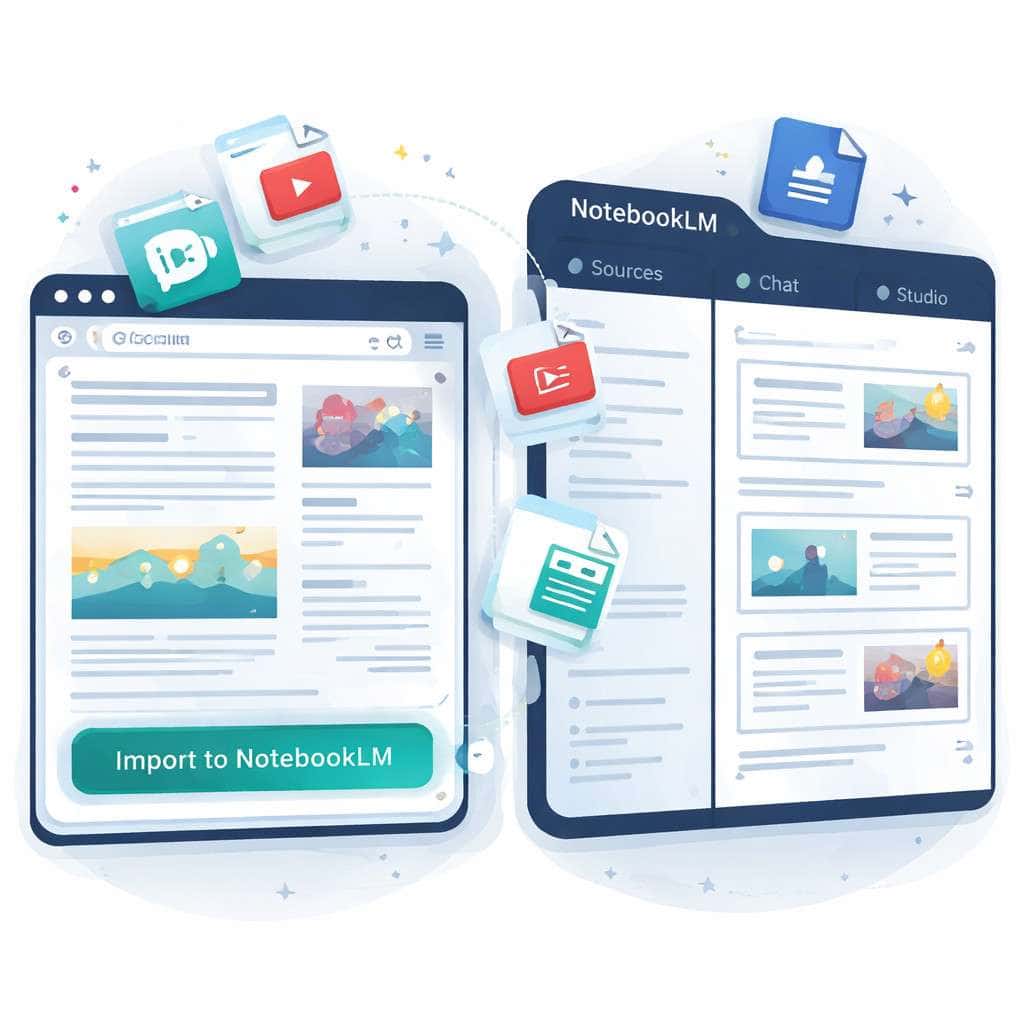
The NotebookLM Web Importer Chrome extension captures web content and sends it straight into your NotebookLM notebooks without manual copying. It acts as a bridge between your browser and Google’s AI research tool.
Here’s what happens in practice: you’re reading a long research article, a news story, or watching a YouTube video. Instead of copying the URL, switching tabs, and manually adding it as a source in NotebookLM, you click the extension icon and the content flows into your chosen notebook automatically.
The April 2026 update added improved bulk import capabilities and better Audio Overview management [2], which means you can queue up multiple pages during a research session and import them all at once. Content creators and productivity writers have started calling it the “missing browser-level layer” that turns NotebookLM into a true second brain [7].
Once your sources land in NotebookLM, the AI can summarize them, answer questions about them, find connections between documents, and generate study guides or briefing documents. The extension doesn’t do the AI processing itself; it just makes feeding NotebookLM dramatically faster.
“Browser extensions don’t replace NotebookLM—they make it faster to feed, easier to organize, and more practical to reuse.” — Comparateur-IA [7]
If you’re interested in how AI tools are reshaping content workflows more broadly, our guide to AI-powered content generation tools covers the wider landscape.
How Is NotebookLM Different from Other AI Research Tools?
NotebookLM’s core difference is source grounding. Unlike ChatGPT or Claude, which draw from their training data, NotebookLM only answers based on the specific documents you upload. This makes it a closed RAG system, which significantly reduces hallucinated facts.
Here’s why that matters for research:
- ChatGPT/Claude: Can answer any question but may fabricate details or mix up sources. You can’t always trace an answer back to a specific document.
- NotebookLM: Only references your uploaded materials. Every answer includes inline citations pointing to the exact source passage.
- Perplexity: Searches the live web and cites sources, but doesn’t let you build a persistent, curated knowledge base.
The Chrome extension amplifies this difference. Productivity writer Jeff Su notes that with extensions like Web Importer installed, the Sources panel in NotebookLM fills up much faster with relevant material, replacing the slow manual upload process [4]. The three-panel workflow (Sources, Chat, Studio) becomes genuinely useful when you can populate it quickly from your browser.
NotebookLM also now supports visual creation tools, tables, and multimedia outputs thanks to Google’s March 2026 Workspace update, so imported content can be transformed into richer formats than just text summaries. For those exploring how AI tools integrate with existing platforms, our AI-powered content optimization guide offers practical strategies.
How Much Does NotebookLM Cost for Chrome Users?
The NotebookLM Web Importer extension is completely free to install and use [2]. NotebookLM itself is also free for individual users through Google, with a paid NotebookLM Plus tier available for heavier usage.
| Feature | Free Tier | NotebookLM Plus |
|---|---|---|
| Extension access | Yes | Yes |
| Notebooks | Up to 100 | Expanded limits |
| Sources per notebook | Up to 50 | Higher limits |
| Audio Overviews | Limited per day | More generous |
| AI model | Gemini 3 | Gemini 3 (priority) |
| Price | $0 | Included with Google One AI Premium |
The free tier is generous enough for most students and casual researchers. You’d only hit limits if you’re running dozens of notebooks with heavy daily usage.
Can I Use NotebookLM for Academic Research?
Yes, and it’s one of the strongest use cases. NotebookLM’s source-grounded approach means every AI-generated answer traces back to a specific passage in your uploaded papers, which is exactly what academic work requires.
A popular Reddit thread in r/AIToolsAndTips recommends treating NotebookLM as a “second brain, not a chatbot” and stresses that the tool works best with 2–3+ sources per question [10]. For academic research, this means:
- Literature reviews: Import 10–15 papers on a topic, then ask NotebookLM to identify common themes, contradictions, or gaps.
- Source verification: Every answer includes clickable citations to the exact source paragraph.
- Study guides: NotebookLM can generate study guides, FAQs, and briefing docs from your course materials.
- Audio Overviews: Convert dense papers into podcast-style audio summaries for review on the go.
Common mistake: Uploading a single source and expecting deep analysis. NotebookLM shines when it can cross-reference multiple documents. Use the Chrome extension to quickly build a multi-source notebook before asking complex questions.
How Do I Install the NotebookLM Chrome Extension?
Installation takes under a minute. Here are the exact steps:
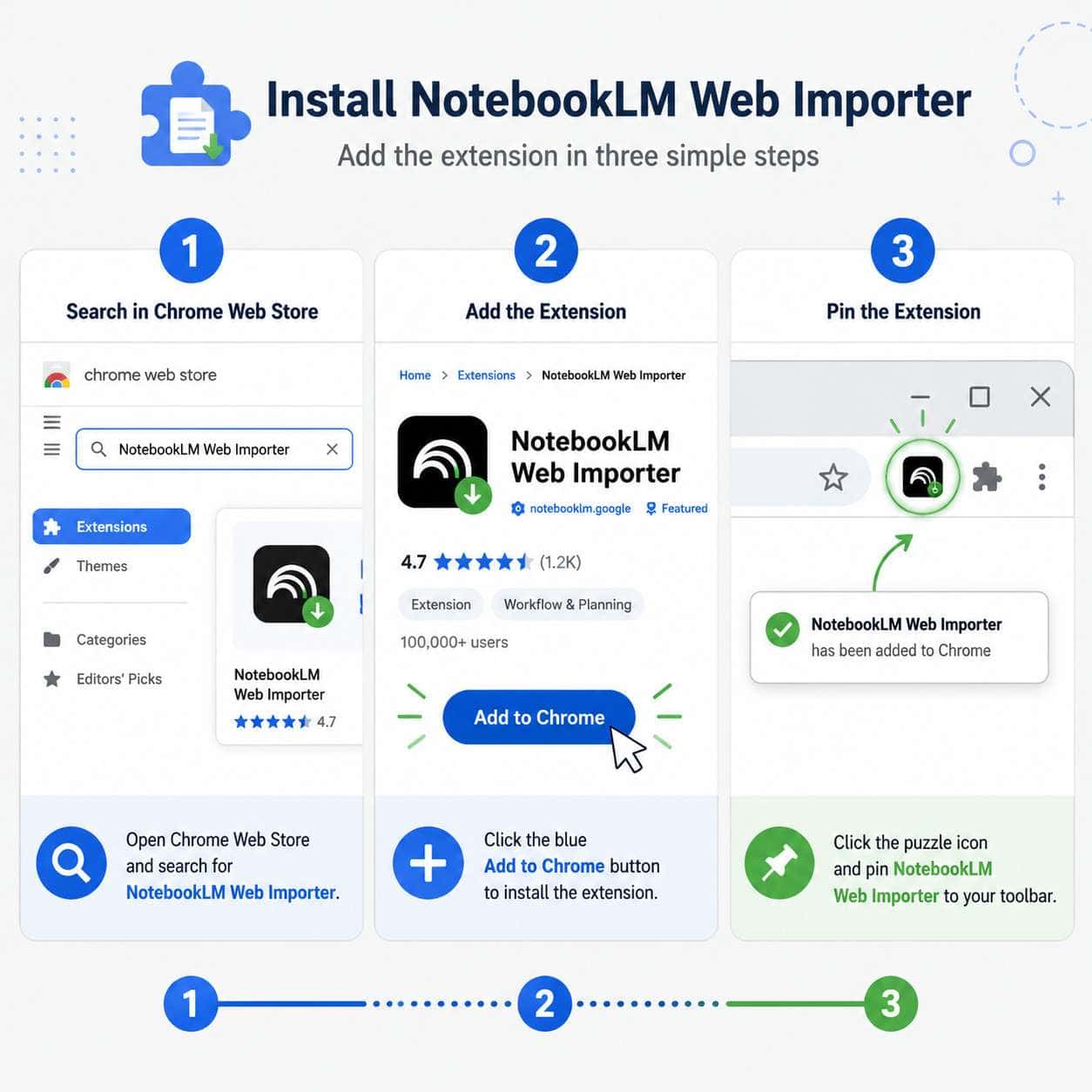
- Open the Chrome Web Store and search for “NotebookLM Web Importer” (or go directly to the listing [2]).
- Click Add to Chrome on the extension page.
- Confirm the permissions in the popup dialog.
- Pin the extension to your toolbar: click the puzzle piece icon in Chrome’s toolbar, find NotebookLM Web Importer, and click the pin icon.
- Navigate to any web page or YouTube video, click the extension icon, and select which notebook to import into.
Important note: The extension is not an official Google product. Its Chrome Web Store listing clearly states: “Works with Google NotebookLM. This extension is not affiliated with Google” [2]. It’s a third-party tool built to work alongside NotebookLM.
Edge case: If you use multiple Chrome profiles (personal and work), you’ll need to install the extension separately in each profile.
What Websites and Research Sources Work Best with NotebookLM?
The Chrome extension can capture content from most text-based websites, and NotebookLM itself accepts a wide range of source types. The best results come from content-rich pages with clear text structure.
Source types NotebookLM handles well:
- Google Docs and Google Slides (native integration)
- PDFs (uploaded directly or linked)
- Web pages and articles (via the Chrome extension)
- YouTube videos (transcripts are extracted automatically)
- Copied text and pasted notes
- Images and CSVs (added in the March 2026 update)
What works best via the extension:
- Long-form articles and blog posts
- News stories and investigative pieces
- YouTube videos with transcripts
- Research papers hosted on open-access sites
- Documentation and technical guides
What doesn’t work well: Paywalled content (the extension can only capture what’s visible in your browser), heavily JavaScript-rendered single-page apps, and sites that block content scraping.
DigitalOcean’s analysis notes that NotebookLM can handle up to approximately 500,000 words per source with 1M-token contexts, so even very long documents are fair game.
Does NotebookLM Work with Google Docs and PDFs?
Yes, Google Docs integration is native and doesn’t even require the Chrome extension. You can add Google Docs directly as sources within NotebookLM’s interface. PDFs can be uploaded directly or, if they’re hosted online, imported via the extension.
For teams already working in Google Workspace, this makes NotebookLM especially convenient. You can connect a shared Google Doc, and NotebookLM will reference the current version. If you’re managing content across platforms, our guide to AI SEO tools for WordPress shows how AI tools complement different publishing workflows.
What AI Models Power NotebookLM’s Research Capabilities?
NotebookLM runs on Google’s Gemini 3 models as of March 2026 [6]. This is significant because Gemini 3 brings larger context windows, better reasoning over long documents, and improved multimedia handling compared to earlier versions.
The Chrome extension itself doesn’t run any AI models. It simply captures and transfers content. All the intelligence happens on Google’s servers inside NotebookLM. But the extension’s value increases as the underlying models improve, because every page you import gets processed by more capable AI.
Is NotebookLM Privacy and Data Secure?
The extension’s Chrome Web Store listing declares that it does not collect or sell user data, and that data is not used for creditworthiness determinations or unrelated purposes [2]. This is a meaningful commitment for a tool that interacts with your browsing activity.
However, keep these points in mind:
- The extension is third-party, not built by Google. Your trust model should account for this.
- NotebookLM itself is a Google product, so your uploaded sources are subject to Google’s privacy policies.
- Google has stated that NotebookLM data is not used to train AI models, but always check the latest terms.
- Choose wisely what you import: avoid sending confidential or proprietary documents through any third-party extension.
For organizations with strict data policies, review both the extension’s privacy practices and Google’s Workspace data handling policies before deploying.
Are There Free Alternatives to the NotebookLM Chrome Extension?
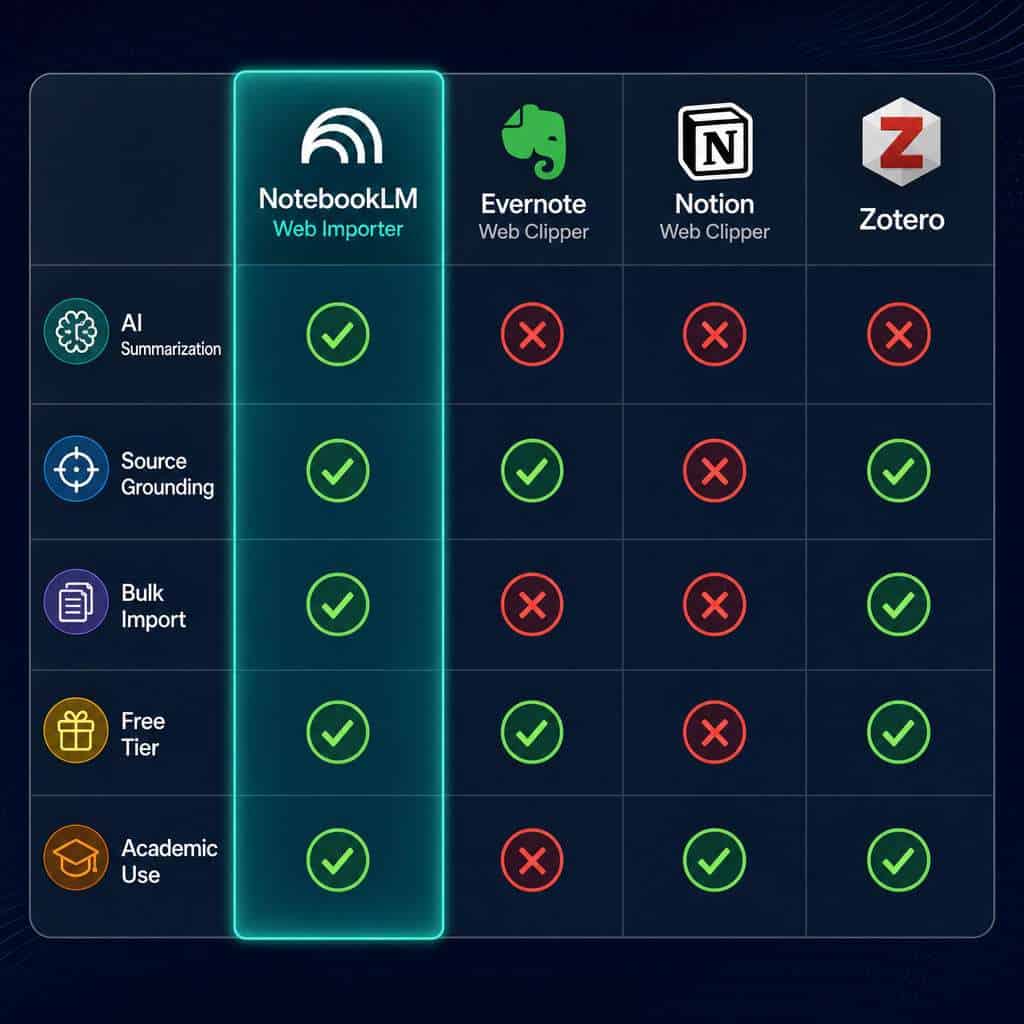
Several other tools can capture web content for AI-assisted research, though none replicate the exact NotebookLM integration:
| Tool | Free Tier | AI Summarization | Source Grounding | NotebookLM Integration |
|---|---|---|---|---|
| NotebookLM Web Importer | Yes | Via NotebookLM | Yes | Direct |
| Evernote Web Clipper | Limited | No | No | No |
| Notion Web Clipper | Yes | Via Notion AI (paid) | No | No |
| Zotero Connector | Yes | No (citation-focused) | N/A | No |
| Yes | No | No | No |
Choose NotebookLM Web Importer if your primary workflow centers on NotebookLM and you want one-click import with AI analysis. Choose Zotero if you need formal citation management for academic papers. Choose Notion Web Clipper if your team already lives in Notion.
For a broader look at AI-powered tools that can complement your research workflow, see our comprehensive guide to AI-powered content generation tools. And if you’re building AI-assisted features into your own site, our guide to integrating AI chatbots into WordPress is worth a read.
Is NotebookLM Good for Students or Professionals?
Both. Students benefit from study guide generation, literature review assistance, and Audio Overviews for revision. Professionals benefit from meeting note synthesis, competitive research, and report drafting from multiple source documents.
Best for students when:
- Preparing for exams (import lecture notes + textbook chapters, generate practice questions)
- Writing research papers (import 10+ sources, ask for thematic analysis)
- Learning new topics (import introductory articles, get AI-generated summaries)
Best for professionals when:
- Conducting market research (import competitor pages, industry reports)
- Preparing presentations (import source material, generate key talking points)
- Onboarding to new projects (import documentation, get quick briefings)
The Chrome extension makes both use cases faster because it eliminates the friction of manually adding each source. If you’re exploring how AI tools can further streamline professional workflows, check out our overview of AI plugins for WordPress automation.
What Are Common Problems People Have with NotebookLM?
The most frequent complaints fall into a few categories:
- Paywalled content won’t import: The extension can only capture what’s visible in your browser. If an article is behind a paywall you haven’t unlocked, the import will be incomplete.
- Formatting issues: Some web pages with complex layouts (heavy JavaScript, interactive elements) don’t convert cleanly to text.
- Source limits: Free-tier users can add up to 50 sources per notebook. Heavy researchers hit this ceiling.
- Extension confusion with official Google tools: Because the extension is third-party, some users expect official Google support and are surprised when issues arise [2].
- Audio Overview limits: The free tier restricts how many Audio Overviews you can generate daily.
Troubleshooting tip: If a page doesn’t import correctly, try using Chrome’s “Reader Mode” first to strip away layout complexity, then import the cleaned-up version. Alternatively, save the page as a PDF and upload it directly to NotebookLM.
Conclusion
The NotebookLM Web Importer Chrome extension solves a specific, real problem: getting content from your browser into NotebookLM quickly. It won’t replace your research skills, but it removes the friction that keeps most people from building the multi-source notebooks where NotebookLM truly excels.
Your next steps:
- Install the extension from the Chrome Web Store [2].
- Pin it to your toolbar so it’s always one click away.
- Start a new notebook in NotebookLM with a specific research question.
- Import at least 3–5 sources using the extension before asking your first question.
- Experiment with Audio Overviews and the new visual creation tools from the March 2026 update.
The tool is free, the setup takes a minute, and the difference between manually uploading sources and one-click importing is the difference between using NotebookLM occasionally and making it a daily research habit. For more ways to integrate AI into your content and web workflows, explore our AI content and tools archive.
FAQ
Is the NotebookLM Chrome extension made by Google? No. The Chrome Web Store listing explicitly states it is not affiliated with Google. It’s a third-party extension that works with NotebookLM [2].
Does the extension cost anything? No. The NotebookLM Web Importer is free to install and use. NotebookLM itself also has a free tier [2].
What AI model does NotebookLM use? NotebookLM runs on Google’s Gemini 3 models as of March 2026 [6].
Can I import YouTube videos? Yes. The extension supports YouTube video imports, and NotebookLM will extract and analyze the transcript.
How many sources can I add to one notebook? The free tier supports up to 50 sources per notebook, with each source handling up to approximately 500,000 words.
Does the extension collect my browsing data? According to its Chrome Web Store privacy declaration, the extension does not collect or sell user data [2].
Will it work on paywalled articles? Only if you have access to the full article in your browser. The extension captures what’s visible, not what’s behind a paywall.
Can I use it for team research? NotebookLM supports sharing notebooks, so you can import sources individually and then share the notebook with collaborators.
How many languages does the extension support? The extension supports 20 languages as of version 3.29.0 [2].
Is NotebookLM better than ChatGPT for research? For source-grounded research where you need traceable citations, yes. For general knowledge questions without specific documents, ChatGPT or Claude may be more flexible.
References
[1] Watch – https://www.youtube.com/watch?v=4ZpXMzhKuo8 [2] NotebookLM Web Importer – Chrome Web Store – https://chromewebstore.google.com/detail/notebooklm-web-importer/ijdefdijdmghafocfmmdojfghnpelnfn?hl=en [4] NotebookLM Changed Completely: Here’s What Matters in 2026 – https://www.jeffsu.org/notebooklm-changed-completely-heres-what-matters-in-2026/ [6] NotebookLM – Wikipedia – https://en.wikipedia.org/wiki/NotebookLM [7] NotebookLM Extensions – Comparateur-IA – https://comparateur-ia.com/en/ai-tools/notebooklm-extensions [10] I Tested NotebookLM in 2026: Most People Are Using It Wrong – Reddit – https://www.reddit.com/r/AIToolsAndTips/comments/1s6hw4r/i_tested_notebooklm_in_2026_most_people_are_using/