Last updated: May 22, 2026
Quick Answer
Google NotebookLM is a free AI-powered research tool that lets you upload your own documents and get grounded, cited answers based only on those sources. It works as a personal knowledge base where you can chat with your files, generate summaries, create audio overviews, build quizzes, and now produce slide decks and reports. As of April 2026, Google expanded NotebookLM with notebooks in Gemini, Deep Research capabilities, and broader file format support, making it one of the most capable source-grounded AI research tools available [1][9].
Key Takeaways
- NotebookLM is free to use with a Google account, with premium features available to Google AI Ultra, Pro, and Plus subscribers [1].
- It only answers based on sources you upload, which reduces hallucination compared to general-purpose chatbots.
- Supported file types now include PDFs, Google Docs, Google Sheets, Google Slides, .docx, EPUB, images, YouTube URLs, website URLs, and audio files [9][5].
- The Deep Research feature can browse hundreds of websites and create a source-grounded report you can add directly to your notebook [9].
- NotebookLM generates audio overviews, flashcards, quizzes, slides, and study guides from your sources [5][10].
- Notebooks now sync between Gemini and NotebookLM, so you can move work between both apps [1].
- It’s useful for students, educators, researchers, content creators, and professionals who work with large volumes of text.
- The tool is source-bounded and model-locked to Google’s ecosystem, which some see as a trust feature and others as a limitation.
- International availability is expanding but still limited in some regions.
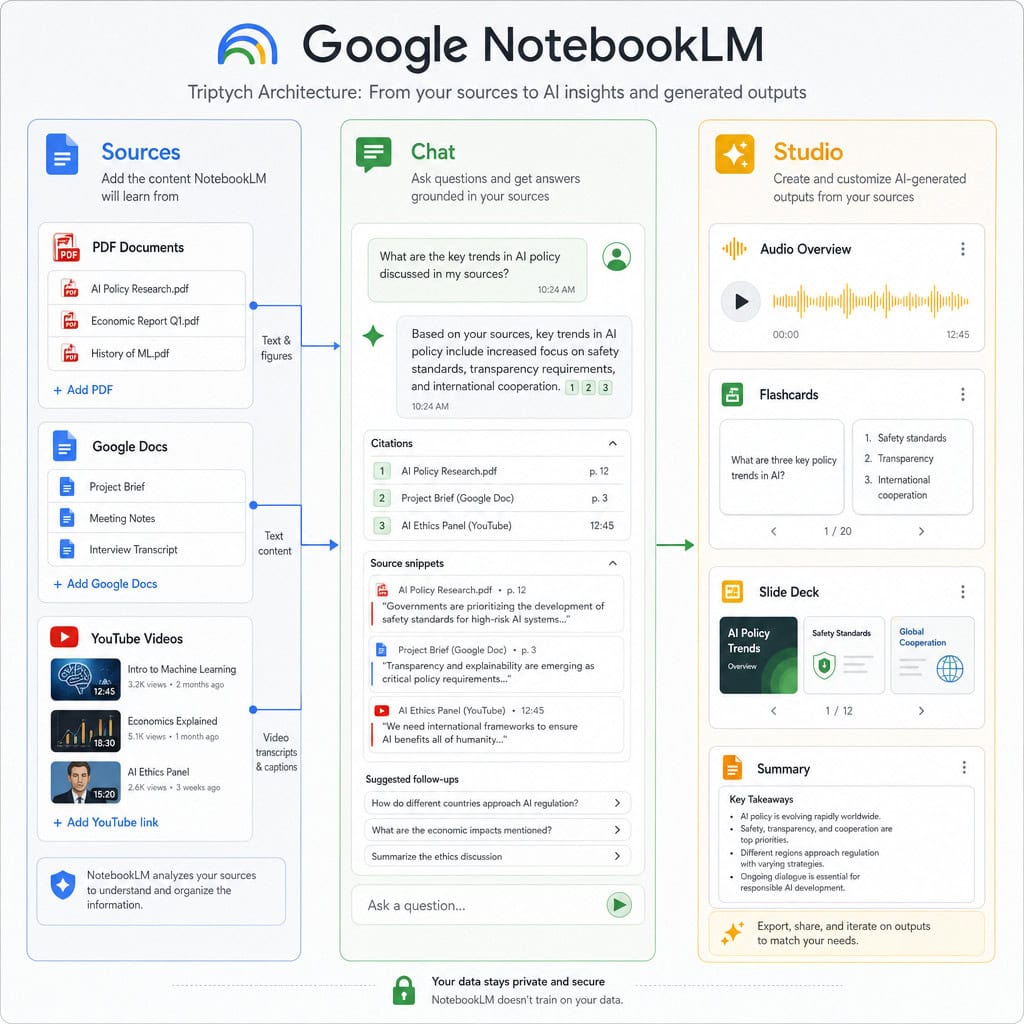
What Exactly Is Google NotebookLM and How Does It Work?
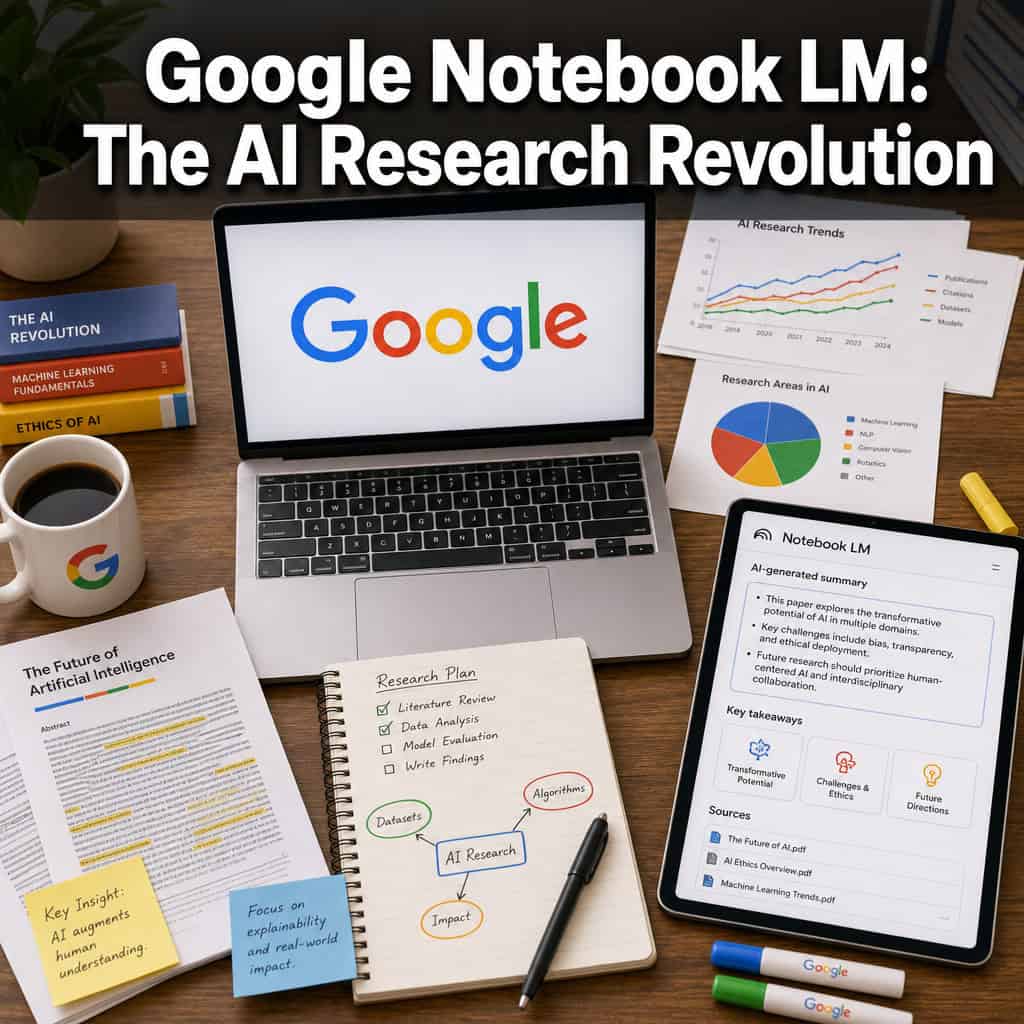
Google NotebookLM is an AI-powered personal knowledge base built on Google’s Gemini model. You upload your own sources, and the AI reads, indexes, and answers questions based strictly on that material, citing specific passages from your documents.
The tool follows a three-part structure that Jeff Su describes as Sources, Chat, and Studio [1]:
- Sources: Upload or link your documents. These can be PDFs, Google Docs, Sheets, Slides, websites, YouTube videos, audio files, images, EPUB files, and .docx files [9][5].
- Chat: Ask questions about your sources. The AI responds with answers grounded in your uploaded material, with inline citations you can click to verify.
- Studio: Generate outputs from your sources, including audio overviews (podcast-style conversations about your material), flashcards, quizzes, study guides, slides, and infographics [5][10].
This source-grounded approach is the core difference between NotebookLM and a general chatbot like ChatGPT. When NotebookLM answers a question, it pulls only from what you’ve given it, not from the open internet (unless you use the Deep Research feature, which explicitly browses the web and brings sources back into your notebook) [9].
Google positions NotebookLM as an “AI-powered research partner,” and the November 2025 and April 2026 updates pushed it firmly from a note-taking helper into a full research-to-content pipeline [1][9].
How Is NotebookLM Different from Other AI Research Tools?
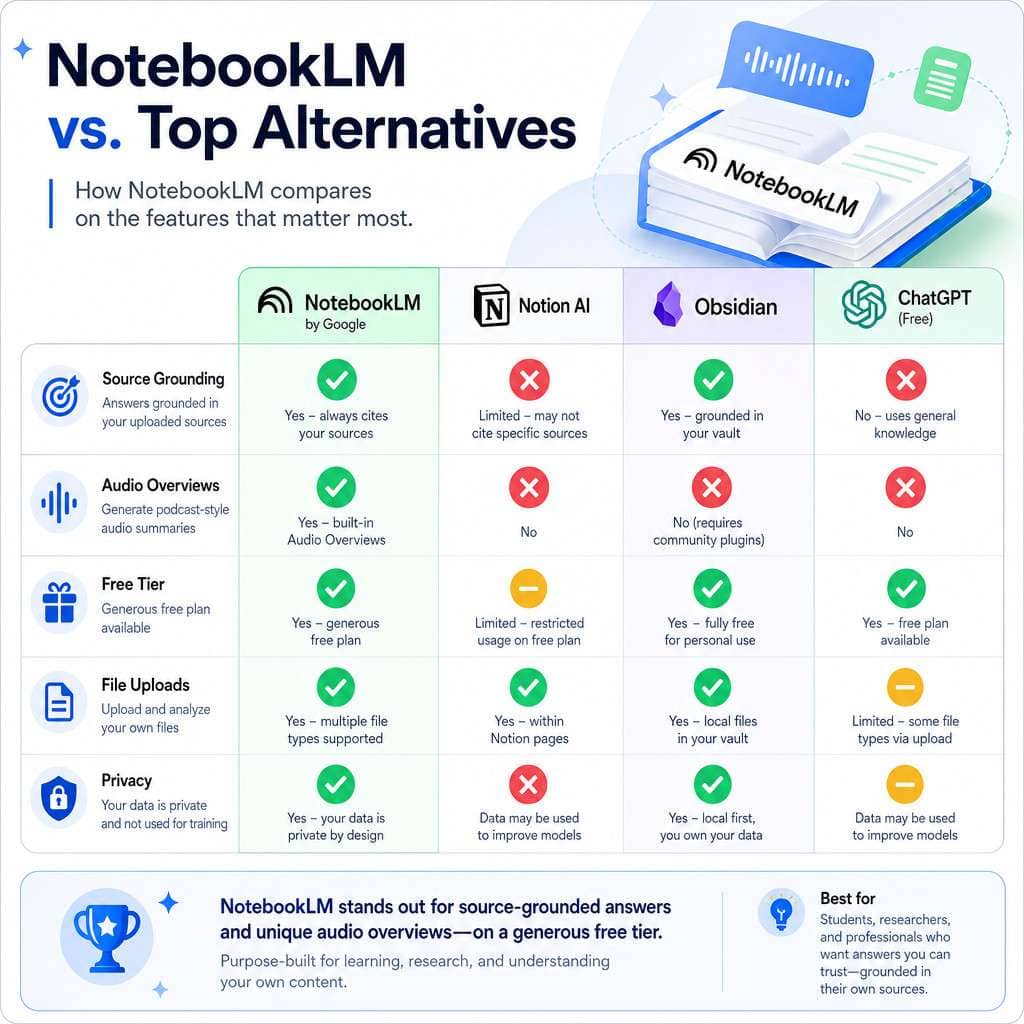
NotebookLM’s defining feature is source grounding: it only generates answers from the documents you provide. Most AI chatbots draw from their entire training data, which means they can hallucinate or mix in irrelevant information. NotebookLM constrains itself to your sources, making its outputs more trustworthy for research.
Here’s how it compares to common alternatives:
| Feature | NotebookLM | ChatGPT | Notion AI | Obsidian + AI plugins |
|---|---|---|---|---|
| Source-grounded answers | Yes | No (uses training data) | Partial (workspace only) | Depends on plugin |
| Audio overviews | Yes | No | No | No |
| Deep Research (web) | Yes [9] | Yes (with browsing) | No | No |
| Free tier | Yes | Limited | Limited | Free (plugins cost extra) |
| File upload types | 10+ formats [9] | PDFs, images | Docs within Notion | Markdown files |
| Quiz/flashcard generation | Yes [5] | Manual prompting | No | No |
| Slide/PPTX export | Yes [5] | No | No | No |
| Ecosystem lock-in | OpenAI | Notion | Local/open |
The biggest trade-off: NotebookLM is locked into Google’s ecosystem. Your data lives in Google’s infrastructure, and you’re dependent on the Gemini model. For users already in Google Workspace, this is convenient. For those who prefer local-first tools like Obsidian, it’s a limitation.
If you’re exploring other AI tools for content work, our guide to AI-powered content generation tools covers the broader landscape.
How Much Does Google NotebookLM Cost Right Now?
NotebookLM is free for anyone with a Google account. You can create notebooks, upload sources, chat with your documents, and generate audio overviews at no cost.
Premium features and priority access rolled out in April 2026 for Google AI Ultra, Pro, and Plus subscribers on the web, with broader access coming later to mobile, more European countries, and free users [1]. The premium tier includes:
- Notebooks in Gemini (syncing between both apps)
- Higher usage limits
- Early access to new features like PPTX export and artifact creation in chat [5]
For most users, the free tier is more than enough. If you’re doing heavy daily research or need the Gemini integration, the paid Google AI subscription adds meaningful value.
Why Am I Having Trouble Accessing NotebookLM?
Access issues usually come down to three things: geographic restrictions, account type, or rollout timing.
- Geographic availability: NotebookLM is available in many countries but not all. Google has been expanding access to more European countries throughout 2026, but some regions still can’t access it [1].
- Account type: You need a personal Google account or a Google Workspace account with NotebookLM enabled by the admin. Some enterprise Workspace configurations block it by default.
- Rollout timing: New features (like notebooks in Gemini) roll out to paid subscribers first, then to free users over weeks or months [1].
Common fix: Try accessing NotebookLM directly at notebooklm.google.com. If you get a “not available in your region” message, a VPN may work temporarily, but Google could restrict this in the future. Check Google’s support page for current availability [3].
What Are Some Good Alternatives to NotebookLM?
If NotebookLM doesn’t fit your workflow or isn’t available in your region, several alternatives cover overlapping use cases:
- Notion AI: Best if you already use Notion for project management and want AI Q&A within your workspace.
- Obsidian + AI plugins: Best for users who want local-first, privacy-focused note-taking with optional AI features.
- Mem: AI-powered note-taking that auto-organizes your content.
- Recall and Saner.AI: Focused on summarizing and organizing web content.
- Afforai: Designed specifically for research document analysis, similar to NotebookLM’s source-grounded approach.
- ChatGPT with file uploads: More flexible for general questions but lacks source grounding and output generation features.
Choose NotebookLM if you want free, source-grounded research with audio and quiz outputs. Choose Obsidian if you need local storage and full control over your data. Choose Notion AI if your team already lives in Notion.
For professionals building AI into their broader workflow, our AI-powered content optimization guide covers how these tools fit into a content strategy.
Is NotebookLM Good for Students or Just Researchers?
NotebookLM is excellent for both students and researchers, but the use cases differ.
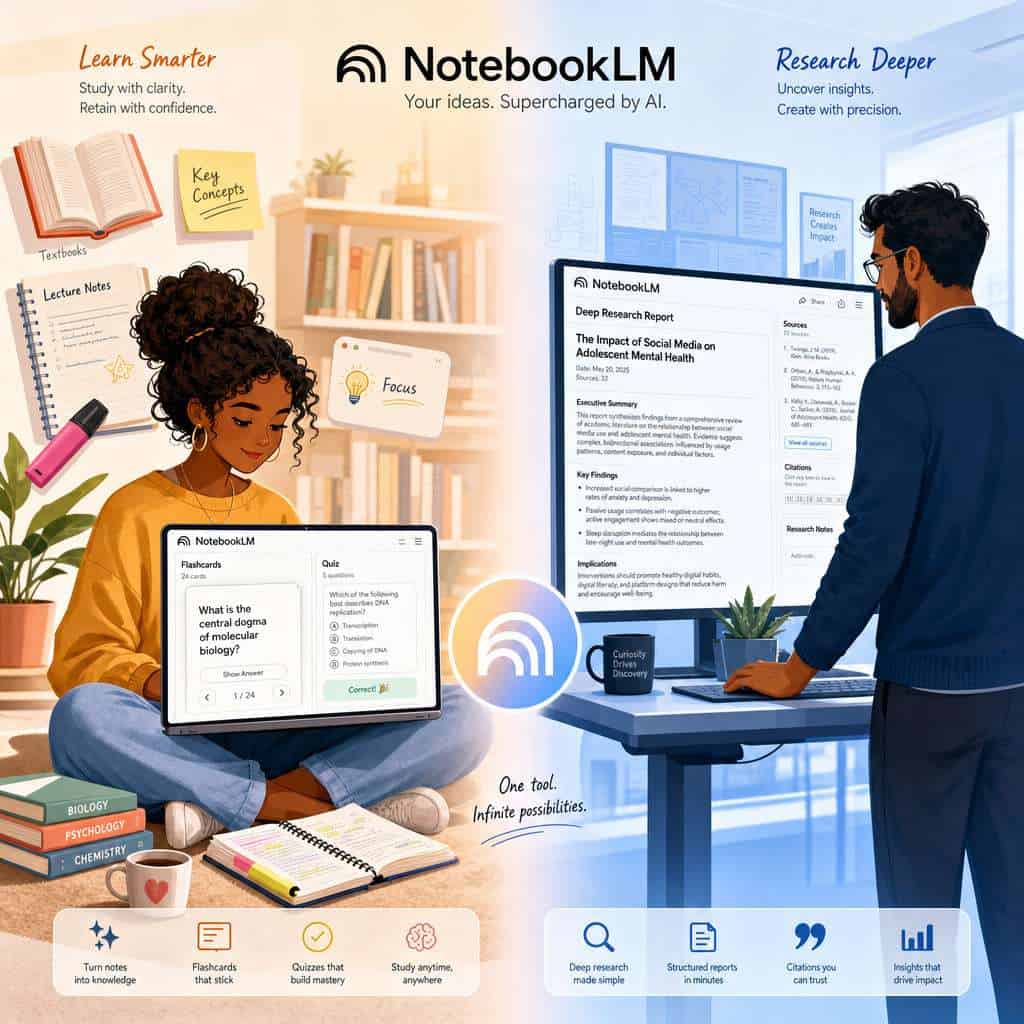
For students, NotebookLM turns uploaded lecture notes, textbook chapters, and reading assignments into:
- Study guides and summaries
- Flashcards for exam prep
- Quizzes to test understanding
- Audio overviews you can listen to while commuting [10][5]
Google’s April 2026 education-focused announcement specifically positioned NotebookLM as a student and educator workflow tool [5]. Teachers are using it to generate lesson plans, discussion questions, and classroom materials directly from curriculum documents [10].
For researchers, the Deep Research feature is the standout. It browses hundreds of websites, synthesizes findings into a source-grounded report, and lets you add both the report and the underlying sources into your notebook for further analysis [9].
Common mistake for students: Uploading only one source and expecting comprehensive answers. NotebookLM works best when you give it multiple related sources so it can cross-reference and synthesize.
What Are the Most Common Mistakes People Make with NotebookLM?
Most frustrations with NotebookLM come from misunderstanding what it can and can’t do.
- Uploading too few sources: One document gives you a chatbot for that document. Five to ten related sources give you a research assistant that can find connections across your material.
- Expecting it to know things outside your sources: NotebookLM won’t answer general knowledge questions unless you use Deep Research. If you ask about something not in your uploaded files, it’ll say it can’t find the answer.
- Ignoring the citation links: The inline citations are the whole point. Always click through to verify the AI’s interpretation of your source material.
- Uploading poorly formatted documents: Scanned PDFs without OCR, heavily formatted tables, or image-only documents give the AI less to work with. Clean text-based files produce better results.
- Not using Studio outputs: Many users only use the chat feature and miss the audio overviews, flashcards, and slide generation that make NotebookLM distinctive [5].
Can NotebookLM Handle Really Complex Research Topics?
Yes, but with caveats. NotebookLM can process dense academic papers, legal documents, technical manuals, and multi-source research projects effectively. The Deep Research feature, introduced in November 2025, specifically addresses complex research by browsing hundreds of websites and creating structured, cited reports [9].
Where it struggles:
- Highly quantitative analysis: It can summarize data from Google Sheets, but it won’t run statistical models or produce original calculations.
- Cross-disciplinary synthesis: If your sources span very different fields, the AI may not always draw the connections a domain expert would.
- Very long documents: There are per-notebook source limits. For massive research projects, you may need to split work across multiple notebooks.
Decision rule: If your research question can be answered by reading and synthesizing text across your sources, NotebookLM handles it well. If it requires original computation or specialized domain reasoning, you’ll need supplementary tools.
For those working with AI tools across their tech stack, our guide to AI SEO tools for WordPress shows how AI research feeds into content publishing.
What Kind of Documents Can I Actually Upload to NotebookLM?
As of 2026, NotebookLM supports a wide range of file types [9][5]:
- Google Workspace: Google Docs, Google Sheets, Google Slides
- Documents: PDF, .docx, EPUB
- Media: Images, audio files
- Web: Website URLs, YouTube video URLs
- Storage: Files directly from Google Drive
The November 2025 update significantly expanded format support, adding Google Sheets, Drive file URLs, images, and .docx files [9]. The April 2026 update added EPUB support [5].
Tip: For best results, upload text-heavy documents rather than image-heavy ones. If you have a scanned PDF, run it through OCR first so NotebookLM can actually read the text.
How Does NotebookLM Protect My Research Data and Privacy?
Google states that NotebookLM data is handled under the same privacy policies as other Google Workspace products. Your uploaded sources are not used to train Google’s AI models, according to Google’s documentation [3].
Key privacy points:
- Your notebooks are private to your Google account by default.
- You can share notebooks with specific people, similar to sharing a Google Doc.
- Data is stored on Google’s servers, not locally.
- Enterprise Workspace admins can control access and data retention policies.
Edge case: If you’re working with highly sensitive research (medical records, classified information, proprietary business data), check your organization’s data governance policies before uploading to any cloud-based AI tool, including NotebookLM.
Is NotebookLM Available Internationally or Just in the US?
NotebookLM is available in many countries, but not globally. Google has been expanding access throughout 2025 and 2026, with a specific mention of broader European availability coming as part of the April 2026 rollout [1].
If you’re outside the US and can’t access it, check Google’s official support page for the current list of supported countries [3]. Availability often expands quietly without major announcements.
What Technical Skills Do I Need to Use NotebookLM Effectively?
None beyond basic computer literacy. If you can upload a file to Google Drive and type a question, you can use NotebookLM. There’s no coding, no prompt engineering expertise required, and no complex setup.
That said, you’ll get better results if you:
- Write specific questions rather than vague ones (“What does Smith argue about climate policy in chapter 3?” vs. “Tell me about climate”)
- Organize sources into focused notebooks rather than dumping everything into one
- Use the Studio features to generate different output formats [5][10]
For those interested in building AI into broader workflows, our comprehensive guide to AI-powered content generation covers how tools like NotebookLM fit into a production pipeline. You might also explore how AI website builders can complement your research-to-publication workflow.
How Accurate Are the AI Summaries in NotebookLM?
NotebookLM’s summaries are generally accurate because they’re constrained to your uploaded sources. This source-grounding approach significantly reduces hallucination compared to open-ended AI chatbots.
However, accuracy isn’t guaranteed. The AI can:
- Misinterpret nuanced arguments or sarcasm in source material
- Over-simplify complex points when generating summaries
- Occasionally miss context when sources contradict each other
Best practice: Always verify key claims by clicking the inline citations. Treat NotebookLM as a research assistant that drafts answers for you to review, not as an authority that replaces your judgment.
“NotebookLM has evolved from a Q&A helper into a research-to-content pipeline” — a recurring observation in 2026 discussions about the tool’s trajectory.
Conclusion
Google NotebookLM has matured from a simple note-taking experiment into a serious research tool. The combination of source grounding, Deep Research, audio overviews, and output generation (slides, quizzes, flashcards) makes it uniquely useful for anyone who works with information for a living.
Your next steps:
- Go to notebooklm.google.com and create your first notebook with 3-5 related sources on a topic you’re actively researching.
- Ask specific questions about your sources and check the citations to see how grounding works.
- Try the Studio features: Generate an audio overview and a set of flashcards to see how NotebookLM transforms your material.
- Explore Deep Research if you need the AI to go beyond your uploaded files and pull in web sources [9].
- Integrate it into your workflow alongside other tools. If you’re publishing content, our AI-powered content optimization guide can help you take research outputs and turn them into published work.
NotebookLM isn’t perfect. It’s locked into Google’s ecosystem, it won’t replace deep domain expertise, and its outputs always need human review. But for the price of free, it’s the most capable source-grounded research tool available in 2026, and ignoring it means leaving a significant productivity advantage on the table.
FAQ
Can I use NotebookLM without a Google account? No. You need a Google account (personal or Workspace) to access NotebookLM.
Is there a limit to how many sources I can upload per notebook? Yes. Google sets per-notebook limits on the number of sources, though the exact number can change with updates. As of 2026, most users report being able to add around 50 sources per notebook [3].
Can NotebookLM access my entire Google Drive automatically? No. You manually select which files to add to each notebook. It doesn’t scan your Drive without your action.
Does the audio overview feature work in languages other than English? Audio overviews are primarily in English as of 2026, though Google has been expanding language support. Check the latest updates for your language [3].
Can I collaborate with others in a shared notebook? Yes. You can share notebooks with other Google account holders, similar to sharing Google Docs.
Will NotebookLM work offline? No. It requires an internet connection since the AI processing happens on Google’s servers.
Can I export my work from NotebookLM? Yes. The April 2026 update added PPTX export for slides, and you can copy text outputs. Audio overviews can be shared via link [5].
Is NotebookLM suitable for legal or medical research? It can help organize and summarize legal or medical documents, but it should never replace professional legal or medical judgment. Always verify AI-generated summaries against original sources.
How is Deep Research different from regular NotebookLM chat? Regular chat answers only from your uploaded sources. Deep Research actively browses the web, synthesizes findings from hundreds of sites, and brings both the report and sources back into your notebook [9].
Does Google use my uploaded documents to train its AI models? According to Google’s documentation, your NotebookLM data is not used to train AI models [3].
References
[1] Notebooklm Changed Completely Heres What Matters In 2026 – https://www.jeffsu.org/notebooklm-changed-completely-heres-what-matters-in-2026/ [3] support.google – https://support.google.com/notebooklm/answer/16213268?hl=en [5] Google Notebook Lm Updates April 2026 – https://teachercast.net/edtech/google-notebook-lm-updates-april-2026/ [9] Notebooklm Deep Research File Types – https://blog.google/innovation-and-ai/models-and-research/google-labs/notebooklm-deep-research-file-types/ [10] Notebooklm – https://ditchthattextbook.com/notebooklm/