Last updated: June 7, 2026This Canva Portfolio Guide will help you build, customise, and share your professional portfolio with confidence. In this guide, you’ll discover everything you need from a Canva Portfolio Guide Build Customize Share so you can create an impressive showcase of your work.
Quick Answer: A Canva portfolio is a visual showcase of your work built using Canva’s drag-and-drop design platform. You can create one for free using pre-made templates, customize it with your branding, and share it as a link or PDF. It works well for graphic designers, photographers, illustrators, and anyone in creative fields who needs a polished portfolio without coding or expensive software.
Key Takeaways
- Canva offers dozens of free portfolio templates that you can customize in under two hours, even with zero design experience.
- The free plan covers most portfolio needs, but Canva Pro (about $13/month in 2026) unlocks premium templates, Brand Kit, and background remover.
- You can export your Canva portfolio as a PDF, share it via a direct link, or embed it on a personal website.
- Canva portfolios work for photographers, illustrators, UX designers, and other creatives, not just graphic designers.
- Mobile responsiveness can be an issue with Canva Websites; always preview and test on multiple devices before sharing.
- For job applications, a Canva portfolio PDF paired with a shareable link is the most reliable format.
- Avoid common mistakes like overcrowding pages, using low-resolution images, or relying on too many fonts.
- Canva is not a direct replacement for Adobe Portfolio if you need deep customization, but it’s faster and more accessible for most people.
What Is a Canva Portfolio and How Do I Make One?
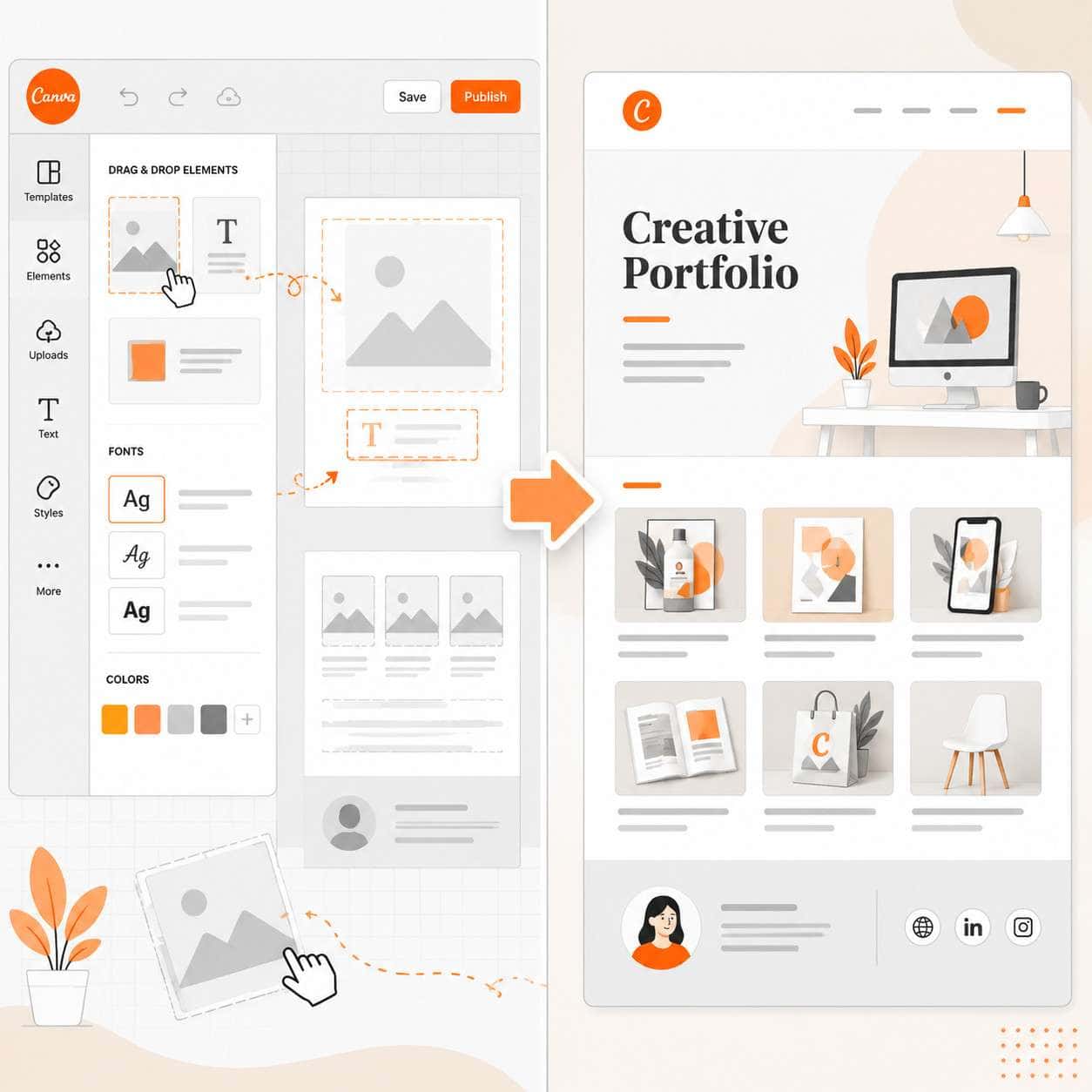
A Canva portfolio is a collection of your best creative work, organized and designed inside Canva’s online editor. You can build it as a multi-page presentation, a website, or a downloadable PDF document.
Here’s how to create one from scratch:
- Sign in to Canva (free account works fine) and search “portfolio” in the template library.
- Pick a template that matches your style. Filter by “free” if you’re not on a paid plan.
- Replace placeholder content with your own images, project descriptions, and contact details.
- Customize colors and fonts to match your personal brand. If you’ve already built a logo in Canva, drop it in the header.
- Organize your pages so the strongest work appears first. Recruiters often spend less than 30 seconds on an initial review.
- Export or publish. Choose “Share” to generate a view-only link, or download as a high-quality PDF.
Common mistake: Jumping straight into design before curating your projects. Select your 8-12 strongest pieces first, then build around them.
Canva vs Adobe Portfolio: Which Is Better for Designers?
Canva is better if you want speed, simplicity, and a low price. Adobe Portfolio is better if you need a fully custom website with your own domain and already pay for Creative Cloud.
| Feature | Canva Portfolio | Adobe Portfolio |
|---|---|---|
| Cost | Free or $13/month (Pro) | Included with Creative Cloud ($23+/month) |
| Learning curve | Very low | Low to moderate |
| Custom domain | Not on free plan | Yes, included |
| Templates | 50+ portfolio-specific | 12+ customizable themes |
| Export options | PDF, PNG, link, website | Live website only |
| Coding required | No | No (but CSS editing available) |
| Best for | Quick portfolios, students, freelancers | Photographers and designers already in Adobe ecosystem |
Decision rule: Choose Canva if you need a portfolio ready today and don’t want another subscription. Choose Adobe Portfolio if you already use Lightroom or Photoshop and want tighter integration with your existing workflow.
How Much Does It Cost to Create a Professional Portfolio in Canva?
You can build a professional-looking Canva portfolio for $0. The free plan includes access to thousands of templates, basic design elements, and 5 GB of cloud storage.
Here’s what each tier gets you:
- Free plan ($0): Portfolio templates, standard fonts, basic export options, Canva Websites with a canva.site subdomain.
- Canva Pro (~$13/month): Premium templates, Brand Kit for consistent colors and fonts, background remover, 1 TB storage, resize tool, and transparent PNG export.
- Canva Teams (~$15/user/month): Everything in Pro plus collaboration features for agencies or studios.
For most freelancers and job seekers, the free plan is enough. Upgrade to Pro if you need Brand Kit consistency across multiple projects or want access to premium stock photos without buying them separately. You can also explore Canva’s AI design tools to speed up the creation process on either plan.
Best Free Canva Portfolio Templates for Graphic Designers
Canva’s template library changes frequently, but several categories consistently perform well for graphic designers in 2026:
- Minimalist Grid: Clean layouts with large image blocks and minimal text. Best for letting visual work speak for itself.
- Case Study Format: Templates with space for project descriptions, process shots, and outcomes. Ideal if you want to show your thinking, not just the final product.
- Magazine Style: Editorial layouts with mixed typography and image sizes. Good for branding and print designers.
- Dark Mode: Black or charcoal backgrounds that make colorful design work pop. Popular with UI/UX designers.
How to find them: Search “graphic design portfolio” or “creative portfolio” in Canva’s template search. Filter by “Free” and sort by popularity. You can also look at carousel design templates for inspiration on how to present work in a scrollable, visual format.
Tip: Don’t use a template as-is. Change the fonts, swap the color palette, and adjust the layout. Hiring managers see the same default templates repeatedly.
Is a Canva Portfolio Good for Photographers or Just Graphic Designers?
A Canva portfolio works well for photographers, not just graphic designers. The platform supports high-resolution image uploads and offers templates specifically designed for photography showcases.
Photographers should look for templates with:
- Full-bleed image layouts that let photos fill the entire page
- Minimal text overlays so the images stay the focus
- Gallery-style grids for displaying series or collections
That said, photographers who need client proofing, watermarking, or direct print ordering will still want a dedicated photography platform alongside their Canva portfolio. Canva is best used as a presentation layer, showing your best 15-20 images in a curated format for prospective clients or employers.
How to Customize a Canva Portfolio to Stand Out From Other Designers
The fastest way to make your Canva portfolio stand out is to treat it like a branding project, not a template fill-in exercise.
Specific steps that work:
- Create a custom color palette using 2-3 brand colors. Apply them consistently to backgrounds, accent elements, and text.
- Choose one heading font and one body font. Stick with these throughout. Mixing four or five fonts looks amateur.
- Add context to each project. Include a one-sentence brief, your role, and the outcome. “Redesigned checkout flow, reducing cart abandonment by 18%” is more compelling than just a screenshot.
- Use white space generously. Crowded pages feel chaotic. Give each project room to breathe.
- Include a personal intro page with a photo and a short bio. People hire people, not just portfolios.
If you’re building a personal brand from scratch, start with your logo design and let that guide the rest of your portfolio’s visual identity.
What File Types and Sizes Work Best for Canva Portfolio Images
Upload images in PNG or JPG format at a minimum of 1080px on the shortest side. For print-quality portfolios, aim for 300 DPI originals.
Quick reference:
- JPG: Best for photographs and complex images with many colors. Smaller file size.
- PNG: Best for graphics, logos, and images with transparency. Larger file size but sharper edges.
- SVG: Not supported for upload in Canva’s standard editor.
- Max upload size: 25 MB per image on free plan, same on Pro.
Edge case: If your portfolio includes mockups or UI screenshots, export them at 2x resolution from your design tool before uploading to Canva. This prevents blurriness when viewers zoom in.
Why Is My Canva Portfolio Not Loading or Looking Right on Mobile?
Canva Websites (the built-in website builder) don’t always render perfectly on mobile because the designs are based on fixed-position layouts rather than true responsive web design.
Troubleshooting steps:
- Preview on mobile using Canva’s built-in mobile preview before publishing.
- Avoid text-heavy layouts. Long paragraphs that look fine on desktop can become unreadable walls of text on small screens.
- Keep important content in the center of each section. Elements near the edges may get cropped on narrow screens.
- Reduce image file sizes if pages load slowly. Compress images to under 2 MB each before uploading.
- Test your published link on an actual phone, not just a browser resize. Some rendering issues only appear on real devices.
If mobile performance is critical for your audience, consider exporting your Canva portfolio as a PDF instead. PDFs maintain their layout across all devices and load reliably. For more design troubleshooting, check out the Canva resources section on our site.
Can I Use a Canva Portfolio for Job Applications in Creative Fields?
Yes. A well-made Canva portfolio is accepted by most employers in creative fields, including agencies, in-house design teams, startups, and marketing departments.
Best practices for job applications:
- Export as PDF for email attachments. Keep it under 10 MB so it doesn’t bounce.
- Share a view-only Canva link in your application for easy online viewing.
- Name your file professionally: “Jane_Smith_Portfolio_2026.pdf” not “Untitled_design_final_v3.pdf.”
- Tailor your portfolio to the role. A UX position should emphasize process and wireframes. A branding role should highlight identity systems.
Who might need more: Senior designers applying to top agencies or FAANG companies may want a custom-coded portfolio site for maximum flexibility. But for mid-level roles, freelance pitches, and most job applications, a Canva portfolio is more than sufficient.
If you’re also building email campaigns as part of your freelance toolkit, our guide on creating email templates in Canva covers that workflow.
Common Mistakes People Make When Building a Portfolio in Canva
Most Canva portfolio mistakes come from treating it like a scrapbook instead of a strategic presentation.
- Including everything you’ve ever made. Edit ruthlessly. Show 8-12 of your best projects, not 40 mediocre ones.
- Skipping project context. A pretty image without explanation tells the viewer nothing about your skills or process.
- Using default template fonts and colors. This signals that you didn’t put thought into your own branding.
- Ignoring hierarchy. Your strongest work should be on pages 1-3. Many reviewers won’t scroll past page 5.
- Forgetting contact information. Every portfolio needs a clear way to reach you: email, LinkedIn, or website link.
- Low-resolution images. Blurry screenshots or compressed photos undermine even great work.
Free vs Pro Canva Portfolio Features You Should Know About
The free plan handles the basics well, but Pro adds tools that save time and improve polish.
| Feature | Free | Pro |
|---|---|---|
| Portfolio templates | Limited selection | Full library |
| Brand Kit | Not available | Custom fonts, colors, logos |
| Background remover | Not available | One-click removal |
| Cloud storage | 5 GB | 1 TB |
| Resize designs | Manual only | Magic Resize (one click) |
| Premium stock images | Not included | Included (millions) |
| Custom domain for Canva Website | No | Yes |
Choose free if: You’re a student, building your first portfolio, or testing the waters. Choose Pro if: You’re a working freelancer who uses Canva daily and wants brand consistency across all your materials. Explore AI-powered design tools if you want to compare Canva Pro with other options.
How Long Does It Take to Create a Professional Portfolio in Canva?
Most people can build a solid Canva portfolio in 2-4 hours if they’ve already selected their projects and have images ready to upload.
Realistic timeline breakdown:
- Project curation (30-60 min): Selecting and organizing your best work
- Template selection and customization (30-45 min): Choosing a layout and adjusting branding
- Content placement (45-90 min): Adding images, writing descriptions, arranging pages
- Review and testing (20-30 min): Checking for typos, testing links, previewing on mobile
If you’re starting completely from scratch with no prepared images or written descriptions, budget a full day. The design part is fast; the content preparation is what takes time.
Frequently Asked Questions
Can I use my own domain with a Canva portfolio website? Yes, but only on Canva Pro or Canva Teams plans. Free plan websites use a canva.site subdomain.
Is a Canva portfolio better than Behance or Dribbble? They serve different purposes. Behance and Dribbble are community platforms where others discover your work. A Canva portfolio is a standalone presentation you control and share directly.
Can I password-protect my Canva portfolio? Yes. When sharing a Canva design link, you can add a password. This is useful for confidential client work or NDA-protected projects.
Does Canva portfolio support video? You can embed short videos in Canva presentations and websites. For video-heavy portfolios, a dedicated platform like Vimeo paired with your Canva layout works better.
Can I collaborate with someone on my Canva portfolio? Yes. Canva allows real-time collaboration. Share editing access with a mentor, colleague, or designer friend for feedback.
Will my Canva portfolio look professional enough for a senior role? It depends on execution, not the tool. A thoughtfully designed Canva portfolio with strong work samples will outperform a custom-coded site with weak projects every time.
How often should I update my Canva portfolio? Review it every 3-6 months. Remove older work that no longer represents your skill level and add recent projects.
Can I track who views my Canva portfolio? Canva provides basic view analytics for shared links and published websites. For detailed tracking, use a URL shortener with analytics or add UTM parameters.
Conclusion
A Canva portfolio is one of the fastest ways to present your creative work professionally in 2026. It won’t replace a fully custom website for every situation, but for the vast majority of freelancers, students, and working creatives, it’s more than enough to land interviews and win clients.
Your next steps:
- Curate your 8-12 strongest projects today.
- Pick a free Canva template and customize it with your brand colors and fonts.
- Write one sentence of context for each project (the brief, your role, the result).
- Export as PDF and generate a shareable link.
- Test on mobile, then add the link to your LinkedIn, resume, and email signature.
The best portfolio is the one that’s finished and shared. Start building yours now.
Useful Resources: Canva design platform & Canva Design School free tutorials