Last updated: June 7, 2026
Quick Answer: A Canva brochure is a marketing document you design using Canva’s free online editor, choosing from thousands of templates and customizing them with drag-and-drop tools. You can create professional bi-fold, tri-fold, or multi-page brochures in minutes, then download them as print-ready PDFs or share them digitally — all without graphic design experience.
Key Takeaways
- Canva’s brochure maker is free to use, with optional Pro features starting at $15/month for premium templates and assets.
- Over 10,000 brochure templates are available, covering industries from real estate to restaurants to healthcare.
- Canva AI 2.0, launched at Canva Create 2026, can now generate and edit brochure designs conversationally and learn your brand style [2][3].
- Standard brochure sizes are 8.5 x 11 inches (US Letter) for print and flexible dimensions for digital use.
- You can download brochures as PDF Print (with crop marks and bleed), PNG, or JPG, or order prints directly through Canva’s print shop.
- Common mistakes include overcrowding layouts, using too many fonts, and ignoring bleed margins for print.
- Canva works for both beginners and experienced designers, though professionals may prefer it for quick drafts rather than final production work.
What Is a Canva Brochure and How Do I Make One?
A Canva brochure is any folded marketing document — bi-fold, tri-fold, or multi-page — designed inside Canva’s browser-based editor. The tool gives you access to a library of professionally designed templates, stock photos, icons, and fonts that you can customize without installing software [10].
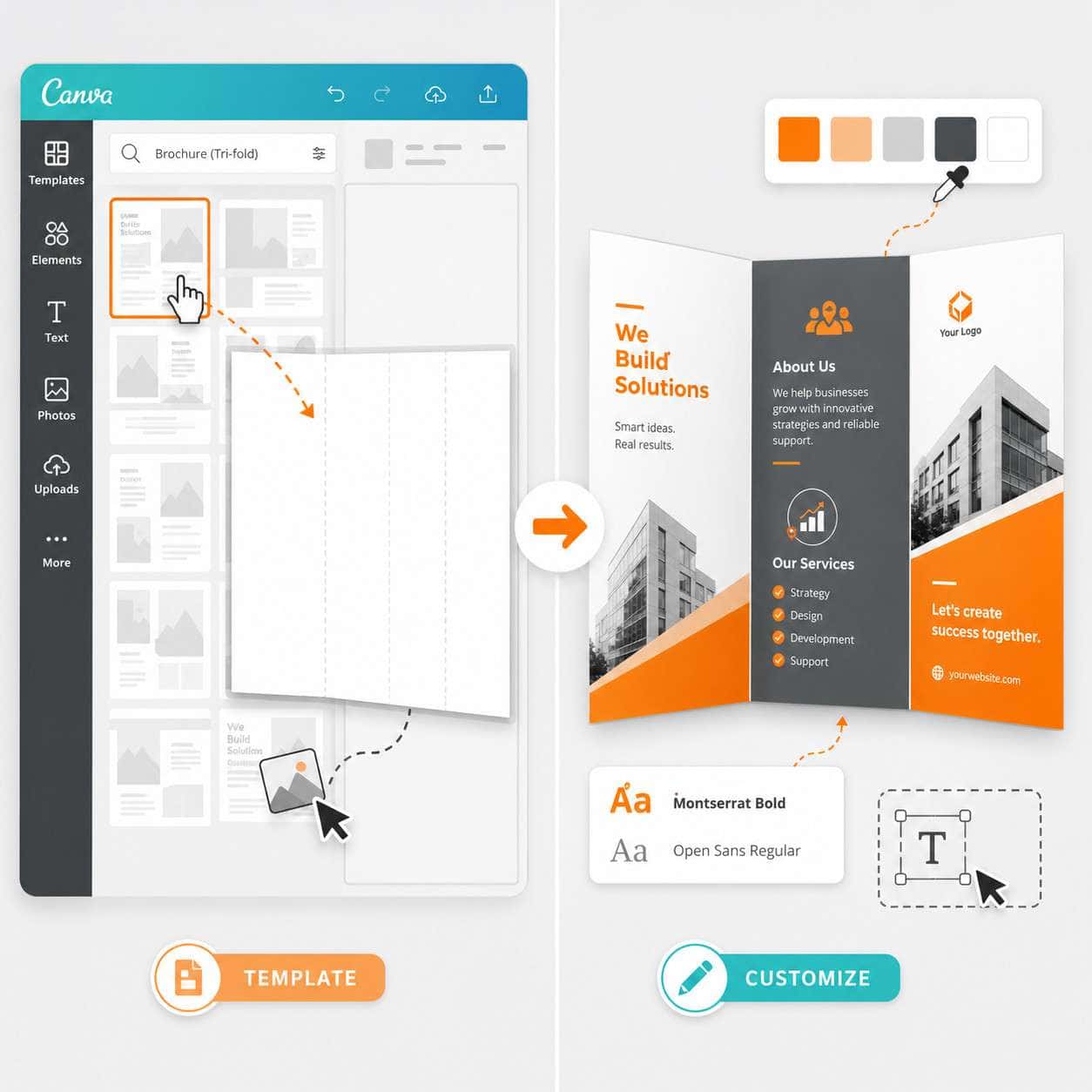
Here’s how to make one in six steps:
- Go to Canva’s brochure maker. Visit canva.com/create/brochures or search “brochure” from the Canva dashboard.
- Pick a template. Filter by style, industry, or color. Choose bi-fold or tri-fold based on your content needs.
- Customize the layout. Replace placeholder text and images with your own. Adjust colors to match your brand.
- Add your brand elements. Upload your logo, set brand fonts, and use your color palette. Canva’s Brand Kit (Pro) saves these for reuse.
- Review both sides. Brochures have front and back panels — check every panel for spelling, alignment, and visual balance.
- Download or share. Export as PDF Print for physical copies or share a link for digital distribution.
I made my first Canva brochure for a local nonprofit fundraiser in about 20 minutes. The tri-fold template already had the right structure, so I just swapped in the event details and photos. That speed is what makes Canva practical for people who aren’t designers.
If you’re also working on other Canva projects, our guide on creating effective email templates in Canva covers similar customization principles.
How Much Does It Cost to Create a Brochure in Canva?
Creating a brochure in Canva is free. The free plan includes thousands of brochure templates, basic stock photos, and full access to the drag-and-drop editor [10].
Here’s what each plan offers for brochure design:
| Feature | Canva Free | Canva Pro ($15/month) | Canva Teams ($10/user/month) |
|---|---|---|---|
| Brochure templates | ~3,000+ | ~10,000+ | ~10,000+ |
| Stock photos/graphics | Limited library | 100M+ premium assets | 100M+ premium assets |
| Brand Kit | Not available | Full brand kit | Full brand kit |
| Background Remover | Not available | Included | Included |
| Canva AI 2.0 features | Basic | Full access | Full access |
| Print ordering | Available | Available | Available |
Choose Free if you need a one-time brochure and don’t require premium stock images. Choose Pro if you create brochures regularly and want access to premium templates, Brand Kit, and AI features.
One workaround: you can use free templates and upload your own photos to avoid needing Pro entirely.
Canva Free vs. Pro Brochure Templates: Which Is Better?
Free templates are solid for basic projects, but Pro templates tend to have more polished layouts, better typography pairings, and access to premium stock imagery baked into the design.
The practical difference shows up in three areas:
- Visual quality. Pro templates often use premium fonts and photos that look more refined. Free templates sometimes rely on generic stock imagery.
- Variety. Pro unlocks roughly three times more template options, which matters if you’re in a niche industry.
- Brand consistency. Pro’s Brand Kit lets you apply your colors, fonts, and logo across all templates with one click.
That said, I’ve seen plenty of impressive brochures built on free templates. The template is just a starting point — your content, images, and color choices matter more than whether the template was free or paid.
How to Customize Canva Brochure Templates
Customizing a Canva brochure template means replacing default content with your own while keeping (or improving) the layout’s visual structure. Every element — text, images, colors, shapes — is editable with drag-and-drop controls [10].
Key customization steps:
- Text: Click any text box to edit. Change the font, size, color, and spacing. Stick to two fonts maximum — one for headings, one for body text.
- Images: Click an image and hit “Replace” to upload your own, or browse Canva’s photo library. Crop and adjust filters directly in the editor.
- Colors: Select any element and change its color. Use the eyedropper tool to pull colors from your logo for brand consistency.
- Layout: Drag elements to reposition them. Use Canva’s alignment guides (the purple lines that appear) to keep things straight.
- Pages: Add or remove pages for multi-page brochures. Duplicate a page to maintain consistent styling.
With Canva AI 2.0, you can now describe changes conversationally — for example, “make this section more modern” — and the AI will suggest layout and style adjustments [2][3]. The AI also builds a creative profile based on your past designs, so new brochures stay consistent with your brand automatically [3].
For more on how Canva’s AI tools work, check out our article on Canva AI design creation and stunning visuals.
Why Are My Canva Brochure Designs Looking Unprofessional?
The most common reason Canva brochures look unprofessional is visual clutter — too many fonts, colors, or images competing for attention on a small surface.
Here are the usual culprits and fixes:
- Too many fonts. Limit yourself to two. One serif or bold sans-serif for headings, one clean sans-serif for body text.
- Low-resolution images. Canva warns you when an image is too small for print. Always use photos at least 300 DPI for printed brochures.
- No white space. Cramming every panel with text makes the brochure hard to read. Leave breathing room around headlines and images.
- Inconsistent colors. Pick three to four colors and stick with them. Use your brand palette or a Canva-suggested color scheme.
- Default template text left in. It sounds obvious, but I’ve seen printed brochures with “Lorem ipsum” still on the back panel. Always proof every page.
A quick test: zoom out to 50% and look at your brochure. If it feels busy or hard to scan, remove elements until it doesn’t.
Best Brochure Design Tips for Small Businesses in Canva
Small businesses get the most from Canva brochures when they focus on clarity, a strong call to action, and consistent branding.
Practical tips that work:
- Lead with your value proposition. The front panel should answer “why should I care?” in one sentence.
- Use real photos. Stock photos are fine, but photos of your actual team, products, or location build trust faster.
- Include one clear CTA per panel. “Call us,” “Visit our website,” or “Scan this QR code” — don’t make readers guess what to do next.
- Match your brochure to your other materials. If your website uses blue and white, your brochure should too. Canva’s Brand Kit helps here.
- Keep text short. Brochures aren’t whitepapers. Use bullet points and short paragraphs. Aim for 150-200 words per panel maximum.
I worked with a local bakery that replaced a text-heavy tri-fold with a photo-driven design — three large product photos, a short tagline, and a QR code to their menu. Their foot traffic from brochure distribution at local events increased noticeably within a month.
For more design inspiration across Canva projects, browse our Canva tutorials and guides.
Is Canva Good for Graphic Designers or Just Beginners?
Canva works well for both, but in different ways. Beginners use it to create polished designs without training. Professional designers use it for speed — quick mockups, client drafts, and social media assets where Adobe InDesign would be overkill.
Choose Canva if:
- You need a brochure fast and don’t require advanced print production controls.
- You’re collaborating with non-designers who need to make edits.
- You want built-in stock assets and templates in one place.
Choose a professional tool (InDesign, Affinity Publisher) if:
- You need precise control over CMYK color profiles, spot colors, or complex typography.
- Your brochure has 20+ pages with master page layouts.
- You’re producing for high-end commercial printing with strict prepress requirements.
Many professional designers I know use Canva for initial concepts and client presentations, then move to InDesign for final production files when the project demands it.
What Size Should My Brochure Be for Print vs. Digital?
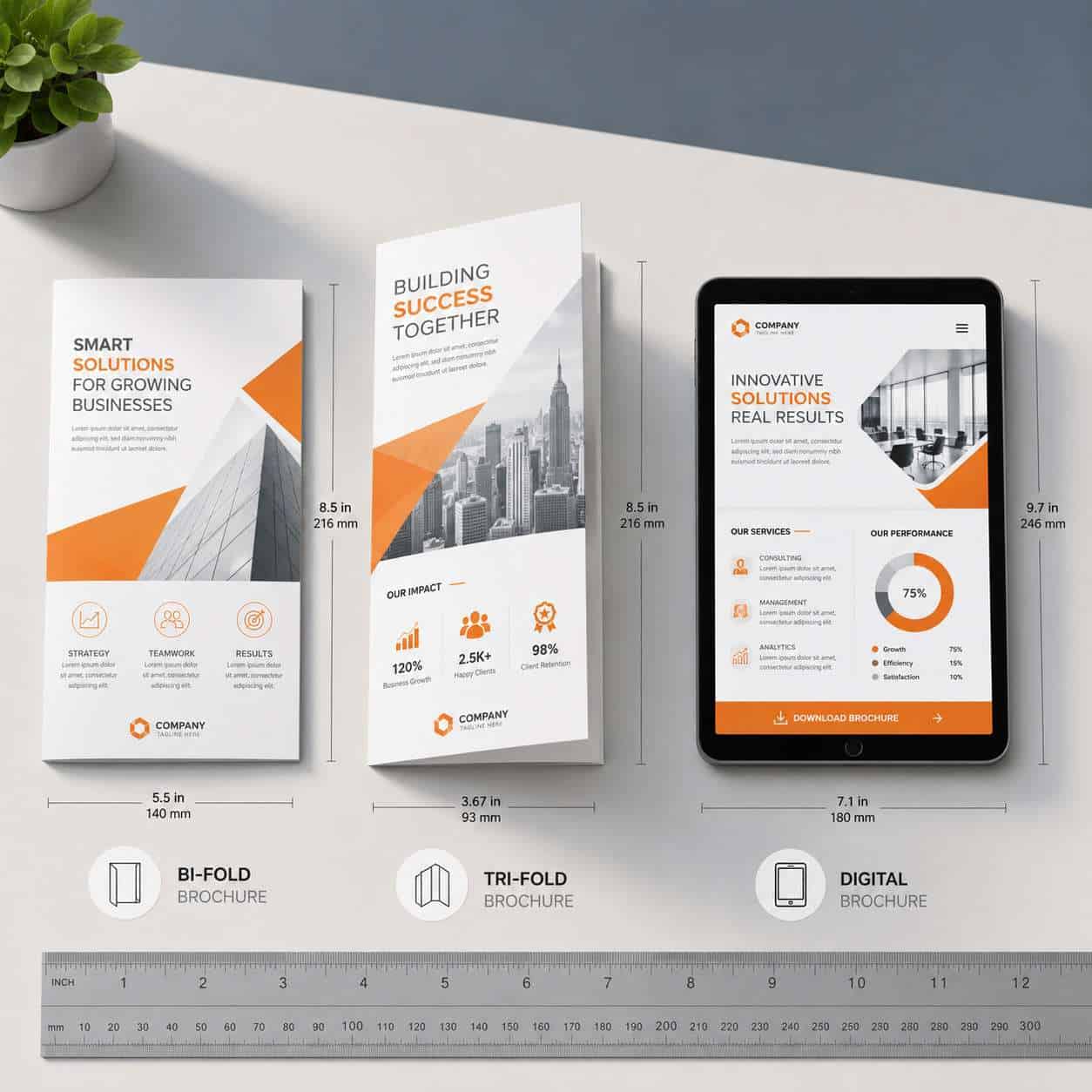
For print, the standard US brochure size is 8.5 x 11 inches (Letter) or 8.5 x 14 inches (Legal) for tri-folds. For digital brochures, size is flexible, but a 16:9 landscape format works well for screen viewing.
| Format | Recommended Size | Best For |
|---|---|---|
| Tri-fold (print) | 8.5 x 11 in | Rack displays, mailers, handouts |
| Bi-fold (print) | 11 x 17 in (folds to 8.5 x 11) | Presentations, menus, catalogs |
| A4 tri-fold (international) | 210 x 297 mm | International markets |
| Digital brochure | 1920 x 1080 px or custom | Email, websites, social sharing |
Important for print: Always enable bleed (usually 0.125 inches on each side) and crop marks when downloading. Canva includes these options in the PDF Print download settings.
If you’re exploring digital-only options, our guide on digital brochure templates for engaging designs covers that format in detail.
Can I Use Canva Brochure Templates for Marketing?
Yes. Canva brochure templates are specifically designed for marketing use. You can use them for product launches, event promotions, service overviews, real estate listings, restaurant menus, and more [10].
What industries use brochures the most?
- Real estate — property listings and open house handouts
- Healthcare — patient education and service brochures
- Tourism and hospitality — destination guides and hotel information
- Education — enrollment brochures and program overviews
- Restaurants — takeout menus and catering packages
- Nonprofits — fundraising and awareness campaigns
One thing to note: if you’re using Canva’s free stock images in a brochure, you can use them commercially. But you cannot resell the template design itself as your own. Canva’s content license allows use in marketing materials, which covers brochures.
For businesses also building social content, our guide on creating engaging Canva carousel designs pairs well with brochure campaigns.
How Do I Download and Print My Canva Brochure?
Download your brochure by clicking “Share” then “Download” in the top-right corner of the Canva editor. For print, select PDF Print as the file type, check “Crop marks and bleed,” and choose CMYK color profile if your printer requires it [10].
Download options explained:
- PDF Print — Best for professional printing. Highest quality, includes bleed.
- PDF Standard — Good for digital sharing via email. Smaller file size.
- PNG — Good for single-page digital use. Not ideal for multi-page brochures.
- JPG — Compressed format. Use only for web previews.
Printing options:
- Canva Print Shop — Order prints directly from Canva with delivery to your door. Canva’s 2026 update brought a dedicated print shop section that combines template selection, design, and print ordering into one workflow [7].
- Local print shop — Download the PDF Print file and bring it to your local printer. Share the file specs (size, bleed, color profile) with them.
- Office printer — Works for internal drafts but not recommended for customer-facing materials due to lower print quality.
Common Mistakes People Make When Designing Brochures
The biggest mistake is treating a brochure like a webpage — stuffing it with every piece of information about your business instead of focusing on one clear message.
Mistakes to avoid:
- No visual hierarchy. If everything is bold, nothing stands out. Use size and weight to guide the reader’s eye.
- Ignoring the fold. Text or images that land on the fold line look awkward when printed. Preview your brochure folded before sending to print.
- Forgetting the back panel. Many people design a beautiful front and leave the back nearly empty. Use it for contact info, a map, or a QR code.
- Using too many stock photos. Three to four strong images beat eight mediocre ones.
- Skipping proofreading. Print a draft at home first. Errors are easier to catch on paper than on screen.
Alternatives to Canva for Brochure Design
Canva is the most accessible option, but it’s not the only one. Here are alternatives worth considering:
- Adobe InDesign — Industry standard for print design. Steep learning curve, $22.99/month. Best for professionals.
- Microsoft Publisher — Included with Microsoft 365. Basic but functional for simple brochures.
- Visme — Similar to Canva with stronger data visualization. Free plan available.
- Lucidpress (now Marq) — Brand templating platform. Good for teams that need locked templates.
- Figma — Primarily for UI design, but increasingly used for print layouts by tech-savvy designers.
For a broader look at design tools, see our roundup of the best AI graphic design tools for creative workflows.
If you’re new to Canva and also need a logo, our Canva logo design guide for beginners walks through the basics.
Frequently Asked Questions
Can I make a brochure in Canva for free? Yes. Canva’s free plan includes thousands of brochure templates, basic stock images, and full editing tools. You only pay if you want premium templates or assets.
What is the best Canva brochure size for printing? 8.5 x 11 inches (US Letter) is the most common size for tri-fold brochures. Always add 0.125-inch bleed on each side for professional printing.
Can I use Canva brochures commercially? Yes. Canva’s content license allows commercial use of designs you create, including brochures for marketing and sales.
How do I make a tri-fold brochure in Canva? Search “tri-fold brochure” in Canva’s template library. The templates are pre-formatted with six panels (three front, three back) that you customize with your content.
Does Canva support CMYK for print brochures? Canva Pro and Teams plans offer CMYK color profile downloads in PDF Print format. The free plan exports in RGB only.
Can I collaborate with others on a Canva brochure? Yes. Share a link to your design and set permissions to “Can edit.” Multiple people can work on the same brochure simultaneously.
How does Canva AI 2.0 help with brochure design? Canva AI 2.0 can generate layouts, suggest edits conversationally, and learn your brand style to keep new brochures consistent with past designs [2][3].
Can I order printed brochures directly from Canva? Yes. Canva’s print shop lets you order printed brochures with various paper stocks and finishes, delivered to your address [7].
What file format should I use to send my brochure to a printer? PDF Print with crop marks and bleed enabled. This is the industry-standard format that commercial printers expect.
Is Canva better than Microsoft Word for brochures? Yes, for most users. Canva offers purpose-built brochure templates, better design tools, and higher-quality output than Word’s limited layout capabilities.
Conclusion
A Canva brochure is one of the fastest ways to produce professional marketing materials without hiring a designer or learning complex software. The free plan handles most basic needs, while Pro unlocks premium templates, Brand Kit, and the new AI 2.0 features that speed up the design process significantly.
Your next steps:
- Visit Canva’s brochure maker and browse templates that fit your industry.
- Pick one template and customize it with your brand colors, logo, and real photos.
- Download as PDF Print with bleed enabled if you’re printing, or share a digital link for online distribution.
- Review the common mistakes section above before finalizing — especially check the fold lines and proofread every panel.
Whether you’re a small business owner printing 200 tri-folds for a trade show or a marketer sharing a digital brochure via email, Canva gives you the tools to get it done well and fast.
References
[2] Watch – https://www.youtube.com/watch?v=gvbs_I_E0D0 [3] Watch – https://www.youtube.com/watch?v=SBirQ4sga9E [7] Launches – https://www.canva.com/launches/ [10] Brochures – https://www.canva.com/create/brochures/