Last updated: June 7, 2026
Quick Answer: Canva’s invitation maker is a free, browser-based design tool with thousands of customizable templates for every event type, from weddings to corporate galas. You don’t need any design experience. Pick a template, swap in your details, add your own photos, and download a print-ready or digital file in minutes. Paid plans unlock premium templates and features, but the free tier handles most invitation needs well.
Key Takeaways
- Canva offers over 10,000 invitation templates spanning weddings, birthdays, baby showers, corporate events, and more.
- The free plan includes a large template library, basic editing tools, and standard downloads (PNG, JPG, PDF).
- Canva Pro (currently around $13/month or $120/year) unlocks premium templates, background remover, brand kits, and resizing tools.
- You can customize invitation dimensions to any size, not just the preset options.
- Adding your own photos is a simple drag-and-drop process that takes seconds.
- Canva exports print-ready PDF files with crop marks and bleed, suitable for professional printing.
- Professional designers often recommend Canva for quick-turnaround or budget-conscious invitation projects.
- Common mistakes include overcrowding the design, using too many fonts, and ignoring print bleed settings.
What Is Canva Invitation Maker and How Does It Work
Canva’s invitation maker is a specific design category within the Canva platform that provides pre-built invitation templates you can edit entirely in your browser or mobile app. It works through a drag-and-drop editor, so there’s no software to install and no learning curve worth worrying about.
Here’s the basic workflow:
- Go to canva.com and search “invitations” or browse the invitation category.
- Pick a template that fits your event style.
- Edit everything: text, colors, fonts, images, layout, and decorative elements.
- Download your finished design as a PNG, JPG, or PDF, or share it digitally via a link.
The platform stores your designs in the cloud, so you can revisit and edit them anytime. If you’re already familiar with other Canva design workflows, like creating engaging Instagram story templates or email templates, the invitation maker works exactly the same way.
How Much Does Canva Cost for Making Invitations
Most people can design and download invitations on Canva’s free plan without spending anything. The free tier gives you access to thousands of invitation templates, a library of free stock photos and graphics, and standard export options.
Here’s a cost breakdown:
| Plan | Price | What You Get for Invitations |
|---|---|---|
| Canva Free | $0 | Thousands of free templates, basic fonts and elements, PNG/JPG/PDF export |
| Canva Pro | ~$13/month or ~$120/year | All free features plus premium templates, 100+ million stock photos, background remover, Magic Resize, brand kit |
| Canva Teams | ~$15/person/month (min 3) | Everything in Pro plus team collaboration, shared brand assets, approval workflows |
Choose Free if you’re making invitations for a personal event and don’t need premium stock photos. Choose Pro if you design invitations regularly, want access to premium templates, or need the background remover for custom photo work.
Free vs. Paid Invitation Templates on Canva
Free templates on Canva are genuinely usable, not stripped-down versions of better designs. Many are created by professional designers and look polished out of the box. Paid (Pro) templates tend to have more complex layouts, premium illustrations, and trendy design elements.
Key differences:
- Free templates cover all major event types and are fully editable. You’ll see a small crown icon on templates that require Pro.
- Paid templates often feature premium stock photography baked into the design, unique illustrated elements, and more sophisticated typography pairings.
- Elements within templates matter too. A free template might use a premium photo or graphic element inside it, which you’d need to replace or pay for.
A practical approach: start with free templates and only upgrade if you consistently find yourself drawn to Pro-only designs. I’ve personally designed dozens of birthday and dinner party invitations using only free templates, and guests always ask where I “had them made.”
Canva vs. Adobe Express for Party Invitations
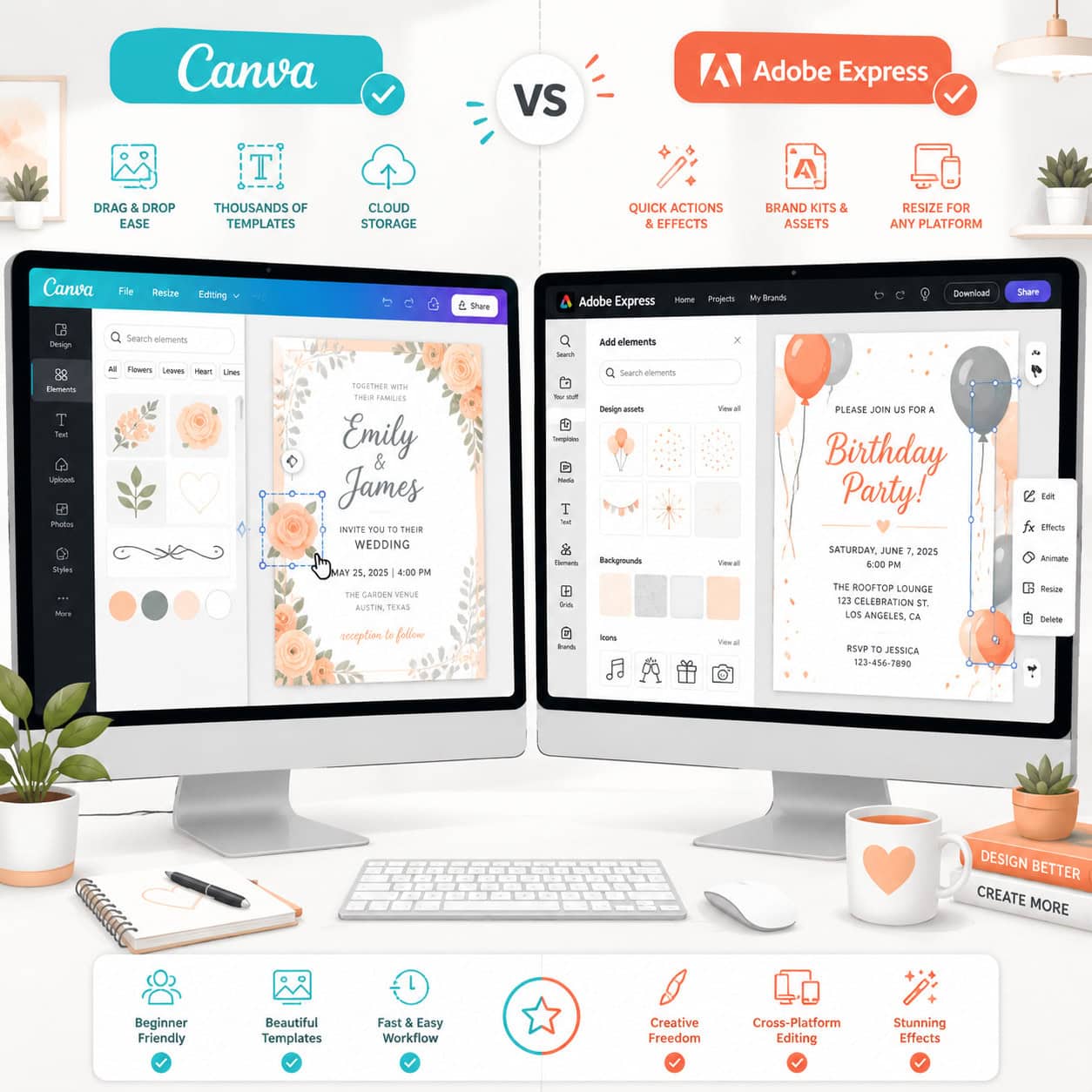
Canva is generally the better choice for most people making party invitations because of its larger template library and simpler interface. Adobe Express (formerly Adobe Spark) is a solid alternative but has a smaller invitation-specific template collection.
| Feature | Canva | Adobe Express |
|---|---|---|
| Invitation templates | 10,000+ | ~3,000 |
| Free plan usability | Strong | Moderate |
| Ease of use | Very beginner-friendly | Slightly steeper curve |
| Premium features | Background remover, Magic Resize, AI tools | Adobe Fonts, Creative Cloud integration |
| Print-ready export | Yes (PDF with bleed) | Yes (PDF) |
| Best for | Beginners and quick projects | Users already in Adobe ecosystem |
Choose Canva if you want the widest template selection and fastest workflow. Choose Adobe Express if you already pay for Adobe Creative Cloud and want everything in one ecosystem.
If you’re exploring Canva’s broader AI-powered design capabilities, our guide on Canva AI design creation covers what’s possible in 2026.
Can I Customize Invitation Sizes for Different Events
Yes, Canva lets you create invitations in any custom dimension. The default invitation size is 5 x 7 inches (portrait), but you can change this to any measurement you need.
To set a custom size:
- Click Create a design on the Canva homepage.
- Select Custom size.
- Enter your width and height in pixels, inches, millimeters, or centimeters.
- Start designing from scratch or apply a template to your custom canvas.
Common invitation sizes by event:
- Wedding invitations: 5 x 7 in. or A5 (5.8 x 8.3 in.)
- Birthday party: 4 x 6 in. or 5 x 7 in.
- Baby shower: 5 x 7 in.
- Corporate events: 6 x 4 in. (landscape) or A5
- Digital/social invitations: 1080 x 1080 px (square) or 1080 x 1920 px (story format)
Canva Pro users can also use Magic Resize to instantly adapt a finished design to a different size, which saves time if you need both a printable card and a digital version.
Best Canva Templates for Wedding Invitations
Canva’s wedding invitation templates are among its strongest categories, with styles ranging from minimalist modern to ornate traditional. The best templates for weddings in 2026 lean toward clean layouts with elegant serif fonts, watercolor florals, and muted earth tones.
Top template styles to search for:
- “Minimalist wedding invitation” for clean, text-focused designs with lots of white space
- “Floral wedding invitation” for watercolor botanicals and garden-party aesthetics
- “Rustic wedding invitation” for kraft paper textures, greenery, and handwritten fonts
- “Modern wedding invitation” for geometric shapes, bold typography, and contemporary color palettes
- “Indian wedding invitation” or “traditional wedding invitation” for culturally specific designs
Pro tip: Search for “wedding invitation suite” to find matching templates for save-the-dates, RSVP cards, menu cards, and thank-you notes. Consistency across your wedding stationery makes a big difference.
For related design projects like logo creation for your wedding monogram, Canva handles that too.
How to Add Your Own Photos to Canva Invitations
Adding personal photos to a Canva invitation takes about 10 seconds. Upload your image, then drag it onto the template where you want it to appear.
Step-by-step:
- Open your invitation design in the Canva editor.
- Click Uploads in the left sidebar.
- Click Upload files and select your photo from your device (or drag it directly into the panel).
- Once uploaded, drag the photo onto your canvas.
- If the template has a photo placeholder, drag your image directly onto it, and Canva will automatically crop it to fit the frame.
- Double-click the image to adjust cropping and positioning within the frame.
Common mistake: Uploading low-resolution photos. For print invitations, your photos should be at least 300 DPI. A good rule of thumb: if the photo looks sharp on your phone at full zoom, it’s probably fine for a 5 x 7 print.
Common Mistakes People Make When Designing Invitations in Canva
Even with great templates, it’s easy to make design choices that hurt the final product. Here are the mistakes I see most often:
- Using more than two fonts. Stick to one font for headings and one for body text. Three or more fonts make the design look chaotic.
- Overcrowding the layout. White space is your friend. Resist the urge to fill every corner with decorative elements.
- Ignoring print bleed. If you’re printing, set up bleed (the area that extends beyond the trim line). Canva’s PDF Print option includes crop marks and bleed automatically.
- Choosing hard-to-read fonts for essential details. Script fonts look beautiful for names but are terrible for addresses, dates, and times. Use a clean sans-serif for logistical info.
- Forgetting to proofread. Spell-check the date, venue name, and RSVP details twice. I once sent 50 birthday invitations with the wrong year on them.
- Not checking color accuracy. Colors on screen look different when printed. Order a single test print before committing to a full batch.
Is Canva Good for Professional Event Invitations
Canva is a solid choice for professional and corporate event invitations, especially when time or budget is limited. Many event planners, marketing teams, and small businesses use it for galas, conferences, product launches, and networking events.
What makes it work for professional contexts:
- Brand kit integration (Pro): Upload your company’s logos, brand colors, and fonts so every invitation stays on-brand.
- Collaboration features: Share designs with team members for feedback and approval before finalizing.
- High-quality export: PDF files at 300 DPI are suitable for professional offset printing.
Where Canva falls short for professional use: if you need spot color printing (Pantone), foil stamping, or letterpress-ready files, you’ll need to work in Adobe InDesign or Illustrator instead. Canva handles standard digital and CMYK print workflows well but doesn’t support specialty print techniques.
For teams managing multiple design projects, exploring Canva’s broader design ecosystem can help streamline your workflow.
What Events Can I Make Invitations for With Canva
Canva has dedicated template categories for virtually every event type. If you can think of an occasion, there’s probably a template for it.
Common event categories with strong template libraries:
- Weddings and engagement parties
- Birthday parties (kids and adults)
- Baby showers and gender reveals
- Graduation celebrations
- Holiday parties (Christmas, Halloween, Thanksgiving, New Year’s)
- Corporate events, conferences, and seminars
- Fundraisers and charity galas
- Dinner parties and housewarming events
- Religious celebrations (baptisms, bar/bat mitzvahs, Eid, Diwali)
- Retirement parties
You can also create invitations for less common events by starting with a blank canvas or adapting a template from a related category.
How to Download and Print Canva Invitations
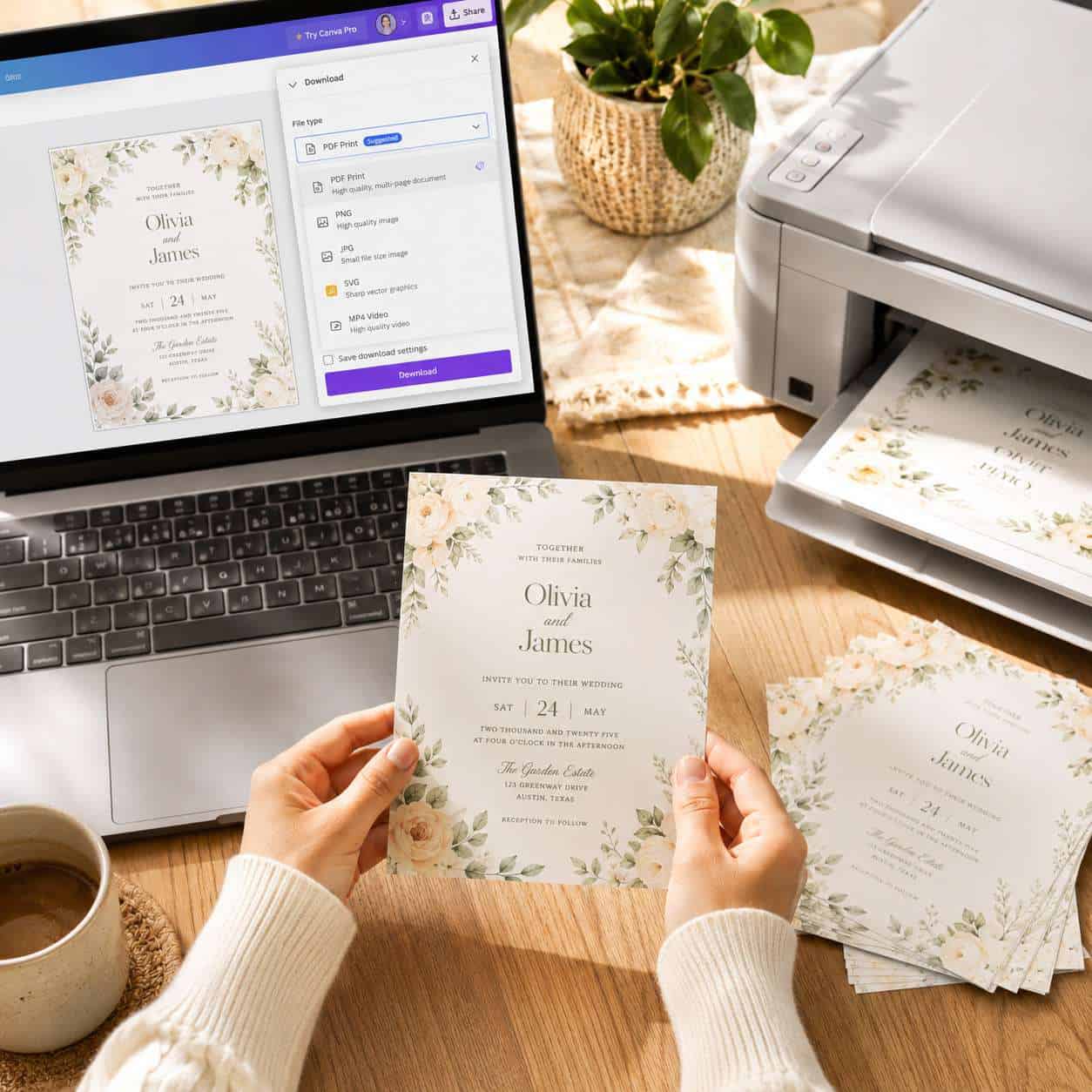
Downloading your finished invitation from Canva takes just a few clicks, but choosing the right file format matters depending on how you plan to use it.
For printing at home or at a print shop:
- Click Share (top right), then Download.
- Select PDF Print as the file type.
- Check Crop marks and bleed if your printer needs them.
- Click Download.
For sharing digitally (email, text, social media):
- Click Share, then Download.
- Select PNG for the best image quality or JPG for smaller file size.
- Download and attach to your message.
For direct sharing without downloading:
- Use Canva’s Share a link feature to send a view-only link.
- Use the Send via email option built into Canva.
Printing tips: Use cardstock (at least 80 lb. cover weight) for a professional feel. Matte paper works well for rustic and minimalist designs; glossy paper suits photo-heavy invitations. If you’re interested in building a cohesive design system for your event, our guide on creating engaging carousel designs can help with matching social media announcements.
Do Professional Designers Recommend Canva for Invitations
Many professional designers recommend Canva for invitation projects, particularly for clients with smaller budgets or tight timelines. It’s not a replacement for custom illustration or high-end stationery design, but it fills a practical gap.
Designers typically suggest Canva when:
- The client needs invitations quickly (under 48 hours).
- The budget doesn’t justify custom design fees (which can range from $200 to $2,000+ for wedding suites).
- The event is informal or semi-formal.
- The client wants to handle future edits themselves.
Designers tend to steer clients away from Canva when the event demands truly bespoke artwork, specialty printing techniques, or when brand differentiation is critical for a corporate event.
Tips for Making Invitations Look Unique on Canva
The biggest risk with Canva is that your invitation looks like everyone else’s. Here’s how to avoid that:
- Start with a template but change at least three major elements: swap the color palette, replace the fonts, and switch out the imagery.
- Upload your own graphics or illustrations. Even a simple hand-drawn element scanned from paper adds personality.
- Use Canva’s color palette generator. Upload a photo from your event venue or theme, and Canva will extract a custom color scheme.
- Layer elements creatively. Adjust transparency, add subtle texture overlays, or use frames in unexpected ways.
- Limit your color palette to 2-3 colors. Restraint looks more polished than variety.
- Try unconventional layouts. Rotate text blocks, use asymmetric placement, or break out of the centered-text default.
One approach that works well: find inspiration outside of Canva (Pinterest, design blogs, printed magazines), then recreate that aesthetic within the Canva editor. This gives you a unique reference point instead of just remixing what’s already in the template library.
Frequently Asked Questions
Is Canva’s invitation maker really free? Yes. You can design, customize, and download invitations using Canva’s free plan. Some templates and individual design elements require a Pro subscription, but thousands of options are completely free.
Can I make invitations on my phone with Canva? Yes. The Canva mobile app (iOS and Android) supports full invitation editing, including template selection, photo uploads, text editing, and downloading.
What’s the best file format for printing Canva invitations? PDF Print is the best format. It preserves high resolution (300 DPI) and supports crop marks and bleed for professional printing.
Can I send Canva invitations digitally without printing? Absolutely. Download as PNG or JPG and attach to emails or texts. You can also share a direct Canva link or use the built-in email feature.
Does Canva have RSVP tracking for invitations? Canva itself doesn’t track RSVPs. However, you can add a QR code linking to a Google Form or dedicated RSVP website, which is a common workaround.
Can I use Canva invitations commercially? Yes, if you’re a designer creating invitations for clients. Canva’s license allows commercial use of designs made with their platform, including templates and free elements.
How do I make my Canva invitation print-ready? Select PDF Print as your download format, enable crop marks and bleed, and use images that are at least 300 DPI. Test print one copy before ordering a full batch.
Can multiple people edit the same invitation in Canva? Yes. Share the design link with editing permissions, and multiple people can collaborate in real time. This is available on both free and paid plans.
Does Canva support double-sided invitation designs? Yes. Add a second page to your design for the back of the invitation. When you download as PDF, both pages are included in the file.
Are Canva invitation templates customizable for different languages? Yes. You can type in any language, and Canva supports a wide range of fonts for non-Latin scripts, including Arabic, Chinese, Hindi, and Japanese.
Conclusion
Canva’s invitation maker is one of the most accessible design tools available in 2026 for creating event invitations that look professional without requiring professional skills. Whether you’re planning a wedding, a child’s birthday party, or a corporate conference, the platform gives you a fast path from blank page to finished design.
Here are your next steps:
- Visit canva.com and browse the invitation templates for your specific event type.
- Start with the free plan. Upgrade to Pro only if you find yourself consistently needing premium templates or the background remover.
- Customize aggressively. Change at least three major design elements from any template to make it your own.
- Test print one copy before ordering a full batch, checking for color accuracy and text readability.
- Explore related Canva tools for matching event materials like menus, programs, and thank-you cards.
For more Canva design guides and creative workflow tips, explore our Canva resource library.
Useful Resources: Canva design platform & Canva Design School free tutorials