

Last updated: June 7, 2026This article provides Canva Reviews Honest Pros Cons Pricing Guide for anyone considering using Canva for their design needs.
Quick Answer: Canva is a browser-based graphic design platform that lets anyone create professional-looking visuals without formal design training. Based on widespread Canva reviews from users across skill levels, the tool excels at speed, ease of use, and template variety, but it falls short for complex illustration, advanced photo editing, and print-ready production work. The free plan is genuinely usable; Canva Pro costs roughly $120/year and unlocks premium templates, brand kits, and background removal.
Key Takeaways
- Canva’s free tier includes over 250,000 templates and is sufficient for most personal and small business needs.
- Canva Pro costs about $120/year (or $13/month) per person; Canva for Teams starts at roughly $100/year per person with a minimum of three seats.
- Complete beginners can produce decent social media graphics, presentations, and documents within minutes of signing up.
- Canva is not a replacement for Adobe Photoshop or Illustrator when projects require pixel-level editing, vector precision, or CMYK print workflows.
- Professional designers often criticize Canva for encouraging generic, template-heavy design rather than original creative work.
- Marketing teams benefit most from Canva’s brand kit, content planner, and team collaboration features.
- Common mistakes include overusing templates without customization, ignoring font pairing principles, and relying on low-resolution exports.
- Top alternatives include Adobe Express, Figma, Visme, and Piktochart, each with different strengths.
Is Canva Actually Free, or Do You Need to Pay?
Canva is genuinely free to use, and the free plan is not a stripped-down trial. You get access to over 250,000 templates, thousands of free photos and graphics, 5 GB of cloud storage, and the ability to export in multiple formats including PNG, JPG, and PDF.
That said, you’ll hit paywalled elements regularly. Premium stock photos, certain templates marked with a crown icon, background remover, brand kit features, and Magic Resize all require Canva Pro. If you find yourself constantly bumping into those restrictions, upgrading makes sense. But for someone creating occasional social media posts or simple flyers, the free version handles the job well.
Choose the free plan if: You create fewer than ten designs per month and don’t need brand consistency tools.
Choose Pro if: You design frequently, need brand kits, or want access to the full stock library.
How Much Does Canva Pro Cost for Small Businesses?
Canva Pro costs approximately $120/year ($13/month if billed monthly) for a single user. Canva for Teams, which includes shared brand kits, team folders, and approval workflows, starts at roughly $100/year per person with a three-person minimum.
For small businesses with tight budgets, the per-seat cost adds up quickly once you go beyond five or six team members. However, compared to Adobe Creative Cloud’s full suite (which runs over $650/year per license), Canva remains significantly cheaper. Many small businesses in Canva reviews report that the Teams plan pays for itself by reducing the need for outsourced design work.
Can Graphic Design Beginners Use Canva Easily?
Yes, and this is Canva’s single greatest strength. The drag-and-drop editor requires zero design experience. You pick a template, swap in your text and images, adjust colors, and export. The learning curve is measured in minutes, not weeks.
Canva also provides built-in design suggestions, auto-layout features, and a “Magic Design” AI tool that generates starting layouts based on your content. If you’re new to design and want to learn foundational skills, our beginner’s guide to Canva logo design walks through the process step by step.
Common beginner mistake: Choosing the first template you see and barely modifying it. This leads to designs that look identical to thousands of others online. Always change fonts, colors, and layout positioning to make a template your own.
What Kind of Design Skills Do You Need to Use Canva?
You need no formal design skills to start using Canva. Basic computer literacy (dragging, dropping, typing, uploading files) is enough. However, understanding a few fundamentals will dramatically improve your output:
- Color theory basics — stick to 2-3 colors that complement each other
- Font pairing — don’t use more than two typefaces per design
- Visual hierarchy — make the most important element the largest
- White space — resist the urge to fill every inch of the canvas
Canva’s templates already bake in many of these principles, so even without training, your results will look reasonably polished.
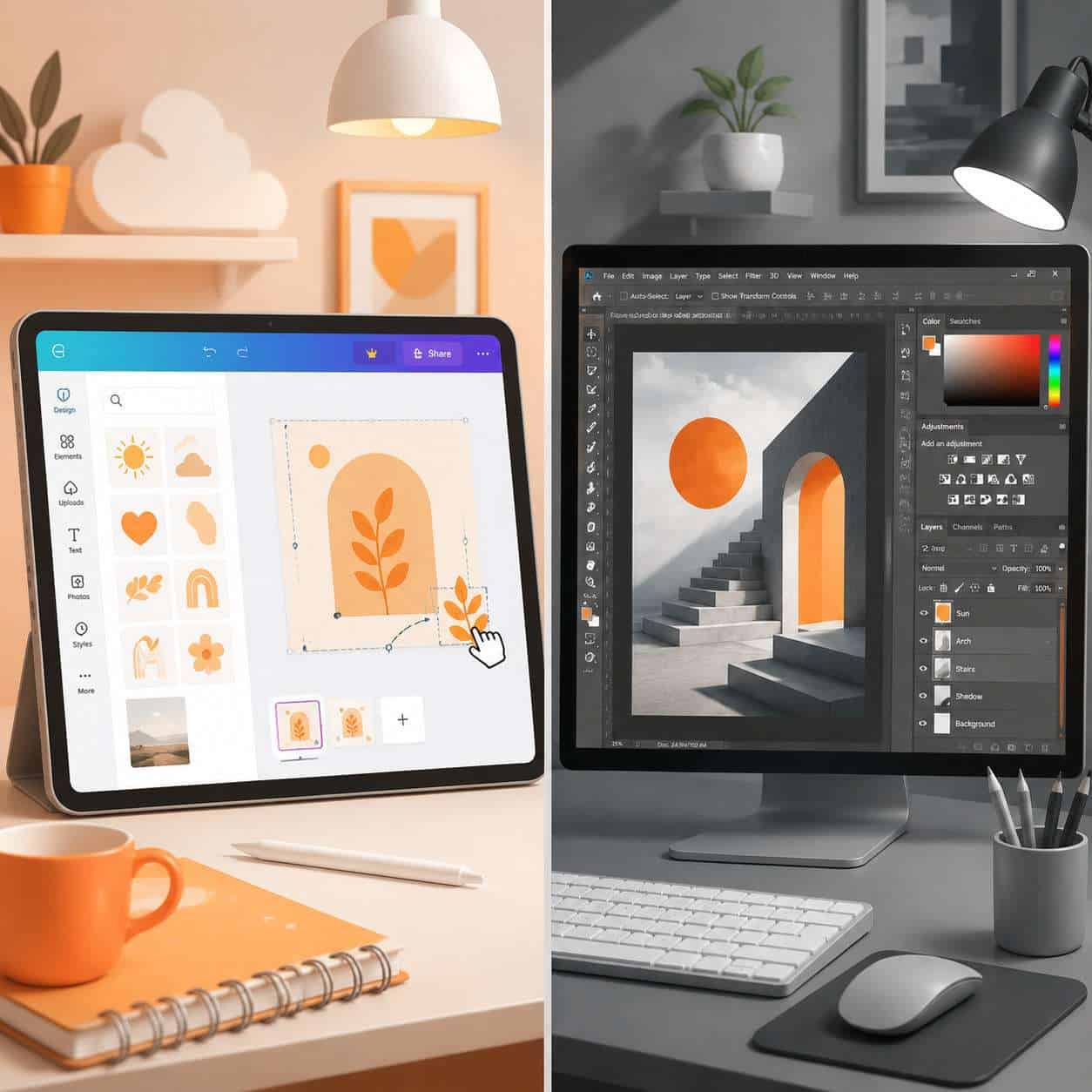
How Does Canva Compare to Photoshop?
Canva and Photoshop serve fundamentally different purposes. Canva is a layout and template tool for quick visual content. Photoshop is a professional raster image editor built for detailed photo manipulation, compositing, and pixel-level control.
| Feature | Canva | Adobe Photoshop |
|---|---|---|
| Learning curve | Minutes | Weeks to months |
| Photo retouching | Basic filters and adjustments | Advanced (layers, masks, healing) |
| Templates | 250,000+ ready-made | Minimal built-in templates |
| Price | Free or $120/year (Pro) | ~$264/year (Photography plan) |
| Export for print (CMYK) | Limited | Full support |
| Vector editing | No | Limited (Illustrator is better) |
| Collaboration | Real-time team editing | Limited |
| Best for | Social media, presentations, marketing materials | Photo editing, digital art, print production |
Decision rule: If your work involves photo retouching, compositing, or print production, Photoshop is the right tool. If you need fast social media graphics, presentations, or marketing collateral, Canva wins on speed and accessibility.
Canva vs. Adobe Illustrator: Which Is Better?
Neither is universally “better” — they solve different problems. Adobe Illustrator is a professional vector graphics editor used for logos, icons, illustrations, and scalable artwork. Canva is a template-driven layout tool for non-designers.
Illustrator gives you complete control over anchor points, bezier curves, and vector paths. Canva gives you none of that. If you need a custom logo that scales from a business card to a billboard without losing quality, Illustrator (or a dedicated design tool like Figma) is the right choice.
However, if you’re a small business owner who needs a quick Instagram post or a pitch deck, Illustrator is overkill. Canva gets you there in a fraction of the time.

Is Canva Good for Social Media Graphics?
Canva is arguably the best tool available for creating social media graphics quickly. Pre-sized templates for Instagram posts, Stories, Facebook covers, LinkedIn banners, Pinterest pins, and TikTok thumbnails eliminate guesswork about dimensions.
The content planner (available in Pro) lets you schedule posts directly to social platforms, which saves time for solo marketers. If you’re creating Instagram Stories regularly, our guide on designing engaging Instagram Story templates in Canva covers best practices. For carousel-style posts, check out our Canva carousel design tutorial.
Edge case: If you need animated social content beyond simple GIF-style motion, Canva’s animation tools are limited. You’ll get better results with dedicated motion graphics tools for anything complex.
Canva Pros and Cons for Marketing Teams
Marketing teams are among Canva’s most active user groups, and Canva reviews from this audience are generally positive, with some important caveats.
Pros:
- Brand Kit keeps logos, fonts, and colors consistent across all team members’ designs
- Real-time collaboration means multiple people can edit the same design simultaneously
- Template locking lets managers control which elements team members can change
- Content planner integrates social scheduling into the design workflow
- Approval workflows prevent off-brand content from going live
Cons:
- Limited version control compared to tools like Figma
- No advanced asset management (large teams may outgrow Canva’s folder system)
- Designs can look generic if teams rely too heavily on unmodified templates
- Export options lack CMYK support for high-end print campaigns
For teams that also use AI-powered content generation tools, Canva integrates well with AI writing assistants and its own AI design features for faster content production.
What Types of Projects Does Canva Work Best For?
Canva excels at templated, layout-driven projects where speed matters more than pixel-perfect precision. The best use cases include:
- Social media posts and ads — fast turnaround, correct dimensions
- Presentations — cleaner than PowerPoint defaults, easy to collaborate on
- Email headers and newsletters — see our Canva email template guide for specifics
- Business cards and flyers — adequate for digital use or basic print
- Infographics — strong template selection for data visualization
- YouTube thumbnails — quick, eye-catching designs
- Resumes and proposals — polished and professional
Canva is less suitable for: custom illustrations, detailed photo editing, multi-page book layouts, architectural plans, or any project requiring precise vector control.
Why Do Professional Designers Criticize Canva?
Professional designers don’t “hate” Canva universally, but many express frustration with how it’s positioned. The core complaints in Canva reviews from design professionals include:
- Template dependency creates visual sameness — when millions of users pick from the same templates, brands lose distinctiveness.
- It devalues professional design work — clients sometimes assume all design should be as fast and cheap as Canva makes it seem.
- Limited creative control — no support for custom vector paths, advanced typography controls, or complex layer blending.
- Export quality concerns — RGB-only exports and compression artifacts can cause problems in professional print workflows.
That said, many professional designers use Canva for quick internal mockups or social media content while reserving Adobe tools or Figma for client-facing work. The tool isn’t the problem; misunderstanding its limitations is.
What Are Common Mistakes People Make With Canva?
Based on recurring themes in Canva reviews and community forums, here are the most frequent mistakes:
- Using templates without customization — change at least the colors, fonts, and image to avoid looking like everyone else
- Cramming too much text — especially on social media graphics, less is more
- Ignoring alignment and spacing — Canva has snap guides; use them
- Downloading at the wrong resolution — always check export settings, especially for print
- Mixing too many fonts — stick to two, maximum three
- Forgetting mobile preview — most social content is viewed on phones, so check how your design looks on small screens
What Are the Best Alternatives to Canva?
If Canva doesn’t fit your needs, several alternatives are worth considering:
| Tool | Best For | Price |
|---|---|---|
| Adobe Express | Users already in the Adobe ecosystem | Free tier; Premium ~$100/year |
| Figma | UI/UX design and team collaboration | Free tier; Pro $144/year |
| Visme | Data-heavy presentations and infographics | Free tier; Starter ~$150/year |
| Piktochart | Infographics and reports | Free tier; Pro ~$168/year |
| Snappa | Quick social media graphics | Free tier; Pro ~$120/year |
For broader design exploration, browse our Design category for tutorials and tool comparisons.
Are There Limitations With Canva’s Free Version?
Yes, and they’re worth knowing before you commit time to the platform:
- Storage cap: 5 GB (Pro gets 1 TB)
- No background remover on the free plan
- No Magic Resize — you must manually recreate designs for different dimensions
- No brand kit — you can’t save brand colors, fonts, or logos for quick access
- Limited stock library — many premium photos and elements are paywalled
- No scheduled publishing — the content planner is Pro-only
- Folder limit: Free users get fewer organizational folders
For casual users, these limits are manageable. For anyone producing content regularly, they become friction points fast.
Conclusion
Canva reviews in 2026 paint a consistent picture: it’s the fastest way for non-designers to create good-looking visual content, and it’s a useful time-saver for professionals handling routine design tasks. The free plan is legitimately functional, and Canva Pro offers strong value for small businesses and marketing teams.
Here’s what to do next:
- Start with the free plan and test it against your actual workflow for two weeks.
- Customize every template you use — swap fonts, change colors, rearrange layouts.
- Upgrade to Pro only if you repeatedly hit free-tier limits or need brand kit features.
- Don’t treat Canva as your only design tool — pair it with Photoshop, Illustrator, or Figma for projects that need advanced control.
- Explore Canva’s AI features for faster content generation, and check out our guide to Canva’s AI design tools to get started.
Canva won’t replace a skilled designer or a professional tool suite. But for the 90% of design tasks that don’t require either, it’s hard to beat.
FAQ
Is Canva safe to use? Yes. Canva uses standard encryption and has been operating since 2013 with over 170 million monthly active users. Your designs are stored securely in the cloud.
Can I use Canva designs commercially? Yes. Both free and Pro plans allow commercial use of designs you create. However, you cannot resell unmodified Canva templates or stock elements as standalone files.
Does Canva work offline? Canva is primarily a web-based tool and requires an internet connection. The mobile app offers limited offline functionality for viewing and basic editing of previously loaded designs.
Is Canva Pro worth it for freelancers? For freelancers who create visual content regularly, Pro typically pays for itself through time savings alone. The background remover, Magic Resize, and premium stock library are the most-cited reasons freelancers upgrade.
Can I cancel Canva Pro anytime? Yes. You can cancel your subscription at any time. If you cancel, you retain access until the end of your current billing period, then revert to the free plan.
Does Canva support video editing? Canva offers basic video editing, including trimming, text overlays, transitions, and simple animations. It’s adequate for social media clips but not a substitute for dedicated video editors like Premiere Pro or DaVinci Resolve.
Can multiple people work on the same Canva design? Yes. Real-time collaboration is available on all plans, though the Teams plan adds features like shared folders, approval workflows, and team template management.
Is Canva better than PowerPoint for presentations? For visual appeal and ease of use, most Canva reviews favor it over PowerPoint. However, PowerPoint offers stronger data integration, speaker notes management, and compatibility with corporate IT environments.
What file formats can Canva export? Canva exports to PNG, JPG, PDF (standard and print), SVG (Pro only), MP4 (for video and animations), and GIF.
Does Canva own my designs? No. You retain ownership of original content you create in Canva. Canva’s terms grant them a license to host and display your content within the platform, but you own your work.
Useful Resources: Canva design platform & Canva Design School free tutorials





