Last updated: June 7, 2026
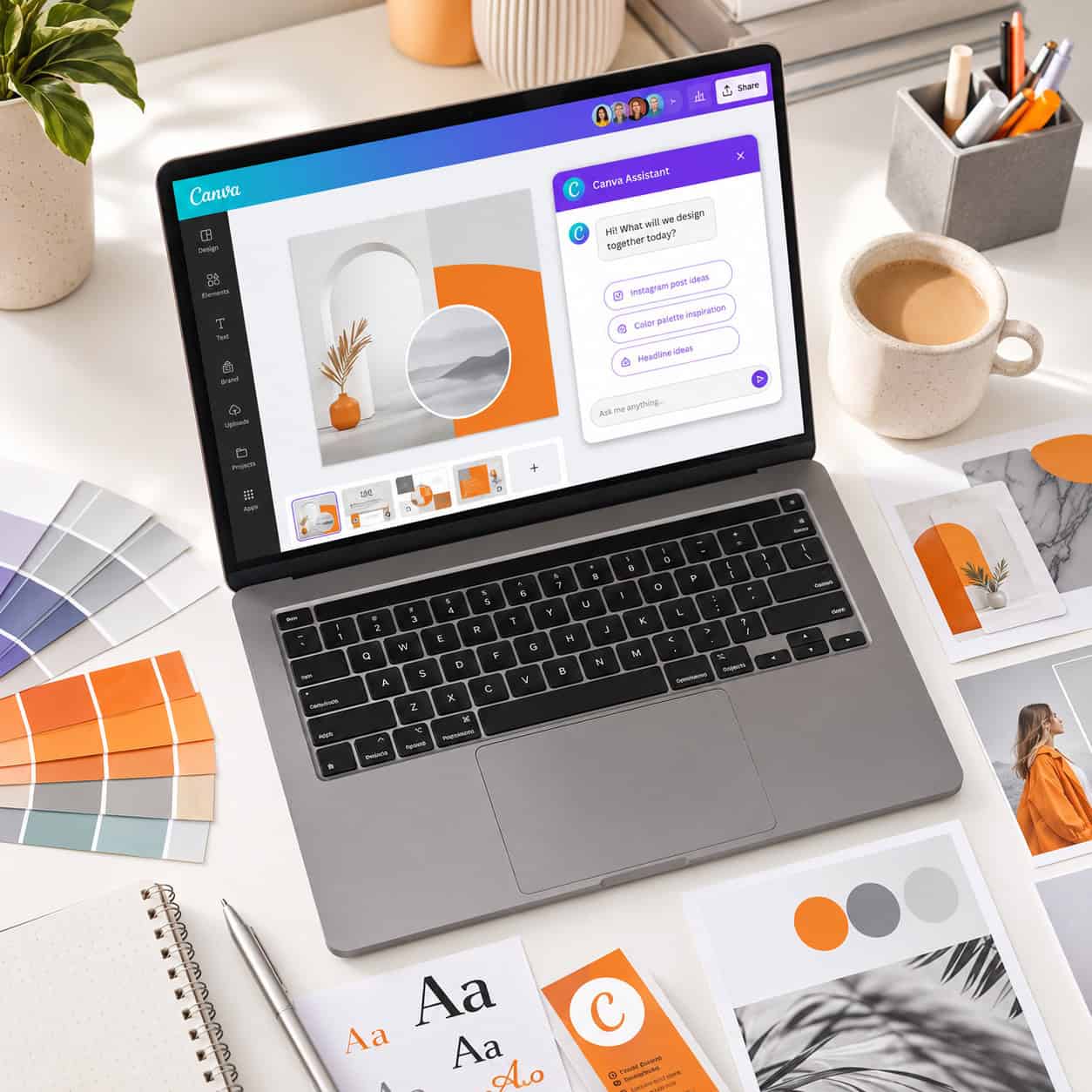
Quick Answer: Canva AI chat is a built-in conversational AI assistant within Canva that lets you describe what you want in plain language and get design suggestions, generated images, text, and layout adjustments in return. It’s available to all Canva users, with expanded features on paid plans. Think of it as a design partner that responds to written prompts instead of requiring you to manually drag and drop every element.
Key Takeaways
- Canva AI chat lets you create, edit, and refine designs using natural language prompts directly inside the Canva editor.
- Free Canva users get limited AI generation credits; Canva Pro and Teams plans include significantly more.
- The tool works well for social media graphics, presentations, logos, email templates, and marketing materials.
- Canva AI chat is strongest for quick, template-based design work but has limitations compared to dedicated image generators like Midjourney or DALL-E.
- Writing specific, detailed prompts is the single biggest factor in getting high-quality results.
- It’s suitable for both beginners and professionals, though advanced designers may hit creative ceilings.
- Common mistakes include vague prompts, ignoring brand kit settings, and expecting photorealistic output.
What Exactly Can Canva AI Chat Do for You?
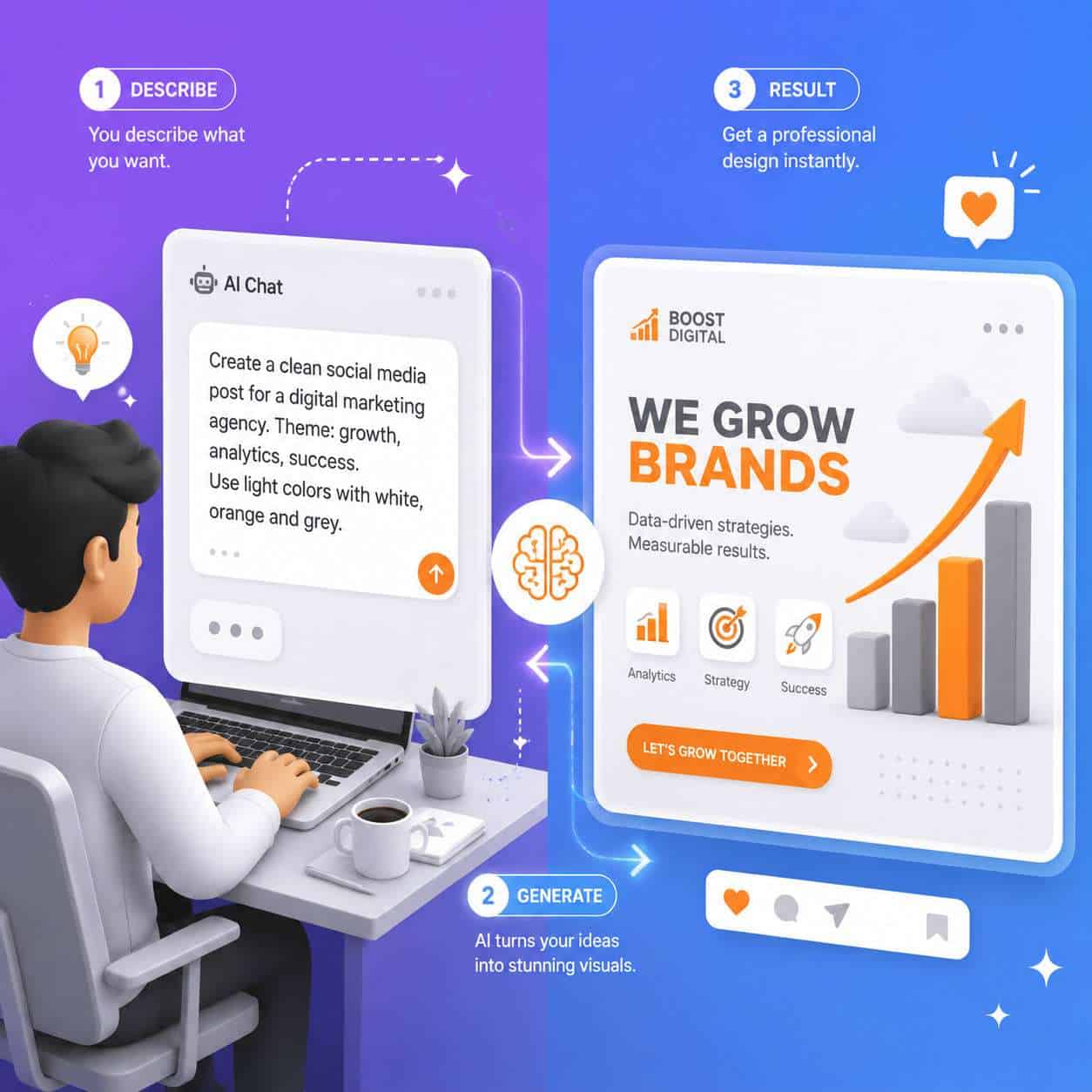
Canva AI chat functions as a conversational design assistant that handles image generation, text writing, layout suggestions, and element editing based on your typed instructions. Instead of searching through thousands of templates manually, you describe what you need and the AI builds a starting point.
Here’s what it covers:
- Image generation: Create original illustrations, backgrounds, and graphics from text prompts.
- Text generation: Draft headlines, body copy, social media captions, and taglines.
- Design suggestions: Get layout recommendations based on your content type and audience.
- Element editing: Ask the AI to resize, recolor, or rearrange elements on your canvas.
- Template matching: Describe your project and receive relevant template suggestions.
I recently used Canva AI chat to generate a series of Instagram story templates for a client’s product launch. Instead of spending 45 minutes browsing templates, I typed “minimalist product launch story with countdown timer aesthetic, earth tones” and had a workable starting point in under two minutes. For more on creating story content, check out our guide on designing engaging Instagram story templates in Canva.
How Is Canva AI Different From Other AI Design Tools?
Canva AI chat stands apart because it’s embedded directly inside a full design editor, not a standalone image generator. While tools like Midjourney and DALL-E focus purely on image creation, Canva wraps AI generation into a complete design workflow with templates, brand kits, collaboration features, and export options.
| Feature | Canva AI Chat | Midjourney | DALL-E | Adobe Firefly |
|---|---|---|---|---|
| Built-in design editor | Yes | No | No | Partial (via Express) |
| Image generation | Yes | Yes | Yes | Yes |
| Text/copy generation | Yes | No | No | No |
| Template library | 250,000+ | None | None | Limited |
| Brand kit integration | Yes (Pro) | No | No | Yes (paid) |
| Collaboration tools | Yes | Discord-based | API-based | Yes |
| Free tier | Yes (limited) | No | Limited | Yes (limited) |
The key difference: Canva AI chat is a design tool that includes AI, not an AI tool that happens to make images. If you want to explore other AI-powered design tools for creative workflows, we’ve covered those separately.
How Much Does Canva AI Chat Cost for Designers?
Canva AI chat is available on all plan tiers, but the number of AI credits varies significantly. Free users get a small monthly allotment (estimated at around 50 uses per month as of early 2026), while paid plans offer substantially more.
- Canva Free: Limited AI credits per month. Access to basic AI features including Magic Write and some image generation.
- Canva Pro ($13/month billed monthly): Expanded AI credits, full access to Magic Design, background remover, and brand kit integration.
- Canva Teams ($10/person/month, minimum 3 people): Everything in Pro plus team collaboration, shared brand assets, and higher AI usage limits.
- Canva Enterprise: Custom pricing with unlimited or near-unlimited AI usage, SSO, and advanced admin controls.
Choose Free if you need occasional AI help for personal projects. Choose Pro if you’re a freelancer or small business owner creating content regularly. Choose Teams if multiple people need to collaborate on brand-consistent designs.
What Kind of Designs Can Canva AI Actually Create?
Canva AI chat can generate or assist with virtually any design format available in Canva’s editor. This includes social media posts, presentations, documents, videos, logos, flyers, business cards, infographics, and website mockups.
The AI performs best with:
- Social media graphics (Instagram posts, Facebook covers, LinkedIn banners)
- Presentation slides with auto-generated layouts and content
- Marketing materials like flyers, posters, and brochures
- Email headers and templates (see our guide to creating effective email templates in Canva)
- Carousel posts for platforms like Instagram and LinkedIn
- Simple logos and brand marks
For carousel content specifically, our Canva carousel design guide walks through the full process.
Does Canva AI Work for Social Media Graphics and Presentations?
Yes, social media graphics and presentations are two of Canva AI chat’s strongest use cases. The AI understands platform-specific dimensions, trending design styles, and content structure for slides.
For social media, you can prompt the AI with something like “Create a LinkedIn carousel about remote work productivity tips, blue and white color scheme, professional tone” and get a multi-slide draft. For presentations, describing your topic and audience gives you a full slide deck outline with suggested visuals.
Quick tip: Always specify the platform in your prompt. “Instagram post” and “LinkedIn post” produce very different results because the AI adjusts aspect ratios, text density, and visual style accordingly.
Can Canva AI Help Me Design for Specific Industries Like Real Estate or Tech?
Canva AI chat handles industry-specific design requests well when you include context in your prompts. The AI draws from Canva’s massive template library, which includes thousands of industry-tagged designs.
For real estate, prompts like “open house flyer for a modern 3-bedroom home, luxury feel, dark background with gold accents” produce relevant results. For tech companies, “SaaS product launch social post, clean and minimal, gradient background” works effectively.
Industries where Canva AI chat performs particularly well:
- Real estate: Property listings, open house flyers, agent branding
- Food and restaurant: Menu designs, social media food posts, promotional materials
- Education: Worksheets, classroom posters, course presentations
- E-commerce: Product showcases, sale announcements, email banners
- Tech/SaaS: Feature announcements, onboarding materials, pitch decks
Common mistake: Using generic prompts without industry context. “Make a flyer” gives you something generic. “Make a flyer for a yoga studio grand opening targeting women 25-40” gives you something usable.
Is Canva AI Good for Professional Graphic Designers or Just Beginners?
Canva AI chat serves both audiences, but in different ways. Beginners benefit from the AI’s ability to handle layout decisions, color pairing, and typography selection automatically. Professionals use it as a rapid prototyping tool to generate starting points they then refine manually.
For beginners: The AI essentially acts as a design teacher. It makes decisions about spacing, hierarchy, and visual balance that would otherwise require training to understand.
For professionals: The value is speed. A senior designer I know uses Canva AI chat to generate 10-15 rough concepts in minutes, then takes the best direction into more advanced tools like Figma or Illustrator for final production. If you’re exploring component-based design systems, our Figma components guide covers that workflow.
Edge case: If you need pixel-perfect control, custom vector work, or advanced typography, Canva AI chat will feel limiting. It’s a generalist tool, not a specialist one.
Limitations of Canva AI Compared to Midjourney or DALL-E
Canva AI chat’s image generation quality is noticeably behind dedicated AI image generators. This is a trade-off for having everything in one integrated platform.
Where Canva AI falls short:
- Photorealism: Midjourney and DALL-E produce more convincing photorealistic images.
- Artistic range: Dedicated generators offer more style variety and finer control over artistic direction.
- Prompt complexity: Canva’s AI handles simpler prompts well but struggles with highly detailed, multi-element scene descriptions.
- Resolution: Generated images in Canva may not match the resolution options available in Midjourney v6 or DALL-E 3.
- Iteration control: Midjourney’s variation and upscale features give more granular control over outputs.
Where Canva AI wins: Workflow integration, template access, brand consistency, team collaboration, and the ability to go from concept to finished, export-ready design without leaving the platform. For a broader look at AI-powered content generation tools, we’ve compiled a separate resource.
Why Is My Canva AI Not Generating the Image I Want?
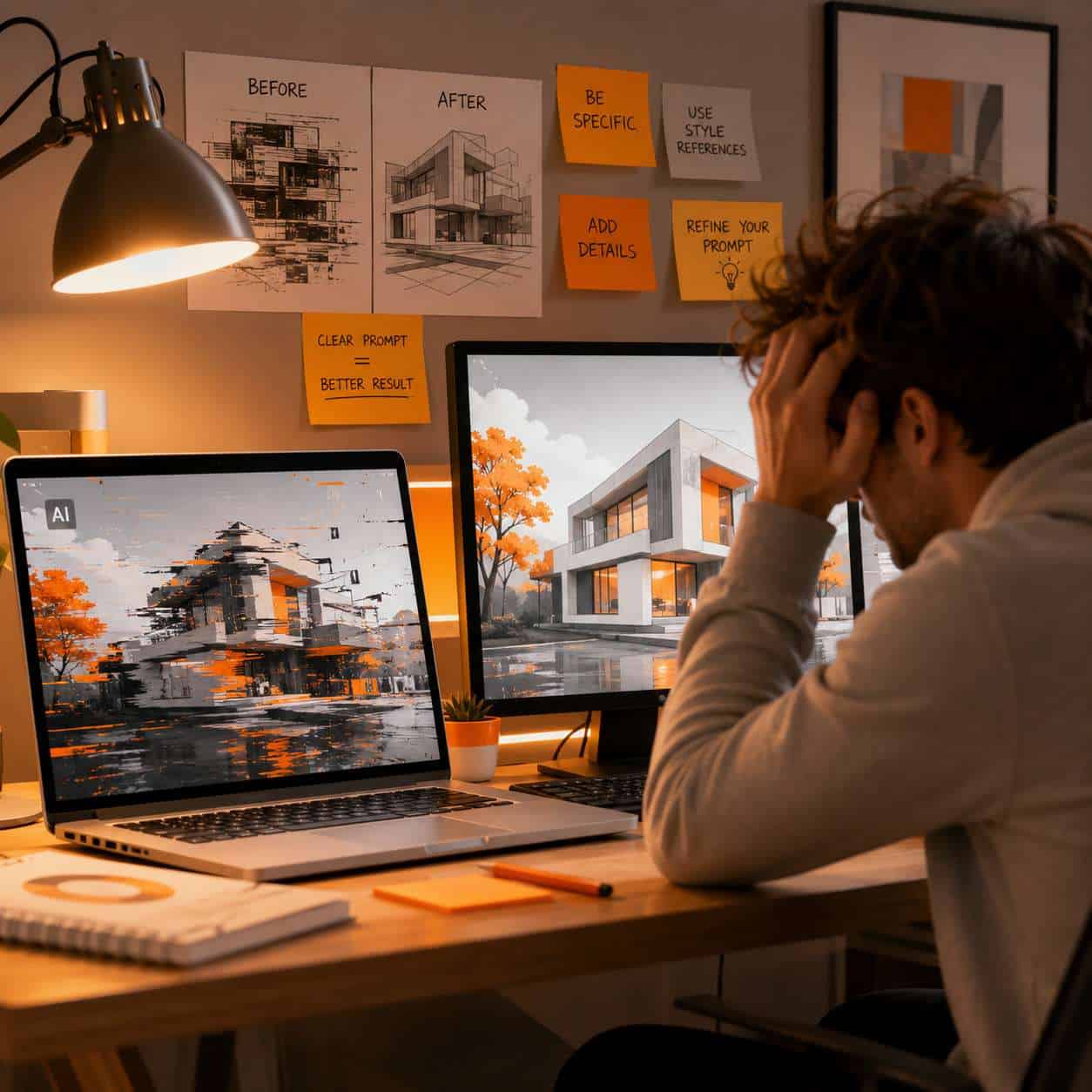
The most common reason Canva AI chat produces poor results is vague or overly broad prompts. The AI needs specific direction about subject, style, color, mood, and composition to deliver useful output.
Troubleshooting checklist:
- Be specific about the subject. “A dog” vs. “A golden retriever puppy sitting on a white background, studio lighting” produces dramatically different results.
- Include style references. Add terms like “flat illustration,” “watercolor,” “minimalist,” or “3D render.”
- Specify colors. The AI responds well to color direction: “warm earth tones,” “monochrome blue,” or specific hex codes.
- State what you don’t want. “No text,” “no people,” or “no busy backgrounds” helps narrow results.
- Check your credit balance. If generation fails entirely, you may have exhausted your monthly AI credits.
- Clear your browser cache. Some rendering issues are browser-related, not AI-related.
- Try regenerating. The same prompt can produce different results each time. Generate 3-4 versions before changing your prompt.
Best Practices for Getting High-Quality Designs From Canva AI
Getting consistently good results from Canva AI chat comes down to prompt quality and workflow habits. Here are the practices that produce the best outcomes:
- Start with your end format. Tell the AI “Instagram square post” or “16:9 presentation slide” before describing content.
- Use your brand kit. If you’re on Pro or Teams, connect your brand colors, fonts, and logos so AI suggestions stay on-brand.
- Layer your requests. Don’t try to get everything perfect in one prompt. Generate a base design, then ask the AI to adjust specific elements.
- Reference existing templates. If you see a Canva template you like, describe its style in your prompt: “similar to a modern tech startup aesthetic with gradient backgrounds.”
- Keep text minimal in generated images. AI-generated text within images often contains errors. Add text manually after generation.
- Save successful prompts. When a prompt produces great results, save it as a note for future use.
For logo work specifically, our Canva logo design beginner’s guide covers the full process, including how AI fits into logo creation.
What Are Some Free Alternatives to Canva AI Chat?
If Canva’s free tier doesn’t meet your needs and you’re not ready to pay, several alternatives offer AI-assisted design at no cost.
- Microsoft Designer: Free AI image generation and design templates, integrated with Microsoft 365.
- Adobe Express (free tier): Includes limited Adobe Firefly AI generation with template-based design.
- Picsart: Free AI image generation and photo editing tools with a design editor.
- Craiyon (formerly DALL-E Mini): Free, unlimited AI image generation, though lower quality.
- ChatGPT with DALL-E: If you have ChatGPT access, you can generate images and then import them into any editor.
For a broader overview of free AI tools and how they compare, we maintain an updated resource page.
Common Mistakes People Make When Using Canva AI
Even experienced users fall into these traps with Canva AI chat:
- Writing one-word prompts. “Logo” tells the AI almost nothing. Always include industry, style, color, and mood.
- Ignoring brand kit settings. The AI can match your brand if you’ve set it up, but many users skip this step.
- Accepting the first result. Always generate multiple options. The third or fourth attempt is often the best.
- Using AI-generated text as-is. AI-written copy needs editing. It’s a draft, not a final product.
- Forgetting to check licensing. AI-generated content in Canva follows Canva’s content license, but verify terms if using for commercial purposes.
- Over-relying on AI for everything. The best results come from combining AI generation with manual refinement.
Frequently Asked Questions
Is Canva AI chat the same as Magic Design? They’re related but not identical. Magic Design is one feature within Canva’s AI suite. Canva AI chat is the broader conversational interface that can access Magic Design along with other AI tools like Magic Write, Magic Edit, and image generation.
Can I use Canva AI chat on mobile? Yes. Canva’s mobile app includes AI chat features, though the experience is more streamlined than the desktop version. Some advanced editing options work better on a larger screen.
Does Canva AI chat remember my previous conversations? Within a single design session, the AI maintains context. However, it doesn’t carry memory between separate projects or sessions the way ChatGPT does with conversation history.
Are Canva AI-generated images royalty-free? Images generated by Canva’s AI tools fall under Canva’s content license agreement, which generally permits commercial use. However, you should review the current terms, as AI content licensing is an evolving area.
Can I train Canva AI on my brand’s specific style? Not directly through custom model training. However, using Brand Kit (available on Pro and Teams) lets the AI reference your colors, fonts, and logos when generating suggestions.
How many AI generations do I get per month on the free plan? Canva adjusts these limits periodically. As of early 2026, free users receive a limited number of AI credits monthly. Check your account settings for your current balance.
Does Canva AI chat work for video editing? Canva’s AI features extend to video, including auto-generating video layouts, suggesting transitions, and creating text animations. The chat interface can help with video projects, though it’s more limited than dedicated video AI tools.
Can I use Canva AI chat to create print-ready designs? Yes. Canva supports PDF export with crop marks and bleed settings. AI-generated designs can be exported in print-ready formats, but always verify resolution and color accuracy before sending to print.
Conclusion
Canva AI chat is a practical, accessible tool that brings AI-assisted design into a familiar editor. It won’t replace dedicated image generators like Midjourney for artistic work, and it won’t replace Figma for complex UI design. But for the vast majority of everyday design tasks, from social media posts to presentations to marketing materials, it’s genuinely useful.
Your next steps:
- Open Canva and try the AI chat with a specific, detailed prompt for your next project.
- Set up your Brand Kit if you’re on a paid plan so AI outputs match your visual identity.
- Experiment with 5-10 different prompt styles to learn what produces the best results for your use case.
- Explore our Canva AI design creation guide for deeper tutorials on specific features.
The designers getting the most value from Canva AI chat aren’t the ones using the fanciest prompts. They’re the ones who treat it as a starting point and bring their own judgment to the final product.
Useful Resources: Canva design platform & Canva Design School free tutorials