Last updated: June 7, 2026
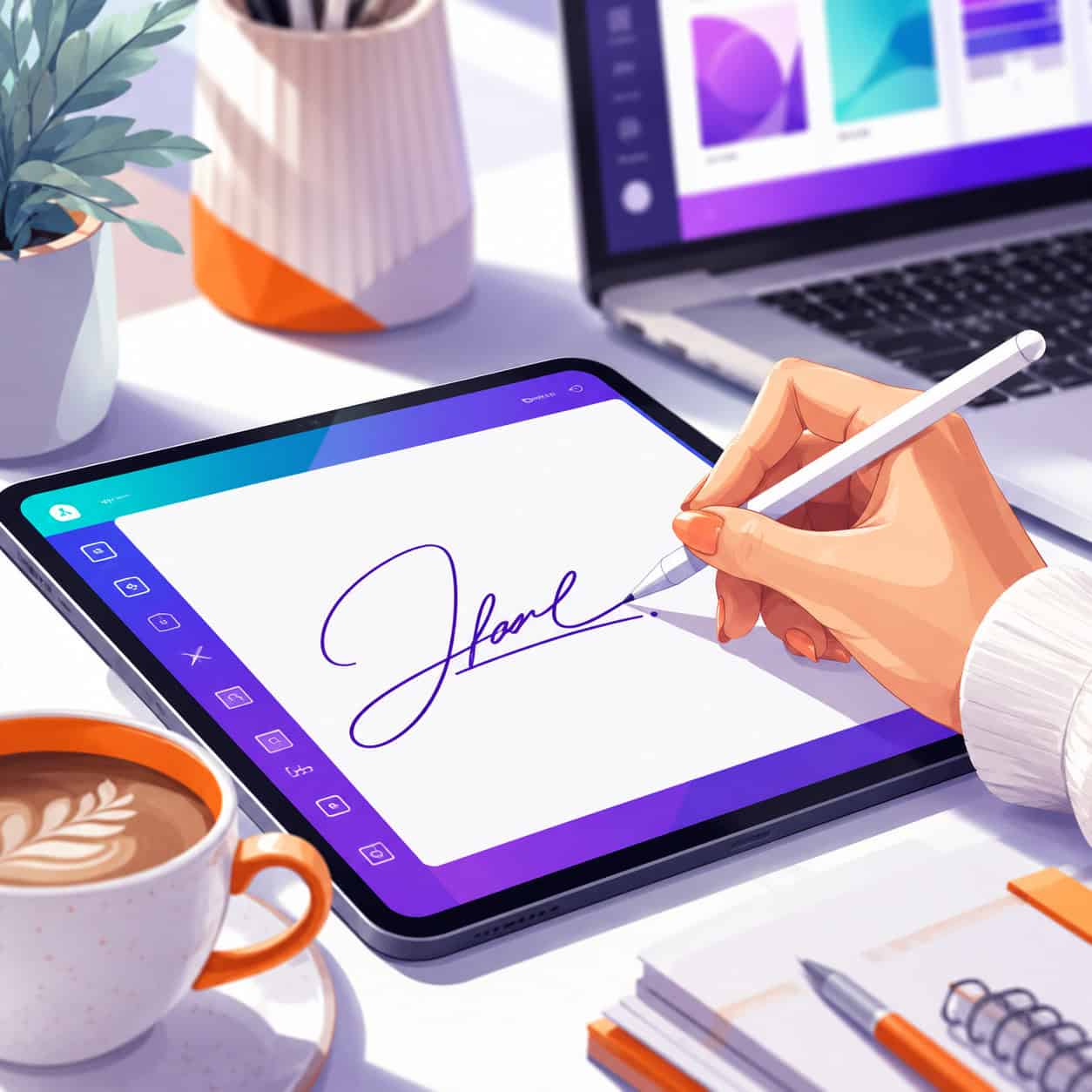
Quick Answer: A Canva signature is a digital signature you create using Canva’s free Signature Generator tool. You can draw it freehand or type it using stylized fonts, then download it as PNG, JPEG, PDF, or SVG to sign documents, emails, and designs without leaving the Canva platform [3].
Key Takeaways
- Canva’s Signature Generator is completely free to use, even without a Canva Pro subscription [3].
- You can create a signature by drawing freehand with a mouse, finger, or stylus, or by typing your name and choosing from multiple font styles [3].
- Signatures can be downloaded as JPEG, PNG, PDF, or SVG files for use across different platforms [3].
- Canva signatures work well for freelancers, small businesses, and personal branding, but they are not the same as legally binding e-signatures like those from Adobe Sign or DocuSign.
- You can insert your signature directly into Canva Docs and export signed documents as PDF or Word files [3].
- Canva also offers an Email Signature Generator for creating branded HTML-style email signatures with logos and social icons [12].
- Signatures can be created on desktop, tablet, and mobile devices through Canva’s web app or mobile apps.
How Do I Make a Digital Signature in Canva?
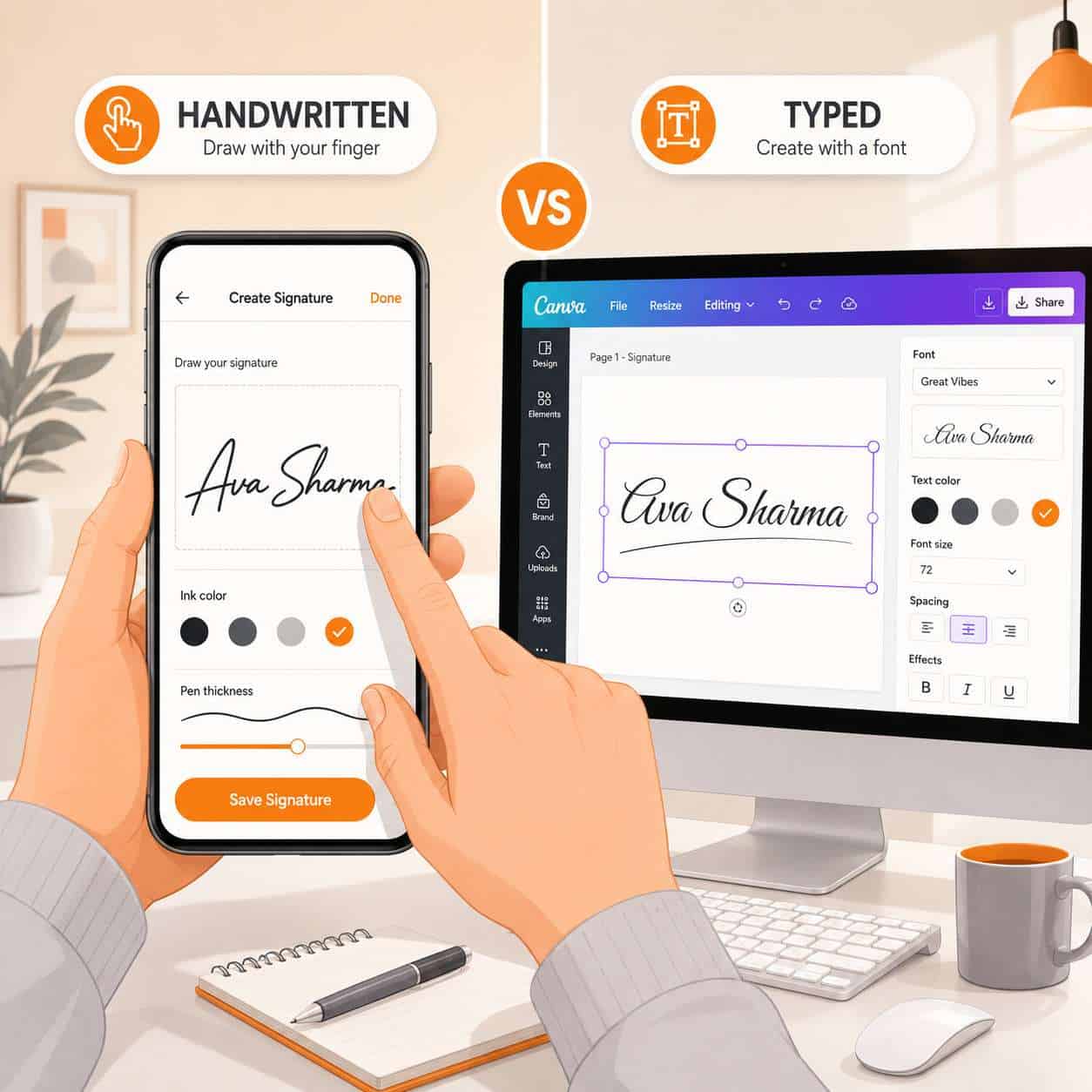
Creating a digital signature in Canva takes about two minutes. Open the Canva Signature Generator, choose between drawing or typing your signature, customize it, and download [3].
Here’s the step-by-step process:
- Go to Canva’s Signature Generator at canva.com/signature-generator (free account required).
- Choose your method: Select “Draw” to write freehand, or “Type” to enter your name and pick a font.
- Customize: Adjust the stroke thickness, color, and style. If typing, browse through script and handwriting fonts until you find one that feels right.
- Preview your signature on the canvas.
- Download in your preferred format: PNG, JPEG, SVG, or PDF [3].
Quick tip: If you’re drawing on a laptop trackpad, the result often looks shaky. Use a phone or tablet with a stylus for a smoother, more natural-looking signature. I learned this the hard way after three attempts on my MacBook that looked like a seismograph reading.
Is Canva Signature Free or Paid?
Canva’s Signature Generator is free for all users, including those on the free tier [3]. You don’t need Canva Pro, Canva for Teams, or any paid subscription to create, customize, and download your signature.
There are some nuances worth knowing:
- Free users get full access to the signature drawing and typing tools, plus all download formats.
- Canva Pro users benefit from additional template options in the email signature generator and access to premium brand kit features for consistent styling.
- The signature tool itself has no watermarks or usage limits on the free plan.
This makes Canva one of the most accessible options for anyone who needs a quick digital signature without paying for dedicated e-signature software.
How to Create a Handwritten Signature in Canva
The most personal-looking Canva signature comes from the freehand drawing tool. Canva lets you draw directly on the canvas using your mouse, trackpad, finger, or stylus [3].
For the best results with a handwritten signature:
- Use a touchscreen device (tablet or phone) with a stylus for natural pen-like strokes.
- Draw in one fluid motion rather than lifting and restarting. Continuous strokes look more authentic.
- Adjust stroke weight before you start. A medium thickness (around 3-4px) mimics a ballpoint pen, while thicker strokes resemble a marker.
- Choose black or dark blue for the color. These are the standard signature colors for professional documents.
If you’re also working on branding elements, our beginner’s guide to Canva logo design covers similar design principles that apply to signature creation.
Best Practices for Creating a Professional Canva Signature
A professional signature should look clean, readable, and consistent across all your documents. Here are the practices that matter most:
| Practice | Why It Matters |
|---|---|
| Use a transparent background (PNG) | Blends with any document or design without a white box |
| Keep it simple | Overly elaborate signatures lose clarity at small sizes |
| Stick to one or two colors | Matches professional document standards |
| Create at high resolution | Prevents pixelation when printed or zoomed |
| Save a master file | Ensures consistency across all uses |
Common mistake: Creating a signature that looks great at full size but becomes an unreadable blob when scaled down to fit a document footer. Always test your signature at the smallest size you’ll use it.
When designing professional materials, consistency matters. If you’re building email templates alongside your signature, check out our guide on creating effective email templates in Canva.
What File Types Work for Canva Signatures?
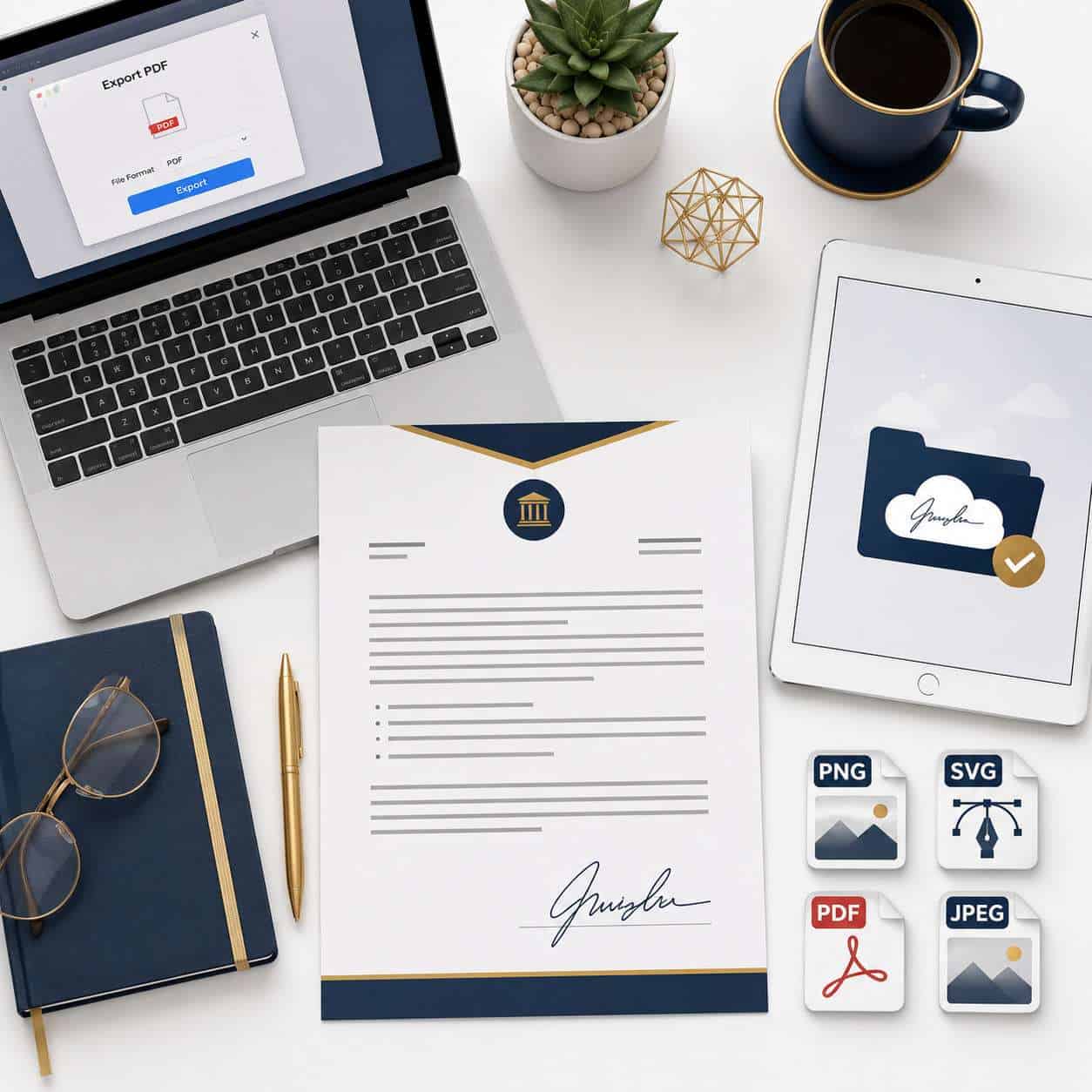
Canva’s Signature Generator supports four download formats: JPEG, PNG, PDF, and SVG [3].
Here’s when to use each:
- PNG — Best for most uses. Supports transparent backgrounds, so your signature sits cleanly on any document or design. Choose this if you’re unsure.
- SVG — Ideal for signatures that need to scale to any size without quality loss. Great for designers and print materials.
- PDF — Useful when you need to send the signature as a standalone file or embed it in a PDF workflow.
- JPEG — Smallest file size, but no transparency support. Fine for quick email attachments or simple web use.
Choose PNG if you plan to reuse the signature across multiple documents. Choose SVG if you work with print materials or need infinite scalability.
How to Add a Signature to a PDF in Canva
You can sign PDFs directly within Canva Docs without switching to another app. The workflow is straightforward: create your signature, insert it into a Canva Doc, and export the finished document as a PDF [3].
Step-by-step:
- Open or create a document in Canva Docs.
- Either draw your signature directly in the doc using the drawing tool, or upload a previously saved signature image.
- Position and resize the signature where it needs to appear.
- Click Share > Download and select PDF Standard or PDF Print.
- Your signed PDF is ready to send via email or share via link [3].
Edge case: If you receive an existing PDF that needs signing, upload it to Canva first (Canva supports PDF imports), add your signature as an image overlay, then re-export. It’s not as smooth as dedicated PDF editors, but it works for simple documents.
Can I Use My Canva Signature Legally?
A Canva signature is a digital image of your signature, not a cryptographically verified electronic signature. This distinction matters for legal purposes.
Here’s the breakdown:
- Informal agreements, invoices, and internal documents: A Canva signature image is generally accepted and practical.
- Contracts requiring e-signatures under laws like ESIGN (US) or eIDAS (EU): You’ll typically need a platform like DocuSign or Adobe Sign that provides authentication, audit trails, and tamper-evident seals.
- Notarized or government documents: A Canva signature image will almost never be sufficient.
Decision rule: If the document requires proof of identity verification or a legal audit trail, don’t rely on a Canva signature alone. For everyday business correspondence, proposals, and freelance invoices, it works fine.
Canva Signature vs. Adobe Sign: Which Is Better?
These tools serve different purposes. Canva creates signature images for visual use in documents and designs. Adobe Sign (now Adobe Acrobat Sign) is a dedicated e-signature platform for legally binding document workflows.
| Feature | Canva Signature | Adobe Acrobat Sign |
|---|---|---|
| Cost | Free | Starts at ~$12.99/month |
| Signature creation | Draw or type | Draw, type, or upload |
| Legal compliance | No audit trail | ESIGN, eIDAS compliant |
| Document workflow | Basic (Canva Docs) | Advanced (routing, reminders, templates) |
| Authentication | None | Identity verification, certificates |
| Best for | Visual signatures, branding | Contracts, legal documents |
Choose Canva if you need a quick, free signature for proposals, invoices, or branded documents. Choose Adobe Sign if you need legally binding signatures with compliance features.
Are Canva Signatures Good for Business Documents?
Yes, for most everyday business documents. Canva signatures work well for proposals, invoices, letters, internal memos, and branded materials where a visual signature adds a professional touch.
They fall short for:
- Documents requiring verified digital signatures
- Multi-party signing workflows with tracking
- Regulated industries with strict compliance requirements
For freelancers and small business owners sending quotes or agreements, a Canva signature paired with a well-designed document template is often enough. If you’re building out your business’s visual identity, our Canva resource hub has more design guides.
Is Canva Signature Good for Freelancers?
Freelancers are arguably the best audience for Canva signatures. The tool is free, fast, and integrates with the design workflows many freelancers already use in Canva.
Practical freelancer uses include:
- Signing proposals and quotes before sending to clients
- Adding a signature to invoices for a professional touch
- Creating branded email signatures with contact info and social links [12]
- Signing contracts for informal agreements (use a dedicated e-sign tool for high-value contracts)
I’ve used a Canva signature on freelance invoices for over a year. Clients have never questioned it, and it takes about five seconds to drop the saved PNG into a new invoice template.
For freelancers building their online presence, combining a signature with strong social media content like Instagram stories creates a cohesive brand experience.
What Devices Can I Create a Canva Signature On?
You can create a Canva signature on any device with a web browser or the Canva app: desktop computers, laptops, tablets (iPad, Android), and smartphones [3].
Device-specific notes:
- Desktop/laptop: Best for typed signatures. Drawing with a mouse works but can look unsteady.
- Tablet with stylus: Best for handwritten signatures. The iPad + Apple Pencil combination produces the most natural results.
- Smartphone: Convenient for quick signatures on the go. Use your finger to draw, but expect less precision than a stylus.
The signature generator works identically across devices since it runs in Canva’s web app. Your saved signatures sync across devices through your Canva account.
How to Save and Reuse My Canva Signature
Once you create a signature, you should save it for repeated use rather than recreating it each time. Canva offers several ways to do this [3].
Method 1: Download and store locally
- Download as PNG with a transparent background.
- Save in a dedicated folder on your computer or cloud storage.
- Upload into any Canva design when needed.
Method 2: Save to Canva Uploads
- After downloading, upload the signature to your Canva account’s “Uploads” folder.
- It stays available in your media library for drag-and-drop insertion into any project.
Method 3: Brand Kit (Canva Pro)
- Add your signature to your Brand Kit as a logo or graphic element.
- It appears automatically in your brand assets across all designs.
Common mistake: Saving only a JPEG version and then struggling with the white background box when placing it on colored documents. Always keep a PNG version with transparency as your master file.
If you’re interested in using AI to speed up your design work alongside signature creation, our guide on Canva AI design tools covers the latest features.
Common Mistakes When Making Digital Signatures
Even a simple tool like Canva’s signature generator has pitfalls. Here are the mistakes I see most often:
- Making it too complex — Elaborate flourishes look impressive but become illegible at small sizes.
- Using low resolution — A pixelated signature on a crisp PDF looks unprofessional.
- Forgetting transparency — Downloading as JPEG instead of PNG leaves a white box around your signature.
- Inconsistent signatures — Using a different signature style on every document undermines your brand.
- Assuming legal validity — Using a Canva signature image where a verified e-signature is required.
- Bright or unusual colors — Stick to black or dark blue unless you have a specific branding reason.
- Not testing print quality — Your signature may look fine on screen but print poorly if the resolution is too low.
Conclusion
A Canva signature is one of the fastest, most accessible ways to create a professional digital signature in 2026. The tool is free, works on any device, and produces signatures in multiple file formats that cover most everyday business needs [3].
Here are your next steps:
- Visit Canva’s Signature Generator and create your first signature.
- Download as PNG with a transparent background for maximum flexibility.
- Save it to your Canva Uploads folder so it’s always accessible.
- Test it on a document at the smallest size you’ll use to make sure it’s legible.
- For legally binding contracts, pair Canva with a dedicated e-signature tool like Adobe Sign or DocuSign.
For more Canva tips and design tutorials, explore our Canva archives for guides on everything from carousel designs to AI-powered visuals.
FAQ
Can I create a Canva signature without an account? No. You need a free Canva account to access the Signature Generator, but no paid subscription is required [3].
Is a Canva signature the same as an e-signature? No. A Canva signature is a digital image of your signature. An e-signature (like those from DocuSign or Adobe Sign) includes authentication and audit trails for legal compliance.
Can I use a Canva signature on contracts? For informal agreements and freelance contracts, yes. For legally regulated contracts requiring verified e-signatures, use a dedicated e-signature platform instead.
What’s the best file format for a Canva signature? PNG with a transparent background is the most versatile choice. It works on documents, designs, and emails without a visible background box [3].
Can I edit my Canva signature after saving it? You’ll need to recreate it using the Signature Generator. Canva doesn’t save editable signature drafts, so download your final version in multiple formats.
Does Canva offer email signatures too? Yes. Canva has a separate Email Signature Generator with templates for branded email signatures, including space for logos, social icons, and contact details [8].
How do I add my Canva signature to Gmail or Outlook? Download your email signature as a PNG from Canva, then insert it as an image in your email client’s signature settings [8].
Can I draw a signature on my phone in Canva? Yes. The Canva mobile app and mobile browser both support the freehand drawing tool. Use your finger or a capacitive stylus to draw [3].
Is there a size limit for Canva signatures? The generator creates signatures at a standard resolution suitable for digital documents. For large-format printing, download as SVG for lossless scaling.
Can multiple team members use the same Canva signature? Each person should create their own unique signature. However, Canva for Teams lets you share brand assets, so you can standardize the style while keeping individual signatures.
Does Canva add a watermark to free signatures? No. Signatures created with the free Signature Generator have no watermarks or Canva branding [3].
Can I use a Canva signature for notarized documents? No. Notarized documents require physical signatures or certified digital signatures with identity verification, which Canva does not provide.
References
[3] Signature Generator – https://www.canva.com/signature-generator/ [8] How To Add Canva Email Signature With Functioning – https://learn.microsoft.com/en-us/answers/questions/2283033/how-to-add-canva-email-signature-with-functioning
Related: Canva Draw: The Complete Guide to Freehand Drawing in Canva
Related: Canva Download: The Complete Guide to Exporting Your Designs in 2026
Related: How to Use Canva: A Complete Guide for Beginners and Beyond