
Last updated: June 7, 2026
Quick Answer: A Canva flow chart is a visual diagram you build inside Canva’s drag-and-drop editor to map out processes, decisions, and workflows. You can create one for free using Canva’s built-in templates, shapes, and connectors — no design experience required. The whole process takes about 10 to 20 minutes for a standard business flow chart.
Key Takeaways
- Canva offers dozens of free flow chart templates you can customize without a paid subscription.
- The drag-and-drop editor lets you add shapes, connectors, icons, and text with no learning curve.
- You can export your finished flow chart as PNG, PDF, SVG, or directly embed it in presentations.
- Real-time collaboration allows teams to edit the same flow chart simultaneously.
- Canva works well for business process and simple technical flow charts but lacks advanced features found in dedicated diagramming tools like Visio or Lucidchart.
- Customizing colors, fonts, and shapes is straightforward using Canva’s style panel and brand kit.
- Common mistakes include overcrowding diagrams, skipping decision diamonds, and using inconsistent formatting.
- Free accounts have access to most flow chart features; Canva Pro adds premium templates, brand kits, and background remover.
What Is a Flow Chart in Canva?
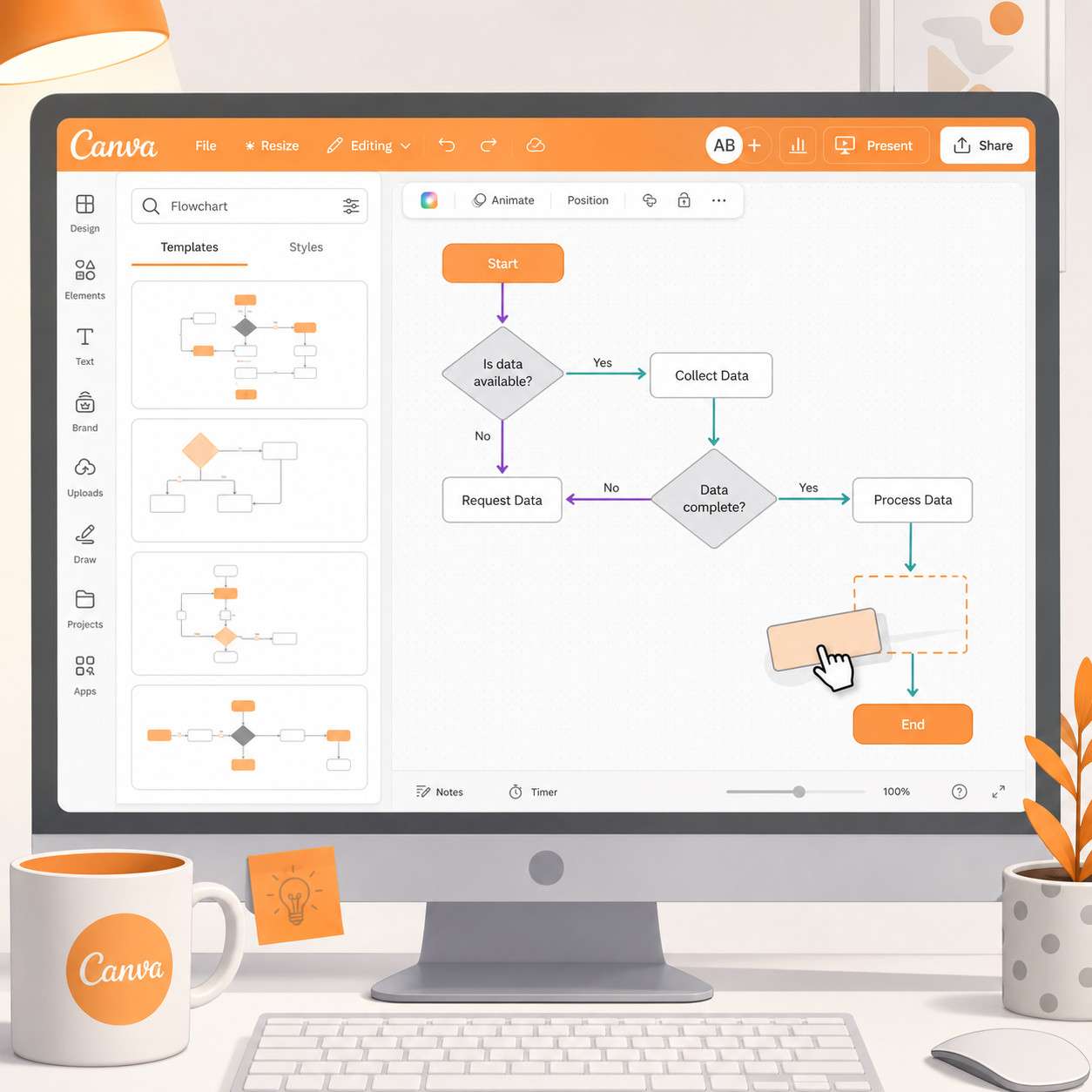
A flow chart in Canva is a diagram that uses standard shapes — rectangles, diamonds, ovals, and arrows — to represent steps in a process. Canva provides a whiteboard-style canvas where you drag these elements into place and connect them visually.
Unlike traditional diagramming software, Canva treats flow charts as a design project. That means you get access to the same fonts, color palettes, stock images, and layout tools you’d use for a social media post or presentation. The result is a flow chart that looks polished enough to drop into a client deck or team wiki.
Flow charts in Canva are useful for:
- Business processes (onboarding, approval workflows, customer journeys)
- Decision trees (troubleshooting guides, qualification criteria)
- Project planning (task sequences, dependency mapping)
- Educational content (explaining algorithms, scientific processes)
If you’re already using Canva for other design work, building flow charts in the same tool saves you from switching between apps. For more on Canva’s broader design capabilities, check out our Canva AI design creation guide.
How Do I Make a Flow Chart Step by Step in Canva?
Creating a Canva flow chart takes about 10 minutes once you know the steps. Here’s the exact process:
- Log in to Canva and click “Create a design.” Search for “flowchart” in the search bar, or select the Whiteboard option for a freeform canvas.
- Pick a template from the results. Canva shows dozens of flow chart templates sorted by category. Choose one close to your needs — you’ll customize it later.
- Edit the text by clicking any shape and typing your process steps. Start with your beginning point (usually an oval labeled “Start”) and work through each step.
- Add new shapes from the Elements panel on the left. Search for “flowchart” or “shapes” to find rectangles (process steps), diamonds (decisions), and ovals (start/end points).
- Connect shapes with lines or arrows. Click a shape, and small connection points appear on its edges. Drag from one point to another shape to create a connector line.
- Customize the design by changing colors, fonts, and sizes. Use the toolbar at the top to adjust fill colors, border thickness, and text formatting.
- Review the flow by reading through the chart from start to finish. Make sure every decision diamond has at least two outgoing paths (typically “Yes” and “No”).
- Export or share your finished chart. Click “Share” to send a link, or “Download” to save as PNG, PDF, or SVG.
Common mistake: Many beginners skip the template step and start from a blank canvas. Templates save significant time because the shapes, connectors, and color scheme are already coordinated.
Are Canva Flow Charts Free or Do I Need a Paid Account?
Most Canva flow chart features are completely free. Free accounts can access the flow chart maker, use dozens of templates, add shapes and connectors, and export finished diagrams as PNG or PDF.
Here’s what changes with a paid account:
| Feature | Free Plan | Canva Pro / Teams |
|---|---|---|
| Flow chart templates | 20+ free options | 100+ including premium |
| Shapes and connectors | Full access | Full access |
| Custom brand colors/fonts | Limited | Brand Kit included |
| Background remover | Not available | Included |
| Resize for multiple formats | Manual only | Magic Resize |
| Cloud storage | 5 GB | 1 TB |
| SVG export | Available | Available |
| Real-time collaboration | Up to 10 editors | Unlimited team members |
Bottom line: If you need a basic to intermediate flow chart, the free plan handles it well. Upgrade to Pro if you need brand consistency across many diagrams or access to premium template designs. For teams working on effective email templates and flow charts together, the Teams plan adds better permission controls.
Canva Flow Chart vs. Microsoft Visio: Which Is Better?
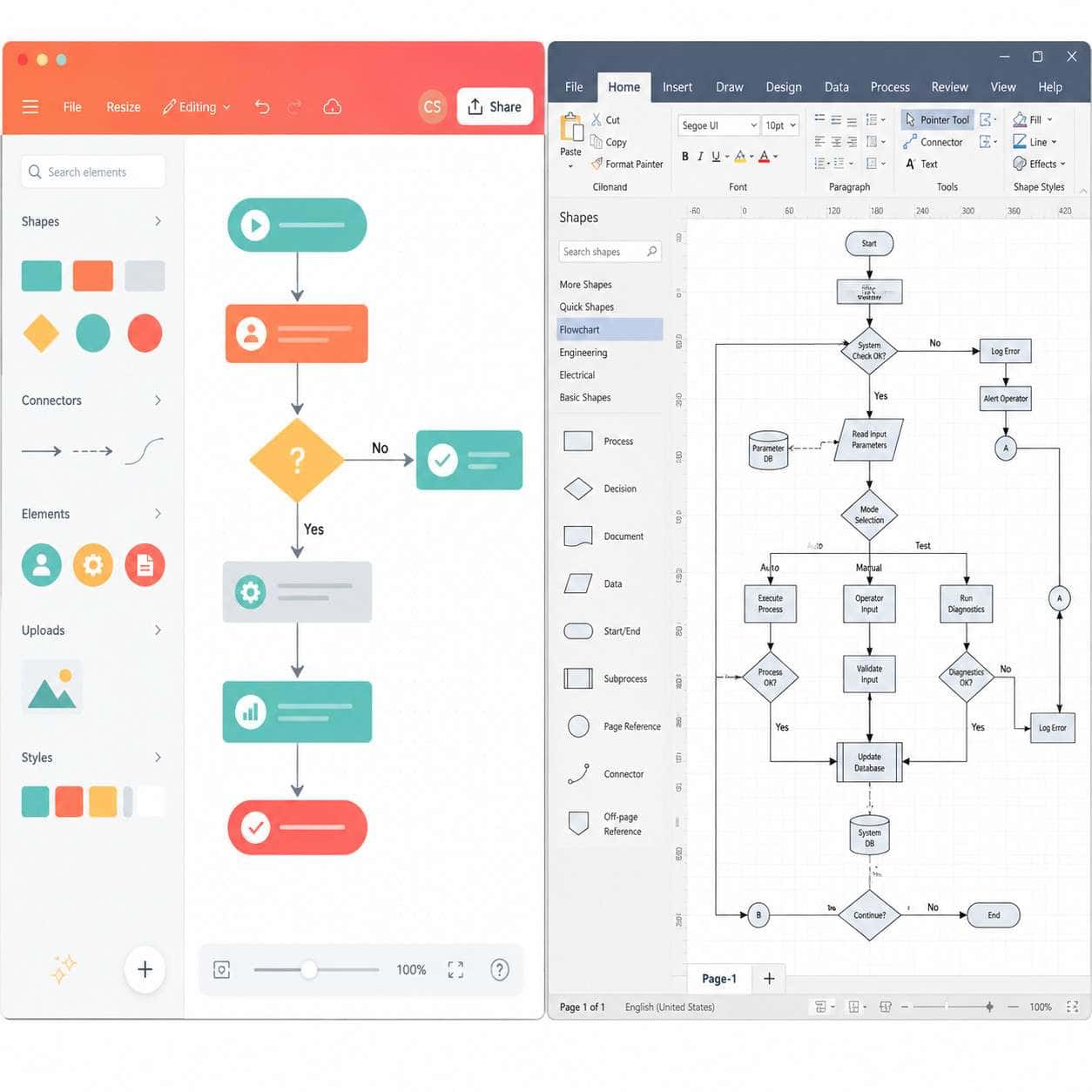
Canva is better for quick, visually appealing flow charts. Visio is better for complex technical diagrams with strict notation standards. The right choice depends on your use case.
| Criteria | Canva | Microsoft Visio |
|---|---|---|
| Learning curve | Very low (minutes) | Moderate (hours) |
| Price | Free or $13/month (Pro) | $5/month (Plan 1) or $15/month (Plan 2) |
| Template quality | Design-forward, modern | Functional, standards-based |
| Technical notation | Basic shapes only | Full BPMN, UML, network diagrams |
| Collaboration | Real-time, browser-based | Real-time via Microsoft 365 |
| Data linking | Not available | Links to Excel, databases |
| Export options | PNG, PDF, SVG, PPTX | VSD, PDF, SVG, PNG, AutoCAD |
| Best for | Marketing, presentations, simple processes | Engineering, IT, enterprise workflows |
Choose Canva if you want a good-looking flow chart fast and your audience is non-technical. Choose Visio if you need BPMN compliance, data-linked diagrams, or integration with Microsoft enterprise tools.
Can I Customize Flow Chart Colors and Shapes in Canva?
Yes, every visual element in a Canva flow chart is fully customizable. You can change fill colors, border colors, border thickness, corner radius, opacity, and size for any shape.
To customize colors:
- Click any shape, then use the color picker in the top toolbar.
- Enter a hex code for exact brand colors, or choose from Canva’s suggested palettes.
- Apply a consistent color scheme by selecting all shapes of one type and changing them together.
To modify shapes:
- Swap a rectangle for a diamond by deleting the old shape and dragging in a new one from the Elements panel.
- Resize shapes by dragging corner handles while holding Shift to maintain proportions.
- Round corners on rectangles using the corner-radius handle that appears when you select the shape.
If you have a Canva Pro account, the Brand Kit feature lets you save your company’s exact colors and fonts so every flow chart stays on-brand. This is especially useful if your team also creates carousel designs and other visual content in Canva.
Best Templates for Business Process Flow Charts in Canva
Canva’s template library includes several categories that work well for business process mapping. The best templates for 2026 include:
- Simple Process Flow — A linear template with 5 to 8 steps, ideal for onboarding sequences or approval workflows.
- Decision Tree — Features diamond shapes with branching Yes/No paths, great for customer support scripts or qualification flows.
- Swimlane Flowchart — Divides the chart into horizontal lanes representing departments or roles, perfect for cross-functional processes.
- Circular Flow — Shows recurring processes like monthly reporting cycles or continuous improvement loops.
- Colorful Infographic Flow — A more visual, presentation-ready template that blends icons with flow chart elements.
Pro tip: Search “flowchart” in Canva’s template search, then filter by “Free” if you don’t have a paid plan. You can also search terms like “process map” or “workflow diagram” to find additional options that aren’t labeled as flow charts but work the same way.
How to Add Icons and Graphics to My Canva Flow Chart
Canva’s Elements panel includes thousands of icons and illustrations you can drop directly into your flow chart. Click “Elements” in the left sidebar, then search for relevant terms like “gear,” “email,” “checkmark,” or “database.”
To add icons effectively:
- Place small icons inside or beside process shapes to give visual context (for example, an envelope icon next to “Send Email” step).
- Keep icon style consistent — stick to either line icons or filled icons, not a mix.
- Resize icons to roughly the same dimensions so the chart looks balanced.
- Use Canva’s “Graphics” search filter to find flat illustrations that match your color scheme.
You can also upload custom icons or SVG files if your company has a specific icon set. This pairs well with Canva’s broader AI-powered graphic design tools for creating cohesive visual content.
Is Canva Good for Technical or Engineering Flow Charts?
Canva handles basic to intermediate technical flow charts, but it falls short for advanced engineering diagrams. It lacks native support for standard notations like BPMN 2.0, UML activity diagrams, or electrical circuit symbols.
Where Canva works for technical use:
- Software onboarding flows
- Simple algorithm visualizations
- IT troubleshooting decision trees
- Basic data flow diagrams
Where Canva struggles:
- Complex branching with 20+ decision points
- Swimlane diagrams with more than 4-5 lanes
- Diagrams requiring precise measurements or grid snapping
- Industry-standard notation compliance
If your technical flow chart needs to meet formal standards or connect to live data, consider a dedicated tool (see the alternatives section below). But for explaining a process to a non-technical audience, Canva’s visual polish actually makes technical concepts easier to understand.
Flow Chart Design Tips for Beginners in Canva
Good flow chart design follows a few simple rules regardless of the tool you use. Here are the most important ones for Canva beginners:
- Flow top to bottom or left to right. Pick one direction and stick with it. Mixing directions confuses readers.
- Use standard shapes. Ovals for start/end, rectangles for process steps, diamonds for decisions. Don’t get creative with shape meanings.
- Limit to 15 shapes or fewer per chart. If your process has more steps, break it into sub-processes with separate charts.
- Keep text short. Each shape should contain 3 to 7 words. Use verb-first phrases like “Review application” or “Send confirmation.”
- Use color with purpose. Assign colors to categories (blue for automated steps, green for manual steps) rather than making every shape a different color.
- Align shapes to a grid. Canva’s snap-to-grid feature helps, but double-check alignment visually before exporting.
- Label every connector. Decision diamonds especially need “Yes” and “No” labels on their outgoing arrows.
For more foundational design guidance, our Canva logo design beginner’s guide covers core principles like color theory and typography that apply to flow charts too.
Common Mistakes When Creating Flow Charts in Canva
Even experienced users make these errors. Avoid them and your flow charts will be clearer and more professional:
- Overcrowding the canvas. Trying to fit an entire enterprise process on one page makes the chart unreadable. Break large processes into linked sub-charts.
- Skipping decision diamonds. Using rectangles for decision points removes the visual cue that a choice is happening. Always use diamonds for Yes/No or If/Then logic.
- Inconsistent formatting. Mixing font sizes, shape sizes, or color schemes within one chart looks sloppy and confuses readers.
- Missing start and end points. Every flow chart needs a clear entry point and at least one endpoint. Without them, readers don’t know where to begin.
- Crossing connector lines. When arrows overlap, the flow becomes hard to follow. Rearrange shapes to eliminate crossings, or use curved connectors.
- Forgetting to test the flow. Walk through the chart as if you were following the process. Every path should lead somewhere — no dead ends unless intentional.
How to Export My Canva Flow Chart for Presentations
Canva offers multiple export formats, and the best choice depends on where you’ll use the chart. Click “Share” then “Download” to see your options.
- PNG — Best for embedding in documents, emails, or web pages. Choose “Transparent background” if you want to layer it over a slide.
- PDF (Standard) — Good for printing or sharing as a standalone document.
- PDF (Print) — Higher resolution, suitable for large-format printing.
- SVG — Vector format that scales without losing quality. Ideal for importing into other design tools.
- PPTX — Exports directly as a PowerPoint file, which is perfect for presentations.
You can also use the “Present” button inside Canva to display your flow chart as a full-screen presentation without exporting at all. For teams that also create Instagram story templates in Canva, the same export workflow applies across all project types.
Can I Collaborate on a Flow Chart With My Team in Canva?
Yes, Canva supports real-time collaboration on flow charts. Share a link with “Can edit” permissions, and multiple team members can work on the same diagram simultaneously — similar to Google Docs.
Collaboration features include:
- Real-time cursors showing where each person is working
- Comments attached to specific shapes or areas of the canvas
- Version history to roll back unwanted changes
- Team folders for organizing flow charts by project or department (Canva Teams plan)
Free accounts allow sharing with up to 10 editors. Canva Teams plans remove this limit and add admin controls for managing permissions. If your team also uses workflow automation tools, you might find our guide on streamlining workflows with automation useful for connecting your documented processes to actual automated systems.
Alternative Flow Chart Tools if Canva Doesn’t Work for Me
If Canva’s flow chart features don’t meet your needs, here are the strongest alternatives:
- Lucidchart — The closest direct competitor. Stronger technical diagramming, BPMN support, and integrations with Confluence and Jira. Free tier is limited to 3 documents.
- Microsoft Visio — Enterprise standard for technical and engineering diagrams. Best if you’re already in the Microsoft ecosystem.
- Miro — Excellent for collaborative whiteboarding with flow chart capabilities. Better for brainstorming sessions.
- Draw.io (diagrams.net) — Completely free, open-source, and surprisingly powerful. No account required. Lacks Canva’s design polish.
- Figma — Primarily a UI design tool, but FigJam (its whiteboard feature) handles flow charts well. Strong for design teams. See our guide on Figma mobile wireframe design for more on Figma’s capabilities.
- Whimsical — Clean, minimal interface focused on flow charts, wireframes, and mind maps. Good middle ground between Canva and Lucidchart.
Choose Canva if design quality matters more than technical depth. Choose Lucidchart or Visio if you need advanced notation, data linking, or enterprise integrations.
FAQ
How long does it take to make a flow chart in Canva? A simple flow chart with 5 to 10 steps takes about 10 to 15 minutes using a template. Complex diagrams with 15+ shapes and multiple decision branches can take 30 to 45 minutes.
Can I use Canva flow charts commercially? Yes. Canva’s license allows commercial use of designs you create, including flow charts. This applies to both free and paid accounts.
Does Canva have a dedicated flow chart maker? Canva doesn’t have a separate “flow chart app,” but searching “flowchart” in the design search brings up templates and a canvas optimized for diagramming. The Whiteboard feature also works well for freeform flow charts.
Can I import a Visio file into Canva? No, Canva does not support importing .vsd or .vsdx files. You would need to export your Visio diagram as SVG or PNG first, then place it as an image in Canva.
What’s the maximum number of shapes I can add to a Canva flow chart? There’s no hard limit published by Canva, but performance slows noticeably beyond 50 to 75 elements on a single page. For large processes, use multiple pages within one Canva project.
Can I animate my Canva flow chart? Yes, Canva’s animation feature lets you add entrance effects to shapes. This works well for presentations where you want to reveal steps one at a time. Export as MP4 or GIF to preserve animations.
Is there a Canva flow chart mobile app? Canva’s mobile app supports flow chart creation, but the small screen makes it difficult to work with complex diagrams. I recommend using a tablet or desktop for anything beyond a simple 5-step flow.
Can I convert a Canva flow chart into an editable Google Slides file? Not directly. Export as PPTX from Canva, then upload that file to Google Drive and open it with Google Slides. Most formatting transfers correctly, though some connector lines may need adjustment.
Conclusion
A Canva flow chart is one of the fastest ways to turn a messy process into a clear, visual diagram that anyone can follow. The combination of free templates, drag-and-drop editing, and strong export options makes Canva a solid choice for most business and educational flow charts in 2026.
Here’s what to do next:
- Start with a template. Go to Canva, search “flowchart,” and pick one that’s close to your needs.
- Map your process on paper first. Sketch the steps and decisions before you start dragging shapes. This prevents the most common flow chart mistakes.
- Keep it simple. Limit each chart to 15 shapes or fewer. Break complex processes into linked sub-charts.
- Share and iterate. Use Canva’s collaboration features to get feedback from your team before finalizing.
If you find Canva’s flow chart features limiting, try Draw.io for free technical diagramming or Lucidchart for enterprise-grade features. But for most teams creating process documentation, onboarding flows, or presentation-ready diagrams, Canva gets the job done well. Explore more Canva tutorials and guides to expand what you can build with the platform.
Related: Canva Shirt Design: The Complete Guide to Creating Custom T-Shirts in 2026
Related: The Complete Guide to the Canva App in 2026
Related: Canva Free: The Complete Guide to What You Get Without Paying a Cent
Useful Resources: Canva design platform & Canva Design School free tutorials