Last updated: June 7, 2026
Quick Answer: A Canva Brand Kit is a centralized hub inside Canva where you store your brand’s logos, color palettes, fonts, and other visual assets. It lets you (and your team) apply consistent branding to every design with a single click. The feature is available in Canva Pro, Canva for Teams, Canva for Education, and Canva for Nonprofits — but not in the free plan.
Key Takeaways
- A Canva Brand Kit stores your logos, brand colors, fonts, photos, graphics, and icons in one place for quick access across all designs.
- The feature requires a paid Canva plan (Pro starts at roughly $120/year for one person as of 2026). Free users cannot create a Brand Kit.
- Canva Pro allows one Brand Kit; Canva for Teams allows multiple Brand Kits, which is useful for agencies or multi-brand businesses.
- You can share your Brand Kit with team members so everyone uses the correct assets automatically.
- Changing a color or font in your Brand Kit does not retroactively update existing designs — only new designs and templates pull from the updated kit.
- Nonprofits can access Brand Kit features through Canva for Nonprofits, which is free for eligible organizations.
- Professional designers often recommend Canva Brand Kits for small businesses and teams that need speed and consistency without Adobe-level complexity.
- Common mistakes include uploading too many color variations, skipping font hierarchy setup, and not training team members on how to use the kit.
What Exactly Is a Canva Brand Kit?
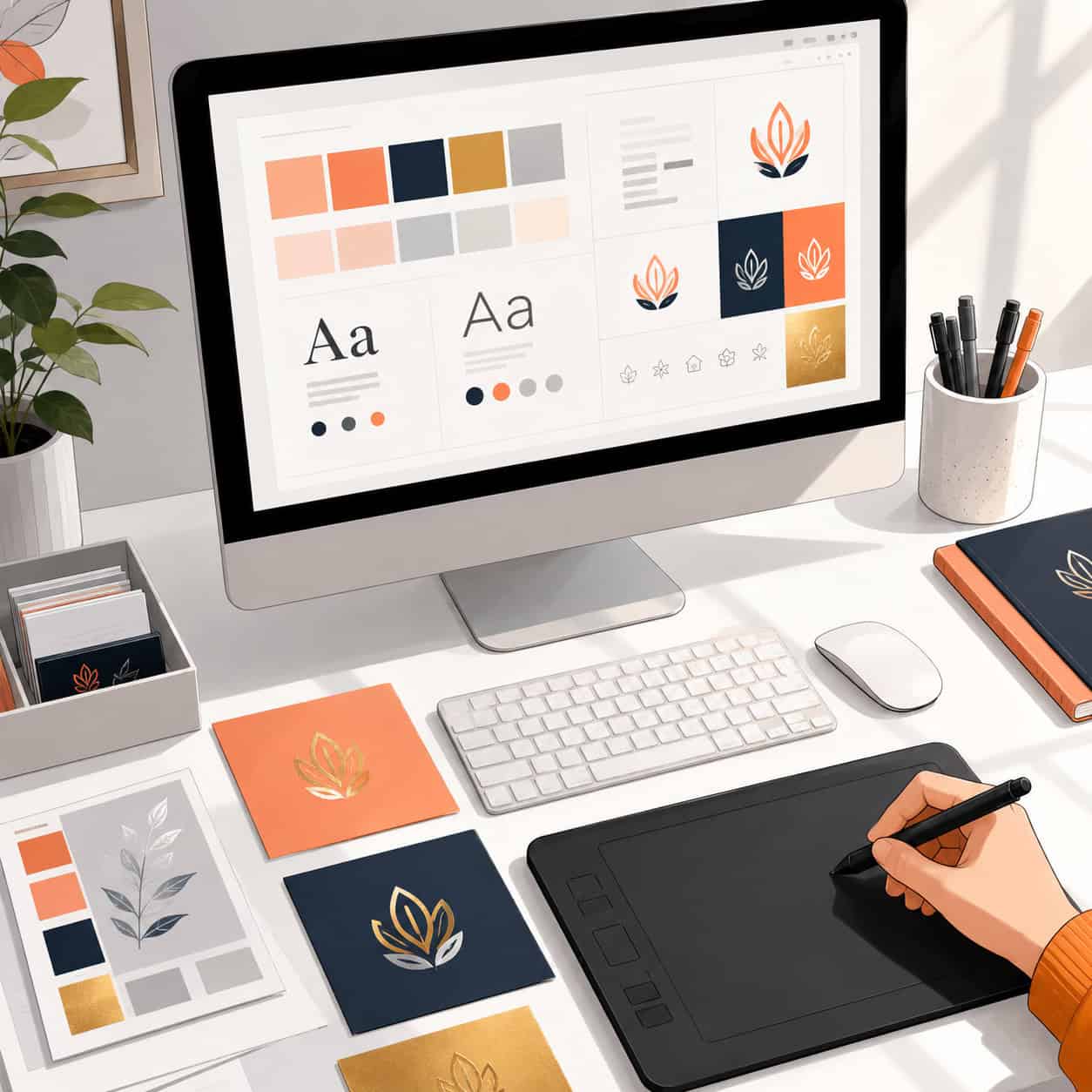
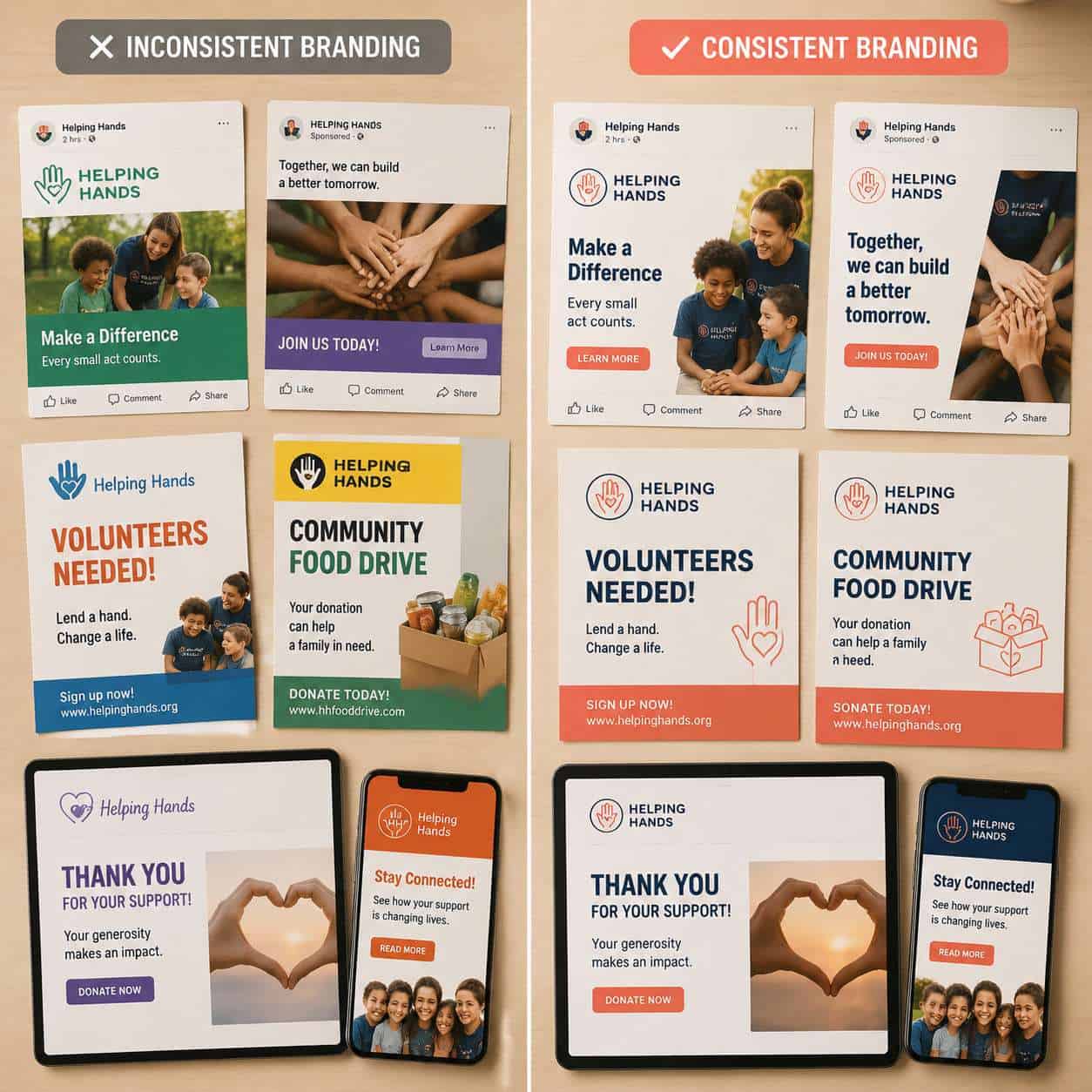
A Canva Brand Kit is a feature within Canva’s design platform that acts as a single source of truth for your brand’s visual identity. Instead of hunting through folders or guessing hex codes, you store everything — logos, colors, fonts, and imagery — in one organized panel that’s accessible from the Canva editor.
When I first set up a Brand Kit for a client’s small bakery business, the difference was immediate. Before the kit, every Instagram post had slightly different shades of pink. After setting it up, every team member pulled from the same palette, and the brand finally looked cohesive.
The Brand Kit lives in your Canva account settings and appears in the left sidebar whenever you’re editing a design. You can apply your brand colors, swap in your logo, or set your fonts with one click. If you’re already using Canva for things like creating email templates or designing Instagram stories, the Brand Kit makes those workflows significantly faster.
How Much Does a Brand Kit Cost in Canva?
The Brand Kit feature is included with any paid Canva subscription — there’s no separate fee for it. Here’s how pricing breaks down in 2026:
| Plan | Approximate Cost | Brand Kits Included |
|---|---|---|
| Canva Free | $0 | None |
| Canva Pro | ~$120/year (1 person) | 1 Brand Kit |
| Canva for Teams | ~$100/year per person (min. 3) | Multiple Brand Kits |
| Canva for Nonprofits | Free (with verification) | Multiple Brand Kits |
| Canva for Education | Free (with verification) | Brand Kit access |
Choose Canva Pro if you’re a solo freelancer or small business owner managing one brand. Choose Canva for Teams if you manage multiple brands, run an agency, or need more than three people accessing the same assets.
Can I Make a Brand Kit in the Free Version of Canva?
No. The Brand Kit is exclusively a paid feature. Free Canva users can manually enter hex codes and upload logos to individual designs, but they cannot save these as a reusable Brand Kit.
If you’re on a tight budget, here’s a workaround: create a “brand template” design in free Canva that contains all your colors, fonts, and logo placements. Duplicate it each time you start a new project. It’s clunky, but it works until you’re ready to upgrade.
That said, if brand consistency matters to your business (and it should), the Pro subscription pays for itself quickly. The time saved alone — not re-entering color codes, not searching for the right logo file — adds up to hours each month.
What’s Included in a Canva Brand Kit?
A Canva Brand Kit can hold several types of brand assets:
- Logos: Upload multiple versions (full color, white, icon-only, etc.) in PNG, SVG, or JPG format.
- Brand colors: Save up to 100 colors per palette. You can create multiple palettes for primary, secondary, and accent colors.
- Fonts: Use Canva’s built-in fonts or upload custom brand fonts (OTF or TTF files). You can set defaults for headings, subheadings, and body text.
- Brand photos: Upload a library of approved images your team should use.
- Graphics and icons: Store custom illustrations, patterns, or icon sets.
- Brand voice (newer feature): Some plans now let you define tone-of-voice guidelines that integrate with Canva’s AI writing tools.
For teams working on visual content regularly, having all of these in one place eliminates the “which version of the logo do I use?” problem entirely. If you’re also building a logo from scratch, our Canva logo design guide for beginners walks through that process step by step.
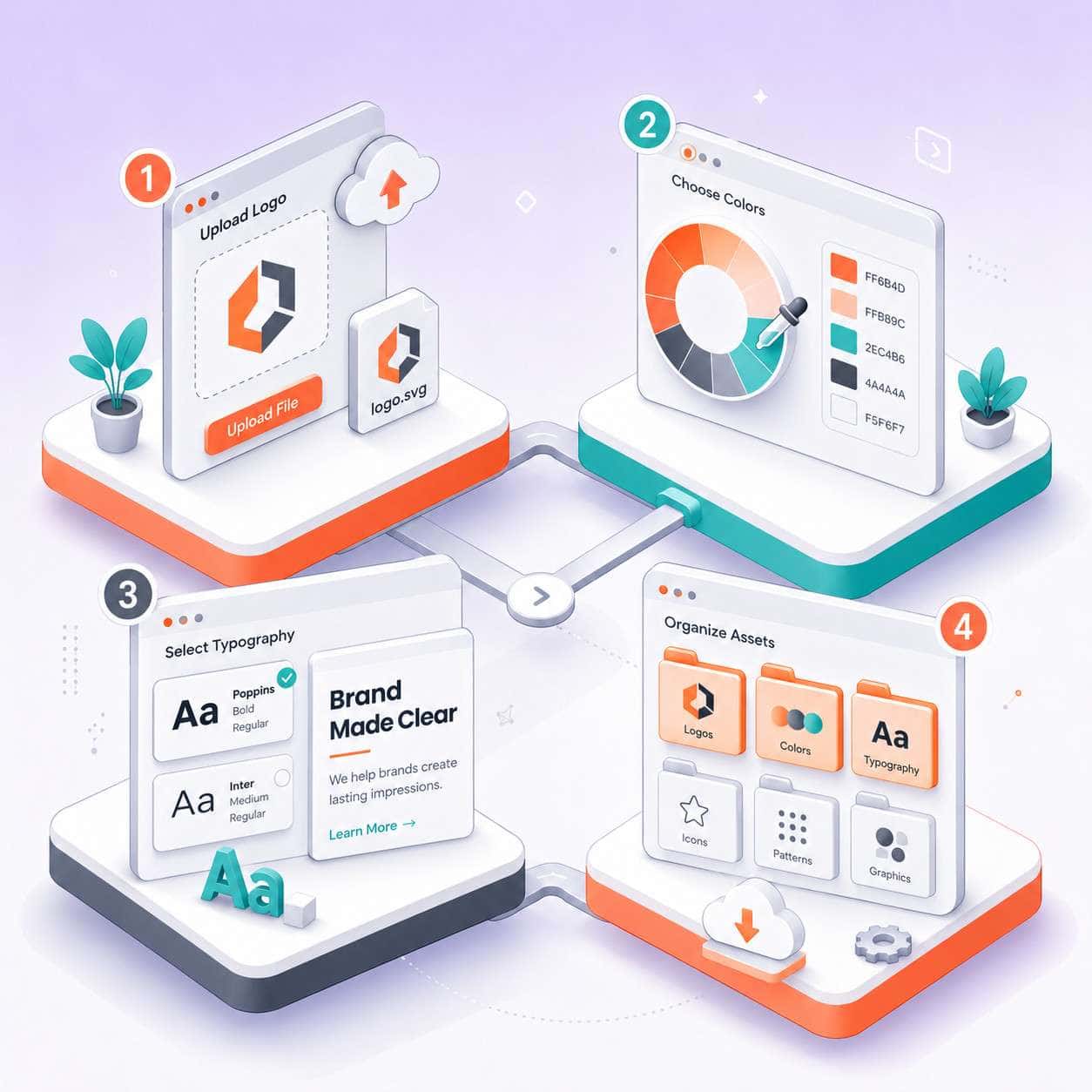
How Do I Create a Brand Kit for My Business?
Setting up a Canva Brand Kit takes about 15 to 30 minutes if you have your assets ready. Here’s the process:
- Log in to Canva and click on “Brand” in the left sidebar (or go to canva.com/brand).
- Click “Add new” to start your Brand Kit. Name it after your brand.
- Upload your logos. Add all versions you use — horizontal, stacked, icon-only, and any color variations.
- Set your color palettes. Enter hex codes for your primary, secondary, and accent colors. Group them into named palettes for clarity.
- Choose your fonts. Select heading, subheading, and body fonts. If you use a custom typeface, upload the font files here.
- Add brand photos and graphics. Upload any approved imagery, patterns, or icons your team uses regularly.
- Set brand voice guidelines (if available on your plan) to guide AI-generated copy within Canva.
- Share with your team. If you’re on a Teams plan, invite members so they can access the kit automatically.
Common mistake: Rushing through font setup. Take time to define your font hierarchy (heading, subheading, body) because Canva will apply these defaults when you click “Apply brand fonts” to any template. If you skip this, the auto-apply feature won’t work correctly.
Is Canva’s Brand Kit Good for Small Businesses?
Yes — the Canva Brand Kit is one of the best branding tools available for small businesses that don’t have a dedicated design team. It’s affordable, requires no design training, and keeps every piece of content on-brand.
I’ve worked with several small business owners who previously relied on a patchwork of Google Docs, Dropbox folders, and memory to keep their branding straight. The Brand Kit consolidated everything. One restaurant owner told me her staff went from spending 20 minutes per social post (finding colors, fonts, the right logo) to under 5 minutes.
Where it works best:
- Businesses producing regular social media content
- Teams where non-designers create marketing materials
- Franchises or multi-location businesses needing local consistency
Where it falls short:
- Brands needing complex design systems with detailed spacing rules, motion guidelines, or extensive component libraries
- Enterprises with strict asset management and version control requirements
For more on how AI tools can support your content creation process, check out our guide to Canva’s AI design features.
What Are Common Mistakes People Make With Brand Kits?
Even with a great tool, poor setup leads to poor results. Here are the mistakes I see most often:
- Uploading too many colors. Stick to 3-6 core brand colors. Adding 15 shades creates confusion, not flexibility.
- Ignoring font hierarchy. If you don’t assign heading, subheading, and body fonts, the one-click brand application won’t produce clean results.
- Using low-resolution logos. Upload SVG files when possible. PNG logos under 500px wide will look blurry on larger designs.
- Not updating the kit when the brand evolves. Your Brand Kit should be a living document. Review it quarterly.
- Forgetting to train the team. Setting up the kit is step one. Make sure everyone knows how to access and use it. A 10-minute screen recording goes a long way.
- Storing every photo ever taken. Curate your brand photos. A focused library of 20-30 strong images beats 500 random shots.
How Is Canva’s Brand Kit Different From Other Design Tools?
Canva’s Brand Kit is designed for accessibility and speed, not advanced design control. Here’s how it compares:
| Feature | Canva Brand Kit | Adobe Creative Cloud Libraries | Figma Brand Libraries |
|---|---|---|---|
| Learning curve | Low | High | Medium |
| Custom font upload | Yes | Yes | Yes |
| Color management | Basic palettes | Advanced (Pantone, CMYK) | Advanced (design tokens) |
| Team sharing | Yes (Teams plan) | Yes (Creative Cloud) | Yes (Organization plan) |
| Component libraries | No | Limited | Yes (full components) |
| Price entry point | ~$120/year | ~$660/year | Free (limited) to $180/year |
| Best for | Non-designers, small teams | Professional designers | UI/UX design teams |
Choose Canva if your team needs to produce social media graphics, presentations, and marketing materials quickly without design training. Choose Figma or Adobe if you need pixel-level control, design systems with components, or print-ready CMYK output.
For a broader look at design and branding tools, explore our design resources archive.
Can I Share My Brand Kit With My Team?
Yes, but only on Canva for Teams (or Canva for Nonprofits/Education). On a Teams plan, every member of your workspace automatically gets access to the Brand Kit. They can apply brand colors, fonts, and logos to any design without downloading separate files.
On Canva Pro (single-user plan), the Brand Kit is tied to your individual account. You can’t share it directly with others. If a collaborator needs access, you’d need to upgrade to a Teams plan or manually share your brand assets through other means.
Pro tip: If you’re working with freelancers who aren’t on your Canva team, export a simple brand guidelines PDF from your Brand Kit. This gives them the hex codes, font names, and logo files they need without requiring a Canva seat.
What File Types Can I Save in My Canva Brand Kit?
For logos, you can upload PNG, JPG, and SVG files. SVG is strongly recommended because it scales without losing quality. For fonts, Canva accepts OTF (OpenType) and TTF (TrueType) files. For brand photos and graphics, standard image formats (PNG, JPG) work. You cannot upload video files, PDFs, or AI/EPS files directly to the Brand Kit.
When exporting designs that use your Brand Kit, Canva supports PNG, JPG, PDF, SVG, MP4, and GIF — depending on the design type. For carousel designs and social posts, PNG is typically the best choice for quality.
Do Professional Designers Recommend Canva Brand Kits?
Many professional designers recommend Canva Brand Kits for the right audience. The consensus in the design community is that Canva’s Brand Kit is excellent for small businesses, solopreneurs, marketing teams, and organizations that need to produce branded content quickly without hiring a designer for every asset.
Where designers push back is when businesses try to use the Brand Kit as a replacement for a full brand guidelines document. A Brand Kit stores assets; it doesn’t explain when to use a secondary color versus a primary one, or how much whitespace should surround your logo. For that, you still need a proper style guide — even if it’s a simple one-page document.
If you’re building your brand identity from the ground up, our branding design and visual identity guide covers the strategic thinking that should happen before you set up any Brand Kit.
What Happens If I Change My Brand Colors in the Kit?
Updating colors, fonts, or logos in your Canva Brand Kit only affects future designs. Existing designs retain whatever styling they had when you last edited them. There is no automatic “push update to all designs” feature.
This means if you rebrand, you’ll need to manually open and update older designs. For large teams, this is worth planning for. Create a checklist of active templates and designs that need updating, and work through them systematically.
Edge case: If you use Canva’s “Brand Templates” feature (available on Teams plans), updating the template itself will give team members the new version next time they use it. But designs already created from the old template won’t change.
Are Canva Brand Kits Good for Nonprofits?
Absolutely. Canva for Nonprofits provides free access to premium features, including the Brand Kit, for verified nonprofit organizations. This is one of the strongest value propositions in Canva’s lineup, because nonprofits often have tight budgets but still need professional, consistent branding across fundraising materials, social media, event graphics, and reports.
The application process requires proof of nonprofit status (such as 501(c)(3) documentation in the US), and approval typically takes a few days. Once approved, the organization gets access to multiple Brand Kits, premium templates, and team collaboration features at no cost.
For nonprofits looking to strengthen their overall digital presence, our AI-powered content optimization guide offers practical strategies that pair well with a solid Brand Kit setup.
Frequently Asked Questions
How many Brand Kits can I have on Canva Pro? One. If you need multiple Brand Kits (for example, managing two different businesses), you’ll need Canva for Teams.
Can I use my own fonts in a Canva Brand Kit? Yes. Upload OTF or TTF font files in the Brand Kit settings. Custom fonts are available on Pro and Teams plans.
Does the Brand Kit work on Canva’s mobile app? Yes. Your Brand Kit syncs across desktop, web, and mobile versions of Canva. You can apply brand elements from any device.
Can I export my Brand Kit to use outside of Canva? There’s no one-click export of the entire Brand Kit. You can download individual logos and note your hex codes and font names, but there’s no portable file format for the kit itself.
Will my Brand Kit apply to Canva templates automatically? Not automatically, but you can click “Apply brand colors” or “Apply brand fonts” when editing any template to swap in your brand elements.
What happens to my Brand Kit if I downgrade to the free plan? You lose access to the Brand Kit feature. Your assets remain stored, but you can’t view or use them until you resubscribe to a paid plan.
Can I password-protect my Brand Kit? No. Access is controlled through team membership. Anyone on your Canva team can view and use the Brand Kit. You cannot restrict access to specific members within a team.
Is there a limit to how many logos I can upload? Canva doesn’t publish a strict logo limit, but practically, you can upload dozens of logo variations without issues. Keep it organized by naming files clearly (e.g., “Logo-Full-Color-Dark-BG.svg”).
Can I create a Brand Kit for a client and transfer it? Not directly. You’d need to set up the Brand Kit within the client’s own Canva account or workspace. Alternatively, on a Teams plan, you can create the kit and then transfer workspace ownership.
Conclusion
A Canva Brand Kit is one of the simplest ways to enforce visual consistency across everything your business creates. It won’t replace a comprehensive brand strategy, but it solves the practical, day-to-day problem of keeping colors, fonts, and logos consistent — especially when multiple people are creating content.
Your next steps:
- Gather your brand assets: logos (preferably SVG), hex color codes, and font files.
- Sign up for Canva Pro or Canva for Teams if you haven’t already.
- Spend 30 minutes setting up your Brand Kit with clear naming conventions.
- Train your team on how to access and apply the kit in their designs.
- Review and update your Brand Kit quarterly as your brand evolves.
For more Canva tutorials and design strategies, browse our Canva resource library.
Useful Resources: Canva design platform & Canva Design School free tutorials