Last updated: May 7, 2026
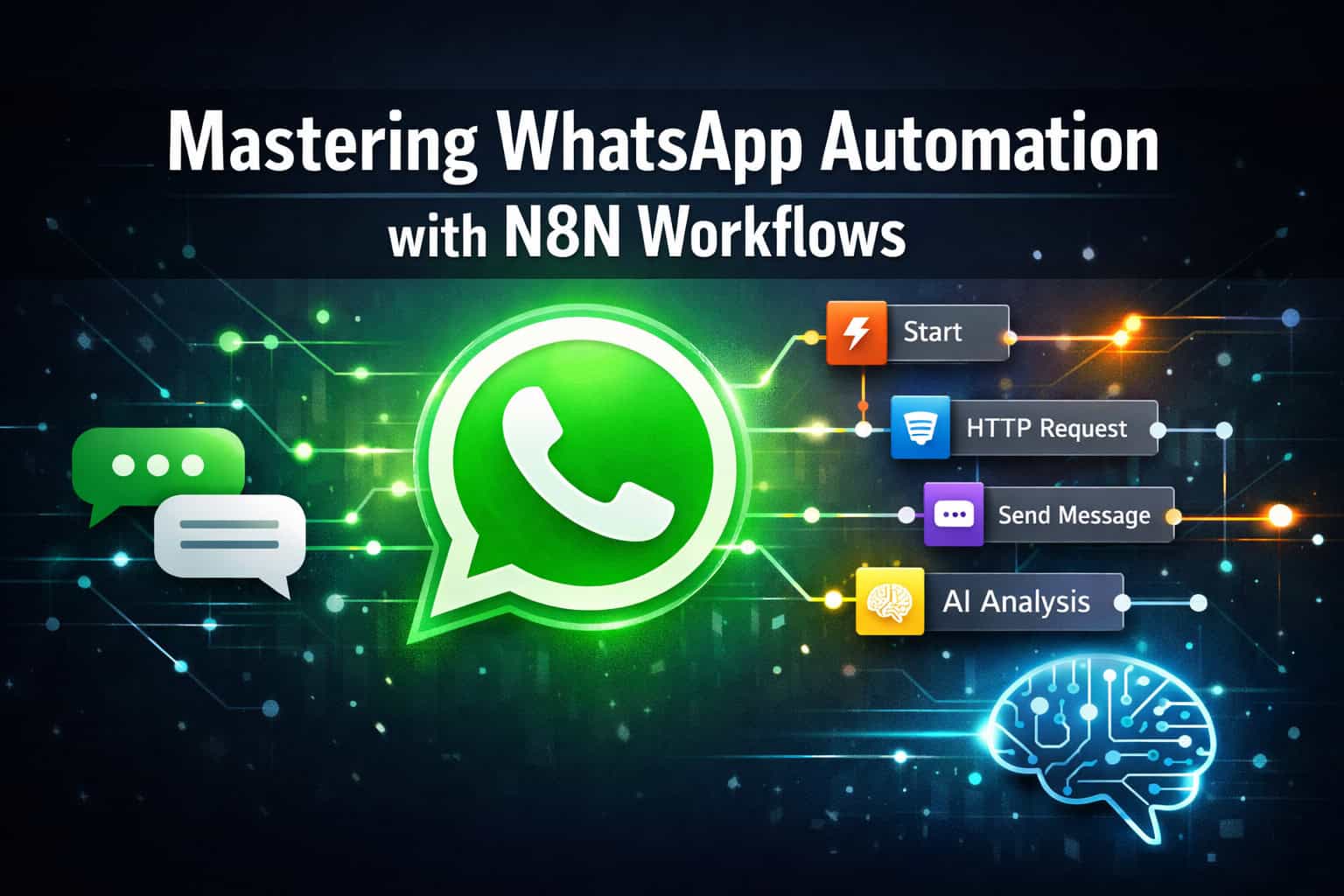
Quick Answer: N8N is a low-code workflow automation platform that connects WhatsApp’s Business API to hundreds of other apps, letting you send messages, trigger responses, and run AI-powered conversations automatically. You can set up a basic WhatsApp automation workflow in N8N in under an hour, with no advanced coding required. This guide walks through everything from initial setup to production-ready AI agents.
Key Takeaways
- N8N connects directly to the WhatsApp Business Cloud API using webhook triggers and credential nodes
- You can build automated responses, appointment reminders, order updates, and AI chatbots without writing custom backend code
- AI models (including GPT-based agents) can be integrated into N8N workflows for context-aware, 24/7 WhatsApp conversations
- Infinite loop prevention and conversation memory are critical features to configure before going live
- N8N offers official WhatsApp starter workflow templates to speed up your build [6]
- The platform supports hundreds of app integrations, so WhatsApp can connect to CRMs, spreadsheets, email, and more
- Self-hosted N8N gives you full data control; N8N Cloud is faster to start but has usage-based pricing
- Common mistakes include missing webhook verification, skipping message deduplication, and not setting rate limits

What Is N8N WhatsApp Automation and Who Is It For?
N8N WhatsApp automation means using N8N’s visual workflow builder to connect the WhatsApp Business API with other tools, so messages are sent, received, and processed without anyone manually typing them. It’s the practical approach for businesses that handle repetitive messaging at scale.
This is a good fit for:
- Small to mid-size businesses handling customer support via WhatsApp
- E-commerce stores sending order confirmations and shipping updates
- Healthcare providers or clinics sending appointment reminders
- Agencies building WhatsApp bots for clients
- Developers who want a visual alternative to writing custom API code
This is not the right fit if:
- You need personal WhatsApp automation (the Business API only works with WhatsApp Business accounts)
- Your message volume is very low (manual messaging may be simpler)
- You don’t have access to the WhatsApp Business API (requires Meta Business verification)
Mastering WhatsApp automation with N8N workflows is particularly valuable for teams that already use tools like Google Sheets, Airtable, HubSpot, or Slack, because N8N can connect all of them in a single workflow [3].
How Does N8N Connect to the WhatsApp Business API?
N8N connects to WhatsApp through Meta’s official WhatsApp Business Cloud API using a webhook trigger and API credentials. You configure a webhook URL in your Meta Developer App, and N8N listens for incoming messages at that endpoint.
Step-by-step connection process:
- Create a Meta Developer account and set up a WhatsApp Business App at developers.facebook.com
- Generate a permanent access token from your Meta Business Manager
- Add WhatsApp credentials in N8N — go to Credentials, select “WhatsApp Business Cloud API,” and paste your token and Phone Number ID
- Set up a webhook in your Meta App dashboard pointing to your N8N webhook URL
- Verify the webhook by matching the verification token N8N provides with the one you enter in Meta’s dashboard
- Test with a real message sent to your WhatsApp Business number
💡 Common mistake: Skipping webhook verification is the most frequent setup error. Meta will reject your webhook if the verification handshake fails, and N8N won’t receive any messages.
N8N’s official WhatsApp Trigger integration supports this connection natively [7], and there are starter workflow templates available to reduce setup time [6].
What Are the Core Building Blocks of an N8N WhatsApp Workflow?
Every N8N WhatsApp workflow is made up of nodes that handle specific tasks. Understanding these blocks is the foundation of mastering WhatsApp automation through N8N workflows.
| Node Type | Function | Example |
|---|---|---|
| WhatsApp Trigger | Listens for incoming messages | Customer sends “Hello” |
| IF / Switch | Routes messages based on content | Route to FAQ or human agent |
| HTTP Request | Calls external APIs | Fetch order status from your store |
| AI Agent / OpenAI | Generates intelligent replies | GPT-based conversational response |
| WhatsApp Send | Sends a message back | Reply with order details |
| Set Node | Formats or stores data | Extract phone number and name |
| Wait Node | Adds delays between messages | Pause 2 seconds before follow-up |
| Google Sheets | Logs or reads data | Save customer query to a spreadsheet |
Key features to configure in every workflow:
- Infinite loop prevention: Add a check so the bot doesn’t respond to its own outgoing messages, which would create an endless reply cycle [5]
- Conversation memory: Store recent message history (in a database or N8N’s built-in memory) so the AI can maintain context across multiple turns
- Message deduplication: Use a unique message ID check to avoid processing the same incoming message twice if the webhook fires more than once
For teams also automating content publishing, the approach of connecting triggers to actions is similar to how you’d auto-share WordPress blog posts to social media — the same trigger-action logic applies.
How Do You Add AI to a WhatsApp N8N Workflow?
You add AI to an N8N WhatsApp workflow by connecting an AI Agent node (or OpenAI node) between your message trigger and your send node. The AI receives the incoming message text, processes it with a language model, and returns a reply that N8N then sends back via WhatsApp.
Basic AI chatbot setup:
- WhatsApp Trigger receives incoming message
- Set Node extracts the message body and sender phone number
- AI Agent Node (connected to OpenAI or another LLM) receives the message as a prompt
- System prompt defines the bot’s persona, scope, and tone
- WhatsApp Send Node delivers the AI-generated reply to the sender
Production-ready AI agents running 24/7 have been demonstrated using GPT-based models integrated directly into N8N [5]. For more sophisticated conversational flows, you can also integrate services like Dialogflow or Rasa for natural language understanding before passing to N8N for action execution [4].
Conversation memory options:
- N8N’s built-in memory (simple, good for short sessions)
- External database like Supabase or PostgreSQL (better for long-term history)
- Redis (fast, good for high-volume bots)
📌 Decision rule: Use N8N’s built-in memory if you’re prototyping or handling low volume. Switch to an external database when you need conversation history to persist across sessions or across multiple workflow executions.
Integrating AI into automation workflows follows the same principles covered in our guide to AI-powered content generation tools — the key is giving the model clear context and constraints.

What Are the Most Useful WhatsApp Automation Use Cases in N8N?
The most practical use cases for N8N WhatsApp automation are customer support, appointment reminders, order tracking, and feedback collection. Each maps directly to a workflow pattern you can build and test in under a day [4].
Customer support bot
- Answers FAQs automatically using an AI agent or keyword matching
- Escalates to a human agent when confidence is low or the user asks to speak to someone
- Logs all conversations to a CRM or Google Sheet
Appointment booking and reminders
- Integrates with Google Calendar or Calendly via N8N
- Sends confirmation messages when a booking is made
- Sends reminder messages 24 hours and 1 hour before the appointment
Order tracking updates
- Triggers on order status changes from your e-commerce platform (Shopify, WooCommerce, etc.)
- Sends WhatsApp messages with tracking links and estimated delivery times
- Handles return requests through a structured conversation flow [2]
Post-service feedback collection
- Sends a feedback request message after a service is completed
- Collects star ratings or short text responses
- Stores results in a spreadsheet or analytics dashboard
Lead qualification
- Responds to WhatsApp inquiries from ad campaigns
- Asks qualifying questions and scores leads
- Notifies the sales team via Slack or email when a hot lead is identified
For businesses already using automation across their digital presence, these WhatsApp workflows pair well with broader automation strategies for power users.
What Are the Setup Requirements and Costs?
Setting up N8N WhatsApp automation requires a WhatsApp Business API account, an N8N instance, and a Meta-verified business. The costs vary depending on your hosting choice and message volume.
Requirements checklist:
- ✅ Meta Business Manager account (free)
- ✅ Verified WhatsApp Business number (cannot be a number already used on personal WhatsApp)
- ✅ WhatsApp Business Cloud API access (free tier available; conversation-based pricing for outbound messages)
- ✅ N8N instance (self-hosted free, or N8N Cloud from ~$20/month)
- ✅ A server or cloud host for self-hosted N8N (e.g., a $5-10/month VPS)
N8N hosting options:
| Option | Cost | Best For |
|---|---|---|
| N8N Cloud | From ~$20/month | Teams who want quick setup, no server management |
| Self-hosted (VPS) | ~$5–15/month for server | Full data control, unlimited workflows |
| Self-hosted (local) | Free | Testing and development only |
WhatsApp API pricing (Meta, as of 2026):
Meta charges per conversation (a 24-hour messaging window), not per message. Rates vary by country. Conversations initiated by users (service conversations) are free up to 1,000 per month. Business-initiated conversations (marketing, utility) are charged at country-specific rates. Check Meta’s current pricing page for exact figures, as rates change.
How Do You Avoid Common Mistakes in N8N WhatsApp Workflows?
The most common mistakes in N8N WhatsApp automation are infinite message loops, missing webhook verification, and not handling API rate limits. Each of these can break your workflow or get your WhatsApp number flagged.
Mistakes and fixes:
1. Infinite loop
- Problem: The bot replies to its own outgoing messages, creating an endless cycle
- Fix: Add an IF node that checks if the message sender is your own bot number, and stop the workflow if true [5]
2. Webhook verification failure
- Problem: Meta rejects your webhook URL during setup
- Fix: Make sure your N8N webhook URL is publicly accessible (not localhost) and the verification token matches exactly
3. No rate limit handling
- Problem: Sending too many messages too fast triggers Meta’s rate limits
- Fix: Add Wait nodes between bulk sends, and use N8N’s error handling to retry on rate limit errors
4. Missing error handling
- Problem: A failed API call silently breaks the workflow
- Fix: Enable “Continue on Fail” on critical nodes and add an error notification (email or Slack) so you know when something breaks
5. Hardcoded credentials
- Problem: API keys stored directly in nodes instead of N8N’s credential manager
- Fix: Always use N8N’s built-in credential storage, especially for self-hosted instances
For teams managing multiple automation workflows, the same discipline around error handling and credential management applies to other platforms — similar to best practices in WordPress plugin development.
How Do You Scale and Maintain a WhatsApp N8N Workflow in Production?
Scaling a WhatsApp N8N workflow means handling higher message volumes, maintaining uptime, and keeping your workflow logic clean as it grows. The key is treating your workflow like production software from day one [9].
Scaling strategies:
- Use N8N’s queue mode (available in self-hosted) to process messages asynchronously and handle spikes
- Split complex workflows into sub-workflows using N8N’s “Execute Workflow” node — keeps each piece testable
- Monitor execution logs regularly to catch failures before users notice
- Version control your workflows by exporting JSON backups after every significant change
- Set up execution alerts so you’re notified if a workflow fails more than X times in an hour
Maintenance habits:
- Review conversation logs weekly to find gaps in your bot’s responses
- Update your AI system prompt when you add new products, services, or policies
- Test your webhook connection after any server or N8N version update
- Archive old workflow versions before making major changes
📌 Edge case: If your WhatsApp Business number gets flagged for spam (usually from sending too many unsolicited messages), Meta may restrict or ban it. Always get explicit opt-in from users before sending marketing messages, and honor opt-out requests immediately.
For a broader look at automation across your digital stack, the Automation Archives on WebAiStack cover related workflow strategies worth exploring.

N8N WhatsApp Automation vs. Other Tools: How Does It Compare?
N8N stands out from alternatives like Zapier, Make (formerly Integromat), and Twilio because it combines visual workflow building with self-hosting, open-source flexibility, and direct API access — all without per-task pricing.
| Feature | N8N | Zapier | Make (Integromat) | Twilio |
|---|---|---|---|---|
| WhatsApp support | Yes (Business API) | Limited | Yes | Yes (via API) |
| Self-hosting | Yes (free) | No | No | No |
| AI agent integration | Native | Limited | Limited | Requires custom code |
| Pricing model | Flat / usage | Per task | Per operation | Per message |
| Code required | Minimal | None | Minimal | Yes |
| Custom logic | High flexibility | Low | Medium | High |
Choose N8N if: You want full control, need AI integration, or are building complex multi-step workflows that would be expensive on per-task pricing tools.
Choose Zapier if: You need the simplest possible setup and are connecting common apps with straightforward triggers.
Choose Twilio if: You need granular control over message delivery, phone number management, and are comfortable writing code.
If you’re evaluating no-code and low-code tools more broadly, our roundup of no-code website design platforms gives useful context on how these tools fit into a modern digital stack.
Frequently Asked Questions
Do I need coding skills to use N8N for WhatsApp automation? No, not for most workflows. N8N’s visual node editor handles the logic without code. You may need basic JSON knowledge for data formatting in advanced workflows, but beginners can build functional bots using drag-and-drop nodes and official templates [6].
Can I use N8N with the free version of WhatsApp? No. N8N integrates with the WhatsApp Business Cloud API, which requires a WhatsApp Business account and Meta Business verification. Personal WhatsApp accounts cannot connect to the API.
How long does it take to set up a basic WhatsApp bot in N8N? A basic auto-reply bot takes 30–60 minutes if you already have WhatsApp Business API access. Getting API access from Meta can take 1–3 business days for new accounts.
Is N8N WhatsApp automation GDPR compliant? Self-hosted N8N gives you full control over where data is stored, which makes GDPR compliance easier to achieve. You are responsible for ensuring your workflows handle personal data according to applicable regulations, including obtaining proper consent before messaging users.
Can N8N handle high message volumes on WhatsApp? Yes, with proper configuration. Enable queue mode on self-hosted N8N, use an external database for conversation memory, and implement rate limiting to stay within Meta’s API limits. For very high volumes (tens of thousands of messages per day), a dedicated server with sufficient RAM is recommended.
What happens if the N8N server goes down? Messages sent while N8N is offline will not be processed unless you have a queuing system in place. For production bots, use a reliable cloud host with uptime monitoring and set up alerts so you can restart the service quickly.
Can I send WhatsApp messages to multiple users at once? Yes, using N8N’s loop nodes (like “Split in Batches”) you can iterate over a list of contacts and send messages to each. Always ensure recipients have opted in to receive messages, and respect Meta’s rate limits to avoid account restrictions.
Does N8N support WhatsApp message templates? Yes. WhatsApp requires pre-approved message templates for business-initiated conversations (outside the 24-hour customer service window). N8N’s WhatsApp Send node supports sending approved templates with dynamic variables [7].
Can I connect N8N WhatsApp workflows to a CRM? Yes. N8N has native integrations with HubSpot, Salesforce, Pipedrive, and others. You can log incoming WhatsApp messages as CRM contacts or deals, and trigger WhatsApp messages from CRM events automatically.
What is the difference between a WhatsApp Trigger and a Webhook node in N8N? The WhatsApp Trigger node is purpose-built for WhatsApp and handles the Meta webhook verification automatically. A generic Webhook node can also receive WhatsApp data but requires manual verification logic. Use the WhatsApp Trigger node for simpler setup [7].
Conclusion: Your Next Steps for WhatsApp Automation with N8N
Mastering WhatsApp automation through N8N workflows is genuinely achievable for anyone willing to spend a few hours on setup and testing. The platform removes most of the technical barriers that previously made WhatsApp automation the domain of developers with custom API code.
Here’s a practical sequence to get started:
- Get WhatsApp Business API access from Meta’s developer portal — do this first since it can take a few days
- Set up N8N (Cloud for speed, self-hosted for control) and connect your WhatsApp credentials
- Start with an official starter template [6] rather than building from scratch
- Add one use case at a time — start with auto-replies, then layer in AI or CRM connections
- Test thoroughly before going live, especially infinite loop prevention and error handling
- Monitor and iterate — review conversation logs weekly and refine your bot’s responses
The combination of N8N’s flexibility, WhatsApp’s massive user base, and accessible AI models makes this one of the most practical automation setups available in 2026. Start small, prove the value, and scale from there.
For more automation strategies and workflow guides, browse the Automation Archives on WebAiStack.
References
[1] Watch – https://www.youtube.com/watch?v=j6m0WpQUo2Q [2] N8n Whatsapp Automation – https://github.com/mubashir-786/n8n-whatsapp-automation [3] How To Automate Whatsapp Messages Using N8n Workflows – https://www.dumplingai.com/blog/how-to-automate-whatsapp-messages-using-n8n-workflows [4] Mastering N8n Whatsapp Automation Your – https://tyt31.com/blog/mastering-n8n-whatsapp-automation-your [5] Watch – https://www.youtube.com/watch?v=hTAS2HHHEy8 [6] 2162 Whatsapp Starter Workflow – https://n8n.io/workflows/2162-whatsapp-starter-workflow/ [7] Whatsapp Trigger – https://n8n.io/integrations/whatsapp-trigger/ [8] Watch – https://www.youtube.com/watch?v=DU2hwUsMBBM [9] Watch – https://www.youtube.com/watch?v=sLVRqtIiYwI [10] Watch – https://www.youtube.com/watch?v=VuxTCNbtWyE
Related: Revolutionizing Communication: The Power of AI-Driven Chat Technologies