Last updated: June 7, 2026This article will provide a comprehensive Canva Pro Guide Features Pricing Honest Review to help you decide if this popular tool is right for you.
Quick Answer: Canva Pro is the paid tier of Canva’s online design platform, costing $14.99 per month (or $119.99 per year) for one person. It unlocks over 100 million premium stock assets, a Brand Kit, Background Remover, Magic Resize, advanced AI tools, and export options that the free plan doesn’t include. For small business owners, marketers, and content creators who design regularly, Canva Pro typically pays for itself by replacing multiple standalone subscriptions.
Key Takeaways
- Canva Pro costs $14.99/month or $119.99/year for a single user, with discounts available for teams, nonprofits, and students.
- The free version of Canva is capable, but Pro adds premium templates, stock media, Brand Kit, Background Remover, and Magic Resize.
- Small business owners who create marketing materials at least a few times per week will likely find Canva Pro worth the investment.
- Students and educators can access Canva Pro for free through Canva for Education.
- You can cancel your Canva Pro subscription at any time; it stays active until the end of your billing cycle.
- Canva Pro supports exports in PNG, JPG, PDF, SVG, MP4, and GIF formats.
- Professional designers value Canva Pro for rapid prototyping and social content, though it doesn’t replace full-featured tools like Adobe Illustrator for complex work.
- No prior design experience is needed to use Canva Pro effectively.
What Exactly Does Canva Pro Do That the Free Version Doesn’t?
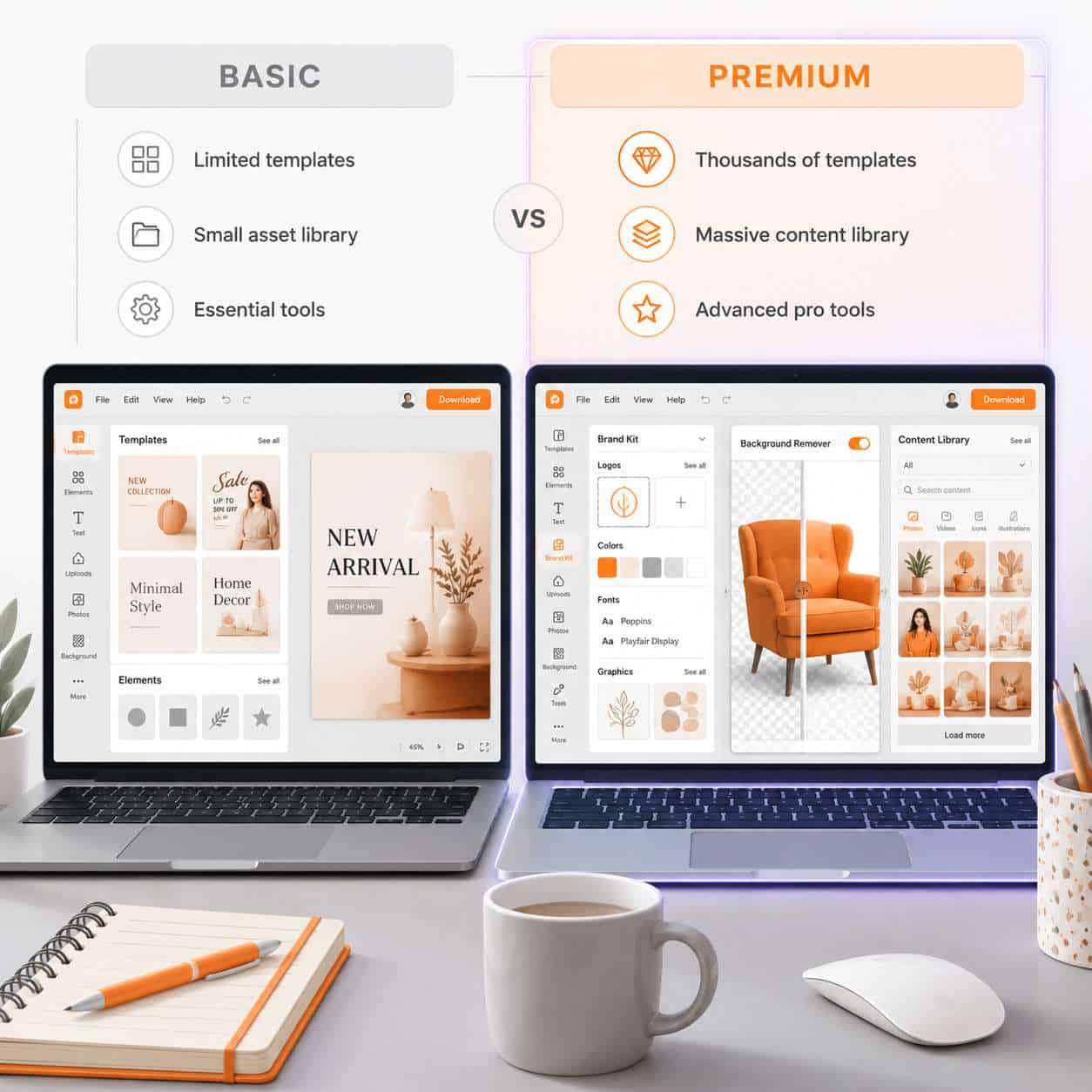
Canva’s free plan gives you access to around 250,000 templates, basic photo editing, and standard export options. Canva Pro expands that significantly with features designed for people who create content regularly or need brand consistency.
Here’s what you gain with the paid plan:
- Premium templates and stock assets: Access to over 100 million premium photos, videos, audio tracks, and graphics, compared to roughly 1 million on the free plan.
- Brand Kit: Store your brand colors, fonts, and logos in one place and apply them across all designs with a click.
- Background Remover: Instantly remove backgrounds from photos without needing a separate tool.
- Magic Resize: Resize any design to fit different platforms (Instagram post to Facebook cover, for example) in one click.
- Advanced AI tools: Priority access to Canva’s AI-powered features like Magic Write, Magic Edit, and text-to-image generation. You can explore more about AI-powered design creation in Canva in our detailed guide.
- Content Planner: Schedule social media posts directly from Canva.
- 100 GB cloud storage versus 5 GB on the free plan.
Common mistake: Many users assume the free plan’s templates are all Canva has to offer. In reality, roughly 80% of Canva’s template library is Pro-only. If you’ve been frustrated by watermarked elements, upgrading removes that friction entirely.
How Much Does Canva Pro Cost Per Month?
Canva Pro costs $14.99 per month when billed monthly, or $119.99 per year (which works out to about $10 per month). Canva for Teams starts at $29.99 per month for the first five users when billed monthly.
| Plan | Monthly Billing | Annual Billing | Per-Month Equivalent |
|---|---|---|---|
| Canva Free | $0 | $0 | $0 |
| Canva Pro (1 person) | $14.99 | $119.99 | ~$10.00 |
| Canva for Teams (up to 5) | $29.99 | $300.00 | ~$25.00 |
Choose annual billing if you’re confident you’ll use Canva Pro for at least six months. The savings add up to roughly $60 per year. Choose monthly if you only need it for a short project or want to test it before committing.
Can Students Get a Discount on Canva Pro?
Yes, and it’s better than a discount. Students and teachers can access Canva for Education completely free. This program includes most Canva Pro features, including premium templates, Brand Kit, and advanced collaboration tools.
To qualify, you need a verified school email address or proof of enrollment. Canva partners with SheerID to verify eligibility. The program covers K-12 students and teachers, as well as higher education in many countries.
Edge case: Homeschool students may face extra verification steps. If your institution isn’t in Canva’s database, you can submit documentation manually, but approval can take a few business days.
Is Canva Pro Worth It for Small Business Owners?
For most small business owners who create their own marketing materials, Canva Pro is worth the cost. It consolidates several tools you’d otherwise pay for separately: stock photo subscriptions ($10-30/month), background removal tools ($5-10/month), and social media scheduling software ($15-25/month).
I’ve worked with small business clients who were spending over $50 per month on separate tools before switching to Canva Pro. One bakery owner told me she cut her design time in half after setting up her Brand Kit because she no longer had to manually enter hex codes and upload logos for every new Instagram post.
Choose Canva Pro if:
- You create social media graphics, flyers, or presentations at least 2-3 times per week.
- Brand consistency matters to your business.
- You don’t have a dedicated designer on staff.
Skip it if:
- You only need a design once every few months (the free plan will suffice).
- You already have Adobe Creative Cloud and are comfortable using it.
What Kind of Design Projects Work Best With Canva Pro?
Canva Pro excels at template-based design work where speed and brand consistency matter more than pixel-perfect custom illustration. The platform is strongest for social media content, presentations, marketing materials, and simple video editing.
Projects that work well:
- Social media posts and stories for Instagram, Facebook, LinkedIn, and TikTok. For tips on this, check out our guide on creating engaging Instagram story templates in Canva.
- Email headers and newsletter graphics — see our walkthrough on creating effective email templates in Canva.
- Carousel posts for Instagram and LinkedIn. We cover this in depth in our Canva carousel design guide.
- Business presentations and pitch decks.
- Simple logos and brand assets — our Canva logo design guide for beginners walks through the process step by step.
- Print materials like business cards, menus, and posters.
Projects where Canva Pro falls short: complex vector illustrations, detailed photo retouching, multi-page editorial layouts, and advanced motion graphics.
Is Canva Pro Good for Social Media Marketing?
Canva Pro is one of the best tools available for social media marketing in 2026, especially for solo marketers and small teams. The combination of Magic Resize, the Content Planner, and brand-consistent templates makes it possible to produce a week’s worth of social content in a single sitting.
The Content Planner lets you schedule posts directly to Instagram, Facebook, Twitter, LinkedIn, and Pinterest. While it’s not as feature-rich as dedicated scheduling tools like Buffer or Hootsuite, it handles basic scheduling well and keeps everything in one platform.
Practical tip: Create a set of 5-10 branded templates for your most common post types (quotes, product features, testimonials, tips). Then swap out the text and images each week. This approach cuts production time dramatically while keeping your feed visually cohesive.

How Does Canva Pro Compare to Adobe Creative Cloud?
Canva Pro and Adobe Creative Cloud serve different audiences and different needs. Canva Pro is a template-first design tool built for speed and accessibility. Adobe Creative Cloud is a professional design suite built for precision and creative control.
| Feature | Canva Pro | Adobe Creative Cloud (All Apps) |
|---|---|---|
| Monthly cost | $14.99 | ~$59.99 |
| Learning curve | Low (hours) | High (weeks to months) |
| Template library | 600,000+ | Limited (via Adobe Express) |
| Vector editing | Basic | Advanced (Illustrator) |
| Photo editing | Basic | Professional (Photoshop) |
| Video editing | Basic | Professional (Premiere Pro) |
| Brand Kit | Yes | Yes (via Creative Cloud Libraries) |
| Collaboration | Built-in, real-time | Available but less intuitive |
| Best for | Marketing teams, small businesses, content creators | Professional designers, photographers, video editors |
Decision rule: If you need to produce marketing content quickly and don’t have formal design training, Canva Pro is the better choice. If you need advanced capabilities like layer masks, custom vector paths, or professional video editing, Adobe Creative Cloud is worth the higher price. Some professionals use both — Canva Pro for quick social content and Adobe for client deliverables.
For those exploring other design platforms, our guide on Figma UI kit and design system essentials covers another popular option.
What Features Do Professional Designers Like Most About Canva Pro?
Professional designers who use Canva Pro tend to value it as a speed tool rather than a primary design application. The features they cite most often are Brand Kit for maintaining client brand guidelines, Magic Resize for quickly adapting designs across formats, and the premium stock library for sourcing assets without leaving the platform.
Designers also appreciate the collaboration features. You can share a design link with a client, let them comment directly on the canvas, and even give them restricted editing access so they can update text without breaking the layout.
What professionals don’t love: Limited control over typography (no kerning adjustments), no support for CMYK color mode for print, and the inability to create truly custom illustrations from scratch.
What File Types Can I Export With Canva Pro?
Canva Pro supports exporting in PNG, JPG, PDF (standard and print-quality), SVG, MP4, and GIF. The free plan limits you to PNG, JPG, and standard PDF.
Key export details:
- SVG export is Pro-only and essential if you need scalable graphics for web development.
- PDF Print exports at 300 DPI with crop marks and bleed, suitable for professional printing.
- Transparent PNG is available on both plans, but Pro gives you the option to compress file size.
- MP4 export supports up to 1080p resolution for video designs.
What Technical Skills Do I Need to Use Canva Pro Effectively?
You need zero formal design skills to start using Canva Pro. The platform is built around drag-and-drop editing with pre-designed templates, so the learning curve is measured in hours rather than weeks.
That said, a few basic skills will help you get more out of it:
- Understanding of basic color theory (what colors work together).
- Familiarity with your brand guidelines (fonts, colors, logo usage).
- Basic knowledge of image resolution (when to use PNG vs. JPG).
- Comfort with drag-and-drop interfaces.
If you’re interested in using AI tools to speed up your design workflow further, our guide to AI-powered content generation tools covers several complementary options.
Common Mistakes People Make When Using Canva Pro
Even with a user-friendly tool, there are patterns that lead to poor results. Here are the most frequent mistakes I see:
- Not setting up the Brand Kit first. This is the single most valuable Pro feature, and many subscribers never configure it. Spend 15 minutes entering your brand colors, fonts, and logos before designing anything.
- Using too many fonts in one design. Stick to two, maybe three. Canva’s template designers already pair fonts well — don’t override their choices without good reason.
- Ignoring Magic Resize. People manually recreate designs for different platforms instead of using the one-click resize tool.
- Downloading at the wrong resolution. For print, always choose PDF Print. For web, PNG is usually best. JPG works for photos where file size matters.
- Overloading designs with elements. Just because you have access to millions of assets doesn’t mean you should use ten of them in one graphic. White space is your friend.
- Forgetting to organize folders. After a few months, your Canva account can become chaotic. Create folders by project, client, or content type from day one.
What Are the Best Alternatives to Canva Pro?
If Canva Pro doesn’t fit your needs, several alternatives are worth considering:
- Adobe Express: Adobe’s answer to Canva, with tighter integration into the Creative Cloud ecosystem. Good if you already pay for Adobe apps.
- Visme: Stronger for data visualization, infographics, and interactive content. Pricing starts around $12.25/month.
- Snappa: Simpler than Canva with fewer features but a very clean interface. Good for quick social media graphics.
- Figma: Better for UI/UX design and collaborative wireframing than marketing graphics. Our Figma mobile wireframe design guide covers its strengths.
- PicMonkey: Stronger photo editing tools than Canva, but a smaller template library.
Choose Canva Pro over alternatives if you need the broadest template library, the most intuitive interface, and built-in social media scheduling in one package.
Can I Cancel My Canva Pro Subscription Anytime?
Yes, you can cancel your Canva Pro subscription at any time through your account settings. Your access continues until the end of your current billing period — you won’t lose access immediately after canceling.
After cancellation:
- Your designs are still saved and accessible.
- Any design using Pro-only elements will show watermarks if you try to download them.
- Your storage limit drops back to 5 GB, so you may need to delete files if you’re over that threshold.
- You can resubscribe at any time to regain full access.
Frequently Asked Questions
Can I use Canva Pro designs for commercial purposes? Yes. Canva Pro’s license allows commercial use of all templates and stock assets, including for client work, merchandise, and advertising. You cannot, however, sell unmodified stock assets as standalone files.
Does Canva Pro work offline? No. Canva is a web-based platform that requires an internet connection. There is a desktop app, but it also needs connectivity to save and sync designs.
Can I share my Canva Pro account with a team member? A single Canva Pro license is for one person. If you need multiple users, Canva for Teams is the appropriate plan, starting at $29.99/month for up to five people.
Is there a free trial for Canva Pro? Yes, Canva typically offers a 30-day free trial for new Pro subscribers. You’ll need to enter payment information, and you’ll be charged automatically if you don’t cancel before the trial ends.
Can I use Canva Pro on my phone? Yes. Canva has fully featured apps for both iOS and Android. Most Pro features, including Background Remover and Magic Resize, work on mobile.
Does Canva Pro include video editing? Yes. You can create and edit short videos, add transitions, include audio tracks from the premium library, and export in MP4 format. It’s suitable for social media videos but not for long-form or complex video projects.
What happens to my designs if I downgrade from Pro to Free? Your designs remain in your account. However, any Pro elements (premium photos, fonts, or graphics) will display watermarks on new downloads. You can still view and edit the designs.
Can nonprofits get Canva Pro for free? Yes. Canva for Nonprofits provides free access to Canva Pro features for eligible nonprofit organizations. You need to apply and verify your nonprofit status through Canva’s website.
Does Canva Pro support CMYK for print? Not directly. Canva Pro exports in RGB color mode. For professional print jobs requiring CMYK, you’ll need to convert the file using a tool like Adobe Acrobat or your print provider may handle the conversion.
How many Brand Kits can I create in Canva Pro? Canva Pro allows up to 100 Brand Kits, which is more than enough for freelancers managing multiple clients.
Conclusion
Canva Pro fills a specific and valuable niche: it’s the fastest way for non-designers (and busy designers) to produce professional-quality marketing materials without a steep learning curve or a large budget. At roughly $10-15 per month, it replaces several standalone tools and saves hours of production time each week.
Here’s what to do next:
- Start the free trial if you haven’t tried Canva Pro before. Use the full 30 days to test Brand Kit, Magic Resize, and the premium asset library.
- Set up your Brand Kit immediately — this is the feature that delivers the most time savings.
- Create template sets for your most common design tasks so you can produce content quickly each week.
- Explore the AI features to speed up tasks like writing copy, removing backgrounds, and generating image variations.
For more design resources and tutorials, browse our Canva content library or explore the broader design category on our site.
Useful Resources: Canva design platform & Canva Design School free tutorials