Last updated: June 7, 2026
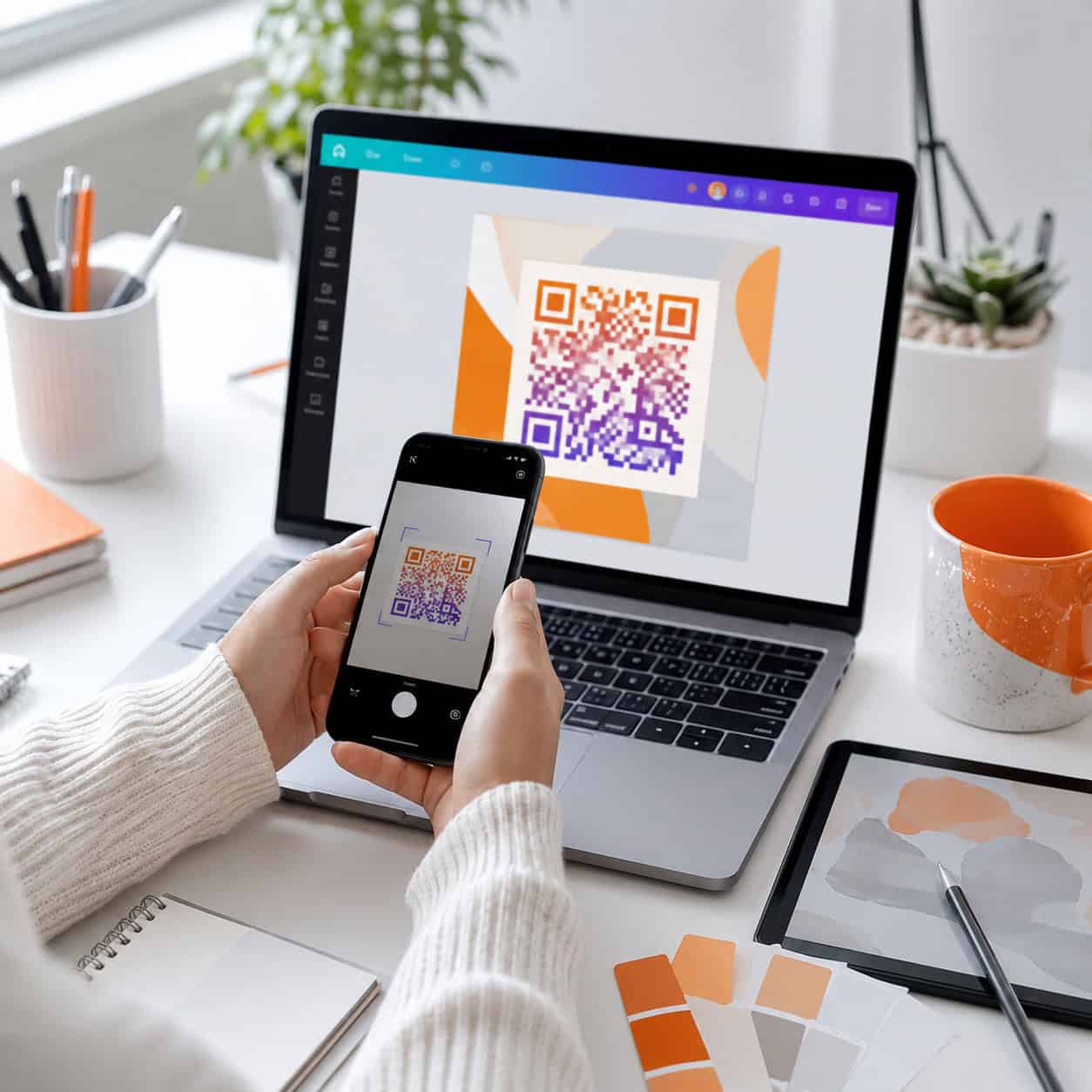
Quick Answer: Canva’s built-in QR code generator lets you create free, scannable QR codes directly inside any design project. You access it through the “Apps” panel, paste your URL or text, and Canva generates a code you can resize, recolor, and place on any design — from business cards to event posters. It’s available on both free and Pro plans.
Key Takeaways
- The Canva QR code generator is a free built-in app, not a third-party plugin. Both free and Pro users can access it.
- You can generate QR codes for URLs, plain text, email addresses, phone numbers, and Wi-Fi credentials.
- QR codes created in Canva are static, meaning the destination link cannot be changed after someone scans it.
- You can customize the color of your QR code and its margin size, but advanced styling (like embedded logos) requires workarounds.
- Canva does not offer scan tracking or analytics. If you need those features, pair Canva with a dedicated QR code platform.
- Always test your QR code on multiple devices before printing or publishing.
- Downloaded QR codes maintain scan quality best in PNG or SVG format at high resolution.
What Is the Canva QR Code Generator and How Does It Work?
The Canva QR code generator is a native app inside Canva’s design editor that converts a URL, text string, or other data into a scannable QR code. It works directly within your design canvas, so you don’t need to visit an external website, generate a code, download it, and then re-upload it.
Here’s why that matters: when I was designing event flyers for a local nonprofit last year, switching between a QR code site and my design tool added unnecessary friction. Using Canva’s built-in tool cut that step entirely. I pasted the registration link, generated the code, and dropped it right onto the flyer — all within the same workspace.
The generator supports these data types:
- URL (most common use case)
- Plain text
- Email addresses
- Phone numbers
- Wi-Fi network credentials
One important limitation: Canva generates static QR codes only. Once you create one, the encoded data is fixed. You cannot update the destination URL later without generating a new code. If you need dynamic QR codes with editable links and scan analytics, you’ll need a dedicated platform like QR Code Generator or Bitly, then import the image into Canva.
How to Create a QR Code Using the Canva QR Code Generator
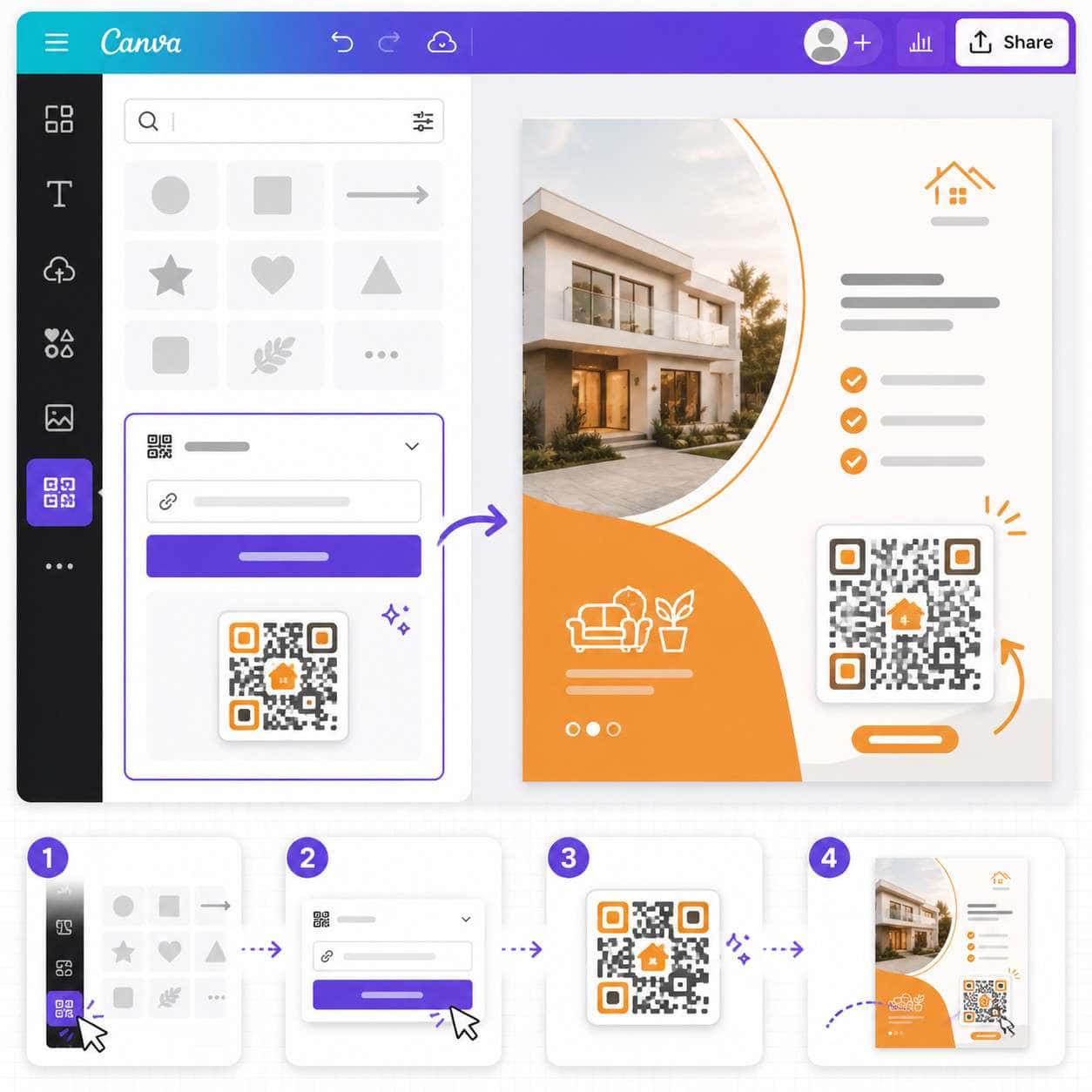
Creating a QR code in Canva takes under two minutes. Here’s the exact process:
Step 1: Open your design. Start a new project or open an existing one in Canva’s editor.
Step 2: Navigate to Apps. Click the “Apps” tab in the left sidebar. Search for “QR Code” in the search bar.
Step 3: Select the QR Code app. Click on the official QR Code generator (it’s made by Canva, not a third party).
Step 4: Enter your data. Paste your URL or type your text into the input field.
Step 5: Generate. Click “Generate QR Code.” Canva places the code directly onto your canvas.
Step 6: Customize. Resize the code, change its color, and adjust the margin to fit your design layout.
Common mistake: Generating a QR code with a very long URL can sometimes produce a denser code pattern that’s harder to scan at small sizes. Use a URL shortener first if your link is lengthy — this keeps the QR code pattern simpler and more scannable at smaller print sizes.
If you’re working on other Canva projects alongside your QR code designs, our guide on creating effective email templates in Canva covers similar design workflow tips.
How to Customize Your QR Code Design in Canva
Canva’s customization options for QR codes are functional but limited compared to dedicated QR tools. You can adjust three main properties:
| Customization Option | What You Can Do | Limitation |
|---|---|---|
| Color | Change foreground and background colors to match your brand | Must maintain high contrast for scannability |
| Margin | Adjust the white space (quiet zone) around the code | Removing margins entirely can cause scan failures |
| Size | Resize freely on the canvas | Codes below roughly 2 cm x 2 cm may not scan reliably in print |
Pro tip for brand consistency: Change the foreground color of your QR code to match your brand’s primary color, but keep the background white or very light. Dark-on-light contrast is essential. I once made the mistake of using a dark navy background with a black QR code on a restaurant menu — it looked sleek but failed to scan under dim lighting.
Adding a logo to the center of your QR code isn’t a native Canva feature, but there’s a workaround. Generate your QR code, then layer a small logo image on top of the center. QR codes have built-in error correction, so covering up to about 10-15% of the code area usually still allows successful scanning. Test thoroughly before printing.
For more on building a cohesive brand identity in Canva, check out our Canva logo design guide for beginners.
What Are the Best Use Cases for Canva QR Codes?
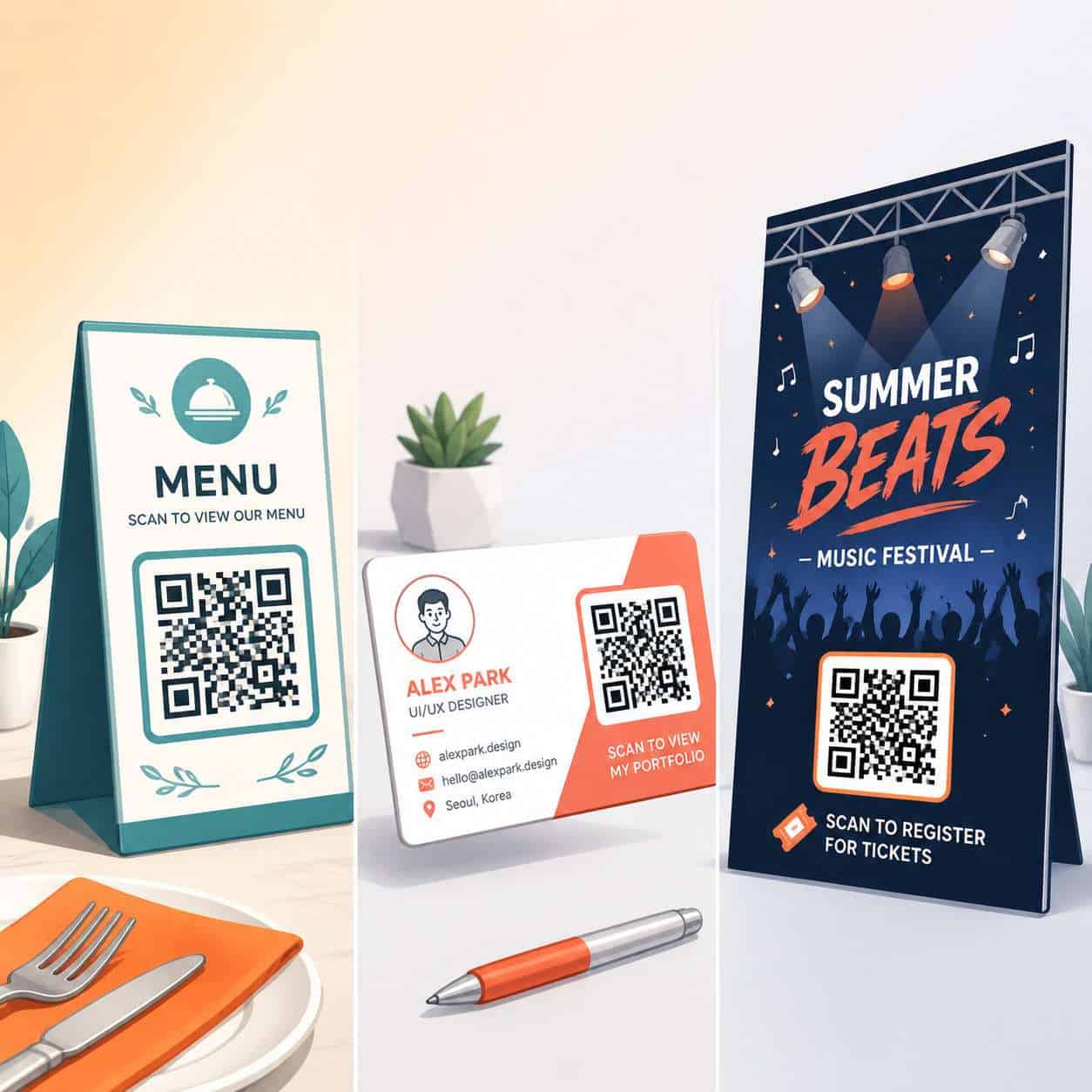
QR codes generated in Canva work best for print and digital marketing materials where you control the design end-to-end. Here are the most practical applications:
- Business cards — Link to your portfolio, LinkedIn profile, or vCard
- Restaurant menus — Direct diners to a digital menu or ordering page
- Event materials — Flyers, posters, and invitations linking to registration or ticket pages
- Product packaging — Connect customers to instructions, warranty registration, or review pages
- Social media graphics — Drive followers to a landing page or special offer
- Presentations — Let audience members scan to access resources or slides
Choose Canva’s QR generator if you need a quick, visually integrated code for a design you’re already building in Canva. Choose a dedicated QR platform if you need scan tracking, dynamic link editing, or bulk QR code generation.
If you’re designing social content alongside your QR materials, our tutorial on creating engaging Instagram story templates in Canva pairs well with QR-driven campaigns.
Canva QR Code Generator vs. Dedicated QR Code Tools
This is a question I get asked often. The answer depends on what you need beyond basic code generation.
| Feature | Canva QR Code Generator | Dedicated QR Platforms (e.g., QRCode Monkey, Beaconstac) |
|---|---|---|
| Price | Free (included with Canva) | Free tiers available; paid plans for advanced features |
| Static QR codes | Yes | Yes |
| Dynamic QR codes | No | Yes (paid plans) |
| Scan analytics | No | Yes |
| Custom shapes/patterns | No | Yes |
| Logo embedding | Manual workaround only | Built-in |
| Bulk generation | No | Yes (paid plans) |
| Design integration | Native to Canva editor | Requires export and import |
Decision rule: If you’re a small business owner, freelancer, or content creator who needs a QR code for a single design project and doesn’t need tracking, Canva’s tool is the right choice. If you’re running a marketing campaign where you need to measure scan rates, update destination URLs, or generate hundreds of codes, invest in a dedicated QR platform and import the codes into Canva.
For those exploring Canva’s broader AI-powered features, our overview of Canva AI design creation tools covers what else is available in the platform.
Common Mistakes When Using the Canva QR Code Generator
Even a simple tool can produce poor results if you skip a few basics. Here are the mistakes I see most often:
Not testing before printing. This is the biggest one. Always scan your QR code with at least two different phones (one iPhone, one Android) before sending anything to print.
Using low contrast colors. A light gray code on a white background might look elegant, but most phone cameras won’t read it. Stick to dark foreground on light background.
Making the code too small. For print materials, keep QR codes at a minimum of 2 cm x 2 cm (roughly 0.8 inches). For posters or signage meant to be scanned from a distance, go larger.
Forgetting the quiet zone. The white margin around a QR code isn’t decorative — it helps scanners identify where the code starts and ends. Don’t crop it out.
Linking to non-mobile-friendly pages. Your QR code works perfectly, but the landing page looks broken on a phone. Always verify the destination is mobile-responsive.
Not using HTTPS links. Some browsers flag non-HTTPS URLs with security warnings, which can scare users away after scanning.
Tips for Downloading and Printing Canva QR Codes
Download format matters more than most people realize. Here’s what to choose:
- PNG — Best for most digital and print uses. Download at the highest resolution Canva offers.
- SVG — Ideal if you need to scale the QR code to very large sizes (banners, signage) without losing quality. Available on Canva Pro.
- PDF Print — Good for professional printing. Ensures the QR code maintains crisp edges.
Avoid downloading QR codes as JPEG files. JPEG compression can introduce artifacts around the code’s edges, which occasionally causes scan failures.
If you’re building multi-page print materials like brochures, our guide on digital brochure templates covers layout best practices that complement QR code placement.
Can You Use the Canva QR Code Generator for Free?
Yes. The QR code generator is available to all Canva users, including those on the free plan. There is no paywall or Pro-only restriction for generating basic QR codes.
However, some related features are Pro-only:
- SVG download format requires Canva Pro
- Brand Kit integration (for quickly applying brand colors) requires Canva Pro
- Background Remover and other advanced editing tools that might help with QR code design placement require Pro
For most QR code needs, the free plan is sufficient. You can generate the code, customize its color, resize it, and download it as a high-resolution PNG without paying anything.
FAQ
Can I create a QR code in Canva for free? Yes. The QR code generator app is available on Canva’s free plan with no usage limits.
Does Canva support dynamic QR codes? No. All QR codes generated in Canva are static. The encoded data cannot be changed after creation.
Can I track how many people scan my Canva QR code? No. Canva does not provide scan analytics. Use a URL shortener like Bitly with tracking, or generate your code through a dedicated QR platform that offers analytics.
What’s the minimum size for a printable QR code? Aim for at least 2 cm x 2 cm (about 0.8 x 0.8 inches) for materials scanned at close range. Increase size proportionally for signage scanned from farther away.
Can I add my logo to a Canva QR code? Not natively. You can manually layer a small logo over the center of the code, but test scannability afterward. Keep the logo under 15% of the total code area.
What file format should I use when downloading a QR code from Canva? PNG at the highest resolution for most uses. SVG (Pro only) for large-format printing. Avoid JPEG.
Does the QR code generator work in the Canva mobile app? Yes. You can access the QR Code app through the Apps panel in both the iOS and Android versions of Canva.
Can I generate a QR code for a Wi-Fi network in Canva? Yes. The generator supports Wi-Fi credentials, allowing guests to scan and connect without typing a password.
Will my QR code still work if I change its color? Yes, as long as you maintain strong contrast between the foreground and background colors. Dark code on a light background works best.
Is there a limit to how many QR codes I can create in Canva? No. You can generate as many QR codes as you need across different designs.
Conclusion
The Canva QR code generator is a practical, no-cost tool for anyone already designing in Canva. It handles the most common use case — generating a static QR code and placing it directly into your design — without requiring you to leave the editor or learn a new platform.
Here’s what to do next:
- Open your current Canva project and find the QR Code app in the Apps panel.
- Generate a test code with a URL you control.
- Customize the color to match your brand while keeping high contrast.
- Download as PNG (or SVG if you have Pro) and test on multiple devices.
- If you need scan tracking or dynamic links, pair a dedicated QR tool with Canva for the best of both worlds.
For more design tips and tools across the Canva ecosystem, explore our Canva tutorials and resources or browse our broader no-code tools collection for other ways to build without writing code.
Useful Resources: Canva design platform & Canva Design School free tutorials