Last updated: June 7, 2026
Quick Answer: The Canva AI video generator lets you create short-form and long-form videos from text prompts, templates, or existing assets directly inside Canva’s editor. It’s available on free and paid Canva plans (with limits), and it’s built for people who need polished video content without learning traditional editing software. Most videos generate in under two minutes.
Key Takeaways
- Canva’s AI video tool converts text prompts into editable video drafts complete with stock footage, transitions, music, and text overlays.
- Free Canva users get limited AI video credits per month; Canva Pro and Canva Teams unlock higher usage and premium assets.
- The tool works best for social media clips, ads, product demos, and explainer videos under five minutes.
- No video editing experience is required. If you can type a sentence, you can produce a video.
- Export options include MP4, GIF, and direct sharing to platforms like YouTube, Instagram, and TikTok.
- Canva’s AI video generator is not a replacement for professional-grade tools like Adobe Premiere or DaVinci Resolve for complex projects.
- Generation speed is fast, typically 30 seconds to two minutes depending on video length and complexity.
- Alternatives exist (Synthesia, InVideo, Pictory, HeyGen), but Canva’s advantage is its all-in-one design ecosystem.
What Exactly Can Canva’s AI Video Generator Do?
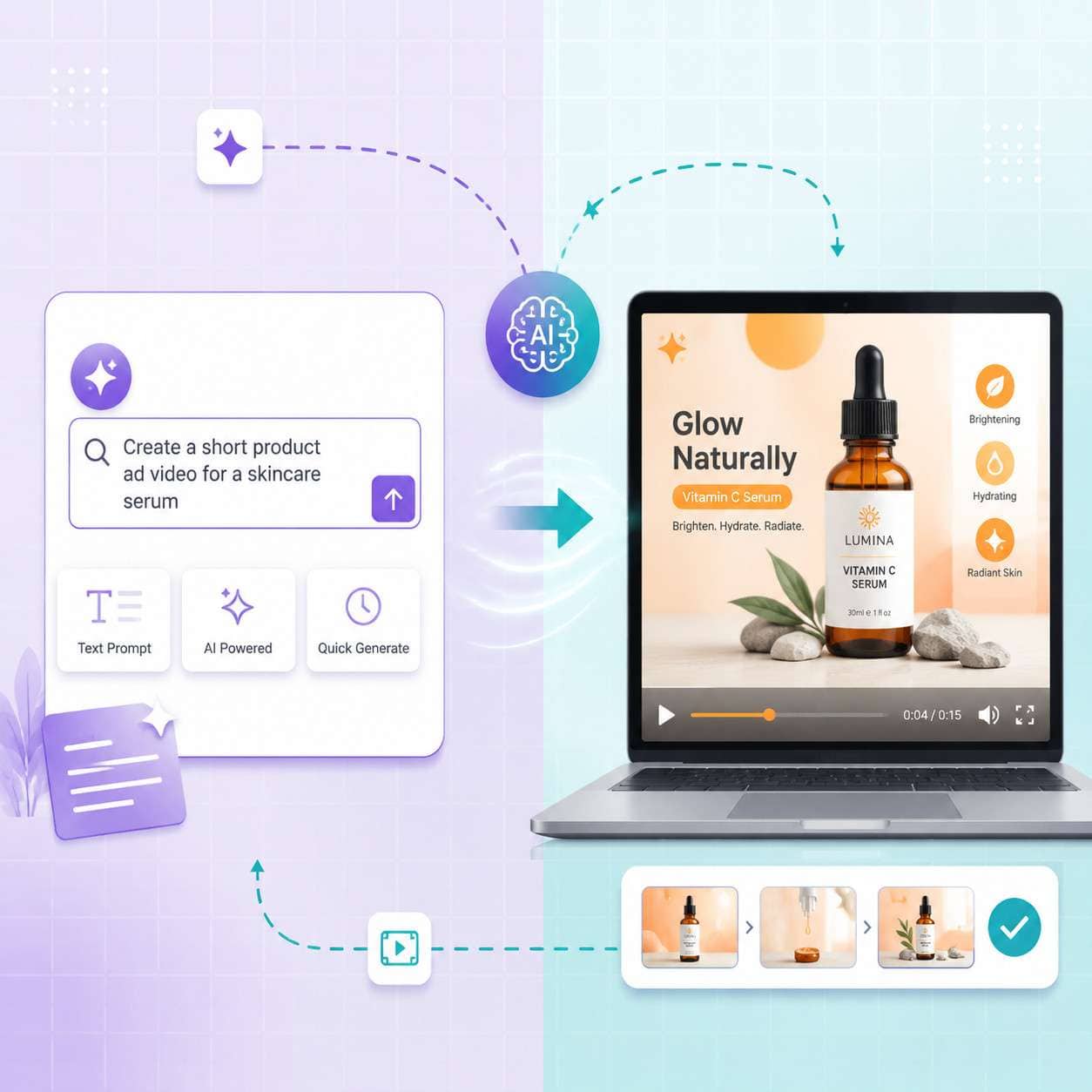
Canva’s AI video generator turns text descriptions into ready-to-edit video projects. You type what you want (for example, “a 30-second Instagram ad for a coffee shop grand opening”), and the AI assembles a video draft with relevant clips, background music, text animations, and transitions.
Here’s what it handles:
- Text-to-video generation from natural language prompts
- Template-based video creation using thousands of pre-designed layouts
- Auto-captioning and subtitle generation for accessibility
- AI-powered scene suggestions based on your content topic
- Background music matching that fits the mood of your video
- Brand kit integration so your logos, fonts, and colors appear automatically
- Resize and reformat for different platforms (vertical for Reels, square for feed, landscape for YouTube)
I tested this recently for a client who needed five social media videos in a single afternoon. What would have taken a freelance editor two days took us about three hours, including revisions. The drafts weren’t perfect out of the box, but they gave us 80% of the work done, and we just fine-tuned from there.
How Much Does Canva’s AI Video Tool Cost?
Canva offers AI video features across its pricing tiers, but the experience differs significantly between free and paid plans.
| Plan | Monthly Cost | AI Video Access | Credits/Limits |
|---|---|---|---|
| Canva Free | $0 | Basic AI video generation | Limited monthly credits (estimated 5-10 uses) |
| Canva Pro | $13/month (billed annually) | Full AI video features | Higher credit allowance, premium stock footage |
| Canva Teams | $10/person/month (min 3 people) | Full features + collaboration | Shared credit pool, brand kit integration |
| Canva Enterprise | Custom pricing | Everything in Teams + admin controls | Custom credit limits |
Free users can experiment with the AI video maker, but you’ll hit credit limits quickly if you’re producing content regularly. For anyone creating more than a handful of videos per month, Canva Pro is the practical minimum. If you’re exploring other Canva design tools and AI features, the Pro plan gives you access to the full suite.
Common mistake: Some users burn through free credits by generating multiple versions of the same video. Instead, write a detailed prompt the first time to get a better initial draft.
Is Canva’s AI Video Generator Better Than Other Video AI Tools?
It depends on what you need. Canva’s AI video generator is the best option if you already use Canva for design work and want video creation inside the same platform. It’s not the best if you need AI-generated talking-head avatars or cinema-quality output.
Choose Canva AI video if:
- You want an all-in-one design and video platform
- Your videos are primarily for social media or marketing
- You value ease of use over granular control
- You need brand consistency across all content types
Choose a dedicated AI video tool if:
- You need realistic AI avatars or presenters (look at HeyGen’s Creator Plan for that)
- You’re producing long-form documentary or cinematic content
- You need frame-by-frame editing precision
- You require advanced audio mixing
| Feature | Canva AI Video | Synthesia | InVideo AI | Pictory |
|---|---|---|---|---|
| Text-to-video | Yes | Yes | Yes | Yes |
| AI avatars | Limited | Strong | No | No |
| Template library | Very large | Moderate | Large | Moderate |
| Brand kit | Yes | Yes | Limited | No |
| Design ecosystem | Full (graphics, docs, presentations) | Video only | Video only | Video only |
| Free tier | Yes | No | Yes | Yes |
Can I Use Canva AI Video for Business Marketing?
Yes, and it’s one of the strongest use cases for the tool. Canva’s AI video generator is built with marketers in mind, offering brand kit integration, team collaboration, and direct publishing to social platforms.
Practical business applications include:
- Social media ads for Facebook, Instagram, TikTok, and LinkedIn
- Product launch videos using your own images and brand colors
- Customer testimonial compilations with auto-captioning
- Internal training videos for onboarding new employees
- Email marketing video content (pair it with Canva’s email template tools for a complete campaign)
- Event promotion clips with animated text and countdown elements
A small e-commerce brand I worked with switched from outsourcing video production (at roughly $500 per video) to using Canva AI video internally. Their monthly video output went from two videos to twelve, and their social engagement increased noticeably because they could post more frequently and test different creative approaches.
What Kind of Videos Can I Actually Create with Canva AI?
The Canva AI video generator handles a wide range of video formats, though it performs best with structured, template-friendly content rather than freeform creative projects.
Video types that work well:
- Instagram Reels and TikTok clips (15-60 seconds)
- YouTube Shorts
- Product demo videos
- Slideshow-style presentations with motion
- Animated infographics
- Quote and testimonial videos
- Tutorial walkthroughs
- Instagram Story content with video elements
- Carousel-style video posts
Video types that don’t work as well:
- Full-length vlogs or podcasts
- Complex narrative storytelling with multiple scenes
- Videos requiring custom 3D animation
- Content that needs precise lip-sync or motion capture
What Video Styles Work Best with Canva AI Generator?
Short, visually structured videos with clear messaging produce the best results. Think social media ads, listicle-style content, and branded announcements.
The AI excels at:
- Kinetic typography (animated text on screen)
- Photo and video montages with smooth transitions
- Minimalist corporate styles with clean layouts
- Bold, colorful social media aesthetics
It struggles more with organic, documentary-style footage or anything requiring nuanced pacing and emotional storytelling.
What Skills Do I Need to Use Canva AI Video Generator?
None beyond basic computer literacy. If you can write a sentence describing what you want, you can generate a video. The entire interface is drag-and-drop, and the AI handles clip selection, timing, and transitions.
That said, a few skills will improve your results:
- Writing clear prompts — being specific about tone, audience, and purpose gets better AI output
- Basic design sense — understanding color contrast and visual hierarchy helps during editing
- Platform knowledge — knowing what performs well on Instagram vs. LinkedIn helps you choose the right format
For beginners just getting started with Canva, the logo design beginner’s guide is a good introduction to the platform’s interface.
Is Canva AI Video Good for Beginners or Professionals?
It’s excellent for beginners and useful for professionals as a rapid prototyping tool. Beginners benefit from the AI doing the heavy lifting. Professionals benefit from the speed, using Canva to create quick drafts or social content while reserving dedicated editing software for high-production projects.
Edge case: If you’re a professional video editor, Canva AI video won’t replace your primary workflow. But it can save hours on the “quick turnaround” requests that eat into your schedule.
How Fast Can Canva AI Generate a Video?
Most AI-generated videos in Canva are ready in 30 seconds to two minutes. The speed depends on video length, complexity of the prompt, and current server load. Short social media clips (under 30 seconds) typically generate in under a minute. Longer videos with multiple scenes may take closer to two minutes.
After generation, expect to spend 10-30 minutes editing the draft: swapping clips, adjusting text, tweaking timing, and adding your brand elements.
Are There Limitations to Canva’s AI Video Generation?
Yes, and understanding them upfront saves frustration.
- Video length caps — AI generation works best for videos under three minutes; longer content requires manual assembly
- Limited custom animation — you can’t create frame-by-frame animations
- Stock footage dependency — the AI pulls from Canva’s library, so niche industries may find limited relevant footage
- No AI avatar generation — unlike Synthesia or HeyGen, Canva doesn’t generate realistic talking-head presenters (explore AI avatar video tools for that)
- Credit limits — free and even Pro users have monthly caps on AI generation
- Audio limitations — you can’t do advanced audio editing or voiceover synthesis within Canva
How Do I Fix Common Problems with Canva AI Video Maker?
Most issues fall into a few categories with straightforward fixes.
Problem: AI output doesn’t match your vision
- Fix: Write more specific prompts. Instead of “make a video about shoes,” try “create a 30-second vertical Instagram Reel showcasing white running shoes for women aged 25-35, upbeat tone, pastel colors.”
Problem: Video looks generic
- Fix: Apply your brand kit after generation. Swap stock clips with your own footage. Adjust fonts and colors.
Problem: Export quality is low
- Fix: Make sure you’re exporting at the highest available resolution. On free plans, export options may be limited.
Problem: Credits run out too fast
- Fix: Plan your prompts before generating. Use templates as starting points instead of generating from scratch every time.
Problem: Slow generation times
- Fix: Try during off-peak hours. Simplify your prompt if it includes many specific requirements.
What File Types Can I Export from Canva AI Video?
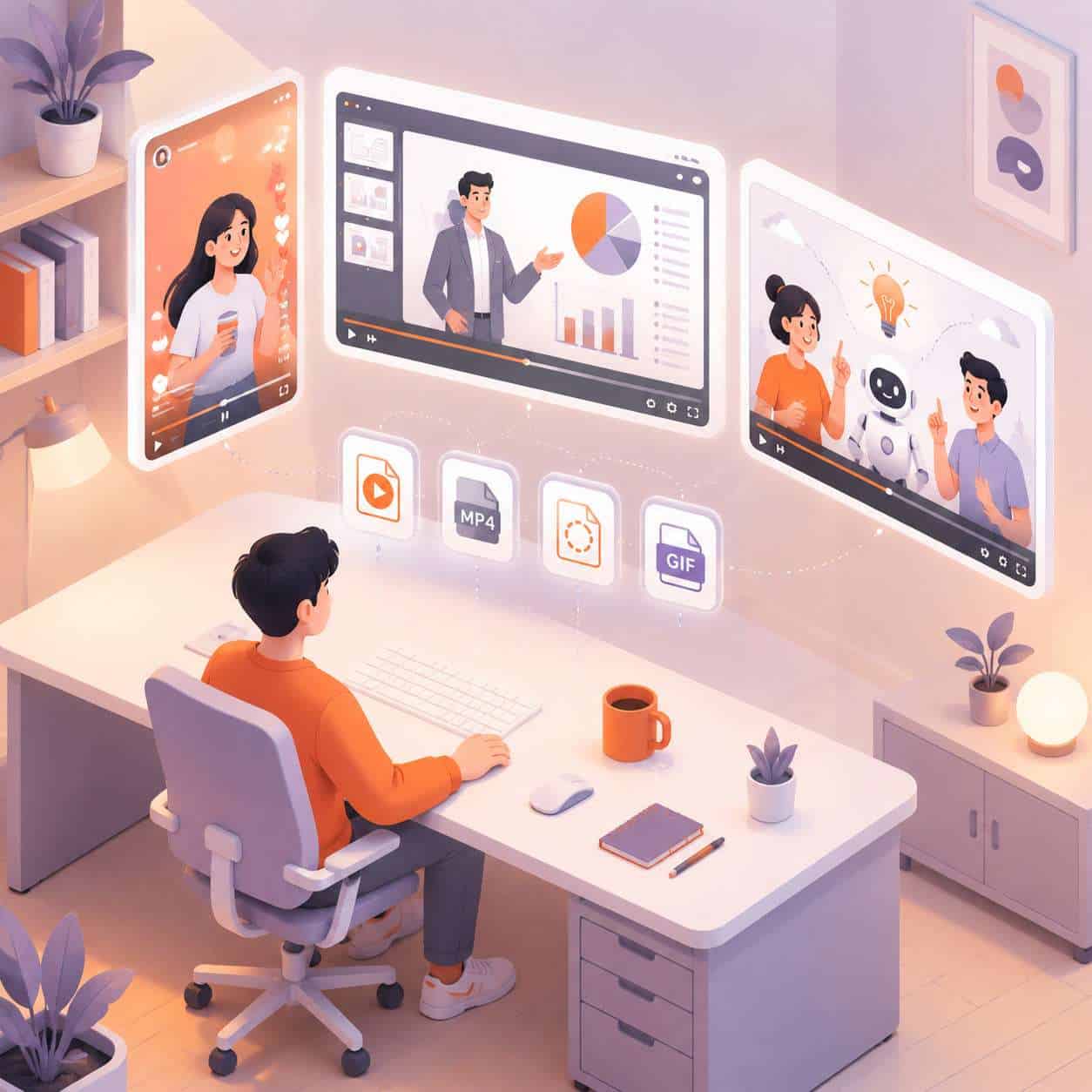
Canva supports exporting AI-generated videos in MP4 format (the universal standard), GIF for short looping clips, and direct publishing to social media platforms. MP4 exports are available in up to 1080p resolution on Pro plans. Free users may be limited to lower resolutions.
You can also share videos via Canva’s built-in link sharing, embed them on websites, or download them for upload to any platform.
Are There Free Alternatives to Canva AI Video Tool?
Several free or freemium alternatives exist, though none match Canva’s breadth as an all-in-one design platform:
- InVideo AI — free tier with watermark, strong text-to-video
- Pictory — free trial, good for blog-to-video conversion
- CapCut — free, strong for TikTok-style editing with some AI features
- Clipchamp (Microsoft) — free basic tier, integrated with Windows
For a broader look at AI-powered creative tools, check out our roundup of the best AI graphic design tools.
Frequently Asked Questions
Does Canva AI video generator work on mobile? Yes. Canva’s mobile app supports AI video generation, though the editing experience is more comfortable on desktop due to screen size.
Can I upload my own footage and combine it with AI-generated content? Yes. You can upload your own video clips, photos, and audio, then mix them with AI-generated elements in the same project.
Is the AI-generated video content royalty-free? Content created using Canva’s stock library and AI tools is covered under Canva’s content license for commercial use on Pro and Teams plans. Free plan usage has some restrictions.
Can I add voiceover to Canva AI videos? You can upload recorded voiceover files and add them to your video timeline. Canva does not currently generate AI voiceovers natively within the video tool.
How many AI video credits do I get per month? This varies by plan and Canva updates credit allocations periodically. Check your account’s usage dashboard for current limits.
Does Canva AI video support multiple languages? Yes. You can create videos with text and captions in multiple languages, and the AI can generate content based on prompts in several supported languages.
Can I collaborate with my team on AI-generated videos? Yes. Canva Teams and Enterprise plans support real-time collaboration on video projects, just like other Canva design types.
Will Canva AI video replace hiring a video editor? For simple social media content and marketing clips, it can reduce the need for a dedicated editor. For complex projects, you’ll still want professional editing expertise.
Can I schedule AI videos to post directly from Canva? Yes. Canva’s content planner lets you schedule posts, including videos, directly to connected social media accounts.
Conclusion
The Canva AI video generator is a practical, accessible tool that fills a real gap: it lets non-editors produce decent marketing videos quickly and affordably. It won’t replace professional video production for high-stakes projects, but for the daily grind of social media content, product ads, and internal communications, it’s a genuine time-saver.
Here’s what to do next:
- Start with a free account and test the AI video generator with a specific prompt for content you actually need.
- Upgrade to Pro if you’re producing more than a few videos per month or need premium stock footage and higher export quality.
- Set up your brand kit before generating videos so every output is already on-brand.
- Write detailed prompts — the more specific you are about audience, tone, and format, the better your first draft will be.
- Combine AI video with other Canva tools like AI-powered design creation to build a complete content workflow in one platform.
The tool is improving with each update, and for most small businesses and content creators, it’s already good enough to start using today.
Useful Resources: Canva design platform & Canva Design School free tutorials