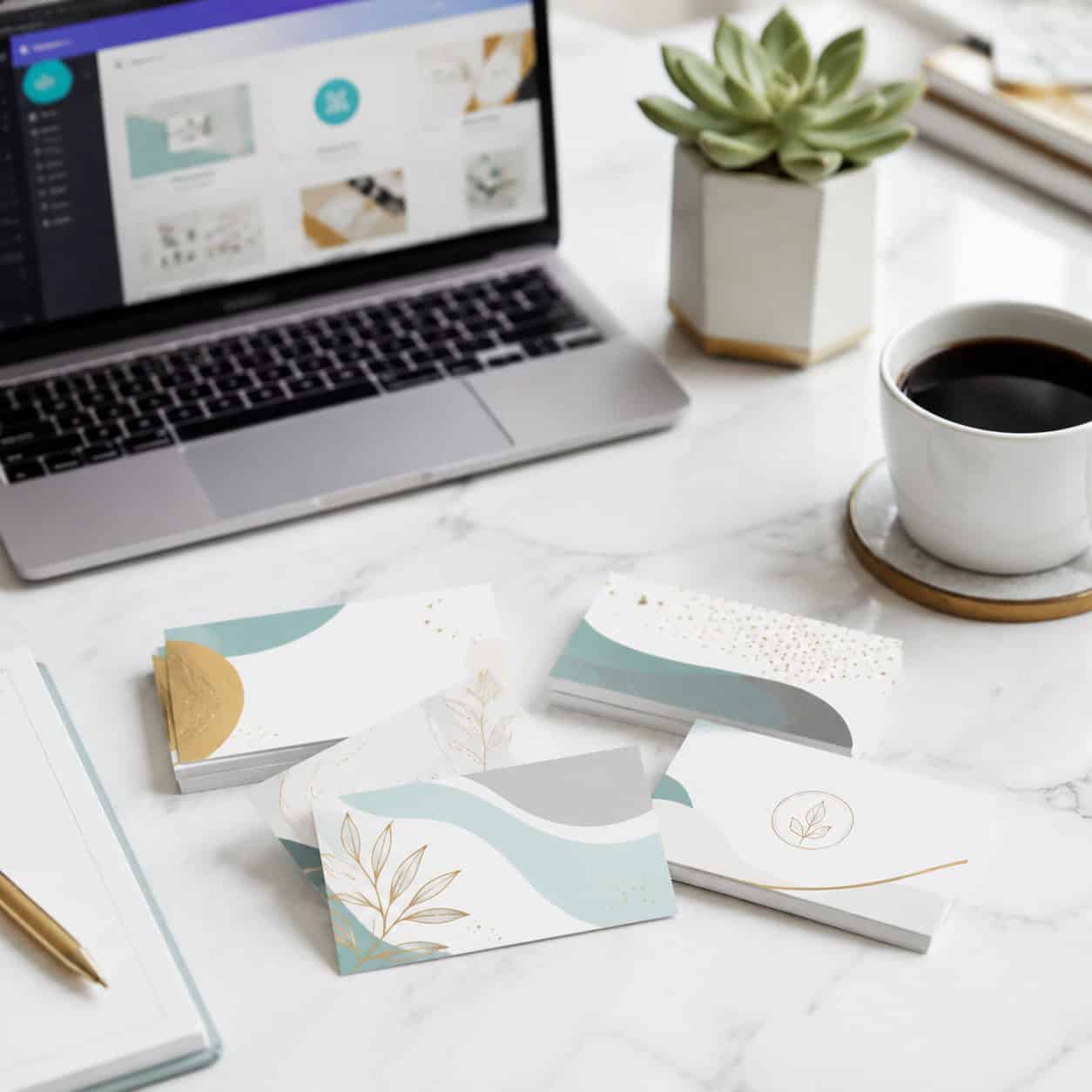
Last updated: June 7, 2026
Quick Answer: Canva is one of the fastest and most affordable ways to design professional business cards in 2026. The free plan gives you access to hundreds of templates, while Canva Pro unlocks premium elements and brand kit features. You can design a card in under 10 minutes, then either print through Canva’s built-in print service or export the file for third-party or home printing.
Key Takeaways
- Canva offers over 10,000 business card templates, with many available on the free plan.
- Canva Print pricing starts at roughly $15 for 50 standard cards, with costs varying by paper type and finish.
- You should export business cards as PDF Print files with crop marks and bleed for the best print results.
- Canva business cards are a strong choice for freelancers, solopreneurs, and small businesses on a budget.
- For maximum quality, choose premium or thicker paper stock and a matte or glossy finish.
- Home printing is possible but requires cardstock paper and a decent printer for acceptable results.
- Canva competes well against services like Vistaprint on design flexibility, though Vistaprint offers more paper and finishing options.
How to Make Professional Business Cards in Canva
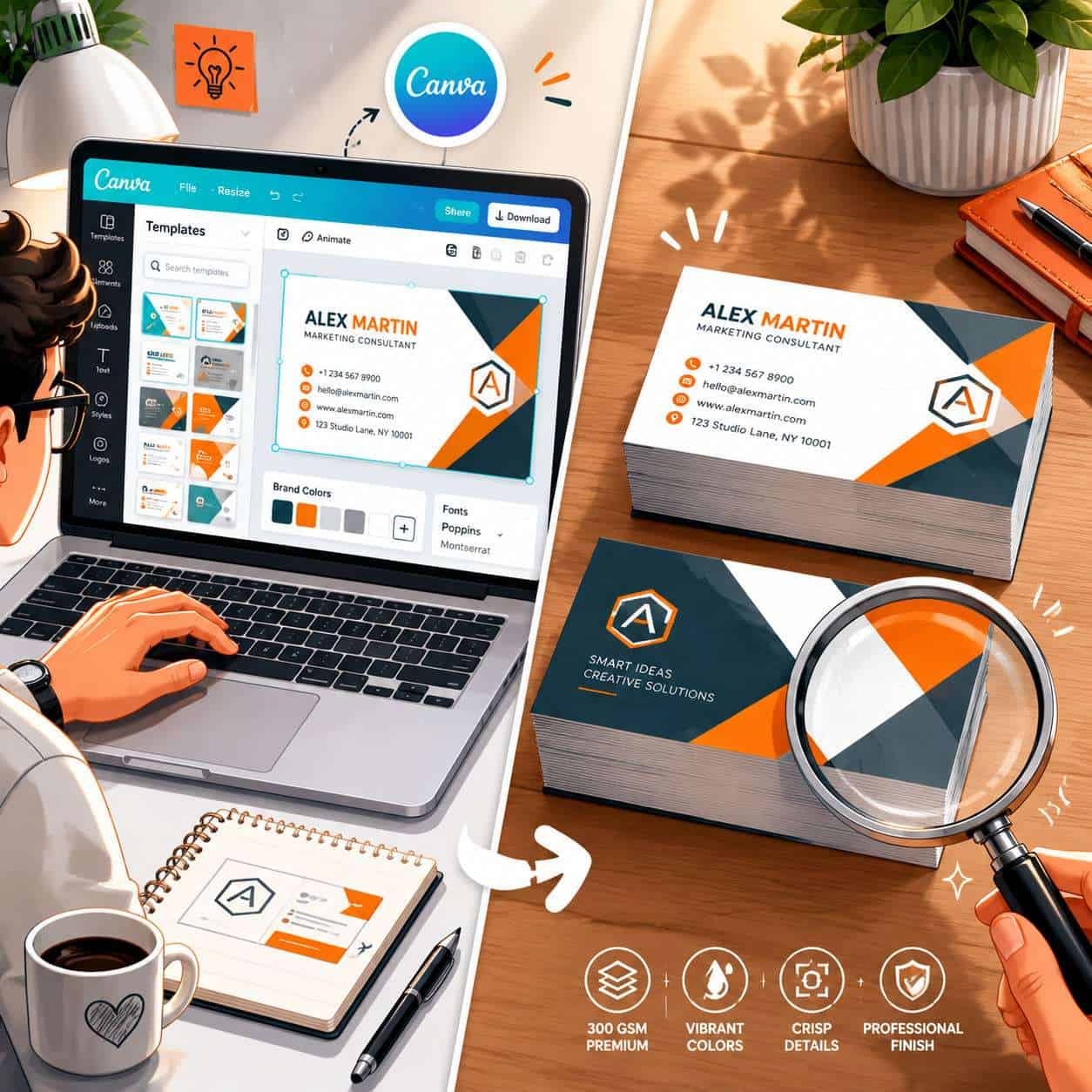
Creating business cards in Canva takes about 5 to 15 minutes, even if you’ve never used a design tool before. The process works on both the free and Pro plans.
Here’s the step-by-step process:
- Open Canva and search “business card.” You’ll see a pre-sized canvas (3.5 x 2 inches, the standard US size) along with thousands of templates.
- Pick a template. Filter by style (minimalist, modern, creative, corporate) or industry. Free templates are marked; Pro templates show a crown icon.
- Customize the text. Replace placeholder text with your name, title, phone number, email, and website. Keep fonts to two maximum.
- Adjust colors and branding. Use your brand colors or let Canva suggest palettes. If you have a logo designed in Canva, upload it directly.
- Add a back design. Click “Add page” to create the card’s reverse side. Many templates include a matching back.
- Download or order prints. Choose PDF Print format for external printing, or click “Print Business Cards” to order through Canva.
Common mistake: Forgetting to enable bleed. Without bleed, your design may have thin white borders after cutting. Always toggle on “Crop marks and bleed” in the download settings.
How to Customize Business Card Templates in Canva
Canva templates are fully editable, so you’re never stuck with the default layout. You can change every element: fonts, colors, images, icons, spacing, and alignment.
Key customization options include:
- Brand Kit (Pro feature): Save your brand fonts, colors, and logos so every card stays consistent with your other materials. This pairs well with other branded assets like email templates or social media graphics.
- Element swapping: Replace stock icons with uploads or choose from Canva’s library of millions of graphics.
- Photo integration: Drag headshot photos into frames. Canva auto-crops them to fit.
- QR codes: Use Canva’s built-in QR code generator to link directly to your website or portfolio.
Choose a template close to your vision rather than starting from scratch. It’s faster, and the spacing and alignment are already optimized for print.
How Much Do Business Cards Cost on Canva?
Canva Print pricing for business cards starts at approximately $15 for 50 standard cards and goes up based on quantity, paper type, and finish. Ordering 100 cards typically costs between $20 and $35.
Here’s a general pricing breakdown (estimates based on Canva Print, subject to change):
| Quantity | Standard Paper | Premium Paper |
|---|---|---|
| 50 cards | ~$15 | ~$20 |
| 100 cards | ~$20 | ~$30 |
| 250 cards | ~$30 | ~$45 |
| 500 cards | ~$45 | ~$70 |
Shipping costs are additional and vary by location and speed. Canva frequently runs promotions, so check for discount codes before ordering.
Design is free. You only pay when you print through Canva or if you use Pro elements without a subscription (which cost about $1 each).
Are Canva Business Cards Good Quality?
Yes, Canva business cards are good quality for most professional uses. The print quality is comparable to mid-range online print services, with sharp text and accurate colors.
That said, quality depends heavily on your choices:
- Paper weight matters. Standard Canva cards feel thinner than what you’d get from a premium printer. Upgrading to their premium matte or uncoated stock makes a noticeable difference.
- Color accuracy is solid. Canva uses professional printing partners, so what you see on screen closely matches the final product, though slight variations are normal with any print service.
- No specialty finishes. You won’t find options like embossing, foil stamping, or spot UV through Canva Print. If you need those, export your design and use a specialty printer.
I’ve personally ordered Canva business cards for a side project, and the premium matte cards held up well at networking events. They looked clean and professional. For high-end luxury branding, though, you’d want a dedicated print shop.
What Paper Types Can I Use for Canva Business Cards?
Canva Print currently offers a few paper options: standard, premium, and sometimes recycled or uncoated stock, depending on your region.
Here’s what to know about each:
- Standard: Thinner stock with a semi-gloss finish. Fine for casual use but feels lightweight.
- Premium: Thicker cardstock with a more substantial feel. Available in matte or glossy finishes.
- Uncoated/Recycled: A textured, eco-friendly option that works well for organic or sustainability-focused brands.
If you’re printing through a third-party service, you’ll have far more paper choices. Export your design as a high-resolution PDF and upload it to printers that offer options like 16pt or 32pt cardstock, linen texture, or silk lamination.
Canva Business Cards vs. Vistaprint
Canva and Vistaprint serve different strengths. Canva excels at design flexibility and ease of use, while Vistaprint offers more printing options and finishing techniques.
| Feature | Canva | Vistaprint |
|---|---|---|
| Design tools | Excellent drag-and-drop editor | Basic online editor |
| Template variety | 10,000+ templates | ~6,000 templates |
| Paper options | 2-3 types | 10+ types including premium stocks |
| Special finishes | None | Foil, embossing, spot UV, rounded corners |
| Pricing (100 cards) | ~$20-30 | ~$15-40 depending on options |
| Turnaround time | 5-8 business days | 3-10 business days |
| Design reuse | Easy (linked to your Canva account) | Limited |
Choose Canva if you want full creative control over the design and plan to use Canva for other branding materials. Choose Vistaprint if you need specialty finishes or very specific paper stocks.
Many people design in Canva and print through Vistaprint or another service, which gives you the best of both worlds.
Can I Print Business Cards at Home from Canva?
Yes, you can print business cards at home from Canva by downloading your design as a PDF and printing on cardstock. But the results depend entirely on your printer and paper quality.
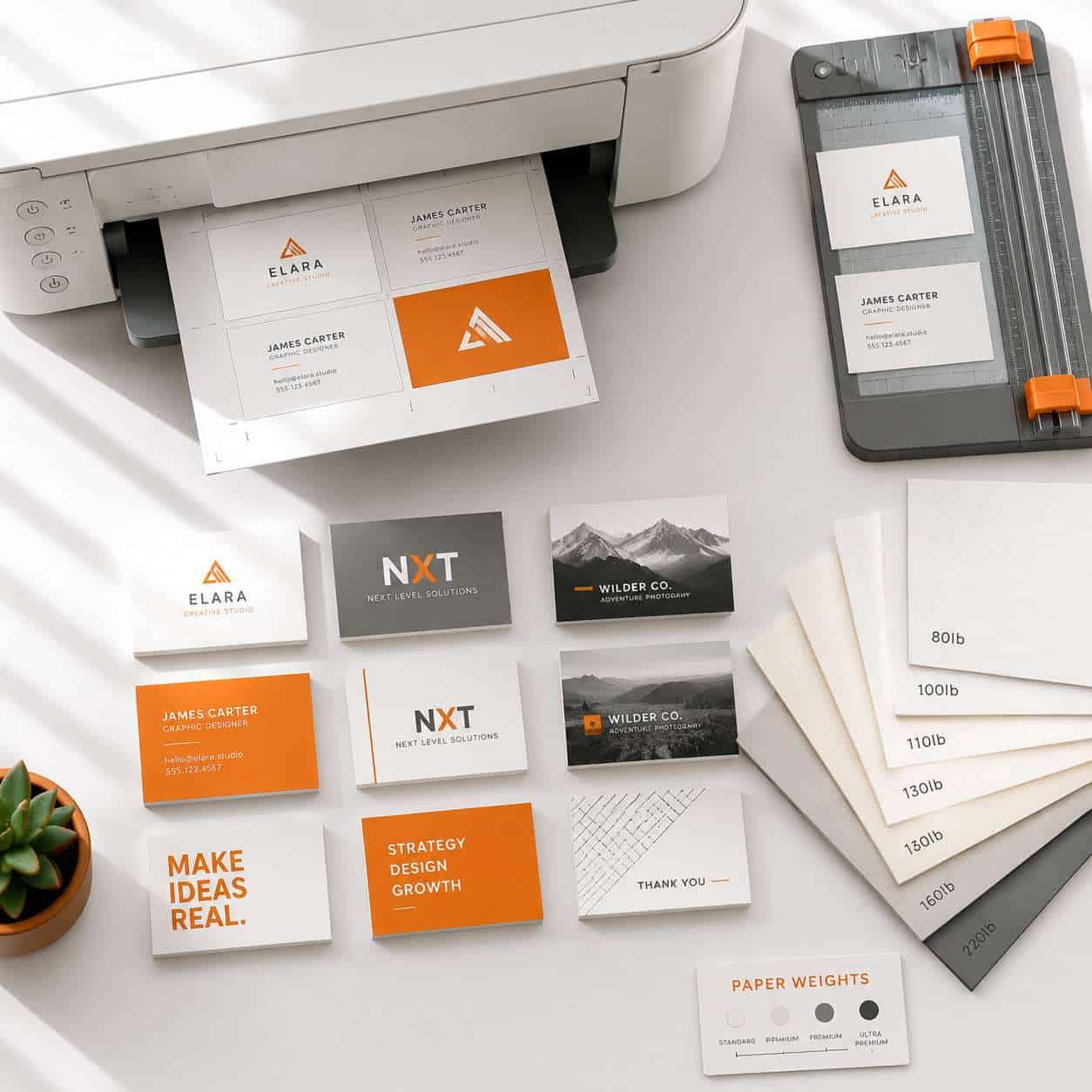
For acceptable home printing:
- Download your design as PDF Print with bleed enabled.
- Buy pre-perforated business card sheets (Avery 8371 is a popular option) or thick cardstock (at least 80lb cover weight).
- Use a high-quality inkjet or laser printer. Laser printers generally produce sharper text.
- Print a test page on regular paper first to check alignment.
- Cut carefully with a paper cutter, not scissors, for clean edges.
Honest assessment: Home-printed cards work for short-term needs or internal use. For client-facing situations, professional printing is worth the small investment. The paper feel and cut precision of home printing rarely matches commercial output.
What File Type Do I Need for Canva Business Cards?
For the best print quality, export your Canva business cards as PDF Print files. This format preserves high resolution (300 DPI) and supports CMYK color profiles.
Your export options in Canva:
- PDF Print: Best for professional printing. High resolution with bleed and crop marks.
- PDF Standard: Lower resolution. Fine for digital sharing but not ideal for printing.
- PNG: Good for single-sided digital cards or mockups. Resolution is decent but lacks bleed settings.
- JPG: Compressed format. Avoid for print use.
When sending files to a third-party printer, always ask about their preferred format. Most accept PDF Print files from Canva without issues.
Best Business Card Designs for Freelancers
Freelancers benefit from business cards that communicate their specialty quickly and memorably. The best designs are clean, focused, and include a clear call to action.
Top design approaches for freelancers:
- Minimalist with bold typography: Your name large, your title clear, contact info simple. Works for consultants, writers, and developers.
- Portfolio-style with a photo or work sample: Ideal for photographers, designers, and artists. Use the back of the card to showcase work.
- QR code-centric: Link to your portfolio, LinkedIn, or booking page. Great for tech-savvy industries.
- Vertical orientation: Stands out from the horizontal standard. Canva has templates specifically for vertical cards.
If you’re building a broader brand presence, consider creating matching carousel posts and Instagram stories in Canva to keep your visual identity consistent across platforms.
Cheapest Way to Print Business Cards from Canva
The cheapest route is to design in Canva (free) and print through a budget-friendly third-party service. This can cut costs by 30-50% compared to Canva Print.
Budget printing strategy:
- Design your card in Canva’s free plan using free templates and elements.
- Export as PDF Print with crop marks and bleed.
- Upload to a budget printer like GotPrint, PrintPlace, or even Staples for local pickup.
- Order in bulk. Per-card costs drop significantly at 250+ quantities.
For the absolute lowest cost, home printing on Avery sheets runs about $0.03-0.05 per card in paper and ink costs, but quality trade-offs are real.
Are Canva Business Cards Worth It for Small Businesses?
For most small businesses, Canva business cards offer an excellent balance of quality, cost, and convenience. They’re especially valuable if you already use Canva for other marketing materials.
When Canva is worth it:
- You need cards quickly without hiring a designer
- Your budget is under $50
- You want to update your design frequently (new role, new phone number)
- You’re building brand consistency across digital and print materials
When Canva might not be enough:
- You need luxury finishes for high-end clientele
- Your brand requires Pantone color matching
- You want unusual card shapes or materials (metal, wood, plastic)
For small businesses exploring AI-powered design tools, Canva’s Magic Design feature can even generate card layouts from a text prompt, saving additional time.
Do Graphic Designers Recommend Canva for Business Cards?
Most graphic designers acknowledge Canva as a solid tool for business cards, especially for non-designers and small businesses. It’s not their first choice for complex or high-end work, but they respect its accessibility.
Professional designers typically prefer Adobe Illustrator or InDesign because those tools offer precise control over typography, vector graphics, and color management. But for straightforward business card design, Canva handles the job well.
Where designers see Canva falling short:
- Limited kerning and advanced typography controls
- No native CMYK export (Canva converts to CMYK during printing, but you can’t preview it)
- Template-based designs can look generic if not customized enough
The professional consensus: If you’re a solopreneur or small business owner without design training, Canva produces better results than most DIY alternatives. If you’re a design professional, you’ll likely want more control. Browse more design resources and tools to find the right fit for your workflow.
Mistakes to Avoid When Designing Business Cards
Even with great templates, certain errors can make your business cards look unprofessional or unusable.
Avoid these common mistakes:
- Too much information. Stick to name, title, one phone number, email, and website. Social handles are optional.
- Fonts smaller than 8pt. Anything smaller becomes hard to read, especially on textured paper.
- Using more than two fonts. One for headings, one for body text. That’s it.
- Ignoring bleed and safe zones. Keep important text at least 0.125 inches from the card edge.
- Low-resolution logos. Upload your logo as a PNG or SVG at the highest resolution available.
- Choosing trendy over timeless. Your cards should still look good in a year. Avoid overly trendy color schemes or novelty fonts.
- Skipping a proof. Always order a small test batch before committing to a large print run.
Conclusion
Business cards in Canva offer a practical, affordable path to professional networking materials in 2026. The platform handles design well, gives you solid printing options, and makes it easy to maintain brand consistency across all your materials.
Your next steps:
- Open Canva and browse business card templates that match your industry.
- Customize a template with your branding, keeping the design clean and focused.
- Export as PDF Print with bleed enabled.
- Order a small test batch through Canva Print or a third-party service.
- Evaluate the quality in person before ordering in bulk.
If you’re building a complete brand presence, pair your business cards with matching email templates and social media assets in Canva to create a cohesive professional identity.
FAQ
How long does Canva Print take to deliver business cards? Canva Print typically delivers within 5 to 8 business days for standard shipping. Express options are available in some regions for faster delivery.
Can I design double-sided business cards in Canva? Yes. Add a second page to your design, and Canva treats it as the back of the card. Most templates include matching front and back designs.
Is Canva Pro required to make business cards? No. The free plan includes hundreds of business card templates and basic design tools. Canva Pro adds premium templates, Brand Kit, and background remover.
What size are Canva business cards? The default size is 3.5 x 2 inches (standard US business card). You can also create custom sizes for international standards like the EU size (3.346 x 2.165 inches).
Can I use my own fonts in Canva for business cards? Yes, but only on Canva Pro. The free plan limits you to Canva’s built-in font library, which includes hundreds of options.
How do I add a QR code to my Canva business card? Go to the Apps section in Canva’s editor and search for “QR Code.” Enter your URL, and Canva generates a code you can place and resize on your card.
Can I order just 10 or 20 business cards from Canva? Canva Print’s minimum order is typically 50 cards. For smaller quantities, print at home or use a local print shop.
Will my Canva business card design look the same when printed? Colors may shift slightly between screen and print due to the difference between RGB (screen) and CMYK (print). Ordering a test batch helps you catch any issues.
Can I save my business card design as a template in Canva? Yes. Save your design as a template within your Canva account so you can quickly create cards for new team members with consistent branding.
Does Canva offer rounded corner business cards? Canva Print offers rounded corners as an option in some regions. Check the print customization screen after clicking “Print Business Cards.”
Useful Resources: Canva design platform & Canva Design School free tutorials