Last updated: May 11, 2026
Quick Answer
Base44’s Android login system is auto-generated when you build an app using AI prompts. It supports email/password, Google, Microsoft, Facebook, Apple, and SSO authentication out of the box, with no manual OAuth configuration required on the free tier [6]. Android users access it through the Base44 app (100K+ downloads on Google Play) or via published apps built on the platform [4].
Key Takeaways
- Base44 generates login screens automatically from your app prompt; no coding needed [7]
- Authentication methods include email/password, Google, Facebook, Apple, Microsoft, and SSO [6]
- The Android app (rated 3.9/5 from 551 reviews) was last updated April 29, 2026 [4]
- Free accounts get 5 credits per day, which limits how many login iterations you can test [2]
- Custom Google OAuth requires the Builder plan ($20/month) and Google Cloud Console setup [1]
- Login flows can’t be tested in preview mode; you must publish to test on Android [1]
- Competitors like Bubble.io offer more UI customization for login screens [1]
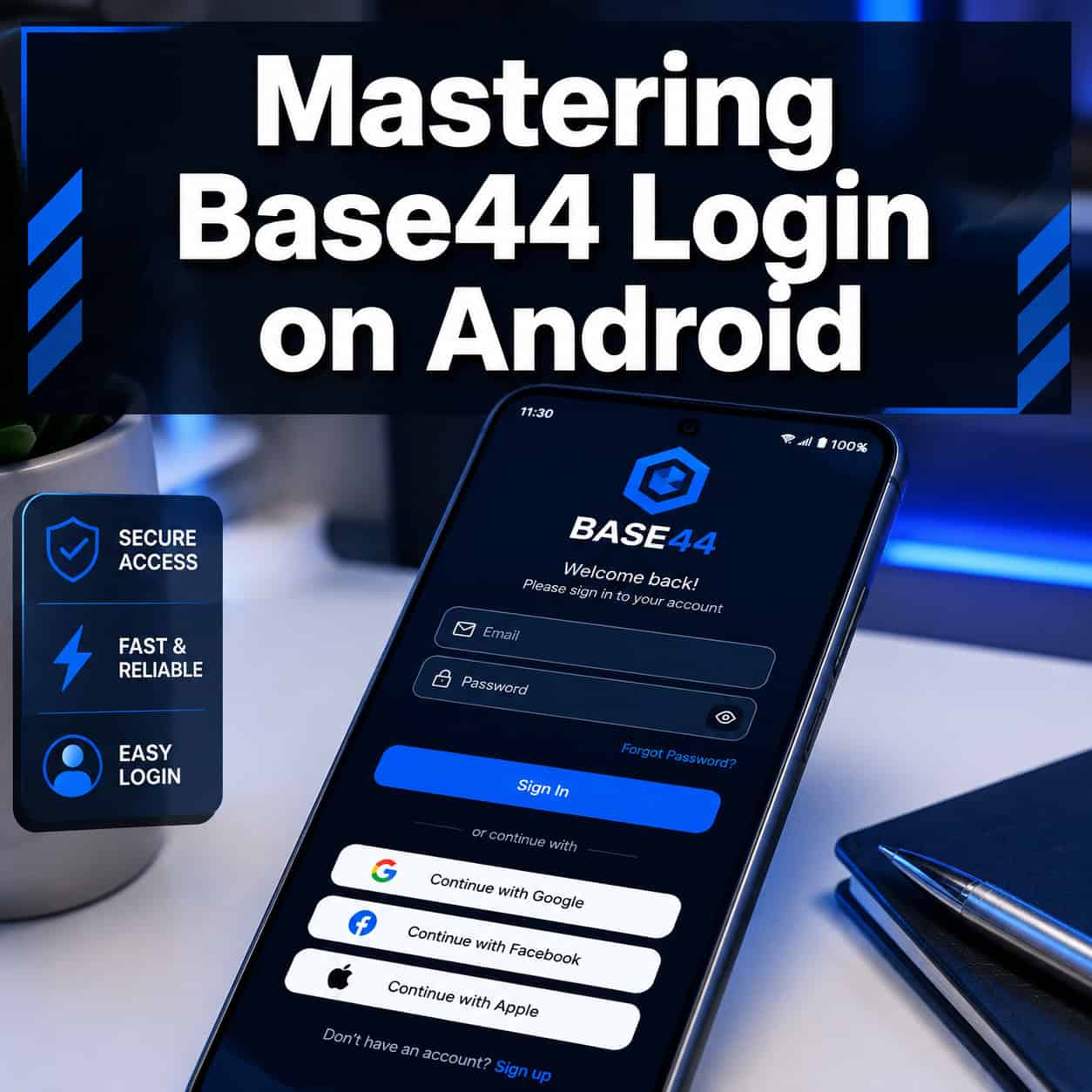
Over 100,000 Android users have downloaded Base44’s app builder since its launch, and a significant portion of them hit the same wall: figuring out how login actually works on the platform [4]. Unlike traditional development where you wire up authentication libraries manually, Base44 abstracts the entire process. This guide on mastering Base44 login: a comprehensive Android user guide covers everything from initial setup to troubleshooting common issues that trip up new users.
I’ve spent time testing Base44’s auth system across multiple app builds, and the experience is genuinely different from what most developers or no-code builders expect. The login isn’t something you build—it’s something the AI generates for you. Understanding how to control and customize that process is what separates a frustrating experience from a productive one.
How Does Base44 Login Work on Android?
Base44’s login system is generated automatically when you create an app that requires user accounts. The AI interprets your prompt, builds the UI, sets up data models, and configures authentication—all in one step [7].
Here’s what happens under the hood:
- You describe your app (e.g., “Build a task manager with user accounts”)
- Base44’s AI generates the complete app including login/registration screens
- Authentication is pre-configured with email/password as the default
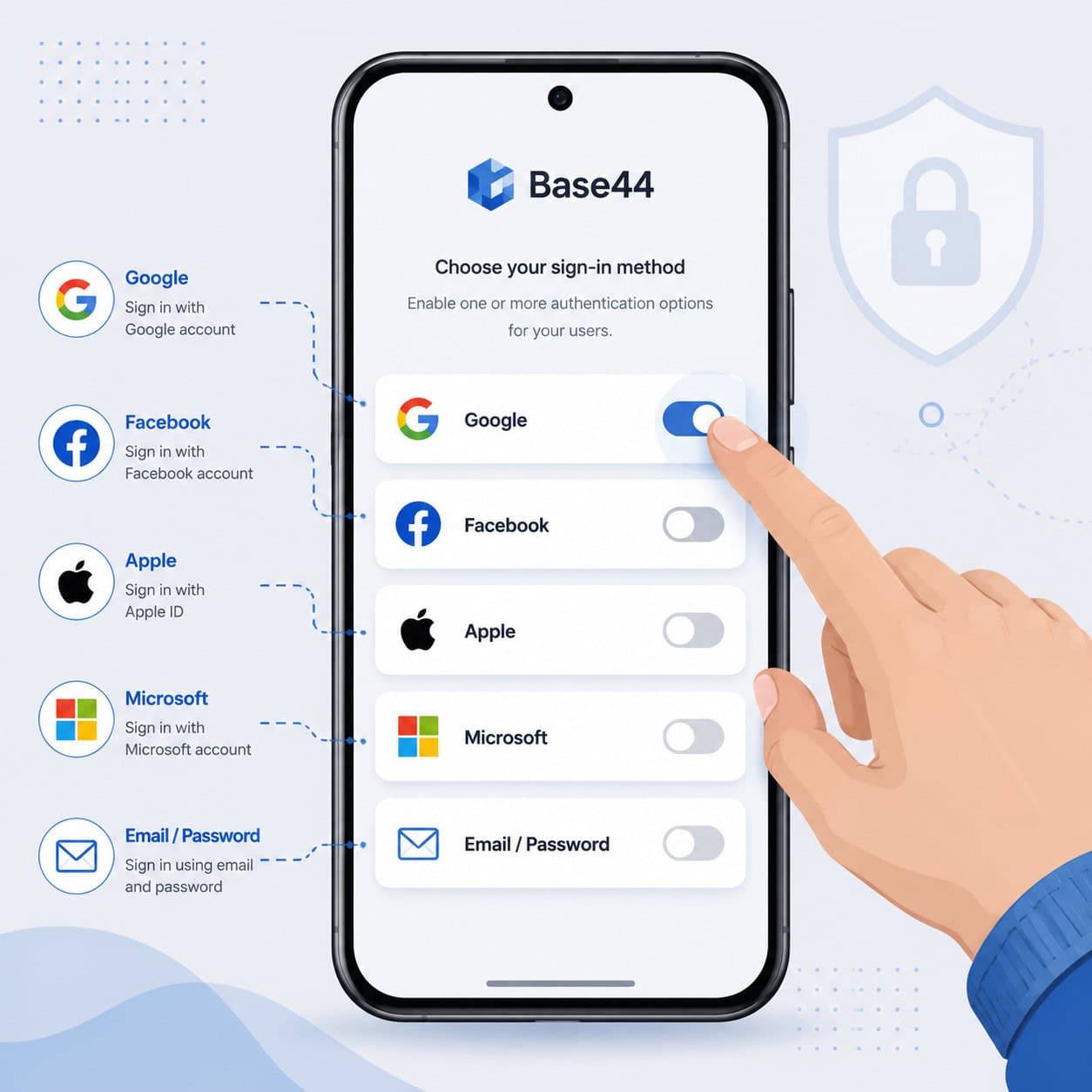
- Additional providers (Google, Facebook, etc.) can be toggled on in settings [6]
Who this is for: Non-technical users, “vibe coders,” and rapid prototypers who want login functionality without touching authentication code [7].
Who this is NOT for: Developers needing full control over auth flows, custom token handling, or white-labeled login screens. Base44’s auth screens currently can’t be fully styled or branded [1].
The platform handles session management, password resets, and user data storage. For Android specifically, you access your Base44-built apps through a mobile browser or as a published web app—the Base44 Android app itself is primarily for building and managing projects [4].
What Authentication Methods Does Base44 Support?
Base44 supports six authentication methods, all configurable through simple toggles in your app settings [6]:
| Authentication Method | Free Tier | Builder Plan ($20/mo) | Notes |
|---|---|---|---|
| Email/Password | Yes | Yes | Default, always available |
| Yes (basic) | Yes (custom OAuth) | Custom branding requires Google Cloud setup | |
| Yes | Yes | Requires Facebook Developer account for custom | |
| Apple | Yes | Yes | Required for iOS App Store submissions |
| Microsoft | Yes | Yes | Good for enterprise/B2B apps |
| SSO (SAML) | No | Yes | Enterprise feature |
Decision rule: Choose email/password if you’re prototyping. Add Google login if your target users are Android-heavy (most Android users have Google accounts). Add SSO only if you’re building for a specific organization [6].
Common mistake: Enabling all providers at once. This clutters your login screen and confuses users. Pick two or three maximum for consumer apps.
If you’re building apps that need polished design systems, you might find our comprehensive guide to Figma UI kits and design systems helpful for planning your app’s visual identity before building in Base44.
Step-by-Step: Setting Up Login in Your Base44 Android App
Setting up login takes under five minutes. Here’s the exact process:
Step 1: Create Your App with Auth Intent
When writing your prompt, explicitly mention user accounts. Example prompts that trigger auth generation:
- “Build a fitness tracker where users log workouts and track progress”
- “Create a recipe app with user profiles and saved favorites”
- “Make a team project manager with login and role-based access”
The AI recognizes account-related language and generates login automatically [7].
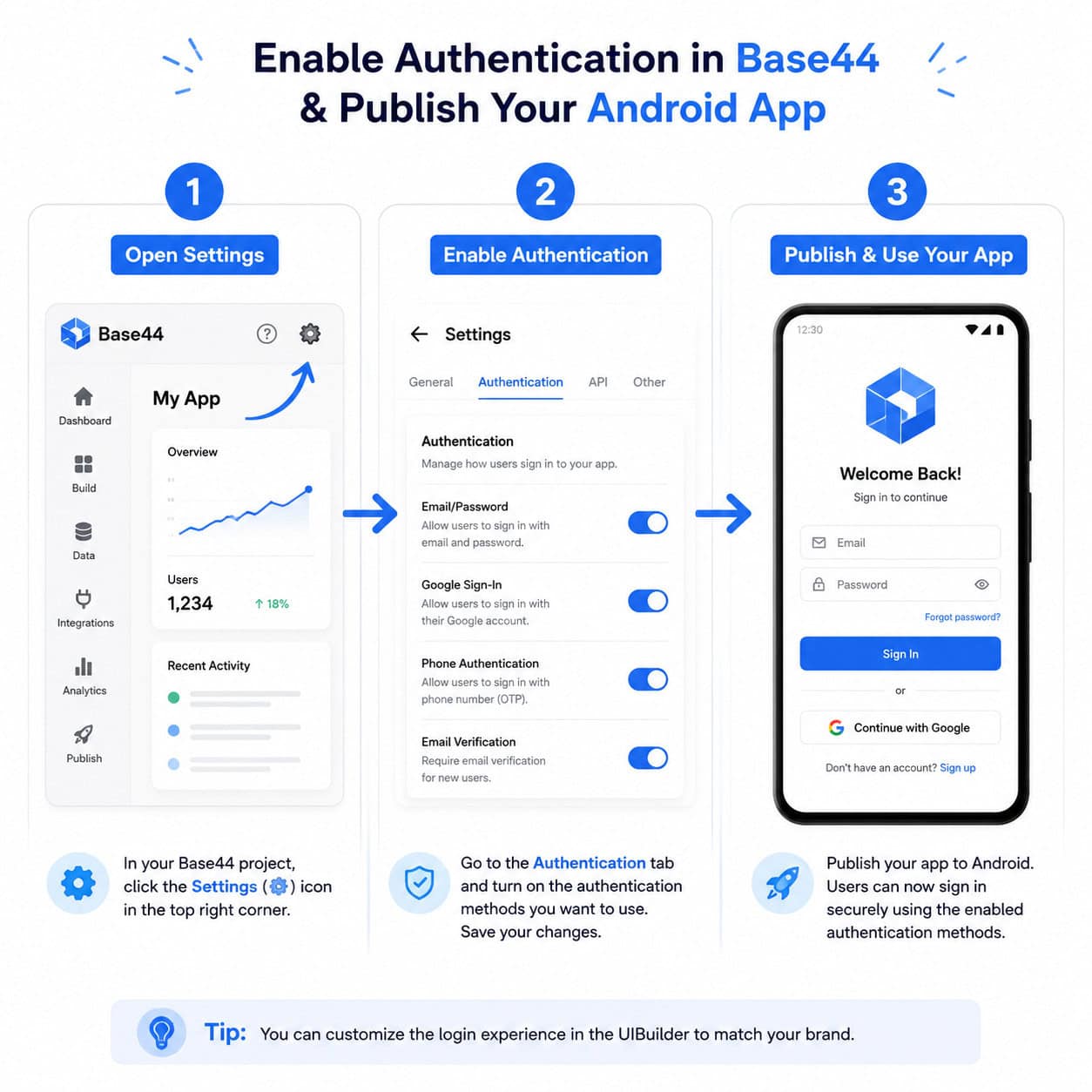
Step 2: Access Authentication Settings
- Open your project in Base44 (via the Android app or web dashboard) [2]
- Navigate to Settings > Authentication
- You’ll see toggle switches for each provider [6]
Step 3: Enable Your Preferred Providers
- Toggle on the methods you want
- For basic email/password, no additional configuration is needed
- For social logins on the free tier, Base44 uses shared OAuth credentials [1]
Step 4: Configure Custom OAuth (Builder Plan Only)
If you need branded Google login (showing your app name instead of “Base44”):
- Create a project in Google Cloud Console
- Set up OAuth 2.0 credentials
- Copy the Client ID and Client Secret into Base44’s settings
- Add your redirect URIs [1]
Step 5: Publish and Test
Critical note: You cannot test login flows in Base44’s preview mode. You must publish your app to verify that authentication works correctly on Android [1]. This is a known limitation that frustrates many users.
Edge case: If you’re iterating on login behavior, the 5 free credits per day can run out quickly. Each publish consumes a credit [2]. Plan your testing sessions accordingly.
For those exploring other no-code platforms with similar capabilities, our list of 11 best no-coding website design software platforms for 2026 provides useful comparisons.
Managing Users and Registration Settings
Once login is active, Base44 provides a user management panel where you can:
- View registered users and their auth methods
- Enable or disable new registrations
- Set required fields for sign-up (name, phone, etc.)
- Configure email verification requirements [6]
Choose registration-open if you’re building a consumer app. Choose invite-only if you’re building an internal tool or beta-testing with a controlled group.
Base44’s documentation covers the full registration management flow, including how to add custom fields to your sign-up form [6]. The system stores user data in Base44’s built-in database, which you can query in your app logic.
If you’re interested in how AI tools can help manage content and user flows in your apps, check out our guide to AI-powered content generation tools.
Troubleshooting Common Base44 Login Issues on Android
Here are the problems I’ve seen most frequently, along with fixes:
Login screen doesn’t appear:
- Verify your prompt included user-account language
- Check that authentication isn’t disabled in settings
- Regenerate the app with a more explicit prompt like “include user login and registration”
Social login buttons not working:
- Ensure the provider is toggled on in settings [6]
- On custom OAuth: verify redirect URIs match exactly (trailing slashes matter)
- Clear your Android browser cache and try again
“Authentication failed” errors after publish:
- This sometimes occurs after Base44 platform updates. Republish your app [4]
- Check if your plan supports the auth method you’re using (SSO requires Builder plan)
Can’t test login in preview:
- This is by design, not a bug. You must publish to test auth flows [1]
- Use a staging/test version of your app for iterations
Credit limits blocking testing:
- Free tier: 5 credits/day [2]
- Upgrade to Builder ($20/month) for more credits and custom auth options
Some Reddit users have reported production-breaking changes after platform updates affecting auth features. If your login suddenly stops working after a Base44 update, republishing usually resolves it.
How Does Base44 Login Compare to Alternatives?

| Feature | Base44 | Bubble.io | Adalo | Glide |
|---|---|---|---|---|
| Setup time | Minutes (AI-generated) | 30-60 min (drag-and-drop) | 20-40 min | 15-30 min |
| UI customization | Limited | Extensive | Moderate | Moderate |
| Preview testing | No (must publish) | Yes | Yes | Yes |
| Social login | Toggle-based | Plugin-based | Built-in | Built-in |
| Custom OAuth | Builder plan | All plans | Pro plan | Pro plan |
| White-label login | Not yet | Yes | Yes | Yes |
| Mobile-native feel | Web-based | Web-based | Native | Web-based |
Choose Base44 if speed matters most and you’re okay with default styling. You’ll have a working login in minutes rather than hours [7].
Choose Bubble.io or Adalo if you need pixel-perfect control over your login screen’s appearance, or if preview testing is important to your workflow [1].
Choose Glide if you want a spreadsheet-backed app with simple auth and better mobile previews.
Base44’s biggest advantage is speed. Its biggest limitation is the inability to customize login screen appearance and the requirement to publish before testing [1]. For teams evaluating the best drag-and-drop website builders, this tradeoff is worth considering carefully.
Tips for Mastering Base44 Login: A Comprehensive Android User Guide
After building several apps on the platform, here are my practical recommendations:
Be explicit in your prompts. Don’t assume the AI will add login. Say “with user authentication” clearly.
Start with email/password only. Add social logins after your core app works. Fewer variables means easier debugging.
Budget your free credits. With 5/day on the free tier, plan your publish-and-test cycles. Don’t waste credits on non-auth changes when testing login [2].
Document your OAuth credentials. If using custom Google OAuth, keep your Client ID, Secret, and redirect URIs in a secure note. You’ll need them if you recreate the project.
Test on actual Android devices. Browser behavior on Android can differ from desktop. Always verify on a real phone after publishing.
Monitor Base44’s changelog. The platform updates frequently (latest: April 29, 2026) [4]. Auth-related changes occasionally require republishing [3].
For those building apps that also need strong SEO performance, our AI-powered content optimization guide covers strategies that complement your app’s web presence.
Pricing and Plan Considerations for Login Features
Base44’s pricing directly affects what login features you can use:
- Free tier: Email/password + basic social logins using shared OAuth. 5 credits/day. No custom branding [2].
- Builder plan ($20/month): Custom OAuth, SSO, more credits, and priority support. Required for branded Google login [2].
- Enterprise: Custom pricing for SAML SSO, dedicated support, and advanced user management.
My recommendation: Start free to validate your app concept. Upgrade to Builder only when you need custom OAuth or run out of credits regularly. The $20/month is reasonable if you’re building something you’ll actually ship.
If you’re also exploring how AI can help with broader website building, our guide on building professional sites without code using AI covers complementary tools.
Conclusion
Mastering Base44 login on Android comes down to understanding three things: the AI generates auth from your prompt, customization requires the paid plan, and testing requires publishing. The platform trades flexibility for speed—you’ll have a working login system in minutes, but you won’t be able to fully brand it without upgrading.
Your next steps:
- Download the Base44 Android app from Google Play [4]
- Create your first app with an explicit authentication prompt
- Test the default email/password login by publishing
- Add social providers one at a time once the basics work
- Upgrade to Builder if you need custom OAuth or hit credit limits
The platform continues to evolve (the latest update was April 29, 2026), so check the changelog periodically for new login features [3].
FAQ
Can I use Base44 login without coding? Yes. Base44 generates the entire login system from your text prompt. No coding, OAuth setup, or database configuration is needed on the free tier [7].
Does Base44 login work offline on Android? No. Base44 apps are web-based and require an internet connection for authentication. There’s no offline login caching.
How do I reset a user’s password in Base44? Base44 includes built-in password reset functionality via email. Users click “Forgot Password” on the login screen, and the system sends a reset link [6].
Can I add two-factor authentication (2FA)? As of May 2026, Base44 doesn’t offer native 2FA. You can partially work around this by requiring email verification on sign-up.
Why can’t I test login in preview mode? This is a known platform limitation. Authentication flows only work in published apps, not in the Base44 preview environment [1].
Is Base44 login secure? Base44 handles session tokens, password hashing, and HTTPS encryption. For custom OAuth, security depends on your Google Cloud/Facebook Developer configuration [6].
How many users can log into my Base44 app? There’s no published user limit for authentication. The platform reportedly serves millions of users across all apps [5].
Can I customize the login page design? Currently, Base44’s login screens have fixed styling that can’t be fully customized or white-labeled [1]. This is a frequently requested feature.
What happens to user data if I delete my Base44 app? User data is stored in Base44’s database and is removed when you delete the project. Export user data before deletion if needed.
Does Base44 support role-based access after login? Yes. You can define user roles (admin, member, viewer) in your app logic and restrict pages or features based on role [6].
Can I migrate users from another platform to Base44? There’s no built-in user import tool. Users would need to re-register, or you’d need to use Base44’s API (available on paid plans) to create accounts programmatically.
Is the Base44 Android app required to use login features? No. The Android app is for building and managing projects. Your end users access login through published web apps in their mobile browser [4].
References
[1] Login – https://app.base44.com/login [2] app.base44 – https://app.base44.com [3] Flexible Log In – https://base44.com/changelog/feature/flexible-log-in [4] Details – https://play.google.com/store/apps/details?id=com.base44.android&hl=en_US [5] base44 – https://base44.com [6] Managing Login And Registration – https://docs.base44.com/Setting-up-your-app/Managing-login-and-registration [7] Base44 Review – https://www.zite.com/blog/base44-review