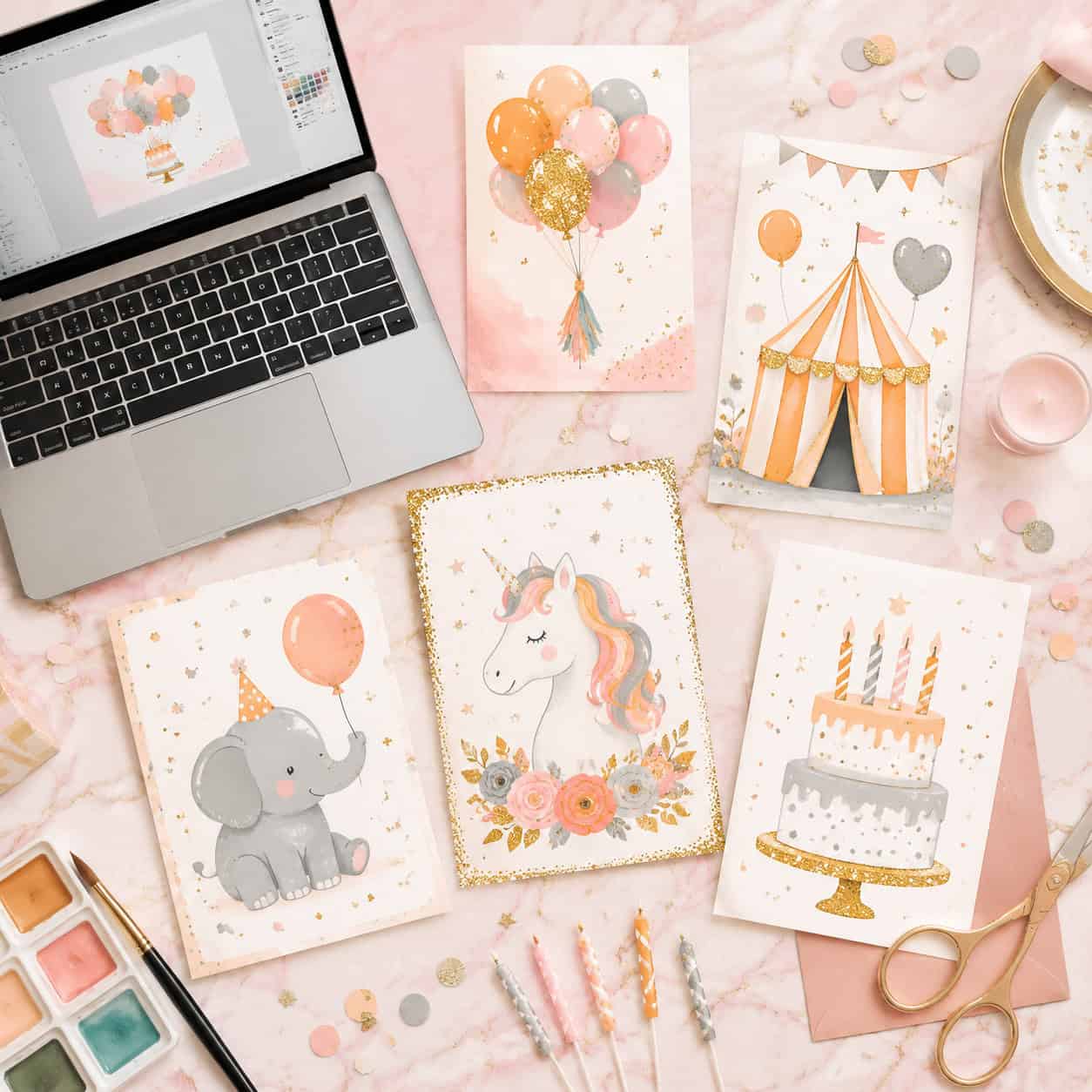
Last updated: June 7, 2026
Quick Answer: A Canva birthday invitation is a custom party invite you design using Canva’s drag-and-drop editor, choosing from thousands of free and premium templates. You can create one in under 15 minutes, customize it for any age group, and download it for printing or digital sharing — all without any design experience.
Key Takeaways
- Canva offers thousands of birthday invitation templates, and many are completely free to use and customize.
- You can design invitations for kids, teens, adults, and milestone birthdays (like 50th or 80th) from the same platform.
- The standard print size for a birthday invitation is 5 x 7 inches (127 x 178 mm), and Canva has this preset built in.
- Download as PDF Print for physical invitations or PNG/JPG for digital sharing via text, email, or social media.
- Adding personal photos, changing fonts, and swapping colors takes just a few clicks — no design skills required.
- Canva Free covers most birthday invitation needs; Canva Pro (about $13/month in 2026) unlocks premium templates and brand tools.
- Common mistakes include overcrowding the design, using too many fonts, and forgetting to include essential party details.
How Much Does It Cost to Make a Birthday Invitation in Canva?
Most people can create a polished birthday invitation in Canva for free. Canva’s free tier gives you access to over 250,000 templates (Canva’s own library count), thousands of free stock images, and basic design tools.
Here’s a cost breakdown:
| Plan | Monthly Cost | What You Get for Invitations |
|---|---|---|
| Canva Free | $0 | Thousands of free templates, basic fonts, free stock photos, PNG/JPG/PDF downloads |
| Canva Pro | ~$13/month | Premium templates, Brand Kit, background remover, premium stock images, resizing tool |
| Canva Teams | ~$15/user/month | Everything in Pro plus team collaboration features |
Choose Canva Free if you’re making a one-time invitation and don’t need premium stock photos. Choose Canva Pro if you regularly create designs or want access to premium elements without paying per item. A common mistake is paying for Pro when a free template would work just as well — always browse the free options first.
If you’re curious about other design tools Canva offers, check out our Canva resources and tutorials for more guides.
Are There Free Canva Birthday Invitation Designs?
Yes, and there are a lot of them. Canva labels free templates with a clear tag, so you won’t accidentally select a premium one. As of 2026, the free library includes designs for kids’ parties, elegant adult celebrations, milestone birthdays, and themed events.
To find free templates specifically:
- Go to Canva and search “birthday invitation.”
- Use the filter to select “Free” templates only.
- Browse by style, theme, or color to narrow results.
Free templates are fully customizable. You can change every element — text, colors, images, layout — without upgrading.
What Are the Best Canva Templates for Kids’ Birthday Parties?
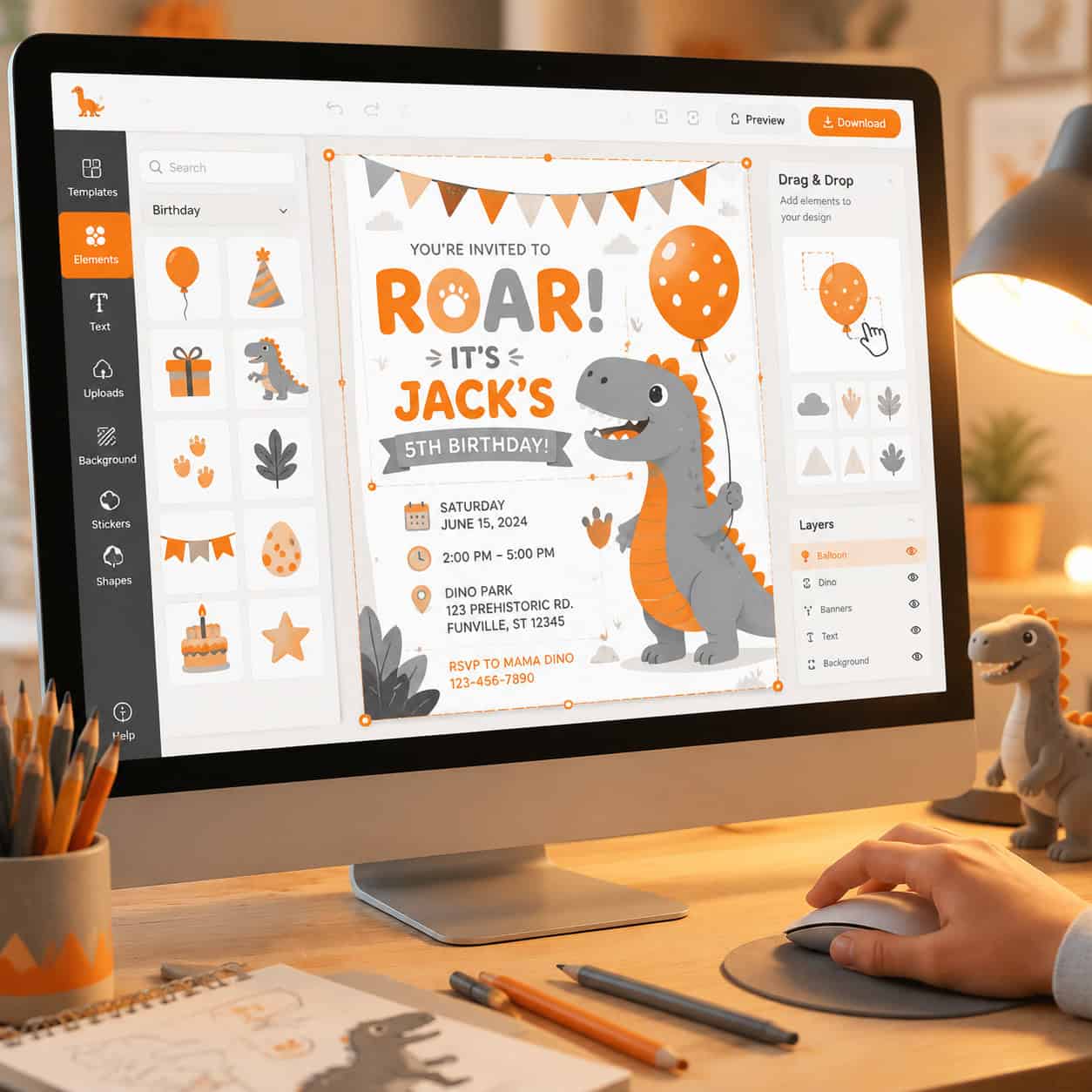
Canva’s most popular kids’ birthday templates feature bright colors, playful fonts, and themed illustrations like dinosaurs, unicorns, superheroes, and princesses. These templates work well because they’re visually engaging and easy to personalize with your child’s name and photo.
Top template categories for kids:
- Cartoon animal themes — great for ages 1-5
- Superhero and princess themes — popular for ages 4-8
- Space and science themes — works well for ages 6-12
- Gaming and sports themes — ideal for tweens and pre-teens
A quick tip from personal experience: when I designed my nephew’s 7th birthday invitation last year, I searched “dinosaur birthday” instead of just “birthday invitation.” Using specific theme keywords surfaces better results faster.
Can I Make Invitations for Different Age Groups in Canva?
Absolutely. Canva’s template library covers every age group, from a baby’s first birthday to an 80th celebration. The platform isn’t limited to kids’ designs — in fact, some of the most polished templates are designed for adult milestones.
Age group guide:
- 1st birthday: Soft pastels, milestone themes, photo-heavy layouts
- Kids (2-12): Bright colors, character themes, playful fonts
- Teens (13-19): Neon colors, modern layouts, social media-inspired designs
- Adults (21-49): Minimalist, elegant, or themed (like decades parties)
- Milestone (50, 60, 70, 80+): Gold and black color schemes, classic typography, photo collages
If you want to explore how Canva handles other types of visual design, our guide on AI-powered design tools in Canva covers the latest features.
Are Canva Birthday Invitations Good for Adults or Just Kids?
Canva birthday invitations work just as well for adults as they do for kids. The platform has a large selection of sophisticated, minimalist, and themed templates specifically designed for adult celebrations.
Adult-focused templates tend to feature:
- Elegant serif fonts and muted color palettes
- Gold foil, marble, and watercolor design elements
- Clean layouts with fewer graphics and more white space
- Options for cocktail parties, dinner parties, and surprise celebrations
Edge case: If you’re planning a formal event like a milestone dinner, look for templates tagged “elegant” or “formal” — these have layouts that match the tone better than general birthday templates.
How Do I Add Photos to My Canva Birthday Invitation Design?
Adding photos to a Canva birthday invitation takes about 30 seconds. Click on any image placeholder in your template, then upload your own photo or drag it from Canva’s media library. The photo automatically resizes to fit the frame.
Step-by-step process:
- Open your chosen template in the Canva editor.
- Click “Uploads” in the left sidebar.
- Upload your photo from your device (JPG, PNG, or HEIC formats work).
- Drag the photo onto the template — it will snap into any existing image frame.
- Double-click to crop or reposition within the frame.
- Use Canva’s built-in photo editor to adjust brightness, contrast, or apply filters.
Common mistake: Using low-resolution photos. For print invitations, your photo should be at least 300 DPI. Phone photos taken in the last few years are usually fine, but avoid screenshots or heavily cropped images.
For more on working with visual content in Canva, see our tutorial on creating engaging Instagram story templates, which covers many of the same photo-editing techniques.
How Do I Change Colors and Fonts in a Canva Birthday Template?
Changing colors and fonts is one of the simplest edits in Canva. Click on any text element to change its font, size, color, and spacing. Click on any shape or background element to change its color using the color picker or by entering a hex code.
Font tips:
- Stick to two fonts maximum — one for headings, one for body text.
- Pair a decorative font with a clean, readable one.
- Make sure the party details (date, time, location) use the most readable font.
Color tips:
- Use Canva’s “color palette generator” to extract colors from an uploaded photo.
- If you have a party theme color, enter the exact hex code for consistency.
- Avoid using more than three colors in a single invitation.
What Size Should My Birthday Invitation Be for Printing?
The standard size for a printed birthday invitation is 5 x 7 inches (127 x 178 mm). Canva includes this as a preset dimension, so you can select it when starting a new design.
Other common sizes:
- 4 x 6 inches — postcard style, fits standard photo envelopes
- 5 x 7 inches — most popular, fits A7 envelopes
- 4.25 x 5.5 inches (A2) — compact option for simple designs
- Square (5 x 5 inches) — modern look, requires square envelopes
Decision rule: Choose 5 x 7 if you’re printing at home or through a local print shop. Choose 4 x 6 if you want to save on postage and envelope costs.
What File Type Should I Download for My Birthday Invitation?
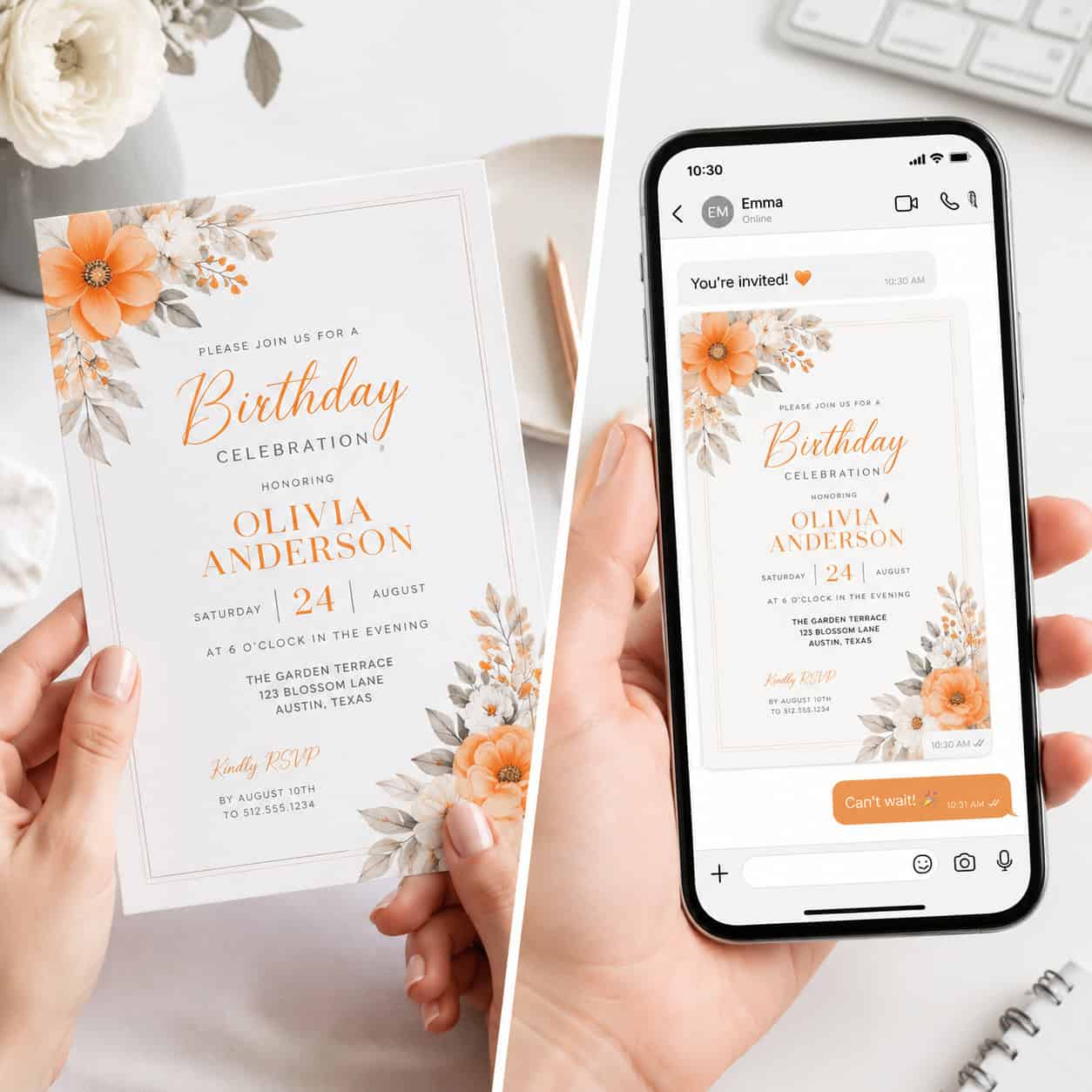
For printing, download your Canva birthday invitation as a PDF Print file. For digital sharing, download as PNG (best quality) or JPG (smaller file size).
| Use Case | Recommended Format | Why |
|---|---|---|
| Home printing | PDF Print | Highest resolution, includes crop marks |
| Professional printing | PDF Print (with bleed) | Print shops prefer this format |
| Email or text message | PNG | Sharp quality, transparent background option |
| Social media sharing | JPG | Smaller file, loads faster |
| WhatsApp or iMessage | PNG or JPG | Both work; PNG looks slightly sharper |
How to enable bleed marks: When downloading as PDF Print, check the “Crop marks and bleed” option. This adds a small margin around your design so nothing gets cut off during trimming.
If you’re also designing email communications, our guide on creating effective email templates in Canva walks through similar export settings.
Can I Use Canva Birthday Invitations for Digital Sharing?
Yes, and digital invitations are increasingly popular. You can share a Canva birthday invitation via email, text message, WhatsApp, social media, or even as a direct Canva link.
Digital sharing options:
- Download and attach: Export as PNG or JPG and send through any messaging app.
- Share link: Click “Share” in Canva and generate a view-only link.
- Embed in email: Use the downloaded image in an email body or newsletter.
- Social media post: Share directly to Facebook, Instagram, or other platforms from Canva.
Pro tip: If you want recipients to RSVP, add a QR code to your digital invitation that links to a Google Form or event page. Canva has a built-in QR code generator under the “Apps” tab.
For ideas on creating shareable visual content, explore our guide on designing engaging carousel posts.
What Common Mistakes Do People Make When Designing Party Invites?
The biggest mistake is cramming too much information into a small space. A birthday invitation should communicate six things clearly: who, what, when, where, RSVP details, and any special instructions (like “wear a costume”).
Mistakes to avoid:
- Too many fonts: Stick to two. Three at most.
- Low-contrast text: Light yellow text on a white background is unreadable. Always check contrast.
- Missing key details: I’ve received invitations without an address or RSVP date — don’t let that be yours.
- Ignoring print margins: Text too close to the edge gets cut off during printing. Keep important content at least 0.125 inches from the border.
- Using copyrighted characters: Canva’s built-in illustrations are licensed for use, but uploading Disney or Marvel images you found online is a copyright issue.
- Overdesigning: A clean, simple invitation with clear information always beats a cluttered one.
How Complicated Is It to Design a Birthday Invite If I’m Not Creative?
Not complicated at all. That’s the entire point of Canva’s template system. You pick a template you like, swap in your party details, and you’re done. The design work is already handled.
Here’s a realistic timeline for a first-time user:
- Create a Canva account — 2 minutes
- Search and choose a template — 5 minutes
- Edit text with your party details — 3 minutes
- Upload a photo (optional) — 2 minutes
- Adjust colors if needed — 2 minutes
- Download — 1 minute
Total: about 15 minutes from start to finish. If you’re new to Canva entirely, our beginner’s guide to Canva logo design covers the interface basics that apply to any project.
Conclusion
Creating a Canva birthday invitation is one of the fastest ways to get a professional-looking party invite without hiring a designer or learning complex software. The free tier covers most needs, the template library spans every age group and theme, and the entire process takes about 15 minutes.
Your next steps:
- Go to Canva.com and search “birthday invitation” to browse templates.
- Filter by “Free” if you don’t want to spend anything.
- Pick a template that matches your party theme and age group.
- Customize the text, colors, and photos with your event details.
- Download as PDF Print for physical invitations or PNG for digital sharing.
- Double-check that you’ve included the date, time, location, and RSVP information before sending.
Whether you’re planning a toddler’s first birthday or a friend’s 40th surprise party, a Canva birthday invitation gives you a polished result with minimal effort. Start with a template, keep it simple, and focus on getting the details right.
Frequently Asked Questions
Can I use Canva birthday invitations commercially? Yes, if you’re a party planner creating invitations for clients, Canva’s license allows commercial use of designs made with their templates and free elements. Premium elements included in Canva Pro are also licensed for commercial use.
How do I print Canva birthday invitations at home? Download as PDF Print, open the file, and print on cardstock (preferably 80-110 lb weight). Use your printer’s “actual size” or “100%” setting to avoid scaling issues.
Can I collaborate with someone on a Canva birthday invitation? Yes. Click “Share” in the editor and invite someone via email. They can edit the design in real time, which is helpful when co-hosting a party.
Does Canva have animated birthday invitations? Yes. Canva offers animated templates that you can export as MP4 video files or GIFs. These work well for digital invitations sent via text or social media.
Can I resize a birthday invitation after I’ve designed it? Canva Pro includes a “Magic Resize” feature that lets you convert your 5 x 7 invitation into other sizes with one click. On the free plan, you’d need to manually recreate it at the new size.
Is there a Canva app for designing invitations on my phone? Yes. The Canva mobile app (iOS and Android) has full editing capabilities. You can design, customize, and download birthday invitations directly from your phone.
How many free birthday invitation templates does Canva have? The exact number changes as Canva adds new designs regularly, but there are thousands of free birthday invitation templates available as of 2026.
Can I save my Canva birthday invitation as a reusable template? Yes. After designing your invitation, you can save it to your Canva account and duplicate it later for future events, changing only the details.
SEO Meta Title: Canva Birthday Invitation: Free Templates and Design Guide
SEO Meta Description: Learn how to create a stunning Canva birthday invitation for free. Step-by-step guide covering templates, printing sizes, file types, and tips for all ages.
Useful Resources: Canva design platform & Canva Design School free tutorials