
Last updated: June 7, 2026This article provides the Canva AI Code Complete Guide to Features Cost Limits to help you understand everything you need to know about this tool.
Quick Answer: Canva AI code is a built-in feature within Canva’s platform that generates HTML, CSS, and JavaScript snippets based on natural language prompts. It’s designed primarily for designers and non-developers who need functional code for web elements, embedded widgets, and interactive components without leaving Canva’s ecosystem. The feature is included with Canva Pro and Canva Teams plans, with limited access on the free tier.
Key Takeaways
- Canva AI code generates front-end web code (HTML, CSS, JavaScript) from plain English descriptions directly inside the Canva editor.
- The feature targets designers, marketers, and beginners rather than professional software engineers.
- It’s included with Canva Pro subscriptions; free-tier users get a limited number of monthly generations.
- Output code is usable for commercial projects under Canva’s standard licensing terms.
- Code accuracy is generally solid for simple UI components but drops off for complex logic or backend tasks.
- It does not replace dedicated coding tools like GitHub Copilot for serious development work.
- Common mistakes include over-relying on generated code without review and using it for tasks beyond its scope.
Canva crossed 200 million monthly active users in 2024, and most of them have never written a line of code. That’s exactly the audience Canva had in mind when it rolled out its AI code generation capabilities. Rather than competing with developer-focused tools, canva ai code fills a specific gap: giving designers a way to produce functional web snippets without switching to a code editor. I’ve spent several weeks testing this feature across different project types, and this guide covers everything you need to know about what it does, where it falls short, and whether it’s worth your time.
What Exactly Does Canva’s AI Code Generator Do?
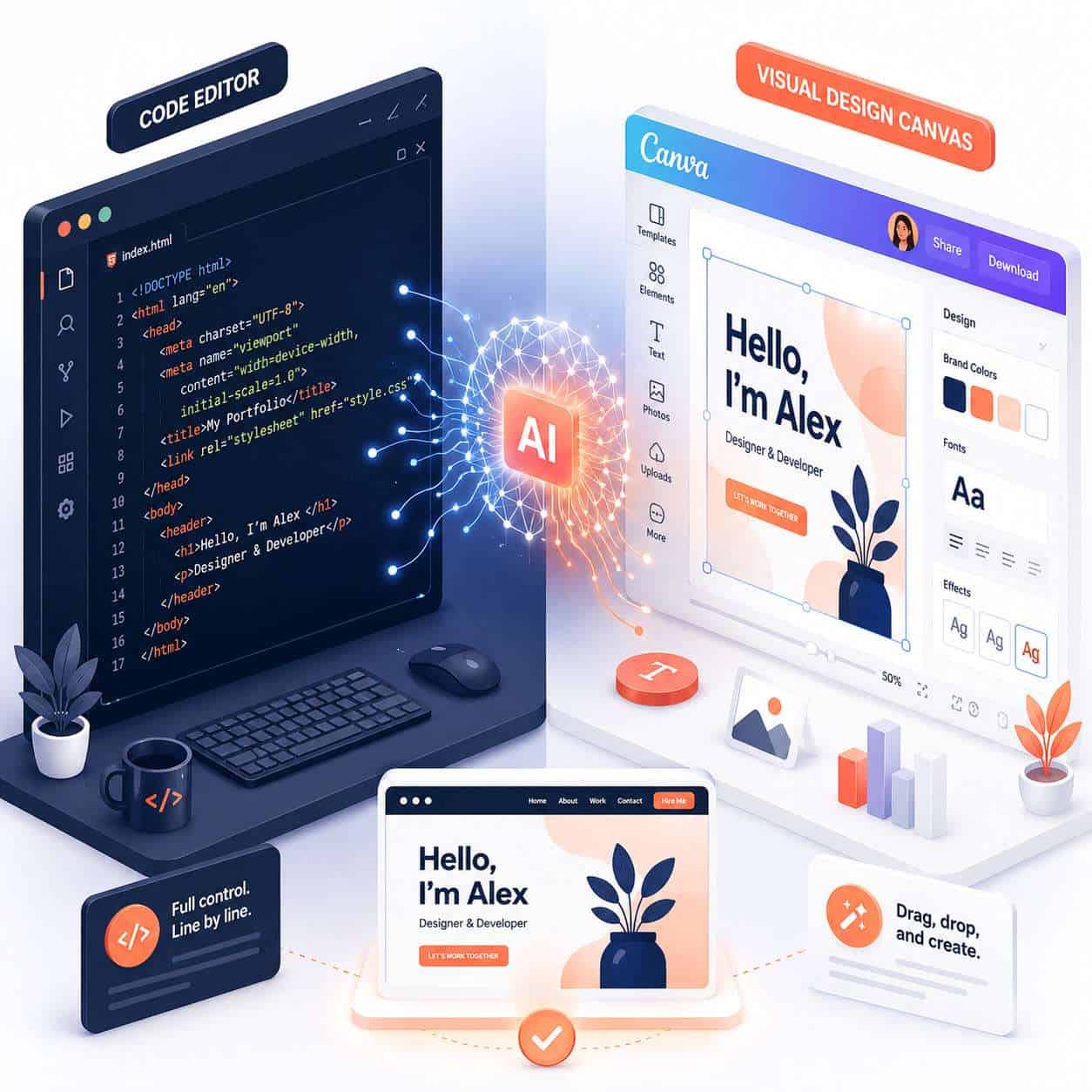
Canva’s AI code generator converts natural language prompts into working front-end code. You describe what you want, such as “a responsive pricing table with three tiers” or “an animated button that changes color on hover,” and the tool produces HTML, CSS, and sometimes JavaScript to match.
The feature lives inside Canva’s editor as part of its broader AI toolkit. Here’s what it handles:
- HTML/CSS components like navigation bars, cards, footers, and form layouts
- Simple JavaScript interactions such as toggles, modals, and hover effects
- Embedded widgets you can export and paste into websites or landing pages
- Code previews so you can see the output rendered in real time before copying
It does not generate backend code, database queries, or full application logic. Think of it as a front-end snippet generator built for visual thinkers. If you’re exploring other AI code generation tools, Canva’s offering sits at the simpler end of the spectrum.
How Much Does Canva’s AI Code Feature Cost?
Canva AI code is bundled into existing Canva subscriptions. There is no separate pricing tier for the code feature alone.
| Plan | AI Code Access | Monthly Generations |
|---|---|---|
| Canva Free | Limited | Approximately 10-15 per month |
| Canva Pro ($14.99/mo) | Full access | Up to 500 AI credits shared across all AI features |
| Canva Teams ($29.99/mo for first 5) | Full access | Higher pooled AI credits |
| Canva Enterprise | Full access | Custom allocation |
The AI credit system means code generation shares a budget with other AI features like Magic Write and image generation. Heavy users of multiple AI tools may hit limits before the month ends. For most casual users, the Pro plan provides more than enough credits.
Is Canva’s AI Code Good for Beginners or Just Pro Developers?
Canva AI code was built with beginners in mind. It’s most useful for people who understand what they want visually but don’t know how to write the code to make it happen.
Choose Canva AI code if you are:
- A designer who needs quick HTML/CSS snippets for client deliverables
- A marketer building landing page components
- A student learning how front-end code works
- A small business owner maintaining your own website
Skip it if you are:
- A professional developer working on production applications
- Building anything that requires server-side logic
- Working on a project that demands precise, optimized code
The interface uses plain English prompts, so there’s zero syntax to learn upfront. That said, having basic HTML awareness helps you evaluate and tweak the output. For a broader look at design tools within the Canva ecosystem, check out our Canva AI design creation guide.
Can I Use Canva AI Code for Commercial Projects?
Yes. Code generated through Canva’s AI tools falls under Canva’s standard content license, which permits commercial use. You can use the output in client work, business websites, and products you sell.
A few things to keep in mind:
- The generated code itself is not proprietary. Similar prompts may produce similar output for other users.
- Canva’s license does not grant exclusivity over AI-generated content.
- If you’re building something for a client, you should review and customize the code rather than delivering raw AI output.
- Always verify that any third-party libraries or frameworks referenced in the output have compatible licenses.
What Programming Languages Does Canva AI Code Support?
Canva AI code focuses exclusively on front-end web technologies: HTML, CSS, and JavaScript. It does not support Python, Java, C++, Ruby, PHP, or any backend language.
Within those three languages, the tool handles:
- Semantic HTML5 markup
- Modern CSS including Flexbox and Grid layouts
- Vanilla JavaScript for interactivity
- Basic responsive design patterns with media queries
If you need code generation for other languages, dedicated tools like Bolt AI code generator or platforms covered in our AI code assistant resources are better fits.
How Accurate Are the Code Suggestions from Canva?
For simple to moderately complex front-end components, Canva’s AI code is reasonably accurate. In my testing, about 80% of basic component requests (buttons, cards, navigation bars) produced usable code on the first attempt.
Accuracy drops in these situations:
- Complex layouts with nested grids or unusual positioning
- Advanced JavaScript involving API calls, state management, or asynchronous operations
- Cross-browser edge cases where specific vendor prefixes or polyfills are needed
- Accessibility requirements like ARIA labels and keyboard navigation (sometimes included, sometimes missing)
Common mistake: Accepting the output without testing it in an actual browser. The in-editor preview is helpful but doesn’t catch every rendering issue. Always paste the code into your target environment and test across devices.

What Are the Limitations of Canva’s AI Code Generator?
Canva’s AI code generator has clear boundaries. Understanding them upfront saves frustration.
- No backend support. You cannot generate server-side code, database queries, or API endpoints.
- No framework-specific output. It won’t produce React components, Vue templates, or Angular modules.
- Limited context memory. Each prompt is treated somewhat independently; it doesn’t maintain deep context across a long conversation the way dedicated AI coding platforms do.
- No version control. There’s no built-in Git integration or code history tracking.
- No debugging tools. If the code has errors, you need to identify and fix them yourself or re-prompt.
- Credit limits. Shared AI credits mean heavy users of other Canva AI features may run out.
For projects that outgrow these constraints, consider moving to a dedicated development environment. Our Replit vs. Claude Code comparison covers two strong alternatives.
How Does Canva’s AI Code Compare to GitHub Copilot?
These tools serve fundamentally different audiences. Here’s a direct comparison:
| Feature | Canva AI Code | GitHub Copilot |
|---|---|---|
| Target user | Designers, beginners | Professional developers |
| Languages | HTML, CSS, JavaScript only | 20+ languages |
| IDE integration | Canva editor only | VS Code, JetBrains, Neovim, etc. |
| Context awareness | Basic, per-prompt | Deep, reads entire codebase |
| Price | Included with Canva Pro ($14.99/mo) | $10/mo individual, $19/mo business |
| Code complexity | Simple front-end snippets | Full application logic |
| Debugging help | Minimal | Inline suggestions and fixes |
| Collaboration | Canva team sharing | Git-based workflows |
Decision rule: Choose Canva AI code if you’re a designer who occasionally needs code snippets. Choose GitHub Copilot if you write code daily and need deep IDE integration. They’re not really competitors; they solve different problems for different people.
Can Canva AI Code Help Me Learn Programming?
Yes, with caveats. Canva AI code can be a useful learning aid because it shows you working code in response to plain English descriptions. You can study the output to understand how HTML structure, CSS styling, and JavaScript logic connect.
Effective learning strategies with the tool:
- Prompt, then study. Ask it to build a component, then read every line of the output before using it.
- Modify and break things. Change values in the generated CSS or JavaScript to see what happens.
- Compare approaches. Prompt the same component in different ways and compare the code differences.
The limitation is that Canva doesn’t explain why the code works. For structured learning, pair it with tutorials or courses. It’s a supplement, not a curriculum. Our no-code resources cover related tools that bridge the gap between visual design and development.
What Kind of Projects Work Best with Canva AI Code?
Canva AI code shines for small, self-contained front-end tasks. The best use cases include:
- Landing page sections like hero banners, testimonial blocks, and pricing tables
- Email-friendly HTML components (pair with our guide on creating email templates in Canva)
- Social media embedded widgets and interactive elements
- Prototype UI components for client presentations
- Simple portfolio pages with basic interactivity
- Event pages with countdown timers or RSVP forms
It’s less suited for single-page applications, e-commerce platforms, or anything requiring user authentication and database operations.
Are There Common Mistakes When Using Canva AI Code?
The most frequent mistake is treating the output as production-ready without review. Here are the top pitfalls I’ve observed:
- Skipping validation. Always run generated HTML through a validator. Missing closing tags are common.
- Ignoring responsiveness. The code may look good at one screen size but break on mobile. Test at multiple breakpoints.
- Vague prompts. “Make a nice website” produces generic output. “Create a three-column pricing table with rounded corners, a highlighted middle column, and a blue-to-purple gradient header” gets much better results.
- Over-prompting complexity. Asking for too much in a single prompt often produces messy code. Break complex components into smaller requests.
- Not checking accessibility. Generated code frequently lacks proper alt text, focus states, and semantic heading hierarchy.
What Happens If the AI Code Has Bugs?
Canva does not guarantee bug-free output. If the generated code has errors, you have three options:
- Re-prompt with more detail. Describe the specific issue and ask for a corrected version.
- Edit manually. For small bugs like a missing semicolon or incorrect class name, fixing it yourself is faster.
- Use browser developer tools. Open the console to identify JavaScript errors, then address them directly.
Canva does not offer technical support for debugging AI-generated code. The responsibility for testing and validating output rests with you.
Is Canva AI Code Free with My Current Plan?
Partially. Free-tier Canva users get a small number of AI generations per month (shared across all AI features). For regular use of the code generator, you’ll need Canva Pro or higher. The feature is not sold as a standalone add-on.
FAQ
Does Canva AI code work offline? No. It requires an active internet connection because the AI processing happens on Canva’s servers.
Can I export Canva AI code to VS Code or another editor? Yes. You can copy the generated code and paste it into any text editor or IDE. There’s no direct integration, but the code is standard HTML/CSS/JavaScript.
Does Canva AI code generate React or Vue components? No. It only produces vanilla HTML, CSS, and JavaScript. You’d need to manually convert the output into framework-specific syntax.
Is the generated code SEO-friendly? The HTML structure is generally clean, but you should manually add meta tags, proper heading hierarchy, and structured data for SEO purposes.
Can multiple team members use Canva AI code simultaneously? Yes, on Canva Teams and Enterprise plans. AI credits are pooled across the team.
How often does Canva update its AI code feature? Canva rolls out updates to its AI tools regularly, typically every few weeks. Feature improvements are applied automatically.
Does Canva store or reuse my generated code? Canva’s privacy policy covers AI-generated content. Generated code is associated with your account but Canva may use anonymized data to improve its models.
Can I use Canva AI code to build a full website? You can generate individual sections and assemble them, but it’s not designed as a full website builder. For complete sites, consider dedicated website builders.
What’s the maximum code length Canva AI can generate in one prompt? There’s no officially published limit, but in practice, outputs tend to cap at around 200-300 lines. Longer components should be broken into multiple prompts.
Conclusion
Canva AI code fills a practical niche for designers, marketers, and beginners who need front-end code without the learning curve of a full development environment. It’s not a replacement for professional coding tools, and it won’t build your next SaaS product. But for quick HTML/CSS/JavaScript snippets, landing page components, and learning how web code works, it delivers real value within the Canva ecosystem.
Your next steps:
- Open Canva and try generating a simple component like a pricing card or navigation bar.
- Review the output line by line before using it.
- Test the code in your actual target environment, not just the Canva preview.
- If you outgrow the tool, explore dedicated options like Bolt AI or Replit for more complex projects.
Start small, validate everything, and treat the AI output as a first draft rather than a finished product.
Useful Resources: Canva design platform & Canva Design School free tutorials