
Last updated: June 7, 2026
Quick Answer: Canva for students is free through Canva Education, giving verified students and teachers access to premium design features at no cost. This includes thousands of templates, millions of stock images, and collaboration tools that work for everything from class presentations to research posters. Most K-12 and higher education students qualify, and the verification process takes just a few minutes.
Key Takeaways
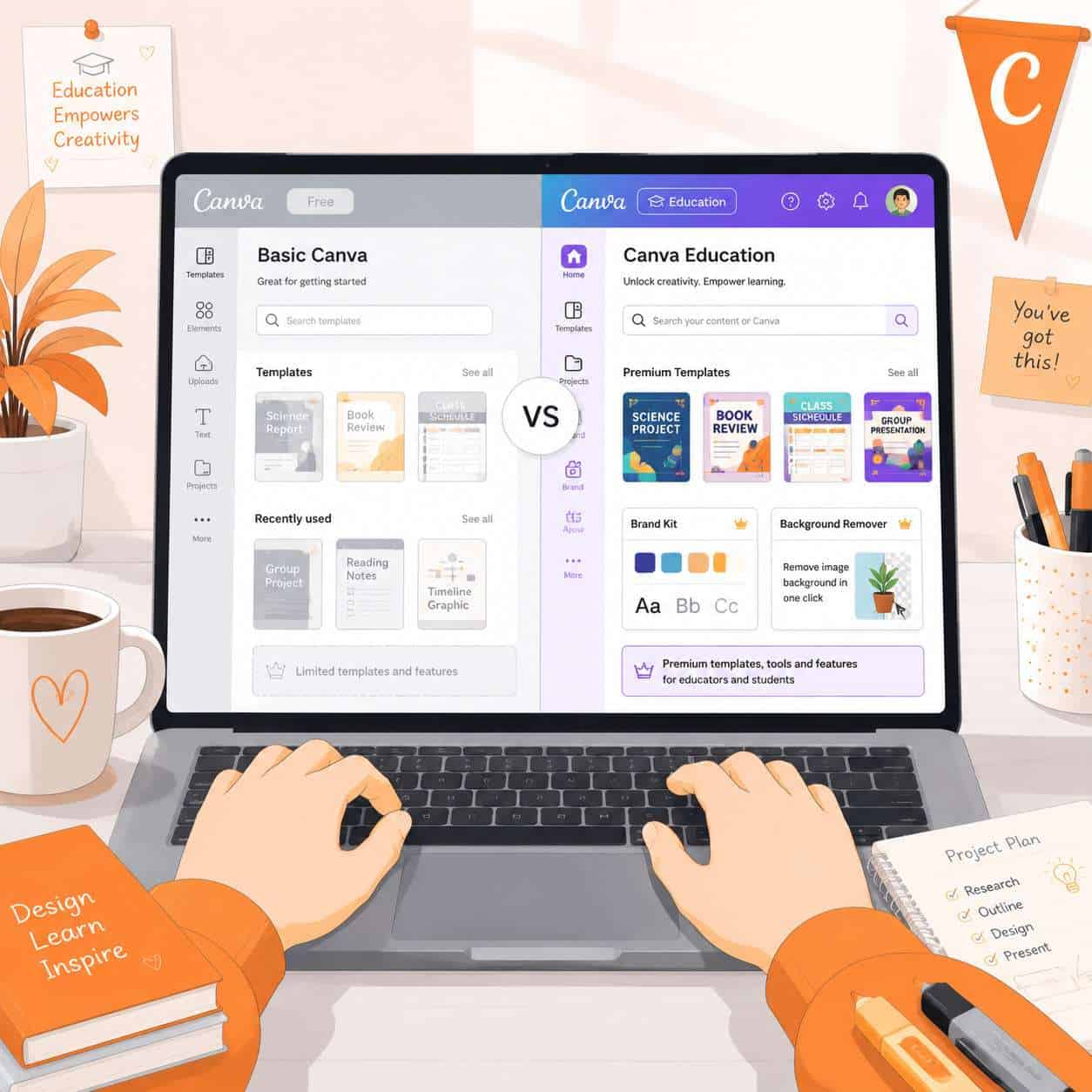
- Canva Education gives students free access to nearly all Canva Pro features, including premium templates, brand kits, and background remover.
- Verification requires a valid school email address or manual document upload, and international students are eligible too.
- High school and college students can use Canva for presentations, infographics, research posters, social media projects, and more.
- The free student account has minor limitations, such as restricted cloud storage compared to paid team plans and no resale rights for certain assets.
- Alternatives like Google Slides, PowerPoint, and Figma exist, but Canva offers the lowest learning curve for non-designers.
- Common student mistakes include overcrowding slides, using too many fonts, and ignoring alignment tools.
- Canva works in any modern browser, so there’s nothing to install.
Is Canva Free for Students?
Yes, Canva is completely free for students through its Canva Education program. Any student enrolled at a K-12 school or accredited higher education institution can sign up without paying anything.
Canva Education launched as an expansion of the company’s commitment to making design accessible. The program provides access to features that normally sit behind the Canva Pro paywall, including:
- Over 100 million stock photos, videos, and graphics
- Premium templates for presentations, posters, and documents
- Background remover and Magic Resize tools
- Brand Kit for consistent school project branding
- Up to 100 GB of cloud storage
The catch? You need to verify your student status. But the process is straightforward, and I’ll cover exactly how below.
How Much Does Canva Pro Cost for College Students?
For verified college students, Canva Pro features are free through Canva Education. You don’t need a separate Canva Pro subscription.
If for some reason you can’t verify your student status, the standard Canva Pro plan costs around $13 per month (or roughly $120 per year as of 2026). But most students won’t need to pay this. Canva Education covers the vast majority of Pro features at zero cost.
Decision rule: If your school has a .edu email domain or is listed in Canva’s institution database, go with Canva Education first. Only consider paying for Pro if verification fails and you need premium assets immediately. You can also explore other .edu student perks that may be available to you.
What Features Do Students Get With Canva Education?
Canva Education includes nearly every Canva Pro feature, plus some education-specific tools. Students get premium templates, stock media, AI-powered design tools, and real-time collaboration built for classroom use.
Here’s a breakdown of what’s included versus what’s not:
| Feature | Canva Free | Canva Education | Canva Pro |
|---|---|---|---|
| Basic templates | Yes | Yes | Yes |
| Premium templates | No | Yes | Yes |
| Stock photos/videos | Limited | Full library | Full library |
| Background remover | No | Yes | Yes |
| Magic Resize | No | Yes | Yes |
| Brand Kit | No | Yes | Yes |
| Cloud storage | 5 GB | 100 GB | 1 TB |
| AI design tools | Limited | Yes | Yes |
| Classroom collaboration | No | Yes | No |
| Priority support | No | No | Yes |
The classroom collaboration feature is unique to Education accounts. Teachers can create assignments, share templates with students, and review work directly inside Canva. If you’re interested in how AI tools are changing design workflows, check out our guide on Canva AI design creation.
Can High School Students Use Canva for School Projects?
Absolutely. High school students are a core audience for Canva Education. Teachers can invite students under 18 through a classroom link, and students 13 and older can create accounts with parental or school consent.
Canva works well for high school projects because:
- Presentations are the most common use case. Canva’s slide templates look polished without requiring design skills.
- Infographics help students visualize data for science fairs, history timelines, or social studies reports.
- Group projects benefit from real-time collaboration, where multiple students edit the same design simultaneously.
- Digital portfolios let students showcase their best work for college applications.
One thing to note: some schools restrict access to external websites on school networks. If Canva is blocked, students can usually access it from home or request that their school IT department whitelist the domain. For more on handling school network restrictions, we have additional resources.
What Kind of School Assignments Work Best With Canva?
Canva excels at visual assignments where presentation quality matters. It’s less suited for text-heavy documents like research papers, where Google Docs or Word are better choices.
Best assignment types for Canva:
- Slide presentations for any subject
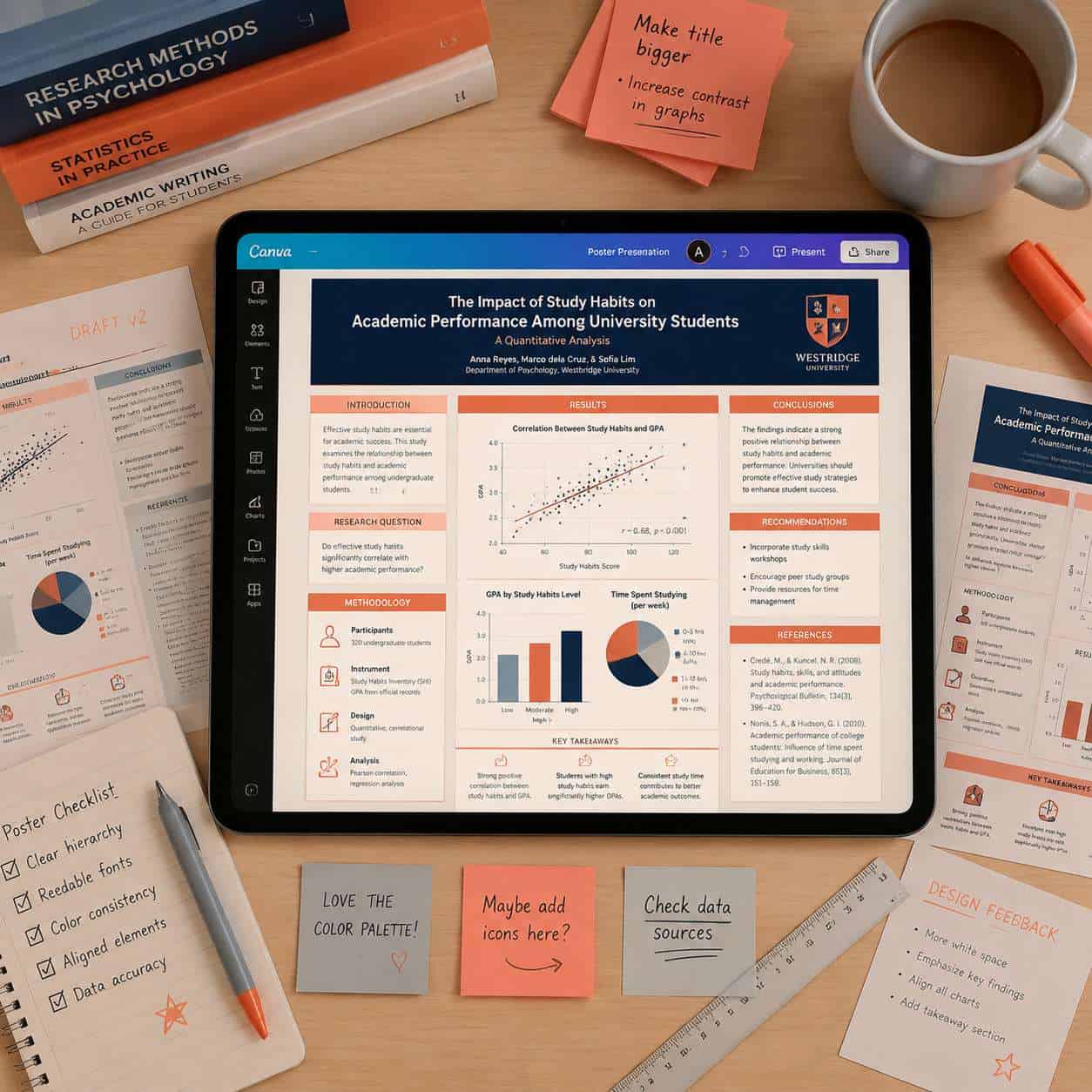
- Research posters for science fairs and academic conferences
- Infographics summarizing data or processes
- Social media mockups for marketing or communications classes
- Book covers and magazine layouts for creative writing courses
- Flashcards and study guides for personal review
- Video presentations using Canva’s built-in video editor
- Resumes and cover letters for career prep classes
Not ideal for: Long-form essays, spreadsheet-heavy analysis, or coding assignments. Use the right tool for the right job.
How to Use Canva for Research Posters
Canva offers dedicated research poster templates sized for standard academic poster dimensions (typically 48 x 36 inches). Start by searching “research poster” in the template library, then customize the layout with your data, charts, and findings.
Here’s a step-by-step process:
- Open Canva and search for “research poster” or “academic poster” in templates.
- Choose a template that matches your field’s conventions (science posters tend to be more structured; humanities posters allow more creative layouts).
- Replace placeholder text with your title, abstract, methodology, results, and conclusions.
- Add charts and graphs by uploading images from your data analysis tools or using Canva’s built-in chart maker.
- Use consistent fonts throughout. Stick to two fonts maximum: one for headings, one for body text.
- Export as PDF at the highest resolution for printing.
Common mistake: Students often make text too small on research posters. Your body text should be readable from about 4 feet away, which means a minimum of 24-point font for body text and 72-point or larger for titles.
Common Mistakes Students Make When Designing in Canva
The biggest mistake is trying to use every feature at once. Restraint is what separates a clean design from a cluttered one.
Here are the most frequent errors I see:
- Too many fonts. Stick to two, maybe three at most. Mixing five different typefaces makes your work look chaotic.
- Ignoring alignment. Canva has snap-to-grid and alignment guides. Use them. Misaligned elements are the fastest way to make a design look amateur.
- Overcrowding slides. Each slide should communicate one idea. If you’re cramming paragraphs of text onto a single slide, you’re doing it wrong.
- Low-contrast text. Light gray text on a white background is unreadable. Always check that your text has enough contrast against its background.
- Using default template text. I’ve seen students submit presentations with “Lorem ipsum” still in the footer. Always review every text box.
- Skipping the export settings. Exporting a print poster as a low-resolution PNG will produce blurry results. Choose PDF Print for anything that needs to be physically printed.
For more foundational design principles, our beginner’s guide to logo design covers visual hierarchy and color theory basics that apply to all Canva projects.
Tips for Creating Professional-Looking Slides in Canva
The secret to professional slides is consistency and white space. Pick one template, stick with its color scheme, and resist the urge to fill every inch of the slide.
Practical tips:
- Use the Brand Kit to lock in your colors and fonts across all slides.
- Limit text to 6 lines per slide and use bullet points instead of paragraphs.
- Choose high-quality images. Canva’s premium stock library (free with Education) is far better than random Google Images results.
- Apply animations sparingly. One subtle transition per slide is enough. Avoid the “bounce” and “tumble” effects for academic presentations.
- Use speaker notes instead of putting everything on the slide itself.
- Preview on a projector or large screen before presenting. Colors and text sizes look different when projected.
If you’re exploring other presentation tools alongside Canva, our roundup of AI-powered presentation design tools covers several strong options.
How to Verify Student Status for Canva Pro
Verification for Canva Education typically requires a school email address ending in .edu (or your country’s equivalent). If you don’t have one, you can upload documentation manually.
Steps to verify:
- Go to canva.com/education and click “Get verified.”
- Enter your school email address. If your institution is in Canva’s database, you’ll be verified almost instantly.
- If automatic verification fails, upload a photo of your student ID, enrollment letter, or other proof of enrollment.
- Manual verification usually takes 24 to 48 hours.
Edge case: Some community colleges and vocational schools aren’t in Canva’s database. In that case, manual verification with documentation is your best path. Don’t give up if the automatic route doesn’t work.
Can International Students Access Canva Education Discount?
Yes. Canva Education is available globally, not just in the United States. Students from any country can apply as long as they’re enrolled at a recognized educational institution.
International students should know:
- School email domains vary by country (.ac.uk in the UK, .edu.au in Australia, etc.). Canva recognizes most of these.
- If your institution isn’t in the database, manual verification with enrollment documents works regardless of country.
- The interface supports over 100 languages, so you can design in your preferred language.
- All features are identical regardless of location. There are no region-locked tools.
Limitations of Canva’s Free Student Account
While Canva Education is generous, it isn’t identical to a full Canva Pro or Canva Teams subscription. A few limitations exist.
- Cloud storage caps at 100 GB (versus 1 TB for Pro).
- No priority support. You’ll use standard support channels.
- Some premium integrations with third-party apps may be restricted.
- Commercial use restrictions apply to certain stock assets if you’re using designs for paid freelance work.
- Team features like advanced permissions and workflow approvals are limited compared to Canva Teams.
For most students, these limitations won’t matter. The 100 GB storage limit is more than enough for four years of coursework, and the commercial use restrictions only apply if you’re selling designs professionally.
Best Graphic Design Tools for Students on a Budget
Canva leads the pack for students who need quick, polished designs without a learning curve. But it’s not the only option.
| Tool | Best For | Cost for Students | Learning Curve |
|---|---|---|---|
| Canva | All-purpose design | Free (Education) | Very low |
| Google Slides | Simple presentations | Free | Very low |
| Figma | UI/UX design | Free (Education) | Medium |
| Adobe Express | Social media graphics | Free tier available | Low |
| PowerPoint | Traditional presentations | Free with .edu (Microsoft 365) | Low |
| Piktochart | Infographics | Free tier available | Low |
Choose Canva if you want one tool that handles presentations, posters, social media, and documents. Choose Figma if you’re studying design or need precise layout control. Choose Google Slides if your school is already on Google Workspace and you need simple slides fast.
For students interested in more advanced design work, our guide on creating Figma components is a solid next step.
Alternatives to Canva for Making Presentations
Google Slides and Microsoft PowerPoint remain the most popular alternatives to Canva for student presentations. Both are free for students and integrate directly with school learning management systems.
- Google Slides is best when your entire class collaborates in Google Workspace. It’s simpler than Canva but also less visually flexible.
- Microsoft PowerPoint offers more advanced animation and charting tools. Most students get it free through Microsoft 365 Education.
- Prezi provides a zooming, non-linear presentation style that works well for storytelling-heavy topics.
- Beautiful.ai uses AI to auto-format slides as you add content, which saves time but limits customization.
Canva’s advantage over all of these is its template library. No other free tool gives students access to as many professionally designed starting points. Browse more design resources in our Canva archives for template tips and tutorials.
Conclusion
Canva for students is one of the best free tools available in 2026 for academic design work. The Canva Education program removes the cost barrier entirely, giving students access to premium features that would otherwise cost $120+ per year.
Your next steps:
- Visit canva.com/education and verify your student status with your school email.
- Start with a template rather than a blank canvas for your next assignment.
- Stick to two fonts, one color palette, and plenty of white space.
- Export in the right format: PDF for print, PNG for digital, and PPTX if your professor requires PowerPoint files.
- Explore Canva’s collaboration features for group projects.
The tool won’t make you a graphic designer overnight, but it will make your school work look significantly more polished with minimal effort. And for students on a budget, “free and good enough” beats “expensive and perfect” every time.
Frequently Asked Questions
Is Canva Education the same as Canva Pro? Nearly. Canva Education includes most Canva Pro features like premium templates, stock media, and background remover. The main differences are slightly less cloud storage (100 GB vs. 1 TB) and no priority support.
Can I use Canva Education after I graduate? Your access typically expires when your school email is deactivated or when Canva re-verifies your enrollment. Most students retain access for a few months after graduation, but this varies.
Do I need to download Canva to use it? No. Canva runs entirely in your web browser. There are also optional desktop and mobile apps, but the browser version has full functionality.
Can teachers see my Canva designs? Only if you share them. Teachers using Canva for Education classrooms can assign templates and view submitted work, but they cannot access your personal designs unless you explicitly share a link.
Is Canva safe for students under 18? Yes. Canva Education accounts for minors are set up through teacher-managed classrooms with privacy protections. Content is filtered, and sharing is restricted to the classroom by default.
Can I use Canva designs in my portfolio? Yes, for personal and academic portfolios. If you’re selling designs commercially, check the licensing terms for any stock assets you’ve used, as some have restrictions on commercial resale.
Does Canva work on Chromebooks? Yes. Since Canva is browser-based, it works on Chromebooks, Windows, Mac, and Linux. Performance is smooth on most devices with a stable internet connection.
Can I collaborate with classmates in real time on Canva? Yes. You can share any design with classmates and edit simultaneously, similar to Google Docs. Each person’s cursor is visible, and changes save automatically.
What file formats can I export from Canva? PNG, JPG, PDF (standard and print quality), SVG, MP4 (for video), GIF, and PPTX. Education accounts have access to all export options.
Is there a limit to how many designs I can create? No. There is no cap on the number of designs you can create or save with a Canva Education account. The only limit is your cloud storage for uploaded files.
SEO Meta Title: Canva for Students: Free Features, Tips, and Guide 2026
SEO Meta Description: Learn how Canva for students works in 2026. Free access through Canva Education, verification steps, design tips, and the best alternatives compared.
Useful Resources: Canva Design School free tutorials