Last updated: May 9, 2026
Quick Answer: Zapier is a no-code automation platform that connects over 7,000 apps, letting you build automated workflows (called Zaps) that move data and trigger actions between tools without writing a single line of code. [1] It’s best suited for small to mid-sized teams who want to cut repetitive manual tasks, reduce human error, and free up time for higher-value work. Setup takes minutes for simple Zaps and a few hours for complex multi-step workflows.
Key Takeaways
- Zapier connects 7,000+ apps through trigger-and-action workflows called Zaps [1]
- A basic Zap follows four steps: choose a trigger app, define the event, select an action app, and map the data [2]
- Multi-step Zaps let you chain several actions into one automated sequence, reducing the need for multiple separate Zaps [1]
- The AI Copilot feature builds Zaps from plain-language descriptions, making setup faster for beginners [1]
- Conditional logic (Paths) lets workflows branch based on if/then rules, handling different scenarios automatically [1]
- Scheduling controls let Zaps run hourly, daily, weekly, or on custom intervals [1]
- Before automating, document your current process step-by-step to spot inefficiencies first [3]
- Clear Zap naming and task usage monitoring are essential for keeping automations manageable at scale [1]
What Is Zapier and How Does Workflow Automation Work?
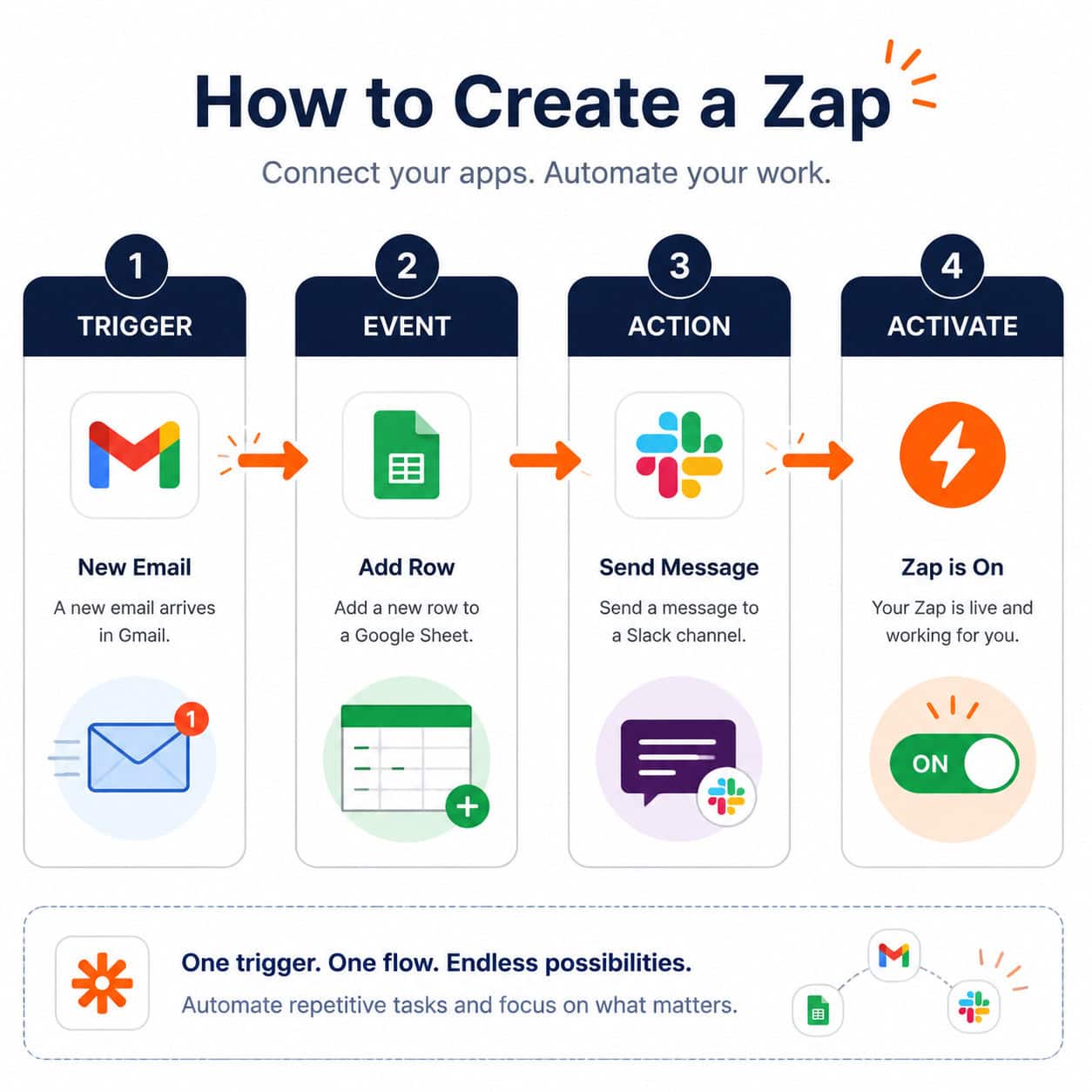
Zapier is a web-based automation tool that connects apps through a trigger-and-action model. When a specified event happens in one app (the trigger), Zapier automatically performs one or more actions in another app — no manual intervention needed.
The core unit is a Zap, which consists of:
- Trigger: The event that starts the workflow (e.g., a new email arrives in Gmail)
- Action: What Zapier does in response (e.g., add a row to Google Sheets)
- Filter (optional): Conditions that must be true for the Zap to run
- Paths (optional): Branching logic that sends the workflow in different directions based on if/then rules [1]
Who it’s for: Marketers, operations managers, freelancers, and small business owners who use multiple SaaS tools and spend significant time on repetitive data entry or handoffs between apps.
Who it’s not for: Teams with highly complex, custom-coded backend processes or those needing real-time data processing at enterprise scale — those cases typically require dedicated iPaaS solutions or custom API integrations.
How Do You Build Your First Zap? A Step-by-Step Process
Building a basic Zap takes under 10 minutes. Here’s the straightforward process: [2]
Step 1: Choose your trigger app
Select the app where the workflow starts (e.g., Gmail, Typeform, Shopify).
Step 2: Define the trigger event
Pick the specific event that activates the Zap (e.g., “New Email,” “New Form Submission,” “New Order”).
Step 3: Select your action app
Choose where Zapier sends the data (e.g., Google Sheets, Slack, HubSpot).
Step 4: Map the data fields
Tell Zapier which data from the trigger should populate which fields in the action app.
Step 5: Test and activate
Run a test with real data to confirm the Zap works, then switch it on.
Common mistake: Skipping the test step. Always test with a live sample — dummy data often misses field-mapping issues that only appear with real inputs.
Using AI Copilot: If you’re unsure where to start, Zapier’s AI Copilot lets you describe your goal in plain language (e.g., “When I get a new lead in my form, add them to my CRM and send a Slack alert”). The AI suggests the trigger, action apps, and configuration automatically. [1]
What Are Multi-Step Zaps and When Should You Use Them?
Multi-step Zaps chain multiple actions into a single automated workflow, so one trigger can kick off several sequential tasks. [1]
Example: A new Typeform submission triggers Zapier to:
- Add the contact to HubSpot CRM
- Send a personalized welcome email via Gmail
- Post a notification to a Slack channel
- Create a task in Asana for follow-up
This replaces four separate Zaps with one, keeping your workspace cleaner and your task usage lower.
Choose multi-step Zaps when:
- A single event requires updates in three or more apps
- You need data from one action to feed into the next (e.g., use a CRM contact ID created in step 1 to personalize the email in step 2)
- You want to reduce the total number of Zaps you’re managing
For teams also exploring automation across design and content tools, see how AI-powered workflow automation can extend into creative processes as well.
How Does Conditional Logic (Paths) Work in Zapier?
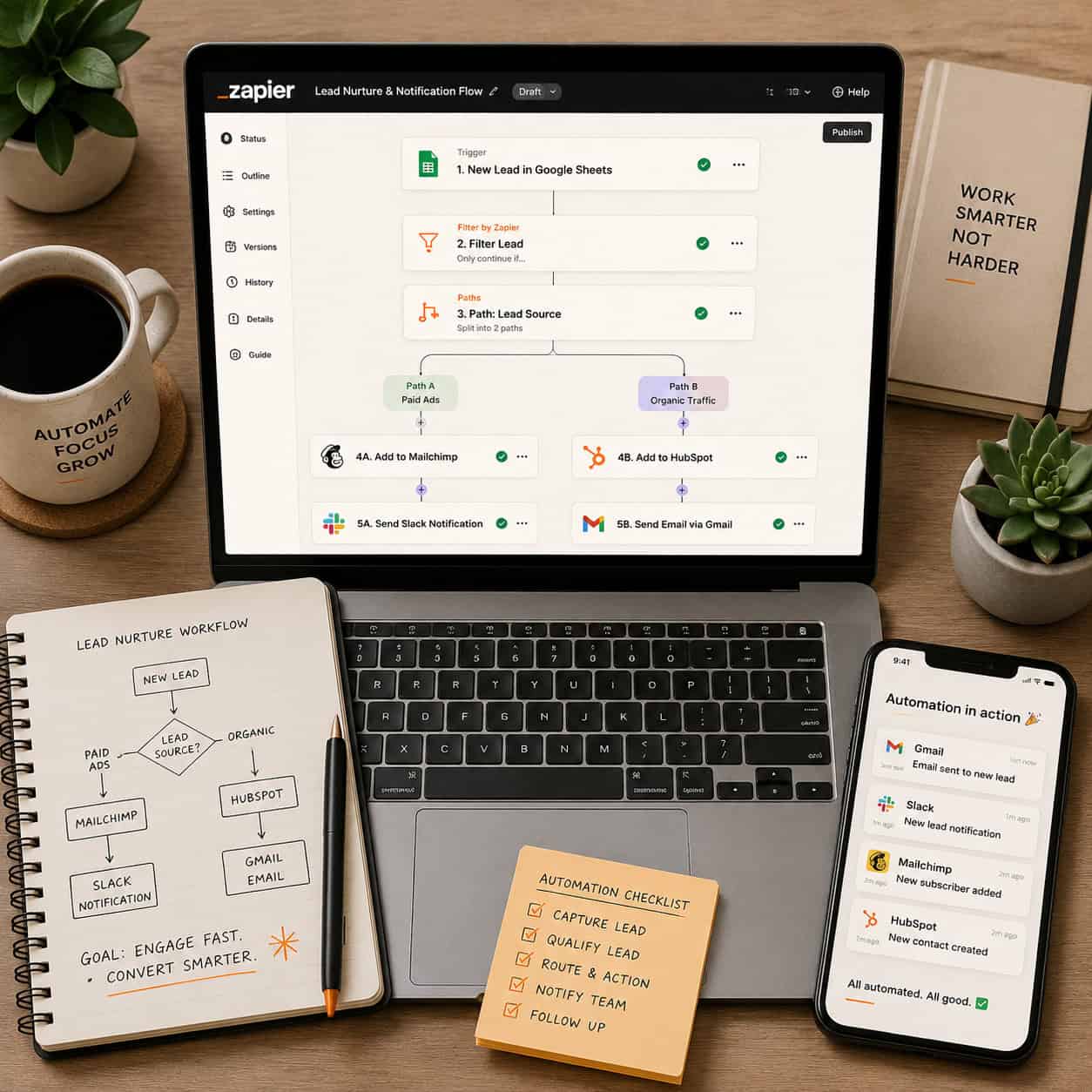
Paths let a single Zap branch into different outcomes based on conditions you define — essentially if/then logic built into your workflow. [1]
Example:
- If a form submission includes “Enterprise” in the company size field → route to the enterprise sales Slack channel and assign to a senior rep in the CRM
- If the submission says “Startup” → add to a nurture email sequence instead
| Scenario | Without Paths | With Paths |
|---|---|---|
| Different lead types | Requires separate Zaps | One Zap handles all |
| Multiple notification channels | Manual sorting needed | Automated routing |
| Conditional data updates | Not possible | Fully automated |
Edge case: Paths are available on paid Zapier plans only. If you’re on the free tier and need branching logic, you’ll need to upgrade or use Filters as a workaround (which stops a Zap from running rather than redirecting it).
How Should You Plan Before Automating a Business Process?
Automation built on a broken process just produces broken results faster. Zapier’s own recommended approach is a five-phase method: [3]
- Familiarize yourself with the basics — understand triggers, actions, and Zap structure
- Automate one task first — pick your most repetitive, low-risk task to start
- Outline your current process — document each step on paper or in a tool like Notion before touching Zapier
- Research available integrations — check whether your apps are supported and what triggers/actions exist
- Create, test, and iterate — build the Zap, test it thoroughly, then refine based on real usage
The documentation step is often skipped, but it’s the most important. Writing out your current workflow exposes steps that are redundant, unclear, or owned by no one — problems that automation will amplify if left unaddressed. [3]
For teams managing content or publishing workflows, automating how you share WordPress blog posts to social media is a practical first automation to try.
What Are the Best Practices for Managing Zaps at Scale?
Once you have more than a handful of Zaps running, organization becomes critical. Here are the practices that keep things manageable: [1]
Naming conventions: Use a consistent format like [Team] - [Trigger App] → [Action App] - [Purpose]. For example: Marketing - Typeform → HubSpot - New Lead Sync. Anyone on the team can understand the Zap’s purpose at a glance.
Folder organization: Group Zaps by department (Marketing, Sales, Operations) or by workflow type (Lead Management, Reporting, Notifications).
Task usage monitoring: Each Zapier plan has a monthly task limit. Check your usage dashboard regularly to avoid hitting the cap mid-month, which pauses all your Zaps. [1]
Team sharing: Zapier’s team features let you share Zaps with colleagues so automations aren’t locked to one person’s account. This prevents single points of failure when someone leaves the team. [1]
Audit schedule: Review all active Zaps quarterly. Apps update their APIs, which can break existing Zaps silently — a regular audit catches these before they cause data loss.
For broader automation strategies across your tech stack, the automation resources at WebAiStack cover additional tools and approaches worth exploring.
How Does Zapier Compare to Alternatives Like Make (Integromat) or n8n?
Zapier is the easiest to use but not always the most cost-effective at scale. Here’s a practical comparison:
| Factor | Zapier | Make (Integromat) | n8n |
|---|---|---|---|
| Ease of use | Very easy | Moderate | Technical |
| App integrations | 7,000+ [1] | 1,000+ | 400+ |
| Pricing model | Per task | Per operation | Self-hosted (free) |
| Conditional logic | Yes (paid) | Yes (all plans) | Yes |
| Best for | Non-technical teams | Cost-conscious teams | Developers |
Choose Zapier if your team is non-technical, you need access to a wide app library, and setup speed matters more than per-task cost.
Choose Make if you’re running high-volume automations and want lower per-operation costs with more visual workflow control.
Choose n8n if you have developer resources, want full data control, and prefer self-hosting to avoid SaaS pricing entirely.
Teams already using AI tools in their stack may also find value in exploring AI-powered content optimization tools that can be connected to Zapier workflows for end-to-end content automation.
FAQ: Zapier Workflow Automation
Q: Is Zapier free to use?
Zapier offers a free plan that supports up to 100 tasks per month and single-step Zaps. Multi-step Zaps, Paths, and higher task limits require a paid plan starting at around $19.99/month (billed annually), though pricing changes — check Zapier’s site for current rates.
Q: What’s the difference between a Zap and a workflow?
A Zap is Zapier’s term for a single automated workflow. The words are used interchangeably in most contexts. A multi-step Zap is simply a workflow with more than one action step.
Q: Can Zapier handle real-time automation?
Most Zaps run on a polling interval (every 1–15 minutes depending on your plan), not instantly. Instant triggers are available for apps that support webhooks, which do fire in real time.
Q: Do I need coding skills to use Zapier?
No. Zapier is designed for non-technical users. The AI Copilot feature makes setup even simpler by letting you describe what you want in plain language. [1]
Q: What happens if a Zap fails?
Zapier logs all errors in your Zap history and sends email alerts for failures. You can replay failed tasks once the underlying issue (usually a broken connection or changed field name) is fixed.
Q: How many Zaps can I have active at once?
The free plan allows 5 active Zaps. Paid plans increase this limit significantly — check your plan tier for the exact number.
Q: Can I share Zaps with my team?
Yes. Team and Company plans allow Zap sharing and collaborative editing. Individual plans keep Zaps private to one account. [1]
Q: Is my data safe with Zapier?
Zapier is SOC 2 Type II certified and uses encryption in transit and at rest. For sensitive data (HIPAA, financial records), review Zapier’s compliance documentation and consider whether a self-hosted alternative like n8n is more appropriate.
Q: What’s the best first automation to build?
Start with a high-frequency, low-risk task: syncing form submissions to a spreadsheet, sending Slack notifications for new emails, or adding calendar events from task manager updates. These are easy to test and immediately save time.
Q: Can Zapier connect to WordPress?
Yes. Zapier integrates with WordPress directly and through plugins, enabling automations like publishing posts, syncing form data, or triggering workflows from new comments. See our guide to AI plugins for WordPress automation for tools that pair well with Zapier.
Conclusion: Your Next Steps with Zapier Workflow Automation
Zapier workflow automation is one of the most practical ways to reclaim time lost to repetitive manual tasks — without hiring developers or rebuilding your tech stack. The key is starting small, documenting your processes before you automate them, and building complexity gradually as you get comfortable with multi-step Zaps and conditional logic.
Your action plan:
- Audit your week — identify the three most repetitive tasks you do manually
- Check app compatibility — confirm your tools are in Zapier’s 7,000+ app library [1]
- Document the process — write out each step before touching Zapier [3]
- Build one Zap — start with a single-step automation and test it thoroughly
- Expand gradually — add multi-step Zaps and Paths once your first automation is stable
- Organize from day one — name and folder your Zaps consistently so the system scales cleanly [1]
For teams looking to extend automation beyond task management into content and design workflows, explore how AI-powered content generation tools can slot into a Zapier-connected stack.
The goal isn’t to automate everything — it’s to automate the right things so your team can focus on work that actually requires human judgment.
References
[1] How To Use Zapier – https://www.jasper.ai/blog/how-to-use-zapier
[2] Zapier Workflow Automation – https://www.ringover.com/blog/zapier-workflow-automation
[3] Workflow Automation – https://zapier.com/blog/workflow-automation/
[4] Guides – https://zapier.com/resources/guides
[8] Blog – https://zapier.com/blog/