Last updated: May 10, 2026
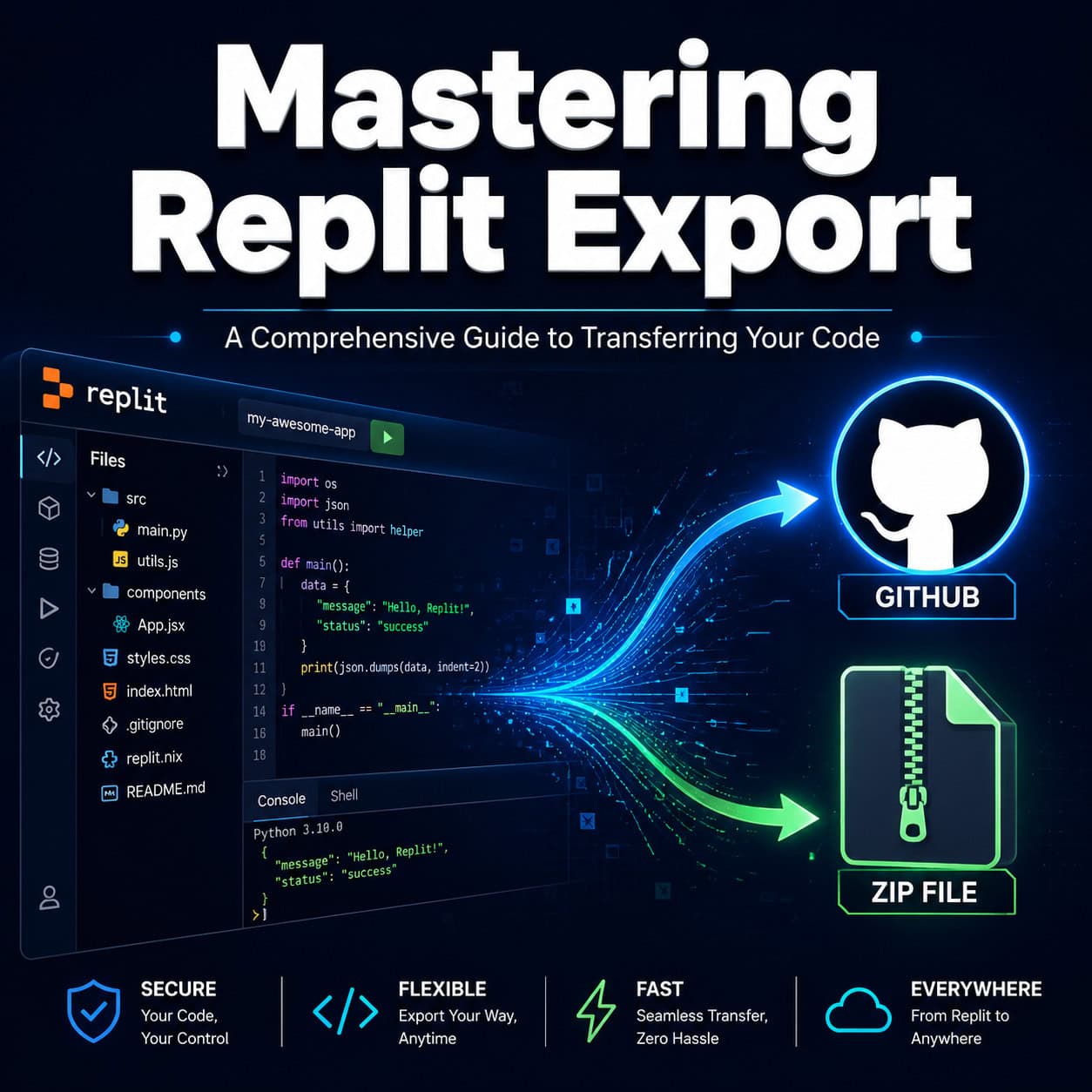
Quick Answer: Exporting code from Replit comes down to two main methods: syncing your project to GitHub through Replit’s built-in Git panel, or downloading your files as a ZIP. GitHub integration is the recommended approach because it preserves version history and makes collaboration easier. ZIP downloads work for quick grabs but lose all commit history [1].
Key Takeaways
- GitHub sync is the primary export method in Replit as of 2026, and the most reliable way to transfer full projects [1].
- ZIP downloads are available but skip version history, making them better for one-off snapshots than production moves.
- Environment variables (.env files) don’t export automatically. You need to manually recreate them in your new environment.
- Free tier users should export early and often to avoid losing work if account limitations change [10].
- Third-party tools like Replit Exporter exist on GitHub for bulk downloading projects [6].
- Replit’s security features (Auto-Protect, Security Agent) scan dependencies before export but don’t change how export works [2].
- Alternatives like GitHub Codespaces, Cursor AI, and Rocket.new offer different export and ownership models worth comparing.
- Always test your exported code locally before deploying to production. Replit-specific configurations may not transfer cleanly.
Why Does Exporting from Replit Matter?
Replit is a browser-based IDE that supports over 50 programming languages and makes prototyping fast. But prototypes grow into real projects, and real projects need to live somewhere more permanent.
Mastering Replit export is about ownership. When your code only exists inside Replit’s ecosystem, you’re dependent on their pricing, uptime, and feature decisions. Reddit users in r/replit have shared frustrations about free tier changes catching them off guard, with one developer spending days debugging after unexpected limitations kicked in [10]. Exporting gives you a safety net.
If you’re building anything beyond a quick experiment, having your code in a Git repository or local backup is non-negotiable. This is true whether you’re a student, a freelancer, or a team shipping production software. For those working across multiple no-code and low-code platforms, understanding export workflows keeps your projects portable.
How Do You Export Code from Replit to GitHub?
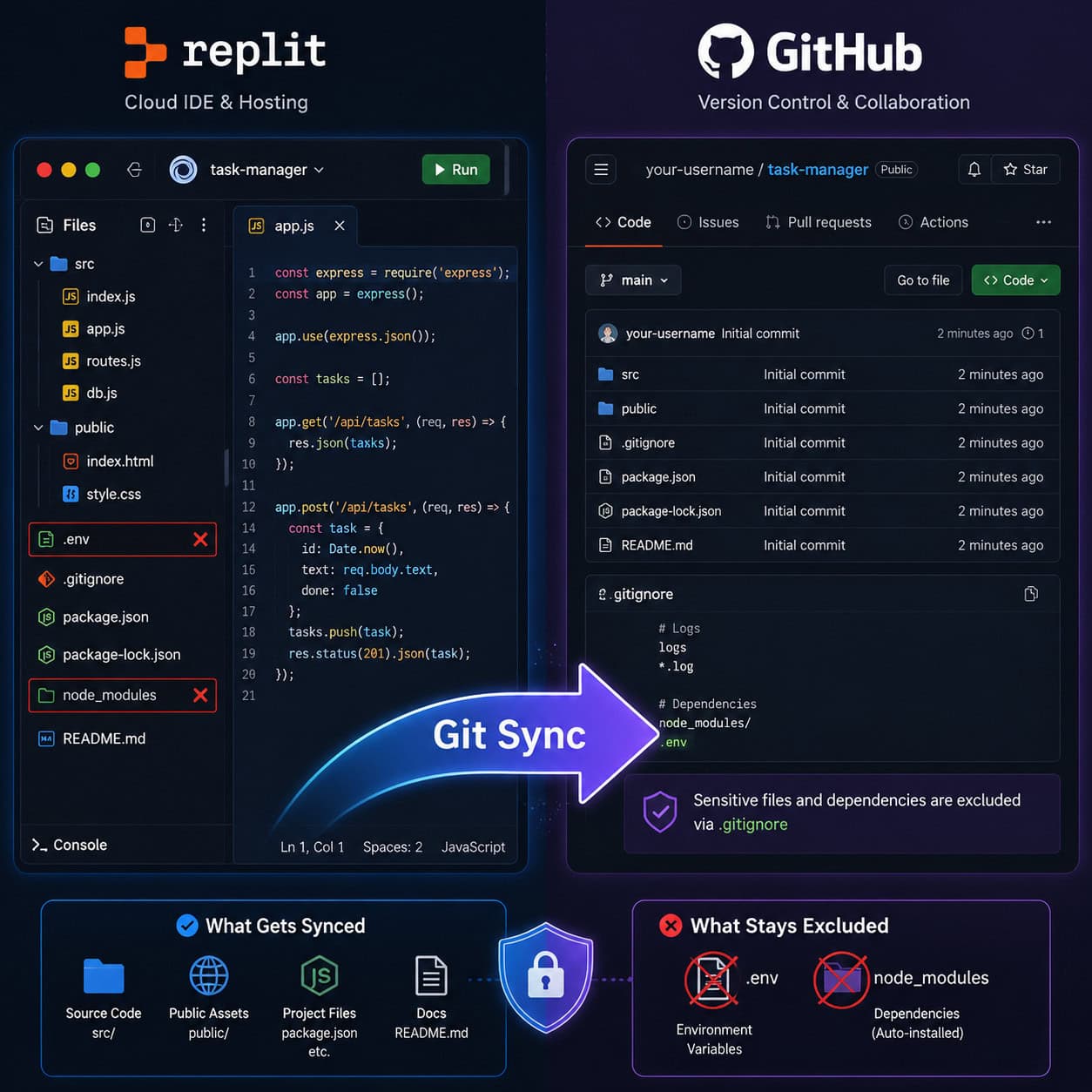
GitHub integration is the best way to export a Replit project. It preserves your full commit history and makes the code immediately available for collaboration, CI/CD pipelines, and deployment.
Here’s the step-by-step process:
- Open your Replit project and locate the Git panel in the left sidebar (the branch icon).
- Connect to GitHub by clicking “Connect to GitHub” and authorizing Replit if you haven’t already.
- Create a new repository or link to an existing one. Replit will prompt you to name the repo and choose public or private.
- Commit your changes using the Git panel. Write a clear commit message describing your project state.
- Push to GitHub by clicking the push button. Your entire project, including file structure, will sync to the remote repository.
- Verify on GitHub by visiting your repository page to confirm all files transferred correctly.
A 2026 YouTube tutorial confirmed this process remains unchanged from early 2026, with no UI modifications to the Git panel [1].
Common mistake: Forgetting to commit before pushing. If you’ve made changes in the editor but haven’t staged and committed them, the push sends stale code. Always check your commit status first.
Edge case: If your project uses Replit-specific features like the .replit configuration file or replit.nix, these files will transfer but won’t function outside Replit. You’ll need to replace them with equivalent configuration for your target environment (like a Dockerfile or Makefile).
How Do You Download Replit Projects as a ZIP File?
For a quick export without Git, Replit lets you download your entire project as a ZIP archive. This is the fastest method but comes with trade-offs.
Steps to download as ZIP:
- Open your project in Replit.
- Click the three-dot menu (⋮) in the file panel.
- Select “Download as ZIP” from the dropdown.
- Save the file to your local machine.
- Extract and verify all files are present.
What you get: All source files, assets, and configuration files in your project directory.
What you lose: Version history, commit messages, branch information, and any Git metadata [1]. Environment variables stored in Replit’s Secrets manager are also excluded.
Choose ZIP if: You need a quick backup, you’re sharing code with someone who doesn’t use Git, or you’re archiving a finished project you won’t actively develop.
Choose GitHub if: You plan to continue development, need collaboration features, or want deployment pipeline integration.
For developers who frequently move projects between tools, understanding export workflows across platforms is valuable. Our guide on how to export files from Figma covers similar principles for design assets.

What Files and Data Transfer During Export (and What Doesn’t)?
Not everything in your Replit project makes it out cleanly. Here’s a breakdown:
| Content Type | Exports via GitHub? | Exports via ZIP? | Notes |
|---|---|---|---|
| Source code files | Yes | Yes | Full transfer |
| Static assets (images, fonts) | Yes | Yes | Full transfer |
.replit config file | Yes | Yes | Won’t work outside Replit |
replit.nix | Yes | Yes | Nix config, Replit-specific |
| Environment variables (Secrets) | No | No | Must recreate manually |
| Database contents (Replit DB) | No | No | Export separately via API |
| Version/commit history | Yes | No | Major ZIP limitation |
| Installed packages | Partially | No | package.json transfers; node_modules doesn’t |
| Deployment configuration | Yes (as files) | Yes (as files) | May need reconfiguration |
Critical detail: If your project uses Replit’s built-in database, you need to export that data separately through the database API before migrating. This catches many developers off guard.
Replit’s April 2026 documentation also covers importing Bolt projects to Replit via GitHub, confirming that code, UI components, assets, backend logic, and database schemas can transfer between platforms when Git is the intermediary [1].
Are There Third-Party Tools for Bulk Replit Export?
Yes. If you have many Replit projects and don’t want to export them one at a time, third-party solutions exist.
Replit Exporter is an open-source tool available on GitHub that automates bulk downloads of your Replit projects [6]. It’s community-built and useful when you’re migrating away from Replit entirely.
How to use it:
- Visit the Replit Exporter GitHub repository [6].
- Follow the setup instructions (requires Node.js).
- Authenticate with your Replit account.
- Run the exporter to download all projects at once.
Caution: Third-party tools depend on Replit’s API, which can change without notice. Always verify your exports are complete after using any automated tool. Also, review the tool’s permissions carefully before granting account access.
For teams working across multiple development environments, having a solid AI-powered content and code workflow can help manage these transitions.
How Does Replit Compare to Alternatives for Code Export?
When evaluating where to build and how easily you can leave, Replit isn’t the only option. Here’s how it stacks up against popular alternatives:
| Feature | Replit | GitHub Codespaces | Cursor AI | Rocket.new |
|---|---|---|---|---|
| Primary export method | Git sync / ZIP | Native Git | Native Git | Full code download |
| Git integration depth | Good | Excellent (VS Code-based) | Excellent | Good |
| Free tier | Limited (as of 2026) | 60 hrs/month | Free tier available | Free tier available |
| Best for | Prototyping, learning | Large projects, teams | AI-assisted coding | AI app building |
| Code ownership | You own it | You own it | You own it | Full export (React/TS) |
| Performance on large projects | Can lag | Strong | Strong | Moderate |
GitHub Codespaces excels for teams working on larger codebases where performance matters. Cursor AI paired with GitHub and Railway has gained traction as a more cost-effective workflow, particularly for developers who found Replit’s AI features adding unnecessary complexity during exports. Rocket.new specifically markets full code export in React, TypeScript, and Tailwind CSS as a core feature.
If you’re exploring no-code website builders alongside code-based tools, the export flexibility of each platform should factor into your decision.

What Security Considerations Apply When Exporting?
Replit introduced significant security features in April 2026, including Auto-Protect and Security Agent, which scan your project’s dependencies for vulnerabilities [2]. These tools run before you export or publish, flagging issues in your dependency tree.
What this means for export:
- Your exported code benefits from these scans, but the security tools themselves don’t transfer.
- Once your code is in a new environment, set up equivalent scanning (like GitHub’s Dependabot or Snyk).
- Never export
.envfiles to public repositories. Replit’s Secrets manager keeps these separate for a reason. - Review your
.gitignorefile before pushing to ensure sensitive files are excluded.
The May 2026 Workspace Security Center 2.0 update focused on dependency vulnerability detection, which is relevant if your project has outdated packages before export [2].
For WordPress developers moving projects from Replit, our guide to WordPress plugin development best practices covers security considerations for deployed code.
What Are Common Mistakes When Exporting from Replit?
Based on community feedback and documentation, these are the pitfalls that trip people up most often:
- Not exporting environment variables separately. Your app will break in the new environment without them.
- Assuming
node_modulesorvenvwill transfer. These dependency folders need to be reinstalled from yourpackage.jsonorrequirements.txt. - Ignoring Replit-specific config files. The
.replitandreplit.nixfiles will cause confusion in other environments. Remove or replace them. - Waiting too long to export. Free tier changes can lock you out of features unexpectedly [10]. Export regularly.
- Skipping local testing. Always run your exported project locally before deploying. Replit’s environment may mask issues that surface elsewhere.
- Forgetting database migration. Replit DB data doesn’t come along for the ride automatically.
If you’re also working with design-to-code workflows, our guide on Figma to code plugins addresses similar transfer challenges on the design side.
Conclusion
Mastering Replit export is straightforward once you understand the two core methods and their trade-offs. Use GitHub sync for any project you care about keeping long-term. Use ZIP downloads for quick snapshots. And always account for the things that don’t transfer automatically: environment variables, database contents, and Replit-specific configurations.
Your action steps:
- Connect your current Replit projects to GitHub today, even if you’re not planning to migrate yet.
- Document your environment variables outside of Replit’s Secrets manager.
- Test at least one exported project locally to catch any Replit-specific dependencies.
- If you have many projects, try the Replit Exporter tool for bulk downloads [6].
- Evaluate whether Replit is still the right fit for your workflow, or if alternatives like Codespaces or Cursor AI better match your needs.
Code portability isn’t just a convenience. It’s insurance for your work.
FAQ
Can I export a Replit project without a GitHub account? Yes. Use the “Download as ZIP” option in the file panel menu. You’ll get all source files but no version history.
Do Replit Secrets (environment variables) export with my code? No. Secrets are stored separately and never included in Git pushes or ZIP downloads. You must recreate them manually in your new environment.
Will my Replit database contents transfer? No. Replit DB data must be exported separately using the database API before you migrate your project.
Can I export a Replit project on the free tier? Yes. Both GitHub sync and ZIP download are available on free accounts, though free tier limitations on compute and storage may affect large projects [10].
What happens to the .replit configuration file after export?
It transfers as a regular file but has no function outside Replit. You should replace it with appropriate configuration for your target environment (e.g., Docker, Makefile).
Is there a way to bulk export all my Replit projects at once? The community-built Replit Exporter tool on GitHub handles bulk downloads [6]. It requires Node.js and Replit account authentication.
Does Replit’s AI Agent affect the export process? No. The AI Agent helps generate and modify code within Replit, but the export mechanics (Git sync and ZIP) remain the same regardless of how the code was created.
Can I import an exported Replit project into another cloud IDE? Yes. Once your code is on GitHub, you can open it in GitHub Codespaces, Gitpod, Cursor, or any IDE that supports Git repositories.
How do I handle Nix dependencies after exporting?
The replit.nix file won’t work outside Replit. Convert your Nix package declarations to the equivalent package manager for your target platform (apt, brew, Docker, etc.).
Does exporting affect my running Replit deployment? No. Exporting creates a copy of your code. Your live Replit deployment continues running independently until you manually stop it.
See also: GitHub.
References
[1] How to Export Code from Replit [NEW 2026 Guide] – https://www.youtube.com/watch?v=Bm4v5w09Lt8 [2] Replit Workspace Security Updates – https://www.youtube.com/watch?v=WL2GdmpyXs8 [6] Replit Exporter – https://github.com/hackermondev/replit-exporter [10] Goodbye Replit (Reddit Discussion) – https://www.reddit.com/r/replit/comments/1s3hcsa/goodbye_replit/