Last updated: May 7, 2026
Quick Answer: N8N is an open-source workflow automation platform that lets you connect Facebook’s Graph API to hundreds of other tools using a visual, node-based editor. You can automate Facebook post scheduling, lead management, ad reporting, and AI-driven content publishing without writing complex code. The platform offers 551+ pre-built social media workflow templates [6], making it one of the most practical choices for Facebook automation in 2026.
Key Takeaways
- N8N connects directly to Facebook’s Graph API through HTTP Request nodes, enabling post scheduling, page management, and ad data retrieval.
- Schedule Trigger nodes let you automate Facebook posting at exact times daily, eliminating manual publishing [1].
- AI agents inside N8N can write captions, analyze ad performance, and make routing decisions using LLMs like OpenAI, Gemini, or DeepSeek [3].
- 551+ pre-built social media templates are available on N8N’s workflow library, covering most common Facebook automation use cases [6].
- Enterprise-scale ad automation is achievable: documented case studies show N8N handling Facebook ad workflows informed by $30M+ in ad spend data [2].
- N8N’s self-hosted option means your Facebook tokens and user data stay on your own server, which matters for privacy-conscious teams.
- Common mistakes include skipping token refresh logic, ignoring Facebook API rate limits, and building workflows without error-handling nodes.
- Choose N8N over Zapier or Make if you need self-hosting, complex branching logic, or AI agent integration at a lower per-task cost.
What Is N8N and Why Use It for Facebook Automation?
N8N is a source-available workflow automation tool that lets you build multi-step automations using a drag-and-drop node editor. For Facebook automation specifically, it bridges the gap between Facebook’s Graph API and your other business tools without requiring a dedicated developer for every new workflow.
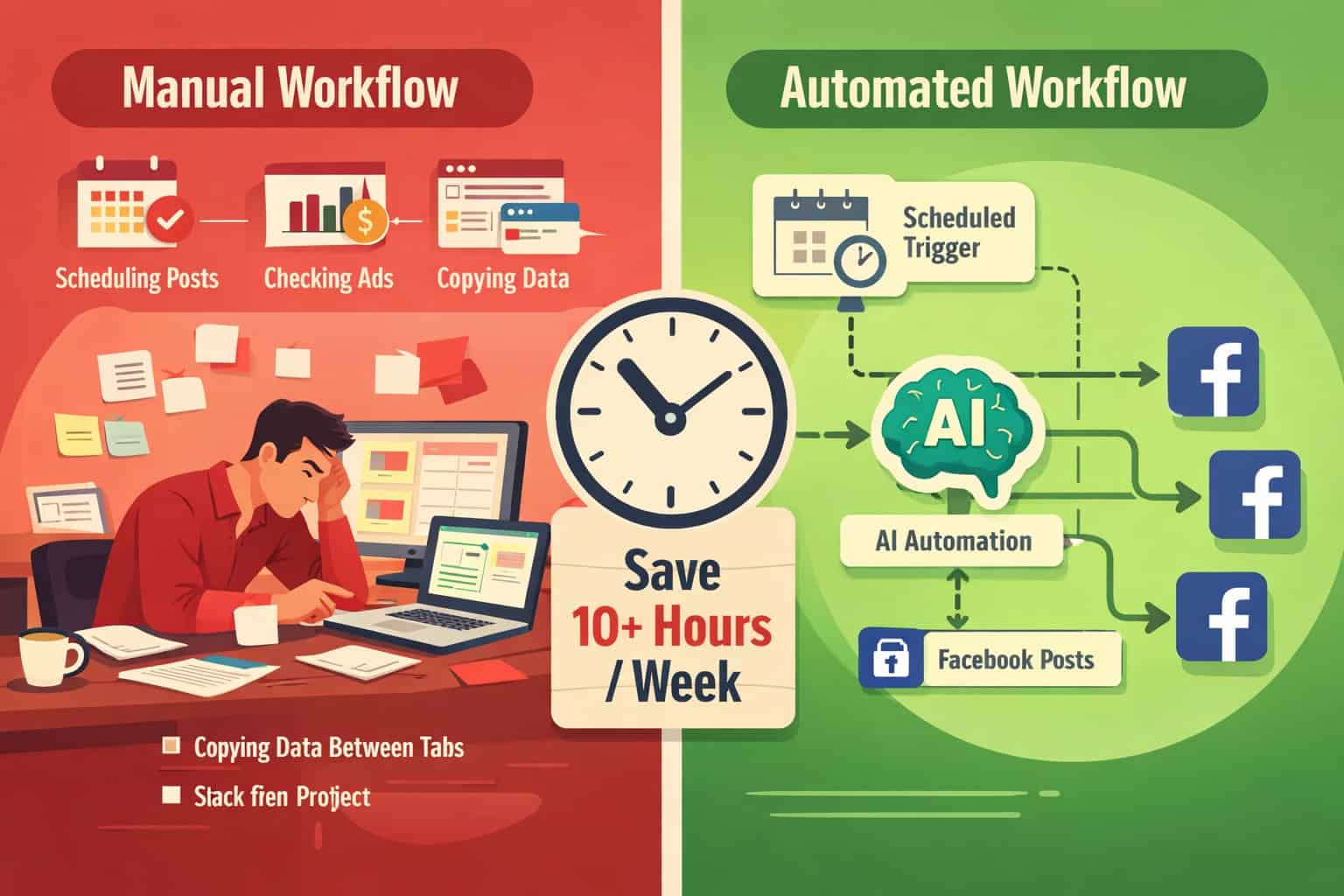
Most automation platforms treat Facebook as a one-way output: you push content and that’s it. N8N treats Facebook as a two-way data source. You can pull ad metrics, read page comments, trigger workflows from form submissions, and push results back to Slack, Google Sheets, or your CRM, all in one connected flow.
Who benefits most from this approach:
- Social media managers who publish to multiple Facebook Pages and want consistent scheduling without manual effort.
- Performance marketers who need automated ad reporting and budget alerts.
- Agencies managing 10+ client Facebook accounts who want to standardize their workflow.
- Developers and no-code builders who want flexibility beyond what tools like Buffer or Hootsuite offer.
Who it’s not ideal for: If you only manage one Facebook Page and post twice a week, the setup investment won’t pay off quickly. A simpler tool like Meta Business Suite’s built-in scheduler is enough.
How Does N8N Connect to Facebook’s Graph API?
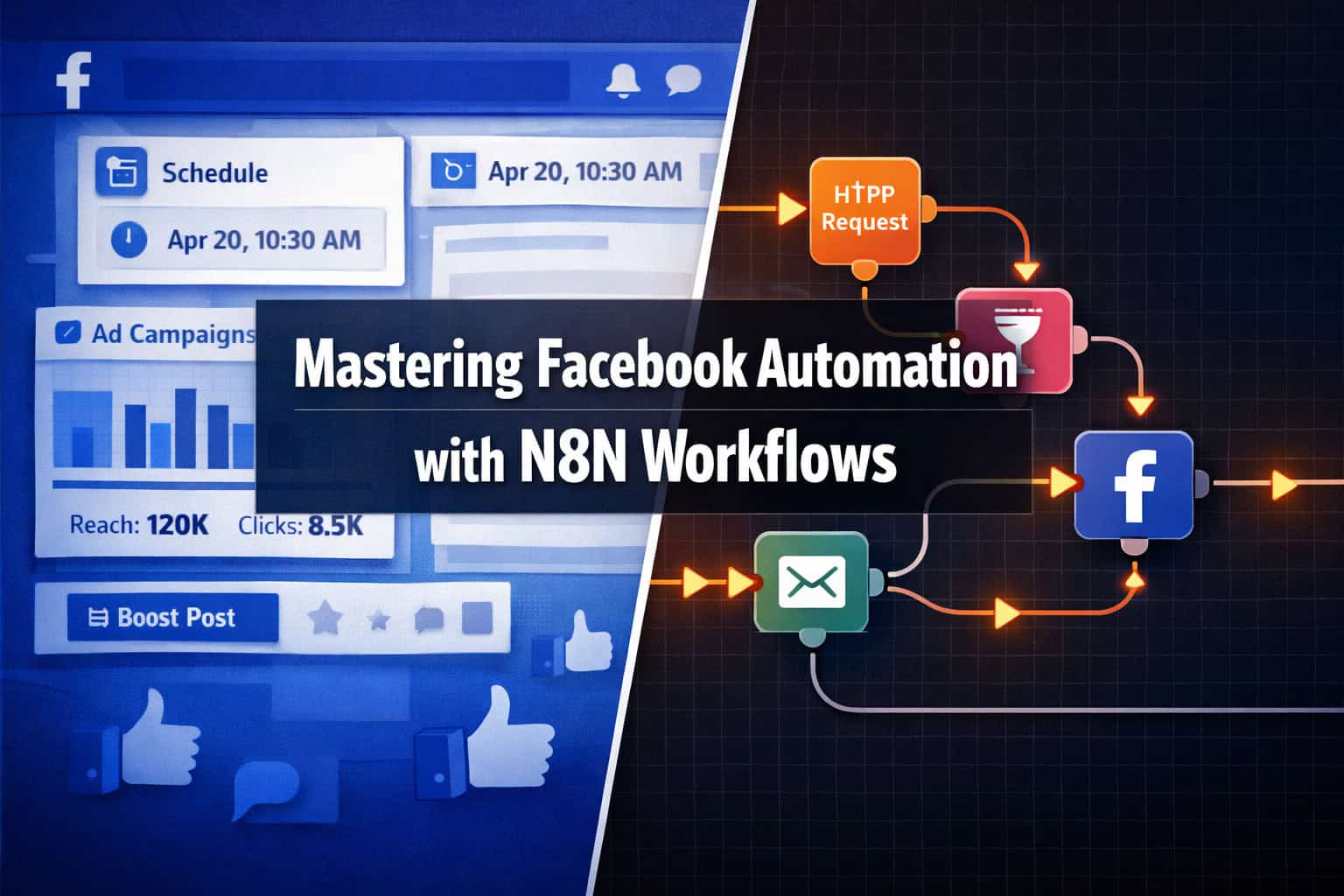
N8N connects to Facebook through its HTTP Request node, which calls the Facebook Graph API directly. You authenticate using a Facebook User Access Token or a Page Access Token, depending on what you need to automate.
Step-by-step: Setting up your first Facebook connection in N8N
- Create a Meta Developer App at developers.facebook.com and add the Pages API product.
- Generate a Page Access Token with the permissions you need (e.g.,
pages_manage_posts,pages_read_engagement,ads_read). - In N8N, add an HTTP Request node and set the method to
POSTorGET. - Set the URL to the relevant Graph API endpoint (e.g.,
https://graph.facebook.com/v19.0/{page-id}/feed). - Add your token as a query parameter (
access_token) or use N8N’s Credentials manager to store it securely. - Test the node with a simple GET request to confirm the connection works before building the full workflow.
⚠️ Common mistake: Short-lived tokens expire in about an hour. Always exchange them for long-lived Page Access Tokens (valid for 60 days) and build a token-refresh workflow to avoid broken automations.
N8N also has a native Facebook Graph node in some community versions, but the HTTP Request node gives you more control over API versions and custom fields.
What Facebook Tasks Can You Actually Automate with N8N?
The short answer: more than most people expect. N8N’s social media workflow library contains 551+ templates [6], and Facebook-specific use cases cover everything from content publishing to ad optimization.
Content and publishing automation:
- Schedule posts to Facebook Pages at specific times using the Schedule Trigger node [1].
- Auto-publish blog posts from WordPress to Facebook when new content goes live (see our guide on how to auto-share WordPress blog posts to social media).
- Pull content from an RSS feed or Google Sheet and post it on a rolling schedule.
- Generate AI-written captions using an LLM node, then route them for approval before publishing.
Lead and engagement automation:
- Sync Facebook Lead Ads submissions directly to your CRM or email list.
- Monitor page comments and trigger a Slack alert when specific keywords appear.
- Auto-reply to common questions using an AI agent connected to your knowledge base.
Advertising and analytics automation:
- Pull daily ad performance data (spend, CTR, ROAS) from the Ads Insights API into Google Sheets.
- Trigger budget pause alerts when CPA exceeds a defined threshold.
- Generate weekly performance reports and email them to clients automatically.
- Build AI-driven ad optimization workflows that analyze spend patterns and suggest bid adjustments [2].
How Do You Build a Facebook Post Scheduling Workflow in N8N?
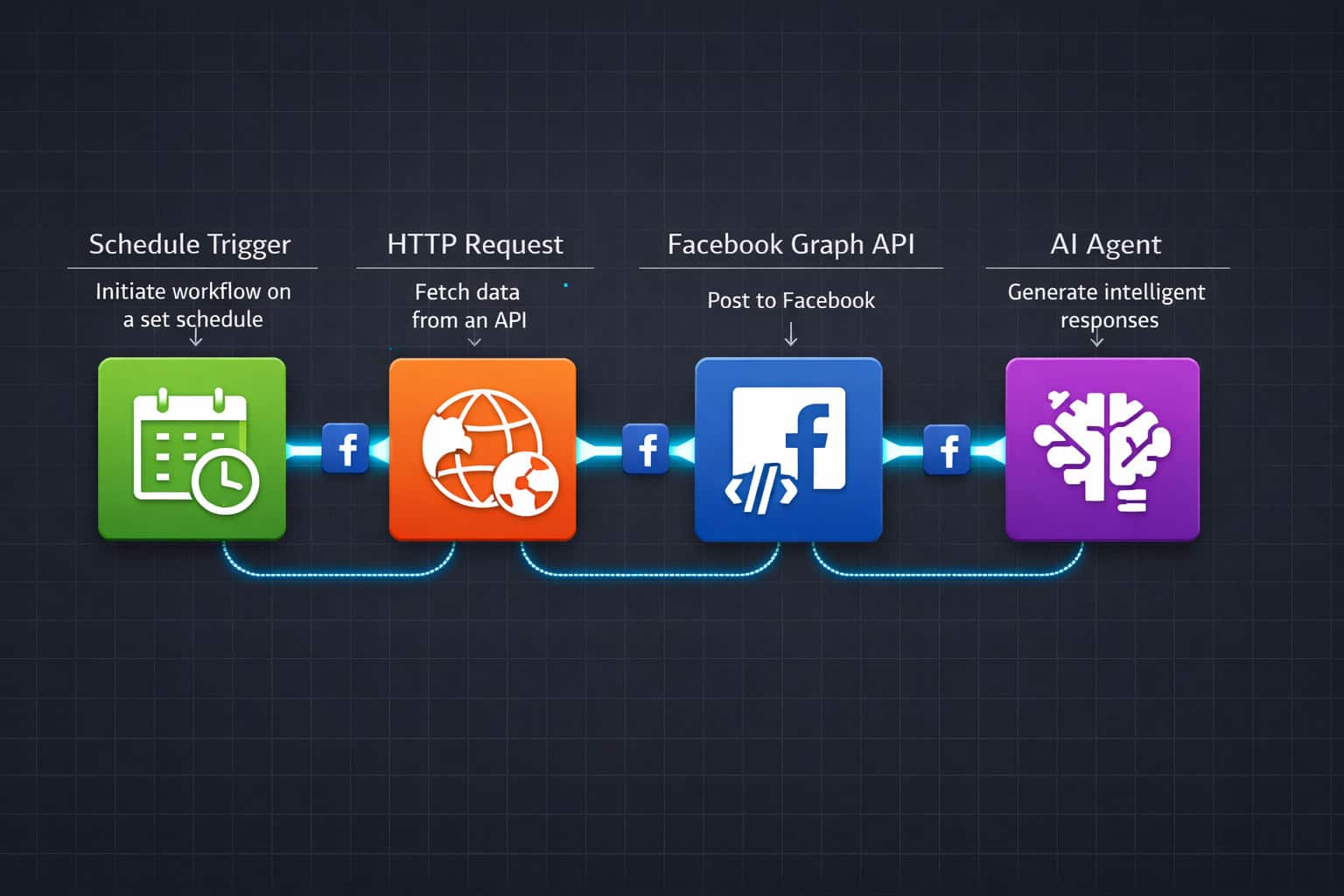
A Facebook post scheduling workflow in N8N uses a Schedule Trigger as the starting node, followed by a data source node, an optional AI content node, and an HTTP Request node that posts to the Facebook Graph API [1].
Basic workflow structure:
<code>Schedule Trigger → Google Sheets (get next post) → IF Node (check if post exists) → HTTP Request (post to Facebook) → Google Sheets (mark as posted)
</code>
Step-by-step build:
- Add a Schedule Trigger node. Set it to run daily at your preferred posting time (e.g., 9:00 AM).
- Connect a Google Sheets node. Pull the next unposted row from a content calendar spreadsheet.
- Add an IF node. Check that the row isn’t empty and the scheduled date matches today.
- Add an HTTP Request node. Configure it to POST to
https://graph.facebook.com/v19.0/{page-id}/feedwith the message and optional link fields. - Add a second Google Sheets node. Update the row’s status column to “Posted” so it doesn’t repeat.
- Add an Error Trigger node at the end to catch failures and send a Slack or email alert.
Pro tip: Add a Wait node between posts if you’re publishing to multiple pages in one run. Facebook’s API has rate limits, and spacing requests by 2-3 seconds prevents throttling errors.
How Can AI Agents Supercharge Your Facebook Automation?
N8N’s AI agent nodes let you embed Large Language Models directly into your automation workflows. This moves Facebook automation from simple scheduling into genuine decision-making territory [3].
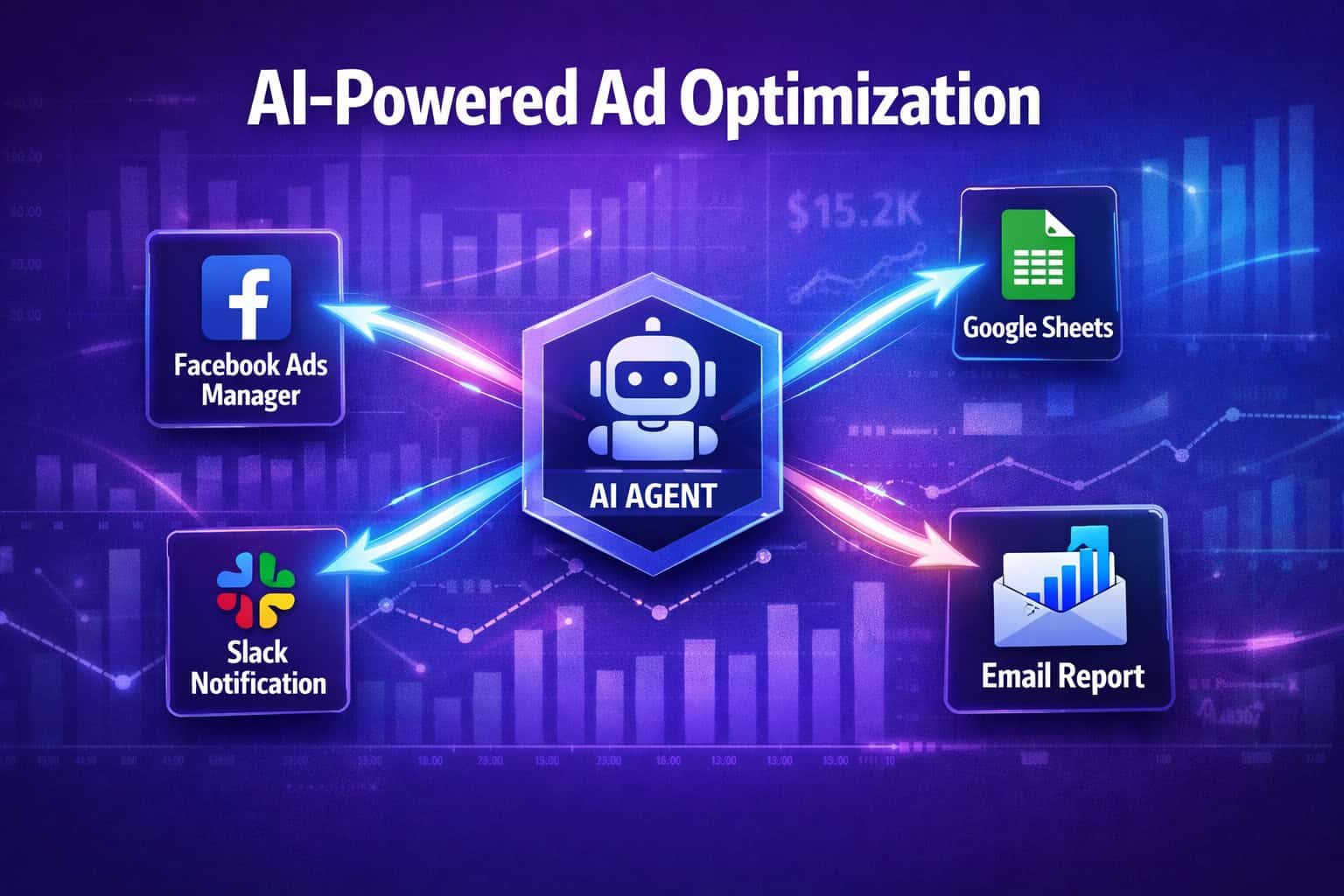
N8N officially supports AI agents that combine LLMs with goal-oriented task completion, meaning the agent can use tools, check conditions, and loop until it achieves a defined outcome. Supported LLM providers include OpenAI, DeepSeek, Google Gemini, Groq, and Azure [3].
Practical AI use cases for Facebook automation:
| Use Case | AI Node Role | Output |
|---|---|---|
| Caption generation | Write post copy from a topic or URL | Ready-to-post Facebook caption |
| Sentiment analysis | Classify incoming comments | Route negative comments to support |
| Ad copy testing | Generate 3-5 variations of ad text | A/B test inputs for Ads Manager |
| Performance summarization | Interpret raw metrics data | Plain-English weekly report |
| Content moderation | Flag policy-violating comments | Auto-hide or alert a moderator |
For teams already using AI tools in their content pipeline, check out this comprehensive guide to AI-powered content generation tools to see how N8N fits into a broader AI content stack.
One documented enterprise case study shows N8N being used for Facebook Ads automation at scale, with the workflow informed by analysis of $30M+ in ad spend data [2]. That’s not a typical starting point, but it shows the ceiling of what’s possible when you combine N8N’s workflow engine with AI decision-making.
You can also pair AI-generated social content with AI-powered content optimization practices to improve engagement rates before posts go live.
N8N vs. Other Facebook Automation Tools: Which Should You Choose?
N8N competes with Zapier, Make (formerly Integromat), and dedicated social media tools like Buffer and Hootsuite. Each has a different strength.
Comparison table:
| Feature | N8N | Zapier | Make | Buffer |
|---|---|---|---|---|
| Self-hosting option | ✅ Yes | ❌ No | ❌ No | ❌ No |
| Visual workflow editor | ✅ Yes | ✅ Yes | ✅ Yes | ❌ No |
| AI agent support | ✅ Native | ⚠️ Limited | ⚠️ Limited | ❌ No |
| Facebook Graph API access | ✅ Full | ⚠️ Partial | ⚠️ Partial | ⚠️ Partial |
| Pricing model | Per workflow run (self-hosted = free) | Per task | Per operation | Per seat |
| Learning curve | Medium-High | Low | Medium | Low |
| Pre-built social templates | 551+ [6] | Many | Many | Built-in |
Choose N8N if:
- You want full control over your data and prefer self-hosting.
- You need complex branching logic, loops, or AI agents in your Facebook workflows.
- You’re managing high-volume automation where per-task pricing on Zapier becomes expensive.
Choose Zapier or Make if:
- You need to get started in under an hour with minimal technical setup.
- Your Facebook automation needs are straightforward (e.g., post when a Google Sheet row is added).
Choose Buffer or Hootsuite if:
- Your primary need is content scheduling with a calendar UI, not data processing.
For teams building broader digital automation stacks, the Automation Archives on WebAiStack covers complementary tools and strategies worth exploring.
What Are the Most Common N8N Facebook Automation Mistakes?
Most N8N Facebook automation failures come from three predictable areas: authentication, rate limiting, and missing error handling.
Authentication mistakes:
- Using short-lived tokens without a refresh mechanism. Build a separate N8N workflow that refreshes your Page Access Token every 50 days and stores the new token in N8N’s credential vault.
- Requesting too many permissions during app review. Only request the scopes your workflow actually uses.
Rate limiting mistakes:
- Sending too many API calls in a short window. Facebook’s Graph API enforces rate limits per app and per user. Add Wait nodes between bulk requests.
- Not checking the API response for rate limit headers before continuing the workflow.
Error handling mistakes:
- Building workflows with no fallback. If a node fails, the workflow stops silently. Always add an Error Trigger workflow that sends a notification when something breaks.
- Not logging failed posts. Connect a Google Sheets or database node to record every API response, successful or not.
Data mapping mistakes:
- Passing unformatted text directly to the Facebook API. Some characters (like
&or") need to be encoded. Use N8N’s Set node or Function node to clean data before it hits the API.
How Do You Scale Facebook Automation Across Multiple Pages or Ad Accounts?
Scaling N8N Facebook automation to multiple pages or ad accounts requires a systematic approach to credential management and workflow architecture.
The core scaling pattern:
Instead of building one workflow per Facebook Page, build one master workflow that loops through a list of pages stored in a Google Sheet or database. Each loop iteration uses the page-specific token and page ID from that row.
Scaling checklist:
- Store all Page Access Tokens and Page IDs in a centralized Google Sheet or N8N’s credential store.
- Use a SplitInBatches node to process pages in groups of 5-10 to avoid API rate limits.
- Add page-specific logging so you can trace which page caused an error.
- Build a separate monitoring workflow that checks if all pages posted successfully each day.
- Use N8N’s Sub-workflow feature to keep the master workflow clean and reusable.
For agencies managing client social media, combining this approach with a solid content strategy is key. Our guide on mastering graphic design for social media marketing covers the creative side that feeds into these automated pipelines.
If you’re also automating content publishing from WordPress, the advanced WordPress strategies for power users guide covers how to connect your CMS to social automation workflows effectively.
Frequently Asked Questions
Q: Is N8N free to use for Facebook automation? N8N is free when self-hosted on your own server. The cloud version (n8n.cloud) has a paid plan starting at around $20/month. For most small teams, self-hosting on a $5-10/month VPS covers all Facebook automation needs at no software cost.
Q: Do I need to know how to code to use N8N for Facebook? No, but basic familiarity with APIs helps. The visual node editor handles most logic without code. You’ll need to understand how to read a JSON response from the Facebook Graph API, but you don’t need to write scripts from scratch.
Q: Can N8N post to Facebook Groups, not just Pages?
Facebook’s Graph API significantly restricted Group posting permissions after 2018. As of 2026, automated posting to Groups requires the publish_to_groups permission, which Meta only grants to approved apps. Page automation has no such restriction.
Q: How many Facebook Pages can one N8N workflow handle? There’s no hard limit set by N8N itself. Practically, a single workflow can loop through as many pages as you have tokens for. Use the SplitInBatches node to process them in groups and avoid hitting Facebook’s rate limits.
Q: What happens if the Facebook API changes and breaks my workflow?
N8N workflows break when API endpoints or response structures change. Mitigate this by logging all API responses, setting up error trigger notifications, and checking Meta’s API changelog quarterly. Most Graph API changes are versioned, so pinning your endpoint to a specific version (e.g., v19.0) buys time before migration is needed.
Q: Can N8N automate Facebook Ads creation, not just reporting? Yes. The Facebook Marketing API allows ad creation, audience definition, and campaign management via API calls. N8N can automate these through HTTP Request nodes. This is advanced territory and requires careful testing to avoid unintended ad spend.
Q: Is it safe to store Facebook tokens in N8N? N8N’s self-hosted version encrypts credentials at rest. On the cloud version, credentials are encrypted and isolated per workspace. Never store tokens in plain text inside workflow nodes — always use N8N’s Credentials manager.
Q: What’s the best way to handle Facebook API rate limits in N8N?
Add a Wait node (set to 2-3 seconds) between API calls in loops. For bulk operations, use the SplitInBatches node with a batch size of 5-10. Monitor the X-App-Usage header in API responses to track how close you are to the limit.
Q: Can I use N8N to automate Facebook Messenger responses? Yes, through the Messenger Platform API. You’ll need a Facebook App with Messenger permissions and a webhook configured to receive incoming messages. N8N can receive the webhook, process the message with an AI node, and send a reply via HTTP Request.
Q: Where can I find pre-built N8N templates for Facebook? N8N’s official workflow library at n8n.io/workflows has 551+ social media templates [6], including Facebook-specific ones. Filter by “Facebook” or “Social Media” to find relevant starting points.
Conclusion
Mastering Facebook Automation: A Comprehensive Guide to N8N Workflows comes down to three fundamentals: understanding the Facebook Graph API, building reliable workflow architecture with proper error handling, and layering in AI where it genuinely adds value.
Start small. Build a single post scheduling workflow, get it running reliably for two weeks, then add complexity. The most common failure mode isn’t technical — it’s building a 15-node workflow on day one and abandoning it when one node breaks.
Your actionable next steps:
- Set up N8N (self-hosted on a VPS or via n8n.cloud) and complete the official AI intro tutorial [3].
- Create a Meta Developer App and generate your first long-lived Page Access Token.
- Start with one template from the N8N social media library [6] — the post scheduling workflow is the best entry point.
- Add an Error Trigger workflow before you go live so failures don’t go unnoticed.
- Explore AI integration once your basic workflow is stable — even a simple caption-generation node saves significant time at scale.
- Review your workflows monthly and check Meta’s API changelog for deprecations.
For teams managing social media alongside broader digital operations, combining N8N automation with a solid content strategy and the right supporting tools makes the whole system more effective. Explore the Social Media Archives on WebAiStack for complementary guides on social content strategy, and the Automation Archives for N8N use cases beyond Facebook.
References
[1] Watch – https://www.youtube.com/watch?v=lZ-OiJHAdd8 [2] Watch – https://www.youtube.com/watch?v=w17IgB9nPNE [3] Intro Tutorial – https://docs.n8n.io/advanced-ai/intro-tutorial/ [6] Social Media – https://n8n.io/workflows/categories/social-media/