
Last updated: June 14, 2026
Quick Answer: Claude Desktop is a free downloadable app from Anthropic that runs on macOS 11 or higher and Windows 10 or higher. You can download it at claude.ai/download, install it in under five minutes, and sign in with a free or paid Anthropic account to start using AI directly on your computer.
Key Takeaways
- Claude Desktop is free to download; advanced features require a paid plan (Pro, Max, Team, or Enterprise)
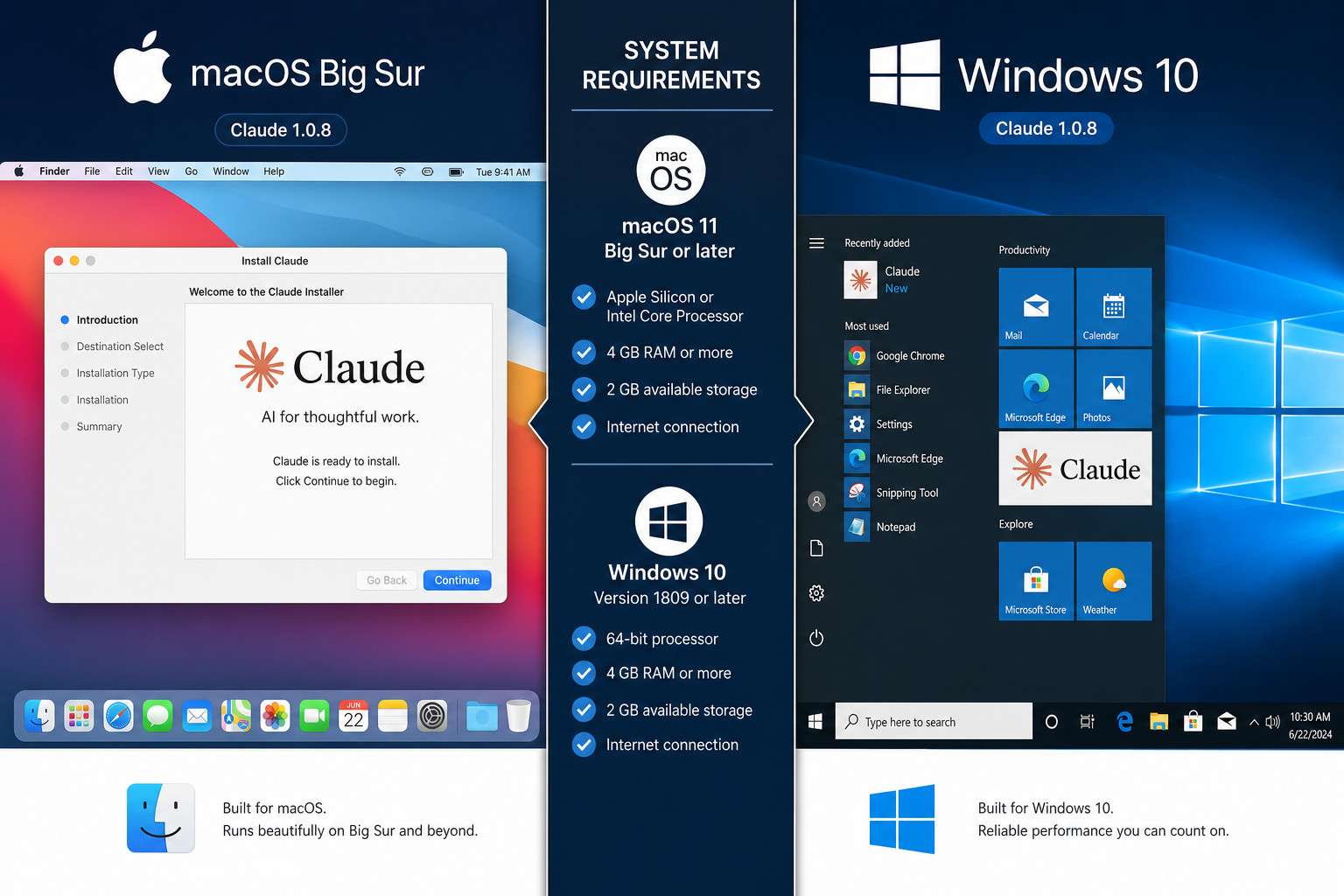
- Compatible with macOS 11 (Big Sur) or higher and Windows 10 or higher
- Installation takes fewer than five minutes on both Mac and Windows
- The desktop app offers features the web version does not, including parallel agents, local file access, and direct PC automation
- Claude Desktop cannot work fully offline; an internet connection is required for AI responses
- Extensions let you connect Claude to your calendar, email, local files, and apps like Spotify and Uber
- Common install problems are usually solved by checking OS version, restarting the installer, or clearing the download cache
- Claude Desktop is safe to download directly from claude.ai/download; avoid third-party mirrors
Is Claude Desktop Free, or Do You Have to Pay?
Claude Desktop is free to download and free to use at a basic level. You only need a free Anthropic account to get started. Paid plans unlock higher usage limits and advanced features.
Here is how the pricing tiers break down:
| Plan | Cost (est.) | What You Get |
|---|---|---|
| Free | $0/month | Standard Claude access, limited messages |
| Pro | ~$20/month | Higher limits, priority access |
| Max | ~$100/month | Highest limits, extended context |
| Team / Enterprise | Custom | Shared workspaces, admin controls |
Choose the free plan if you are testing Claude for the first time or have light, occasional needs. Choose Pro or above if you use Claude daily for writing, coding, or research and hit the free message cap regularly.
Claude Cowork, which lets you delegate complex multi-step tasks through a visual interface without a terminal, is available only on paid plans (Pro, Max, Team, Enterprise). [1]
What Computers Can Run Claude Desktop, and What Are the System Requirements?
Claude Desktop runs on macOS 11 (Big Sur) or higher and Windows 10 or higher. [1] There is no official Linux desktop client as of June 2026, though Linux users can access Claude through the web browser.
Minimum requirements:
- macOS: Version 11 (Big Sur) or later; Apple Silicon and Intel both supported
- Windows: Windows 10 or later (64-bit recommended)
- RAM: 4 GB minimum; 8 GB or more recommended for smooth performance
- Storage: Approximately 200 MB free space for the app itself
- Internet: Broadband connection required (see the offline section below)
Common mistake: Users on older Macs running macOS Catalina (10.15) or earlier find the installer fails silently. Always check your OS version in System Settings before downloading.
How Do I Install Claude on Windows vs. Mac: Step-by-Step Installation Guide for Beginners
Installing Claude Desktop is straightforward on both platforms. The process takes under five minutes once the file downloads. Here is the full walkthrough for each operating system. [1]
On macOS:
- Go to claude.ai/download in your browser
- Click the macOS download button; a .dmg file will save to your Downloads folder
- Open the .dmg file and drag the Claude icon into your Applications folder
- Launch Claude from Applications or Spotlight search
- Sign in with your Anthropic account (or create one free)
On Windows:
- Go to claude.ai/download
- Click the Windows download button; an .exe installer will download
- Double-click the .exe file and follow the on-screen prompts
- Once installed, Claude appears in your Start menu
- Launch the app and sign in with your Anthropic account
Edge case: On macOS, you may see a security prompt saying the app is from an “unidentified developer.” Go to System Settings > Privacy & Security and click “Open Anyway.” This is normal for apps downloaded outside the Mac App Store.
If you enjoy building automated workflows around tools like Claude, our guides on n8n automation mastery and email productivity with n8n show how to connect AI tools to your existing systems.
What Is the Difference Between Claude Web and the Desktop Version?
The web version at claude.ai and the desktop app use the same underlying AI model, but the desktop version has capabilities the browser cannot match.
Key differences:
- Local file access: The desktop app can read files directly from your computer through verified extensions; the web version cannot
- Parallel agents: As of April 2026, the redesigned desktop app supports running multiple Claude Code tasks simultaneously, with a new sidebar for managing sessions [2]
- Direct PC automation: Claude Desktop (macOS research preview, March 2026) can open files, browse the web, and use developer tools autonomously on your machine [3]
- Integrated terminal and file editor: The desktop app includes these built in; the web version does not [2]
- Extensions: The desktop app supports installable extensions for iMessage, calendar, email, and filesystem access [1]
The web version is fine for quick questions and writing tasks. The desktop app is the better choice for developers, researchers, and anyone who wants Claude to interact with local files or run agentic tasks.
For a broader look at what AI tools can do for content and productivity, see our comprehensive guide to AI-powered content generation tools.
Can Claude Desktop Work Offline?
No. Claude Desktop requires an active internet connection to generate responses. The app itself installs locally, but all AI processing happens on Anthropic’s servers.
This means:
- You need broadband or a reliable mobile hotspot to use Claude
- Slow or unstable connections cause delayed or dropped responses
- There is no offline mode or cached AI capability as of June 2026
What kind of internet connection do you need? A standard broadband connection (10 Mbps or faster) is sufficient for text-based tasks. If you are using Claude for large file uploads or agentic tasks that browse the web on your behalf, faster speeds (25 Mbps+) will reduce wait times noticeably.
Is Claude Desktop Safe to Download?
Yes, Claude Desktop is safe when downloaded directly from claude.ai/download. Anthropic is a well-funded AI safety company, and the official installer is signed and verified. [1]
Safety checklist before you install:
- Download only from claude.ai/download (the official source)
- Avoid third-party download sites or torrent mirrors
- Verify the file name matches what Anthropic lists on the download page
- On Windows, check that the installer publisher shows “Anthropic” in the UAC prompt
Extensions within the app are also verified before they appear in the extension browser, which reduces the risk of connecting to malicious third-party services. [1]
Common Installation Problems and How to Fix Them
Most Claude Desktop install issues fall into a few predictable categories. Here are the most common ones and their fixes.
Problem: Installer fails or crashes immediately Fix: Check that your OS meets the minimum version (macOS 11 / Windows 10). If it does, delete the downloaded file, clear your browser cache, and re-download.
Problem: “App is damaged and can’t be opened” on Mac
Fix: Open Terminal and run xattr -cr /Applications/Claude.app, then try launching again. This clears quarantine flags.
Problem: Claude won’t sign in after install Fix: Check your internet connection. If connected, try signing in through a browser at claude.ai first, then reopen the desktop app.
Problem: App installs but shows a blank white screen Fix: Quit the app, restart your computer, and relaunch. If the problem persists, uninstall and reinstall from a fresh download.
Problem: Extensions not appearing Fix: Make sure you are signed in to a paid plan. Some extensions require Pro or above.
If you run into persistent issues, Anthropic’s support documentation at support.claude.ai is the most reliable resource.
Which Claude Version Should You Choose for Your Work?
As of June 2026, Anthropic offers several Claude model versions within the app, including Claude 3.5 Sonnet, Claude 3 Opus, and newer releases. The right choice depends on your task type.
- Claude 3.5 Sonnet: Best balance of speed and quality; ideal for writing, summarizing, and everyday tasks
- Claude 3 Opus: Stronger on complex reasoning and nuanced analysis; slower and available on higher-tier plans
- Claude for coding: The integrated Claude Code feature in the desktop app is purpose-built for software development tasks
Decision rule: Choose Sonnet for speed and general use. Choose Opus when you need deep analysis, long-form reasoning, or are working on a high-stakes document. For coding projects, use Claude Code through the desktop app’s integrated terminal. [2]
For developers who want to explore Claude’s capabilities alongside other coding environments, our guide to Replit Python covers complementary online coding tools.
Can I Use Claude Desktop for Coding and Research?
Yes, and this is one of the strongest use cases for the desktop version specifically. Claude Desktop includes Claude Code, which can write, edit, debug, and explain code directly in an integrated environment. [2]
For coding:
- Write and review code in multiple languages
- Use the integrated terminal to run commands without switching apps
- Run parallel Claude Code agents to tackle multiple parts of a project at once [2]
- As of March 2026, Claude can take direct control of your Mac to open files, run browser searches, and use developer tools autonomously [3]
For research:
- Connect to local documents through filesystem extensions
- Summarize PDFs, reports, and long-form content
- Use Claude Connectors (announced April 2026) to pull data from apps like TurboTax, Booking.com, and more [4]
For more on how AI fits into research and content workflows, see our article on AI-powered content optimization.
Alternatives to Claude Desktop If You Have Trouble Installing
If Claude Desktop will not install on your machine, you have several solid alternatives.
Browser-based Claude: Visit claude.ai in any modern browser. You get the same AI model without installing anything. This works on Linux, older Macs, and Chromebooks.
Claude API: Developers can access Claude programmatically through Anthropic’s API. See our AI API guide resources for context on how API access works across AI platforms.
Other AI desktop tools:
- ChatGPT desktop app (OpenAI) – available for Mac and Windows
- Gemini (Google) – browser-based with some desktop integration
- Copilot (Microsoft) – built into Windows 11
For a broader comparison of AI tools available in 2026, our guide to 45 must-visit AI websites covers the current landscape well.
Choose the browser version if your OS is below the minimum requirement or if you only need occasional access. Choose an alternative AI tool if you need a feature Claude specifically lacks, such as image generation or real-time voice.

FAQ
Q: Where do I download Claude Desktop? Go to claude.ai/download. Select macOS or Windows, download the installer, and follow the setup steps. Always use this official URL to avoid unofficial versions.
Q: Does Claude Desktop work on Linux? Not officially as of June 2026. Linux users should access Claude through the web browser at claude.ai.
Q: Can I use Claude Desktop without creating an account? No. You need a free Anthropic account to sign in and use the app after installation.
Q: How much storage does Claude Desktop use? The app itself uses approximately 200 MB. Local files you connect through extensions remain on your drive and are not uploaded unless you explicitly share them in a conversation.
Q: Is Claude Desktop the same as Claude.ai? They use the same AI models, but the desktop app has additional features: local file extensions, parallel agents, an integrated terminal, and direct PC automation (macOS preview). The web version does not have these.
Q: Can I run Claude Desktop on an older Mac with an Intel chip? Yes, as long as your Mac runs macOS 11 (Big Sur) or higher. Both Intel and Apple Silicon Macs are supported.
Q: What happens to my conversations if I uninstall Claude Desktop? Your conversation history is stored in your Anthropic account, not locally. Reinstalling and signing back in restores your history.
Q: Does Claude Desktop support multiple user accounts? Not simultaneously. You can sign out and sign in with a different account, but the app does not support multiple active profiles at once.
Q: Can I use Claude Desktop for free indefinitely? Yes, the free tier has no time limit. You will hit daily or monthly message caps, but the app itself remains free to use.
Q: What is Claude Cowork? Claude Cowork is a visual interface within Claude Desktop that lets paid plan users delegate complex, multi-step tasks to Claude Code agents without using a terminal. [1]
Q: Are Claude Desktop extensions safe? Extensions listed in the app’s extension browser are verified by Anthropic before appearing. Stick to the in-app browser rather than installing extensions from external sources. [1]
Q: How often does Claude Desktop update? The app updates automatically in the background. Major feature releases (like the parallel agents update in April 2026) are announced on Anthropic’s blog. [2]
Conclusion
Getting Claude Desktop running on your computer is genuinely quick: download from claude.ai/download, run the installer, sign in, and you are ready. The free tier is a reasonable starting point, and upgrading to Pro makes sense if you hit the message cap regularly or want access to Cowork and higher-usage features.
Actionable next steps:
- Check your OS version first (macOS 11+ or Windows 10+)
- Download the installer from the official URL only
- Start with the free plan and evaluate whether the usage limits fit your workflow
- Explore extensions in the app to connect Claude to your local files, calendar, or email
- If you are a developer, try Claude Code through the integrated terminal for coding tasks
For anyone building AI into a broader workflow, pairing Claude Desktop with automation tools can multiply its usefulness. Our guides on n8n workflow automation and AI agent workflows are good places to explore next.
References
[1] Installing Claude For Desktop – https://support.claude.com/en/articles/10065433-installing-claude-for-desktop?utm_source=openai
[2] Anthropic Redesigns Claude App On Desktop For Parallel Agents – https://www.thurrott.com/a-i/anthropic/334911/anthropic-redesigns-claude-app-on-desktop-for-parallel-agents?utm_source=openai
[3] Claude Code Can Now Take Over Your Computer To Complete Tasks – https://arstechnica.com/ai/2026/03/claude-code-can-now-take-over-your-computer-to-complete-tasks/?utm_source=openai
[4] Claude Now Connects To More Everyday Apps Heres What You Can Do Now – https://www.tomsguide.com/ai/claude-now-connects-to-more-everyday-apps-heres-what-you-can-do-now?utm_source=openai