Last updated: May 9, 2026
Quick Answer: Zapier connects over 9,000 apps and lets you build automated workflows (called Zaps) that move data and trigger actions between tools without writing code. The 10 workflows covered in this guide address the most common productivity bottlenecks across sales, marketing, content, and operations, and most can be set up in under 30 minutes.
Key Takeaways
- Zapier uses Triggers and Actions as the core building blocks of every automated workflow [1]
- Over 3 million businesses rely on Zapier to automate repetitive tasks across apps [4]
- The best place to start is mapping your manual processes on paper before touching the Zapier builder [2]
- Most high-impact Zaps connect just 2–3 apps and solve one specific pain point
- Free and paid plans are available; complex multi-step Zaps require a paid tier
- Team-wide adoption matters: automation works best when everyone on the team can build and maintain Zaps [1]
- Filters and Paths inside Zaps let you add logic so automations only run when conditions are met
- Zapier’s built-in AI tools (as of 2026) can help draft Zap descriptions and suggest next steps
What Is Zapier Automation and Why Does It Matter?
Zapier is a no-code automation platform that connects apps and moves information between them automatically. When a specific event happens in one app (the Trigger), Zapier performs one or more actions in other apps without any manual input from you [1].
For anyone spending hours each week on repetitive tasks like copying form responses into a spreadsheet, sending follow-up emails, or posting content across platforms, Zapier automation mastery is a practical skill worth developing. The platform’s 9,000+ integrations mean it works with almost every tool a modern team uses [4].
Who it’s for: Freelancers, small business owners, marketers, operations managers, and developers who want to reduce manual work without hiring a developer.
Who it’s NOT for: Teams with highly complex, conditional business logic that requires custom API development or real-time data syncing at enterprise scale.
How Do Zapier Workflows (Zaps) Actually Work?
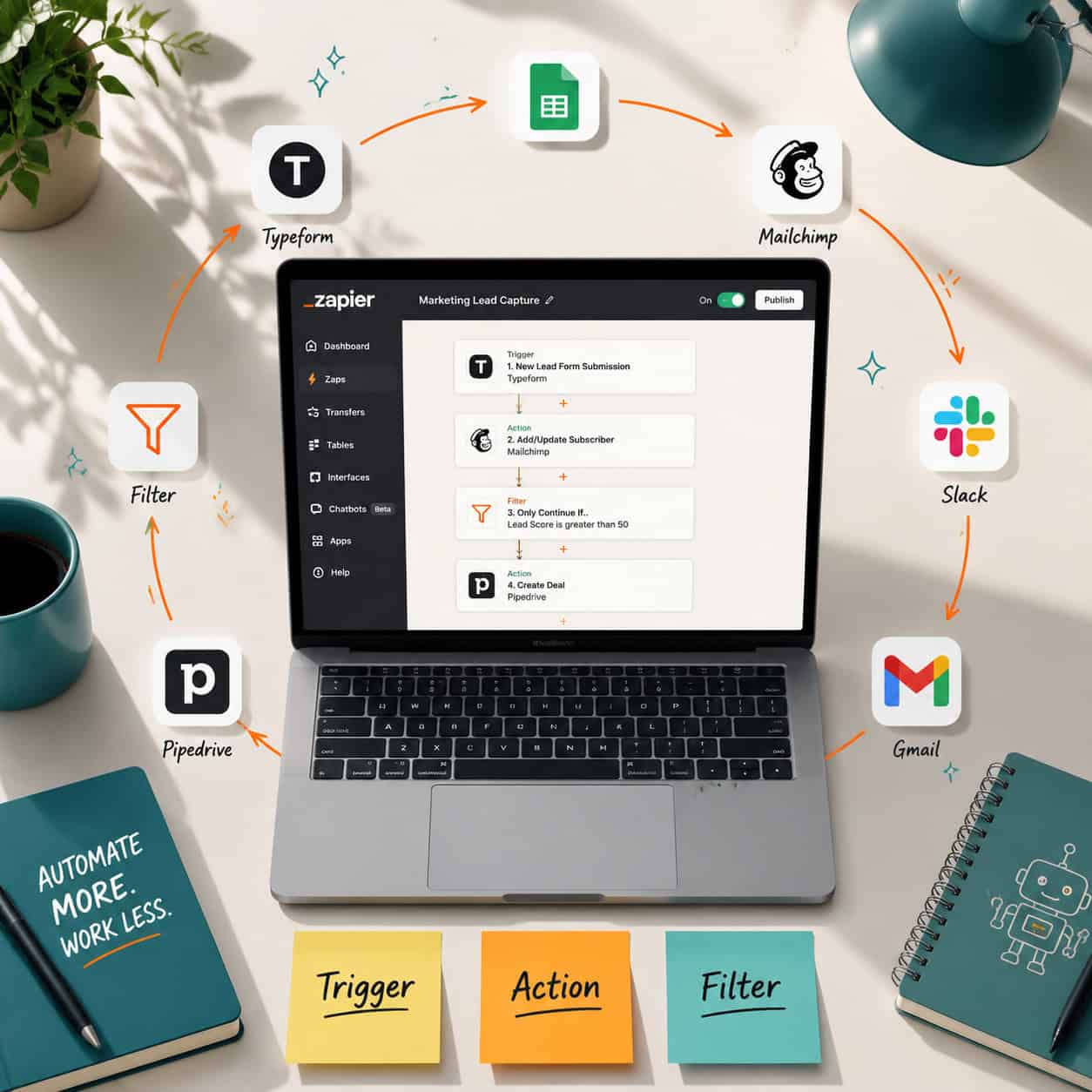
Every Zap has two essential parts: a Trigger and at least one Action [1].
- Trigger: The event that starts the Zap. Example: a new row added to a Google Sheet.
- Action: What Zapier does in response. Example: send a Slack message with that row’s data.
- Multi-step Zaps: Chain multiple actions after a single trigger (requires a paid plan).
- Filters: Tell Zapier to only continue if certain conditions are met.
- Paths: Branch the workflow so different actions happen based on different conditions.
Common mistake: Skipping the planning phase. Zapier recommends writing down your entire workflow step-by-step before building it, noting which apps are involved and exactly where human input currently happens [2]. Jumping straight into the builder without this map leads to broken Zaps.
Zapier Automation Mastery: 10 Genius Workflows to Supercharge Your Productivity
Here are 10 high-impact Zaps organized by use case. Each one solves a real, recurring problem.
1. 📋 Capture Leads from Any Form Directly into Your CRM
Trigger: New form submission (Typeform, Google Forms, or Jotform)
Action: Create a contact in your CRM (HubSpot, Salesforce, or Pipedrive)
Without automation, form responses sit in an inbox until someone manually copies them over. This Zap eliminates that lag entirely. Add a second action to send a welcome email via Gmail or Mailchimp the moment the lead arrives.
2. 📊 Auto-Log New Sales to a Google Sheet Dashboard
Trigger: New deal closed in your CRM
Action: Add a row to Google Sheets
This keeps your revenue tracking current without anyone touching the spreadsheet. Add a Slack notification as a third step so the whole team sees the win in real time.
3. 📣 Cross-Post Blog Content to Social Media Automatically
Trigger: New post published on WordPress or RSS feed
Action: Create a post on LinkedIn, Twitter/X, or Facebook Pages
If you’re already publishing blog content, this Zap handles distribution. For more detail on connecting WordPress to social platforms, see this guide on how to auto-share WordPress blog posts to social media.
4. 🗂️ Save Email Attachments Directly to Google Drive
Trigger: New email with attachment in Gmail (filtered by label or sender)
Action: Upload file to a specific Google Drive folder
This is one of the most underrated time-savers. Use a Gmail filter label to make sure only relevant attachments (invoices, contracts, reports) trigger the Zap.
5. 🔔 Get Slack Alerts for Critical App Events
Trigger: Any significant event (failed payment in Stripe, new support ticket in Zendesk, form error)
Action: Send a Slack message to a specific channel
Choose X if: your team lives in Slack and needs real-time awareness of operational issues without checking multiple dashboards.
6. 🧾 Create and Send Invoices When a Project Is Marked Complete
Trigger: Task or project status changed to “Complete” in Asana, Trello, or ClickUp
Action: Create a draft invoice in QuickBooks or FreshBooks and email it to the client
This closes the gap between delivery and billing, which is a common revenue delay for freelancers and agencies.
7. 📅 Add Calendar Events from Starred Emails or Form Bookings
Trigger: Email starred in Gmail OR new booking in Calendly
Action: Create a Google Calendar event with all relevant details
Manually creating calendar events from emails wastes more time than most people realize. This Zap handles it in seconds.
8. 🤖 Route Support Tickets by Keyword to the Right Team Member
Trigger: New ticket in Zendesk or Help Scout
Action: Use Zapier’s Paths feature to assign tickets based on keywords (billing, technical, general) to different team members or Slack channels
This is an intermediate-level Zap that requires the Paths feature (paid plan), but it dramatically reduces response time for customers.
9. 📬 Nurture New Email Subscribers with a Drip Sequence
Trigger: New subscriber added to Mailchimp or ConvertKit list
Action: Add them to a specific email sequence, tag them in your CRM, and log the event in Google Sheets
Combine this with AI-powered content optimization to make sure your drip emails are performing well before you automate their delivery.
10. 🔁 Sync Data Between Two Project Management Tools
Trigger: New task created in Asana
Action: Create a matching task in Trello (or vice versa)
Useful for teams that use different tools but need visibility across both. Add a filter so only tasks with a specific tag or priority level trigger the sync.
How to Build Your First Zap: A Step-by-Step Checklist
| Step | What to Do |
|---|---|
| 1 | Write down the manual process you want to automate |
| 2 | Identify the trigger app and the exact triggering event |
| 3 | Identify the action app and what should happen |
| 4 | Connect both apps in Zapier and authenticate your accounts |
| 5 | Map the data fields from trigger to action |
| 6 | Add filters or conditions if needed |
| 7 | Test the Zap with real or sample data |
| 8 | Turn it on and monitor the first 5–10 runs |
Pro tip: Name your Zaps clearly, for example “Typeform → HubSpot → Gmail Welcome” so anyone on your team can understand what it does at a glance [1].
What Are the Most Common Zapier Mistakes to Avoid?
Even experienced users run into these issues:
- Not testing with real data. Sample data in Zapier doesn’t always reflect edge cases. Run a live test before fully enabling a Zap.
- Forgetting to add error notifications. If a Zap fails silently, you may not notice for days. Enable Zapier’s email alerts for task errors.
- Over-engineering the first Zap. Start with a simple two-step Zap. Add complexity only after the basic version works reliably.
- Relying on one person to manage all automations. Zapier recommends training the whole team so automations don’t become a single point of failure [1].
For teams building broader digital workflows, check out the automation resources at WebAiStack for complementary strategies.
How Does Zapier Compare to Alternatives?
| Feature | Zapier | Make (formerly Integromat) | n8n |
|---|---|---|---|
| App integrations | 9,000+ | 1,500+ | 400+ |
| Ease of use | Very easy | Moderate | Technical |
| Free plan | Yes (limited) | Yes (limited) | Yes (self-hosted) |
| Multi-step Zaps | Paid plan | Free plan | Free |
| Best for | Non-technical teams | Visual logic builders | Developers |
Choose Zapier if your team is non-technical, you need broad app coverage, and you want to get automations running quickly. Choose Make if you need complex branching logic at a lower price point. Choose n8n if you’re comfortable self-hosting and want full control.

How Do You Scale Zapier Automation Across a Team?
Scaling Zapier automation mastery beyond one person requires a system, not just individual Zaps.
- Create a shared Zapier workspace so all team automations are visible to everyone.
- Document each Zap with a short description of what it does, who owns it, and when it was last tested.
- Run a monthly Zap audit to disable unused automations and fix broken ones.
- Train team members to build their own Zaps for their specific workflows [1].
- Use Zapier Tables and Interfaces (available on paid plans) to build lightweight internal tools on top of your automations.
If your team also manages WordPress sites, pairing Zapier with AI plugins for WordPress automation can further reduce manual content management tasks.
Conclusion: Your Next Steps Toward Zapier Automation Mastery
Zapier automation mastery isn’t about building the most complex workflow possible. It’s about identifying the tasks that drain your time every week and replacing them with reliable, tested automations. Start with one of the 10 workflows above that matches your biggest current pain point.
Actionable next steps:
- Pick one manual process you repeat at least three times a week.
- Write it down step-by-step, noting every app involved.
- Build a simple two-step Zap to handle it.
- Test it, turn it on, and monitor for one week.
- Once it’s stable, move to the next workflow on your list.
For teams managing content and digital assets alongside automation, combining Zapier with tools covered in our guide to AI-powered content generation creates a genuinely efficient production system.
The hours you save this month are the hours you invest in work that actually requires your judgment.
FAQ
Q: Is Zapier free to use?
Zapier offers a free plan that supports single-step Zaps and a limited number of tasks per month. Multi-step Zaps, Filters, and Paths require a paid plan starting at around $19.99/month (billed annually as of 2026).
Q: Do I need coding skills to use Zapier?
No. Zapier is built for non-technical users. You connect apps through a visual interface and map data fields using dropdown menus.
Q: How many Zaps can I run at once?
There’s no hard limit on the number of active Zaps, but each plan has a monthly task limit. A “task” is one action completed by a Zap.
Q: What happens if a Zap fails?
Zapier logs the error and can send you an email alert. You can replay failed tasks from the Zapier dashboard once the issue is fixed.
Q: Can Zapier handle two-way sync between apps?
Basic two-way sync is possible but requires careful setup to avoid infinite loops. For true bidirectional sync, tools like Unito are often a better fit.
Q: How long does it take to set up a Zap?
A simple two-step Zap typically takes 10–20 minutes to build and test. More complex multi-step Zaps with filters and paths can take 1–2 hours.
Q: Is my data safe with Zapier?
Zapier is SOC 2 Type II compliant and uses encryption in transit and at rest. For highly sensitive data, review Zapier’s data retention policies before connecting regulated systems.
Q: Can Zapier work with AI tools?
Yes. Zapier integrates with OpenAI, Anthropic, and other AI platforms, letting you add AI-generated text, summaries, or classifications as steps inside a Zap.
Zapier resources: Zapier App Directory and Zapier Community.
References
[1] How To Become A Master Automator – https://zapier.com/blog/how-to-become-a-master-automator/
[2] Workflow Automation – https://zapier.com/blog/workflow-automation/
[4] Zapier – https://zapier.com